
Choose the processing method
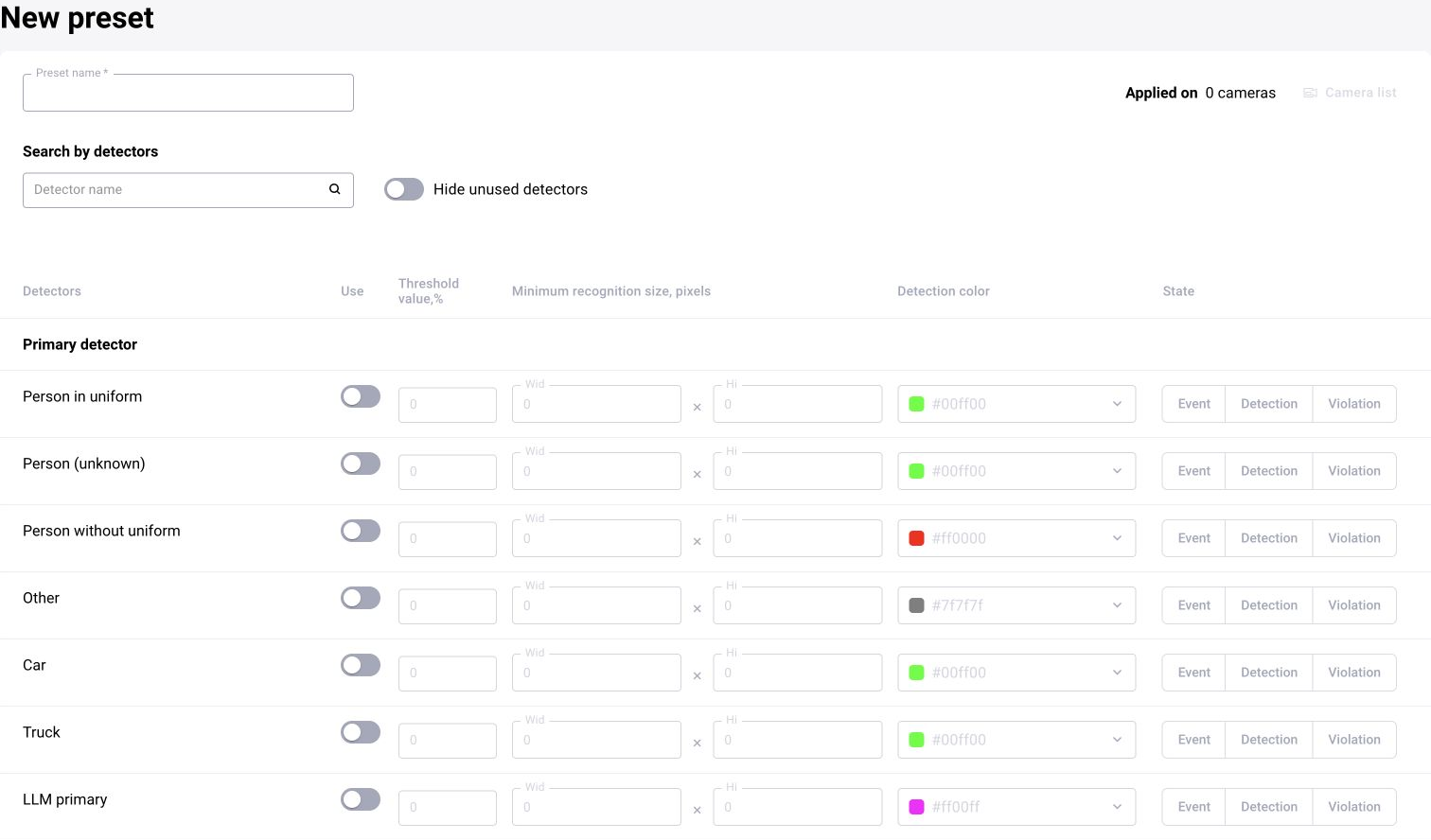
In BOX 3.2, configuring ready-made analytics centers on detectors, presets and processing rules. In BOX 5.0, custom logic uses models, scenario versions and block connections. LLM prompts are described in a shared section for both versions.
Start with an observable indicator and the expected result. For example: a missing hard hat on a clearly visible person, people present in a working zone, or road condition in the current frame. Do not combine several different decisions into one ambiguous condition.
Configure parameters and version
Choose suitable categories, a model or a preset. Check dependencies and save the settings. For a scenario, record the version: a saved draft, a published version and a version assigned to a camera are different states.
Choose the confidence threshold using representative frames. Compare cases with the required indicator, without it and with insufficient quality. Change one parameter at a time and save the comparison results.
Inclusion and exclusion zones
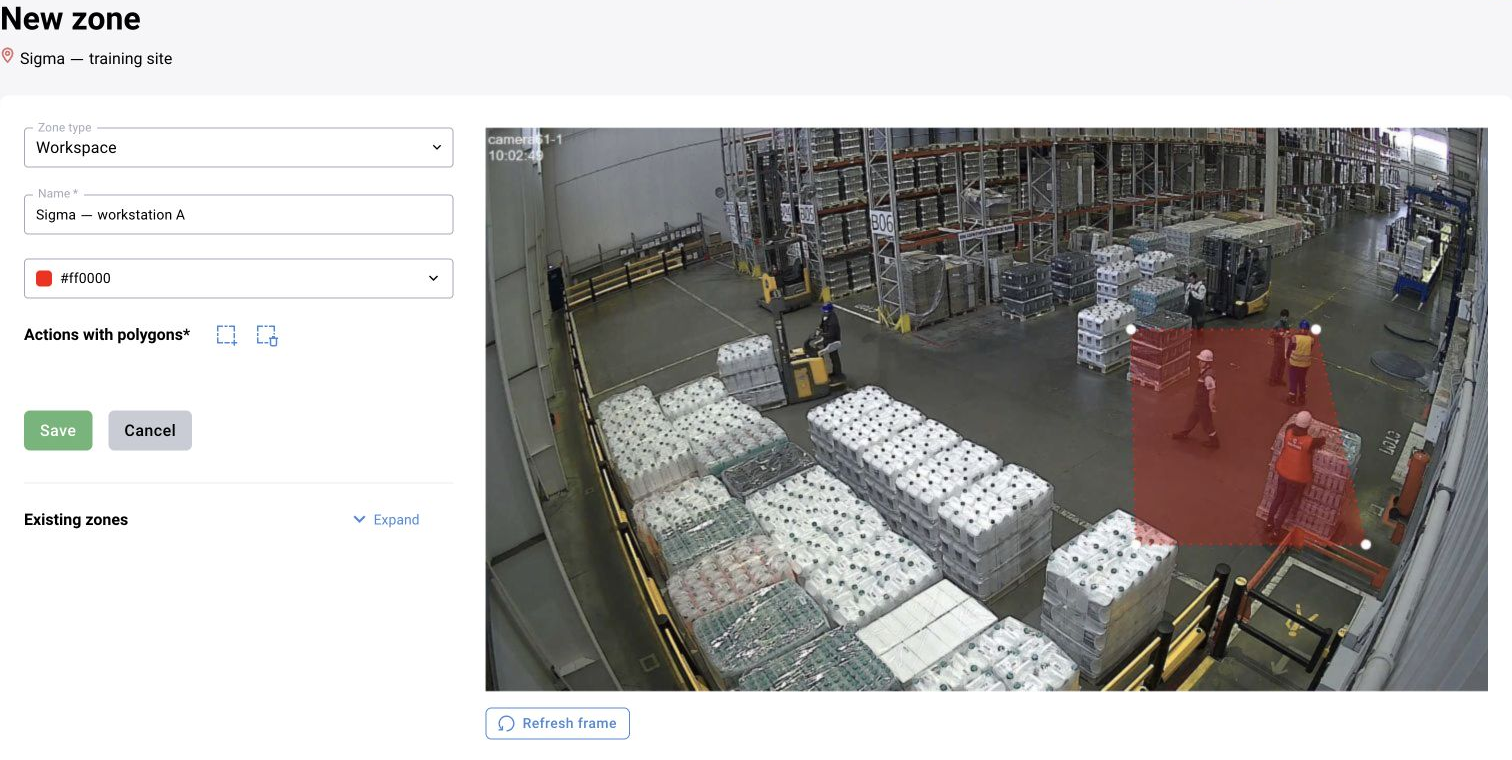
Open a camera frame and create a polygon with a clear name and the required type. Save the markup. The zone should bound the actual area and not accidentally include a neighboring passageway.
Check how the specific detector or block determines whether an object is inside: by a point, box, intersection or other logic. Excluding an area requires a supported exclusion-zone mechanism or corresponding scenario logic; the name “exclusion” alone does not change polygon behavior.
Test episodes inside, outside and on the boundary. Repeat the check after changing the view or resolution.
Set operating times if the setting is available
Check where the schedule acts in the selected workflow: at processing startup, in an event rule, in a scenario block or when periodically sending frames to an LLM. These are different configuration points.
Specify working intervals, time zone and exceptions if supported. Test execution inside and outside the interval. A classification schedule is not the same as a duration threshold for a person’s absence from a zone.
Check the entire chain
Review the source frame, detections and rule result. Then find the event in the log and open it under the operational role. If the task is intended to produce counters only, check values and periods in statistics.
Boxes in Sandbox confirm frame processing, but not event delivery. For an operational scenario, separately check event generation, sending and the card’s appearance in BOX.