Dashboard
Path: Dashboard, /. Available to users within their camera access and permissions.
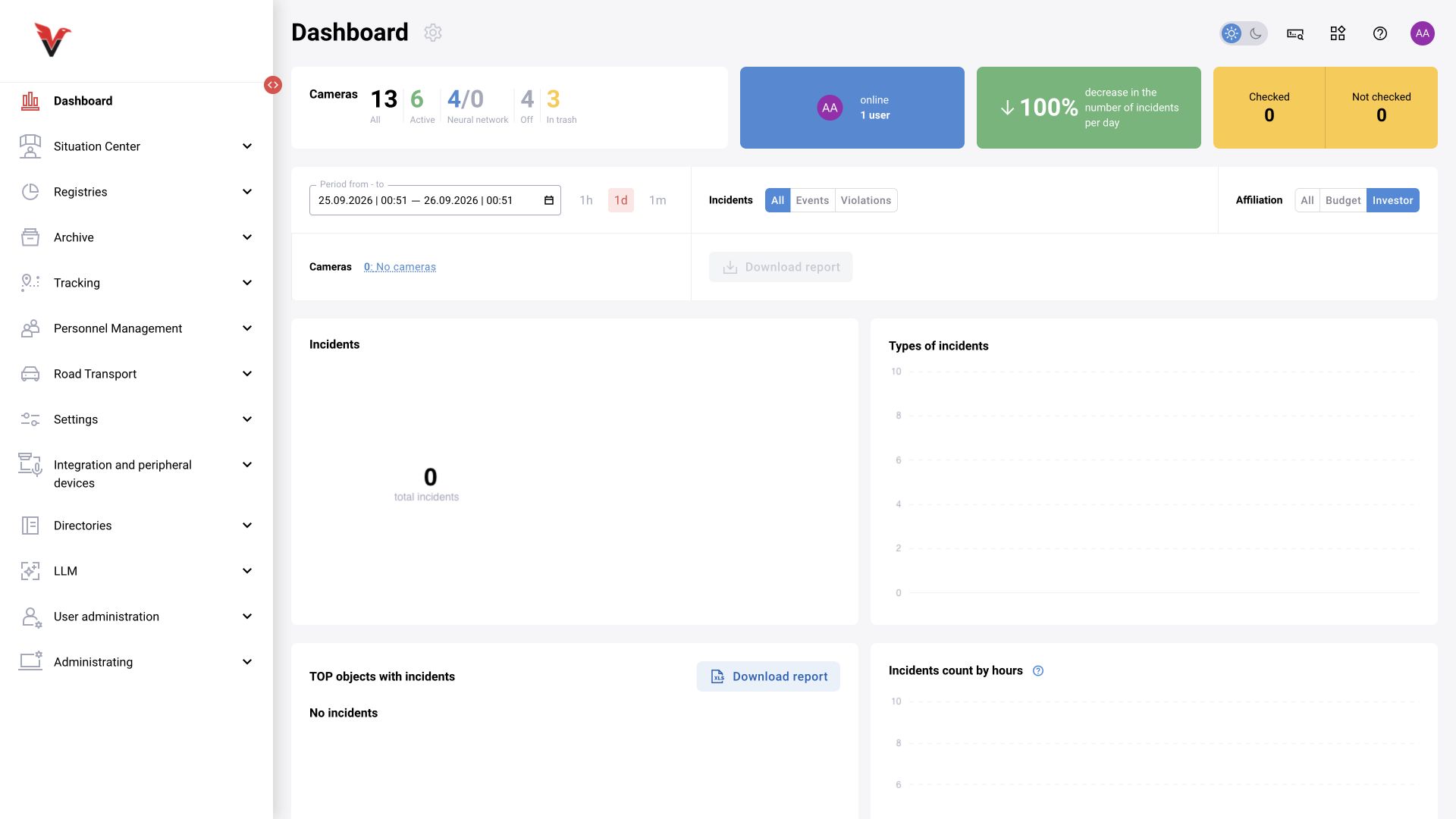
The dashboard provides an overview: camera and detector states, incident count, distribution by time, type, camera and site, review results and reviewer performance. The widget set depends on configuration and the user's personal layout.
| Element | What it sets / how to read it |
|---|---|
| Period | Analysis boundaries; quick buttons change them, so check the resulting field value |
| Cameras / location | Report scope. Do not compare figures from different scopes without identifying the difference |
| All / events / violations | Which records to include |
| Total cameras, active, off, recycle bin | Different source states. A camera that is switched off is not the same as a faulty camera |
| Count by hour / type / camera | Distribution of record counts, not the number of unique people |
| Top sites | Ranks selected sites by incident count |
| Reviewer decisions | Confirmed, rejected and unreviewed records |
| Days without violations | Days with no registered violations, with minor violations and with major violations in the specified period |
| Download report / detailed report | Export or open details for the current selection |
No registered violations does not prove that the site was safe: check camera and analytics health for the same period. In particular, “days without violations” statistics are calculated from events, not from continuous observation. Related enhancement: BOXD-5233/5234.
Cameras
BOX 5.0 also includes the filter “Scenario status”: “All”, “None”, “Assigned”. It filters whether an assignment exists, not whether execution is healthy; check processing status separately.
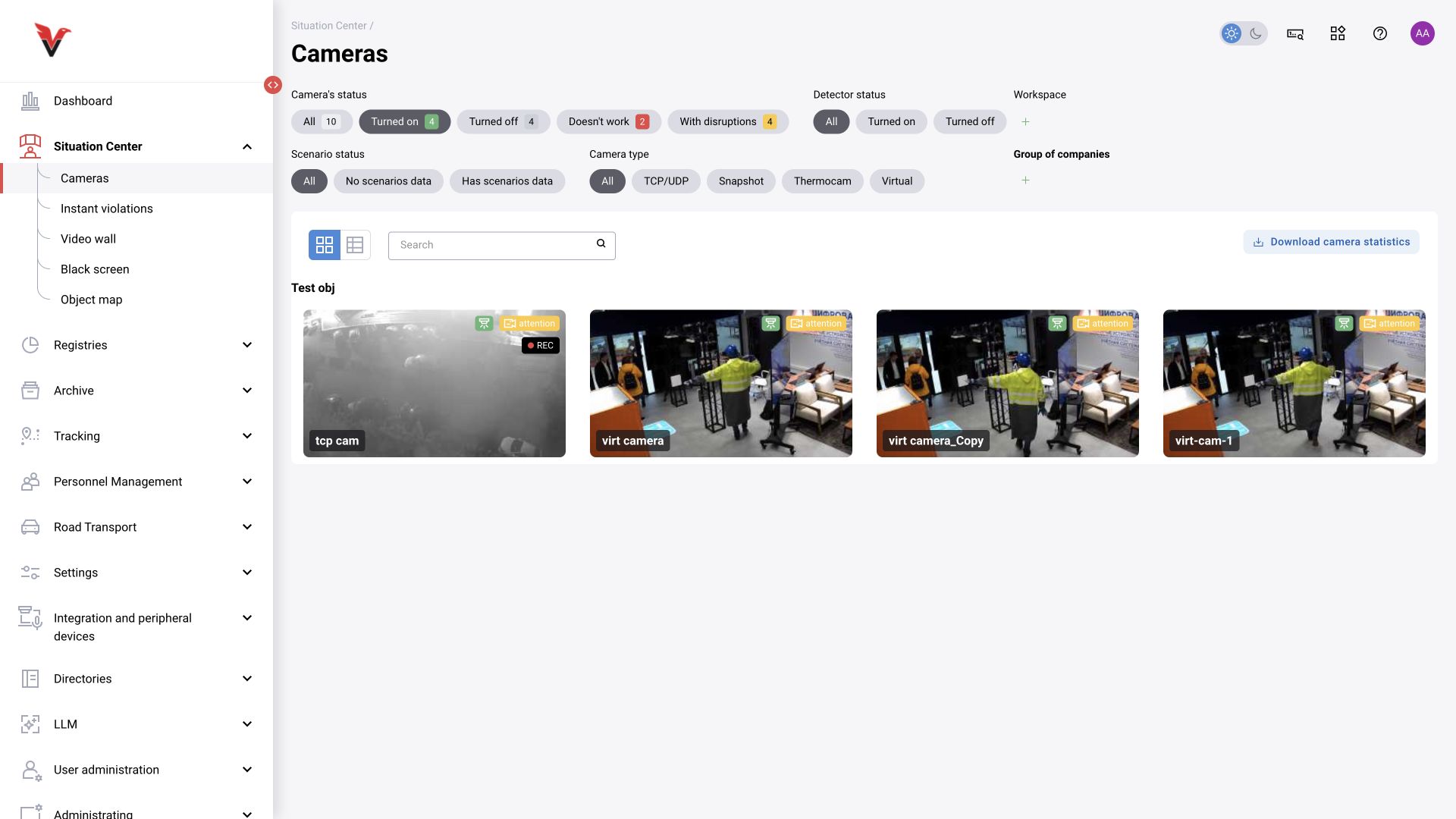
Path: Situation center → Cameras, /situation-center/monitoring/cameras (the menu may open it with the filter /situation-center/monitoring/cameras?camStatus=working).
| Filter / element | Value | How to use it |
|---|---|---|
| Camera health | All, On, Off, Not working, Interference | Start with “All”, then select the problematic state |
| Detector status | All, On, Off | Checks analytics activity separately from video availability |
| Camera type | TCP/UDP, Snapshot, Thermal, Virtual | Retains the required source class |
| Workspaces | Camera groups | Select a relevant group, such as “Sigma — workshop”. Filter visibility depends on the role |
| Search | Site / camera name | Enter part of a meaningful name |
| Table / tiles | Monitoring view | The table is useful for states and parameters; tiles are useful for images |
| Download camera statistics | Export technical status | Use to analyze availability and assigned analytics |
Cameras are grouped by site. Open the required camera to access its live stream, zones, archive, heatmap and history. Tab details are in the camera section: BOX 3.2, BOX 5.0.
Do not confuse the states: an available stream with the neural network off provides video without analysis; a camera switched on with a connection error provides no usable image; no events from a working stream may be a normal result of the rules.
Instant notifications
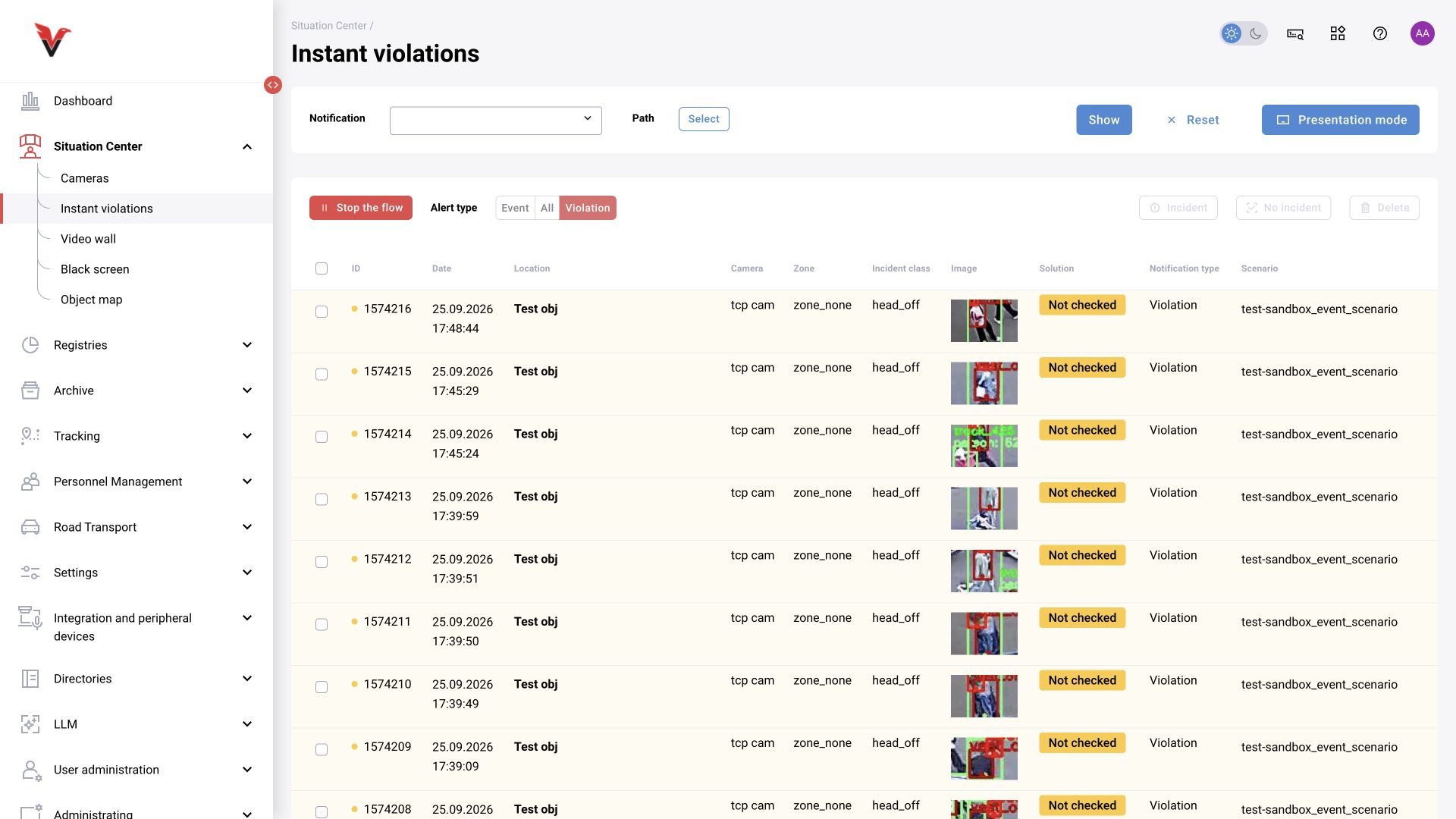
Path: Situation center → Instant notifications, /situation-center/control.
Select notifications and location, then click “Show”. The card stream is intended for immediate response. The “Event / All / Violation” switch limits record types, “Stop stream” helps examine a selected card without losing context, and “Presentation mode” changes the view.
Select a card and check the image, time, source and class. Then use the available decisions “Incident present” / “No incident”; enter additional details and measures in the card. Buttons may be unavailable until a record is selected. Deleting a record and rejecting an incident are different actions: a false positive is better recorded as a review result. Do not decide based only on a thumbnail when the required feature is not distinguishable.
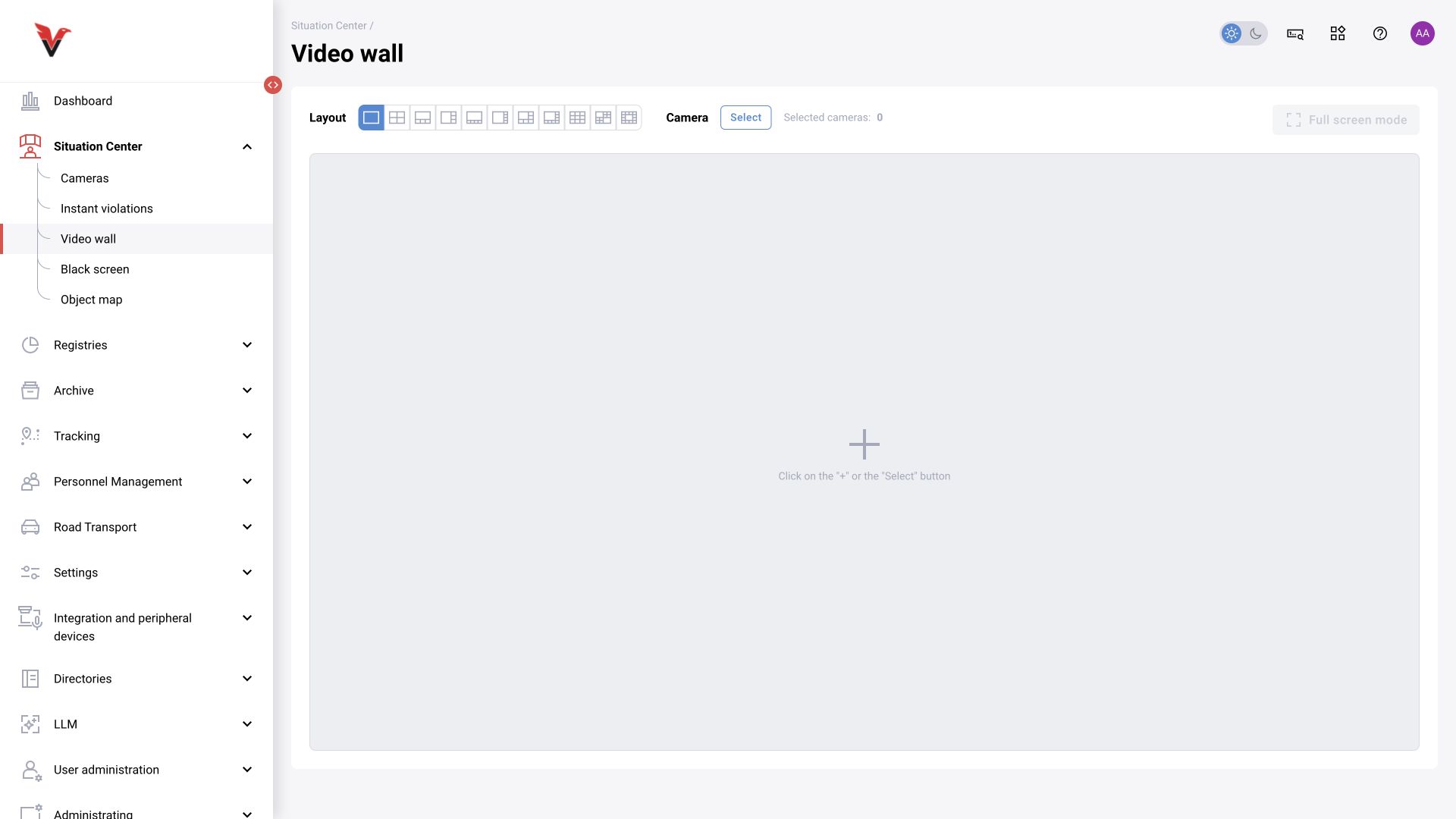
Video wall
Path: Situation center → Video wall, /situation-center/video-wall.
- Select a tile layout.
- Add cameras using “Select” or the plus sign in a cell.
- Check the set and number of selected cameras.
- Enable full-screen mode if needed.
The video wall combines several live streams; it does not create additional cameras or enable disabled detectors. If video disappears, open the source details and compare its state with the analytics status. Do not treat a frozen last frame as a current live stream.
Black screen
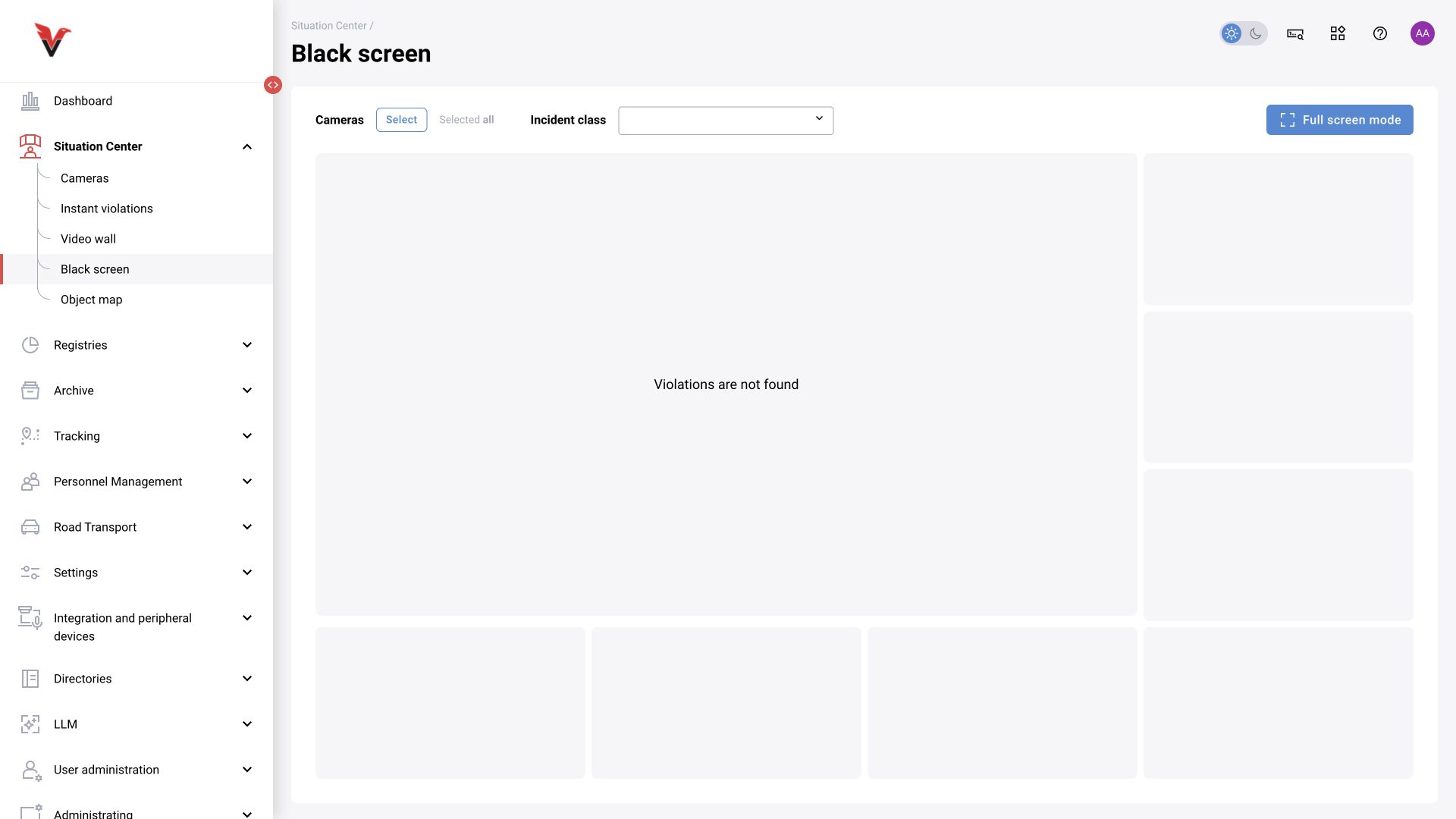
Path: Situation center → Black screen, /situation-center/video-control.
This mode is intended for event-driven monitoring. Select cameras, incident classes and full-screen view if needed. The current form includes camera selection, the “All” selection state, an “Incident class” field and a full-screen action. An empty area in this mode does not by itself mean a camera fault: compare it with events and normal video viewing. Automatic image display behavior depends on the deployment settings.
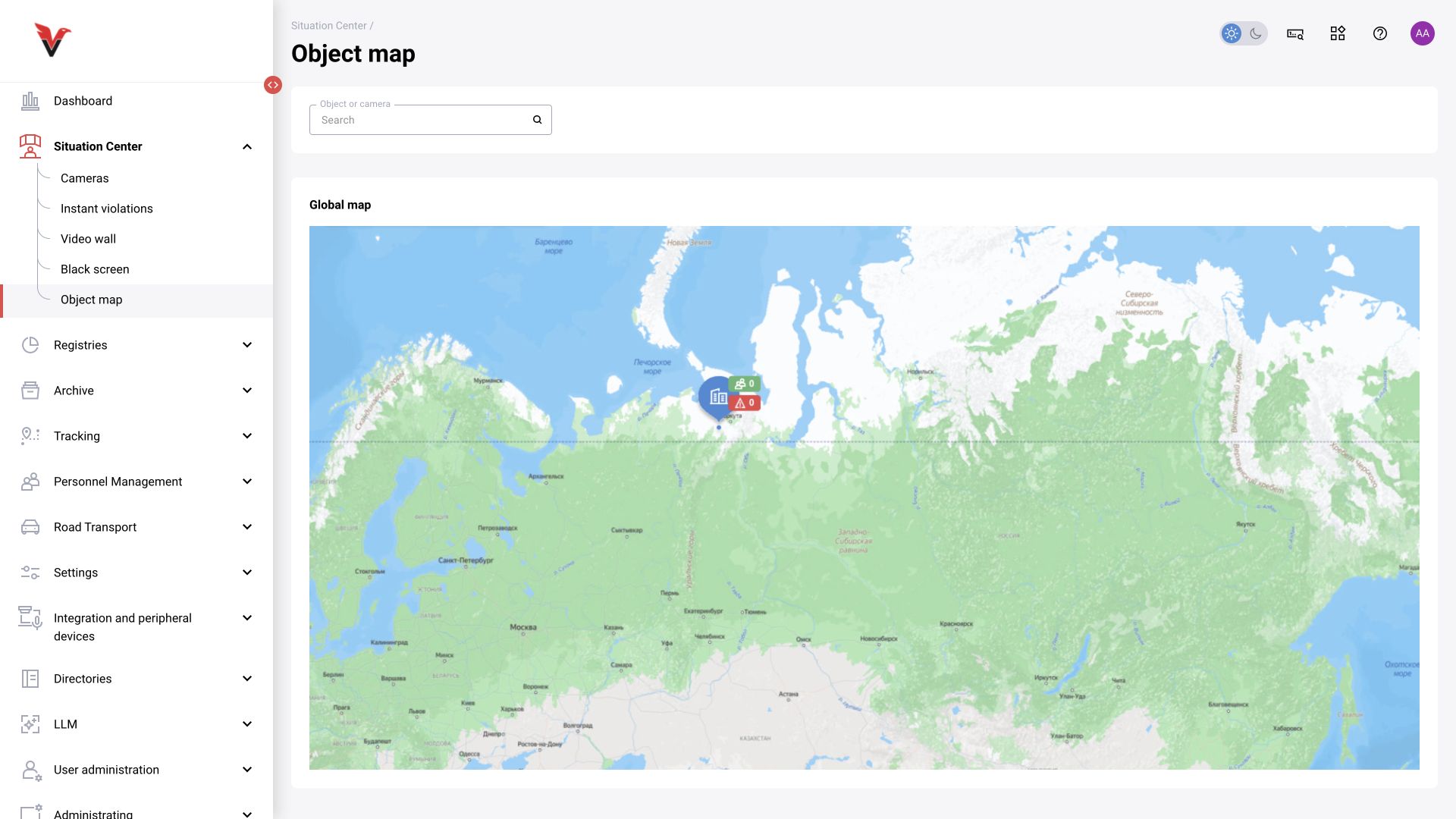
Site map
Path: Situation center → Site map, /situation-center/map.
The “Site or camera” field helps find an observation point. “Global map” returns to the overall location view. Maps and floor plans work after an administrator places the sites and cameras. If a camera is in the list but absent from the plan, check its site assignment, map position and selected floor. For multi-story sites, choose the correct floor plan; do not place cameras from different floors on a single plane just to make them visible.