
Sigma's task
Several workstations in Sigma's turning shop fall within one camera's field of view. The supervisor needs to see which zones are occupied, when they are empty and how the situation changed over a selected period. The administrator uses the standard workplace discipline monitoring features: person detection, zones, counters and BOX 3.2 reports. This workflow does not require an LLM.
Start with one workstation, “Sigma — machine 01”, then add neighboring ones. The counter reports the number of observed people in a zone. Identifying a specific employee requires separate information: a people count alone does not establish identity.
These instructions are based on version 3 of the workplace discipline monitoring administrator guide and version 2 of the user guide. The illustrations below come from those guides and retain their original resolution; they show an earlier interface version. Section names may differ in the current deployment. A new run of the training video and verification of Sigma's export are performed separately.
1. Prepare the camera and counting condition
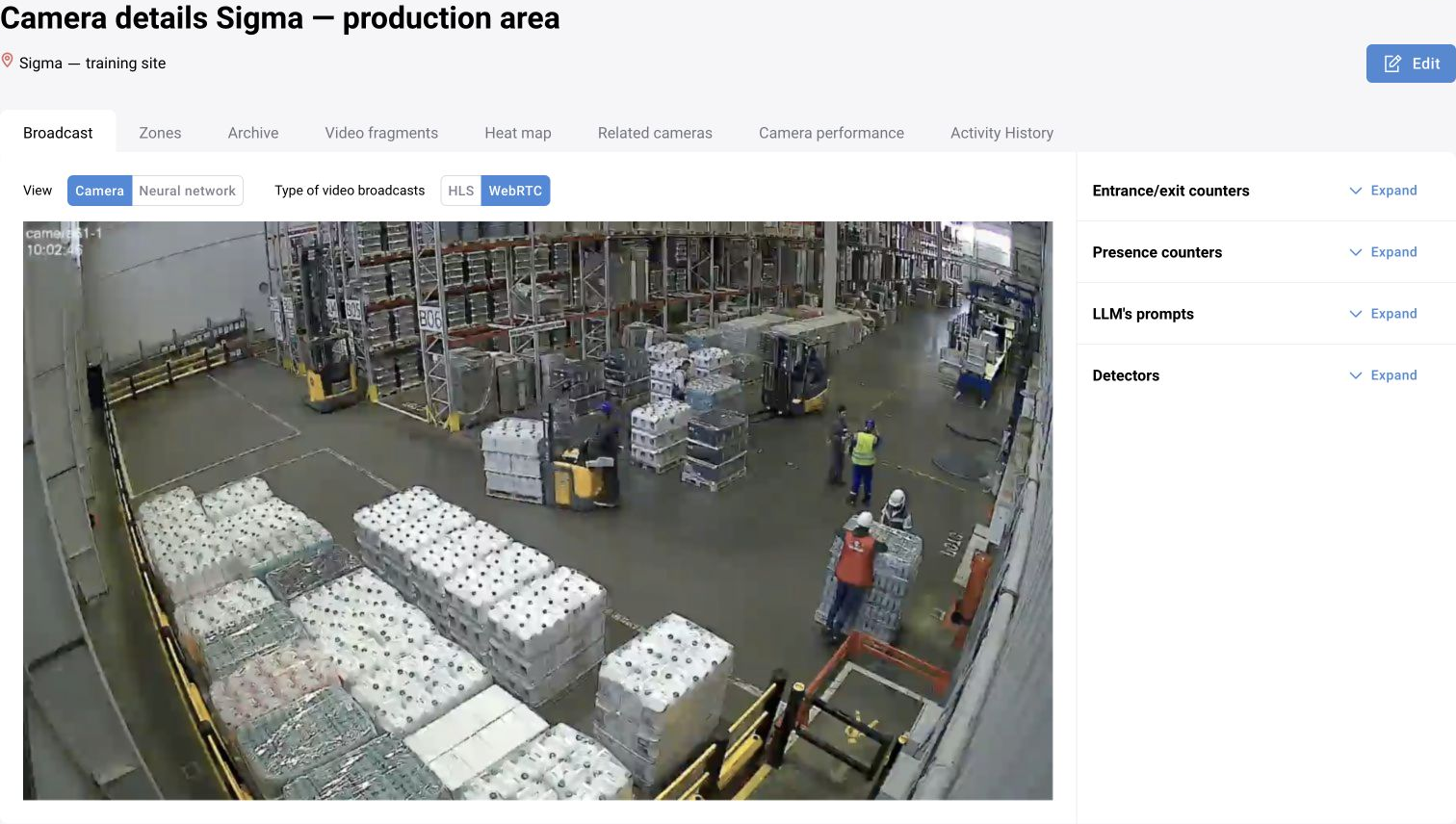
Select a video in which the person at the machine and workstation boundary are distinguishable. A turning shop recording is suitable for the training camera; a closer workshop view helps examine equipment obscuring a person. Check the beginning, middle and end of the recording first.
Create the camera “Sigma — turning area” in the training site. Use a virtual camera with a recording for repeatable testing; for a live source, enter the video stream parameters. Enable the camera and neural network, save the settings and confirm that the image opens.
Define occupancy: at least one person in the zone or a specified number of people. Separately record the working period, breaks and permitted time away if notifications are required. These conditions are needed to interpret the report and event registration rules.
2. Assign a preset with person detection
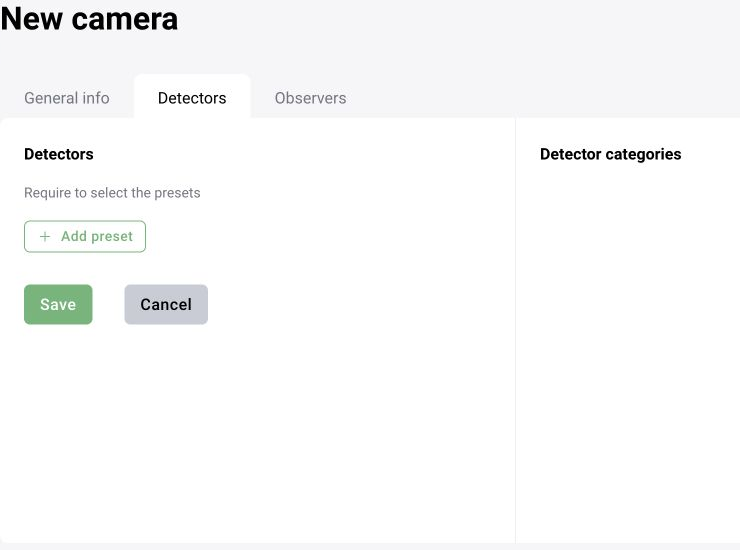
Open the analytics presets. In the earlier interface, the path was “Business logic → Presets”. Prepare a training preset with the required person category and assign it to the camera on the detectors or presets tab.
The workplace discipline monitoring guide distinguishes “Detection”, “Event” and “Violation” modes. Detection recognizes an object but does not itself add every observation to the log. For presence tracking, check person recognition first; violation registration is configured through separate conditions.
Open the camera image and the “Neural network” view. Check people at the target machine, in the walkway and behind neighboring equipment. If a person repeatedly disappears from detections behind the machine, reducing the report's time interval will not fix this problem.
3. Create a separate workstation zone
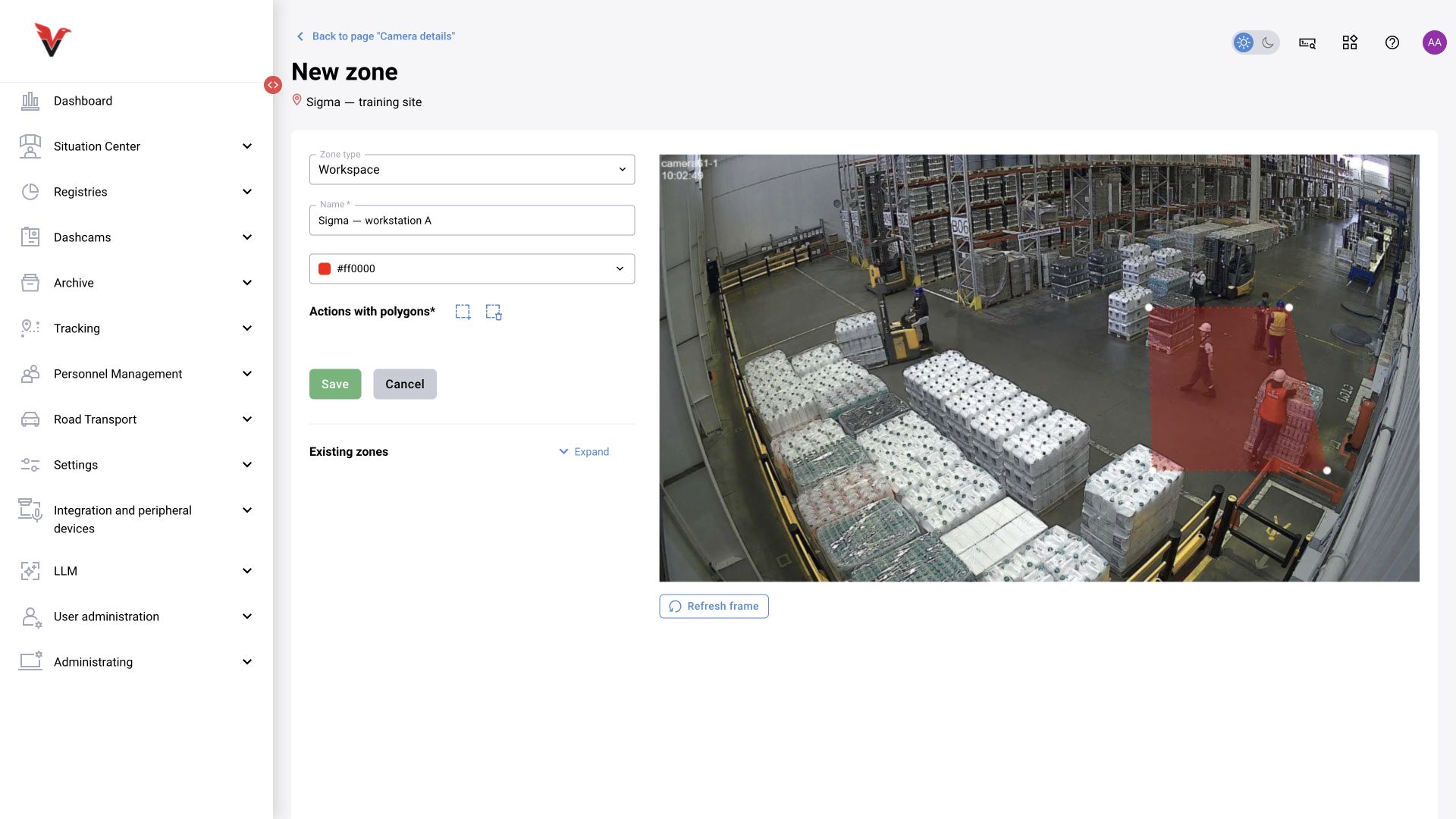
Find the training camera in “Settings → Sites and cameras”. The button with a dashed rectangle opens zone settings. Select the zone type intended for workstation tracking, enter the name “Sigma — machine 01” and choose a color.
Click “Add polygon” and mark the vertices of a closed boundary on the frame. Separate the area at the machine from the walkway and neighboring equipment. You can move the vertices or the whole polygon of an existing zone. Save and reopen the annotations.
The illustration uses the “Workstation 2” type: this is an example from the original configuration, not a mandatory name for every deployment. Check the purpose of the available zone type and actual counting within it. The name “Workstation” alone does not replace this check.
Add other workstations one at a time. A zone that is too wide may count a worker at a neighboring machine; overlapping zones may count one person at several workstations simultaneously. Recheck the annotations after any camera angle change.
4. Check the readings on the image
Open monitoring and the required camera. In the documented interface version, the “Camera” tab shows the original image and people counters for zones, while “Neural network” shows recognized objects. Compare the number with what is visible in the specific zone.
Test four episodes: the workstation is empty, one person is in the zone, two people are in the zone, and a person walks along the neighboring walkway. An observation in the walkway must not automatically mean that the selected workstation is occupied.
If the source is unavailable or the image is obscured, restore observation first. A zero on screen during a source problem cannot confidently be attributed to a worker leaving. Include counter behavior during video loss in the configuration checks.
5. Open counters for the required period
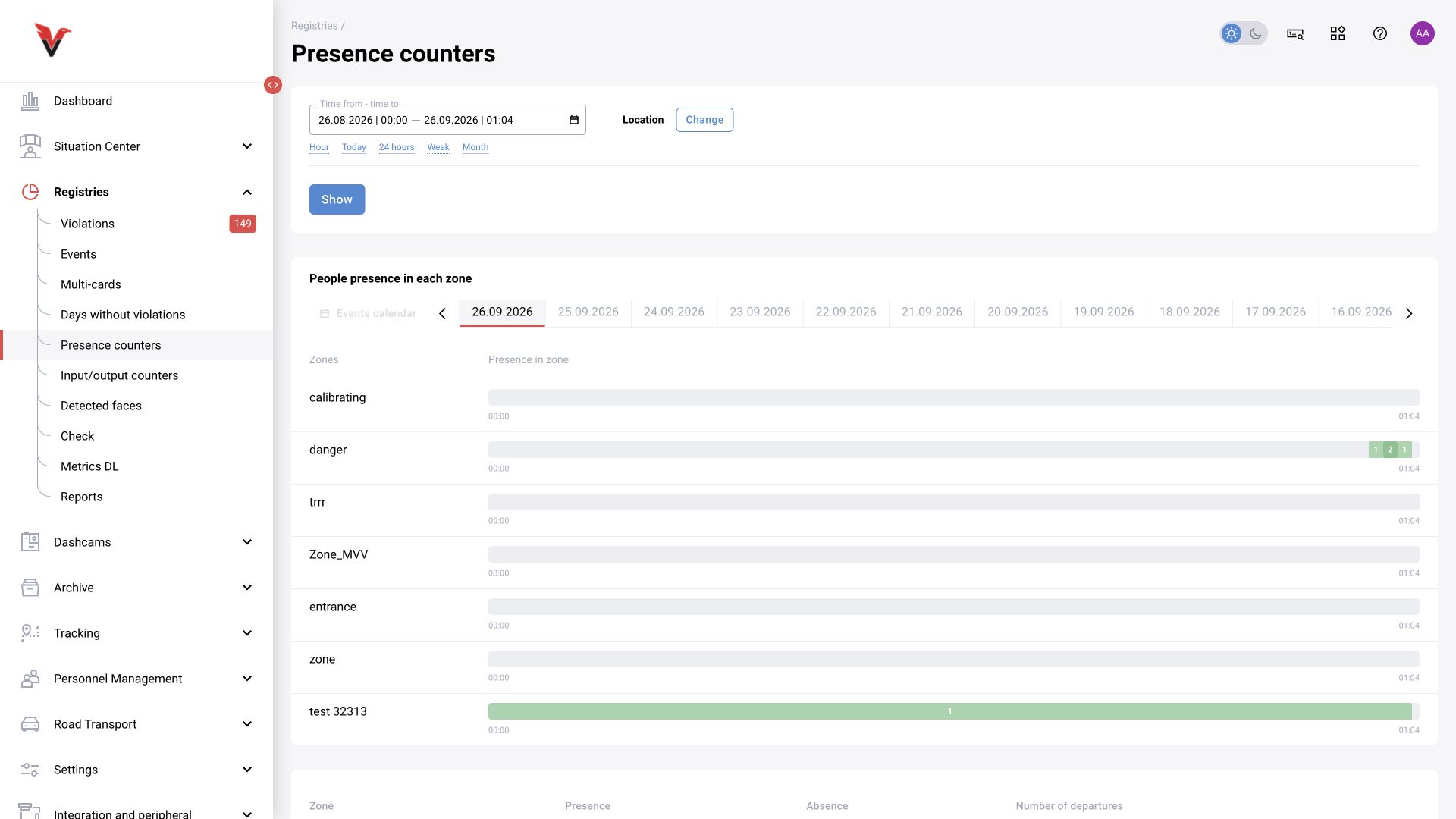
In the user guide, the chart path is “Statistics → Counters”. In newer versions, find the corresponding presence counter section. Set the start and end of the period, time interval and location: site, camera and work zones. Click “Show”.
For the first exercise, select one camera and one zone: this makes it easier to compare the chart with the recording. Then include neighboring zones. Line and bar views show the same data in different ways.
The horizontal axis shows time; the vertical axis shows the maximum people count during the selected interval in each zone. The interval concerns the statistics display; it is not the detector FPS and does not by itself define a permitted absence duration.
For example, if a person appears briefly within a five-minute interval, the maximum may be 1. This point does not establish that the workstation was occupied for all five minutes.
6. Download and read the XLSX
After selecting the period and zones, click “Download .xlsx”. Check the period, camera names and zone names in the file. Counter reports and violation reports serve different purposes: the former describes observed presence, while the latter contains registered events.
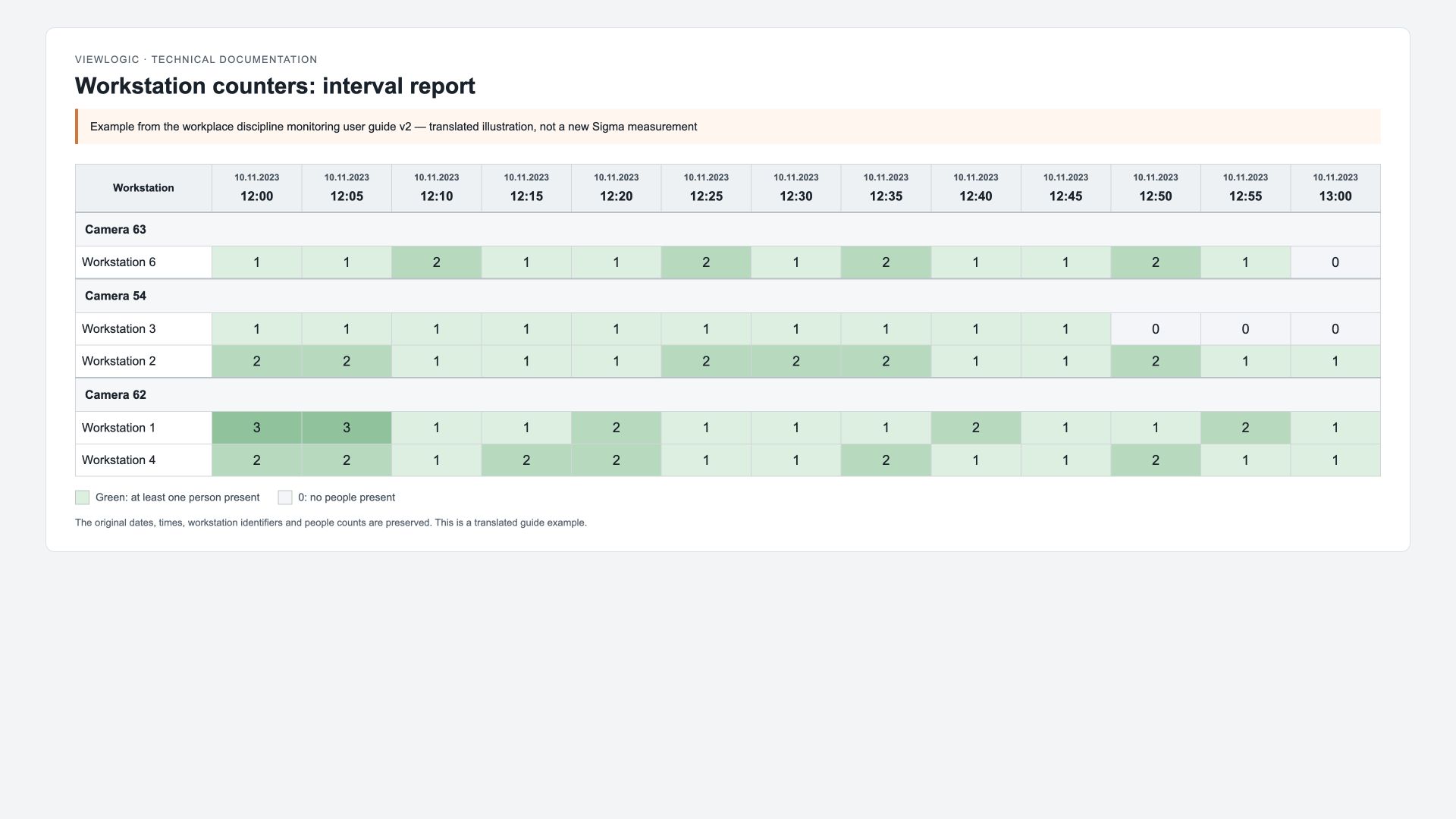
The workplace discipline monitoring guide shows two sheets: “Interval” and “Extended”. The text also calls the second sheet “Extended data”. The first contains a chart and a table of the maximum people count in each interval. A green cell means at least one person was present during the interval.
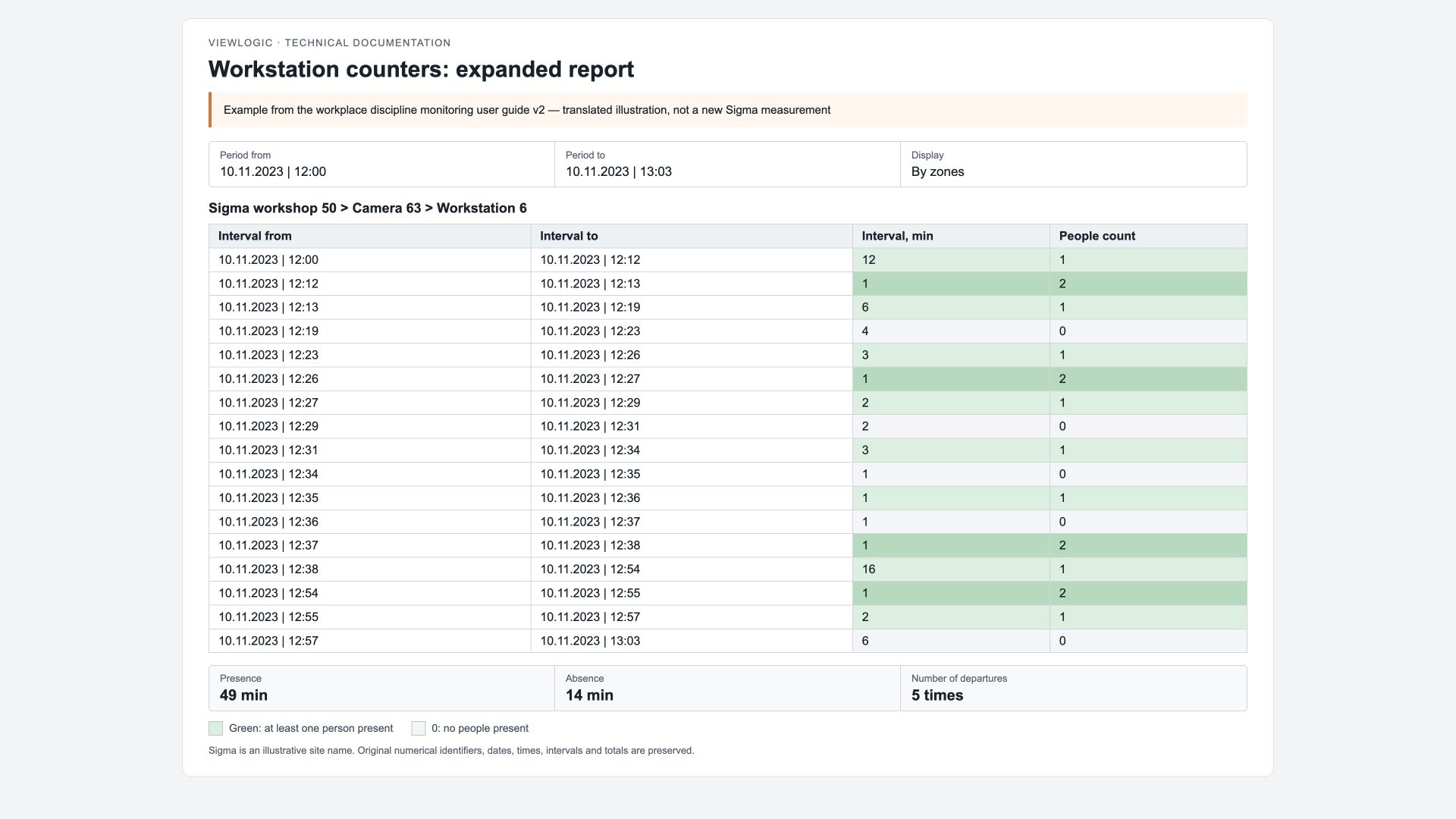
The extended data contains each period's start, end and duration, the people count, total presence and absence time, and the number of departures from the zone. These rows support investigation of specific episodes hidden by an aggregated chart.
| Report part | Why to read it |
|---|---|
| Interval | Quickly compare workstations and locate intervals with no observed people |
| Extended | Examine arrivals and departures, people counts and state durations |
| Zone totals | Compare total presence, absence and number of departures with the selected period |
7. Review the result together with the video
The sample report in the guide uses a 63-minute period. One zone shows 49 minutes of presence, 14 minutes of absence and 5 departures. The initial check agrees: 49 + 14 = 63. This is an example of reading an existing report, not the result of a new training run.
Select an interval with zero people and open the camera recording for that time if the archive is available. Check whether the zone was actually empty, whether equipment obscured the person and whether the image was lost. Then check a presence interval in the same way.
A change in people count from two to one does not mean the zone became empty. For a workstation with several employees, define in advance whether one observed person is sufficient. Do not automatically treat the number of departures from a zone as the number of employees who left.
The proportion of presence during the observed period can help compare intervals, but it does not measure the amount of work performed. An employee may legitimately be at other equipment, receiving an assignment or taking a break. The person responsible for the process adds an explanation for the specific episode.
8. Configure rules if notifications are required
Viewing counters and XLSX reports does not require classifying every absence as a violation. If Sigma needs notifications, the administrator agrees on the condition and configures the presence schedules and registration rules supported by the deployment.
In the workplace discipline monitoring administrator guide, the decision matrix contains priority, site or camera, event type, primary and secondary categories, zone, active time, the “Crontab” calendar condition, threshold and decision. Priority 1 is considered before rules with larger numbers. Check whether another rule overrides the required condition.
Matrix fields filter and process events. Their presence alone does not prove that a prolonged-absence timer is configured. Check the absence threshold, breaks and generation of the required category in the standard presence settings of the specific version.
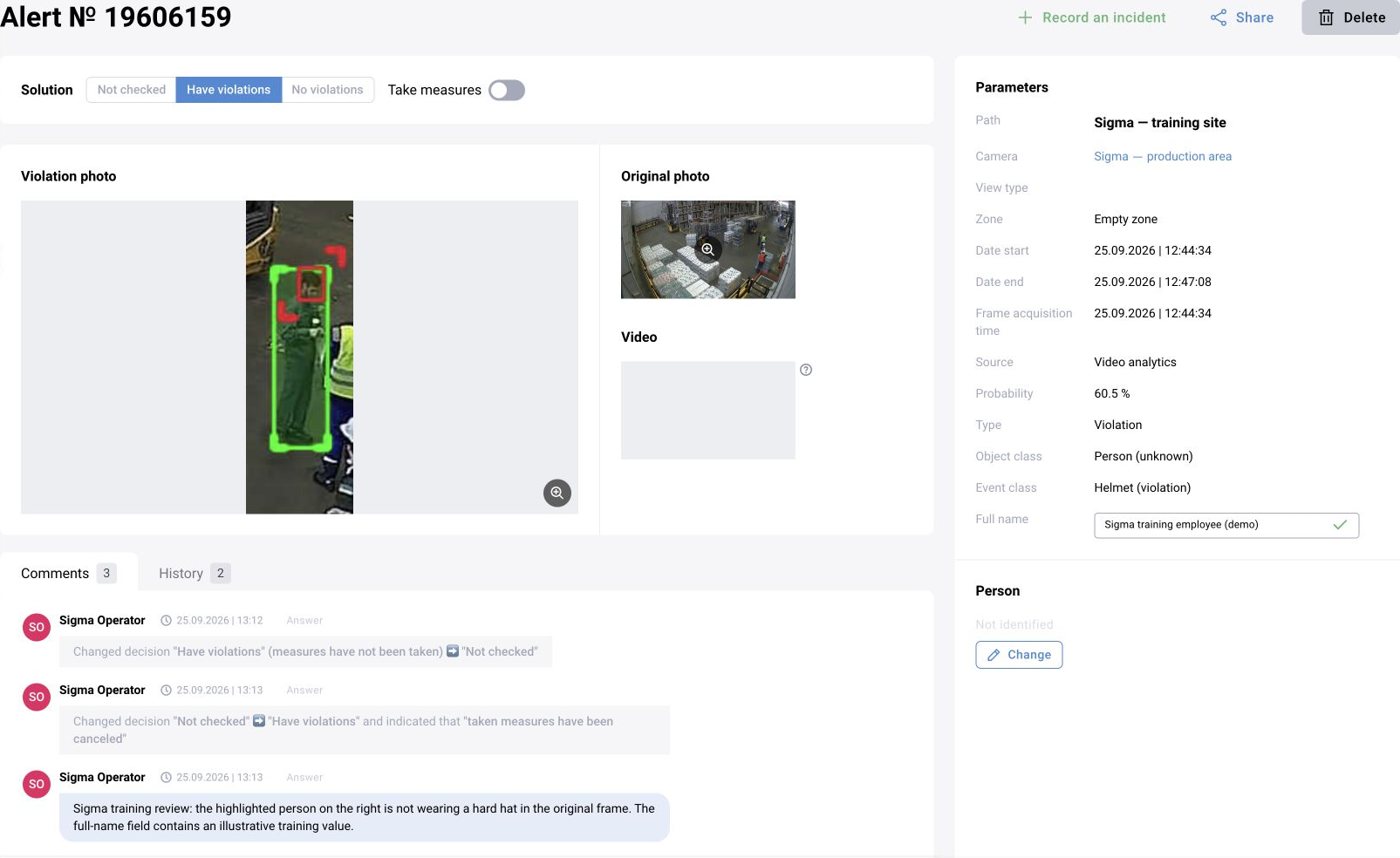
Test the rule on the training camera first. The operator then reviews the generated notification, views the frame and video, and records a decision and comment. Enable automatic delivery after checking sources, recipients and schedule.
How to determine that the configuration is ready
Complete the checks by reconciling video, counters and the report for the same period. Save the zone names, preset used and parameters: verify the result again when transferring the setup to another camera.
- An empty zone, one person and several people produce the expected readings.
- The walkway and neighboring machine do not substitute for presence at the selected workstation.
- Brief departures are visible in extended data even if the aggregated chart remains green.
- Video loss and occlusion are investigated separately from actual absence.
- The period, camera and zones in the XLSX match the export settings.
- If notifications are enabled, working hours, breaks, the threshold and repeat triggering have been checked.