
1. Find the log entry
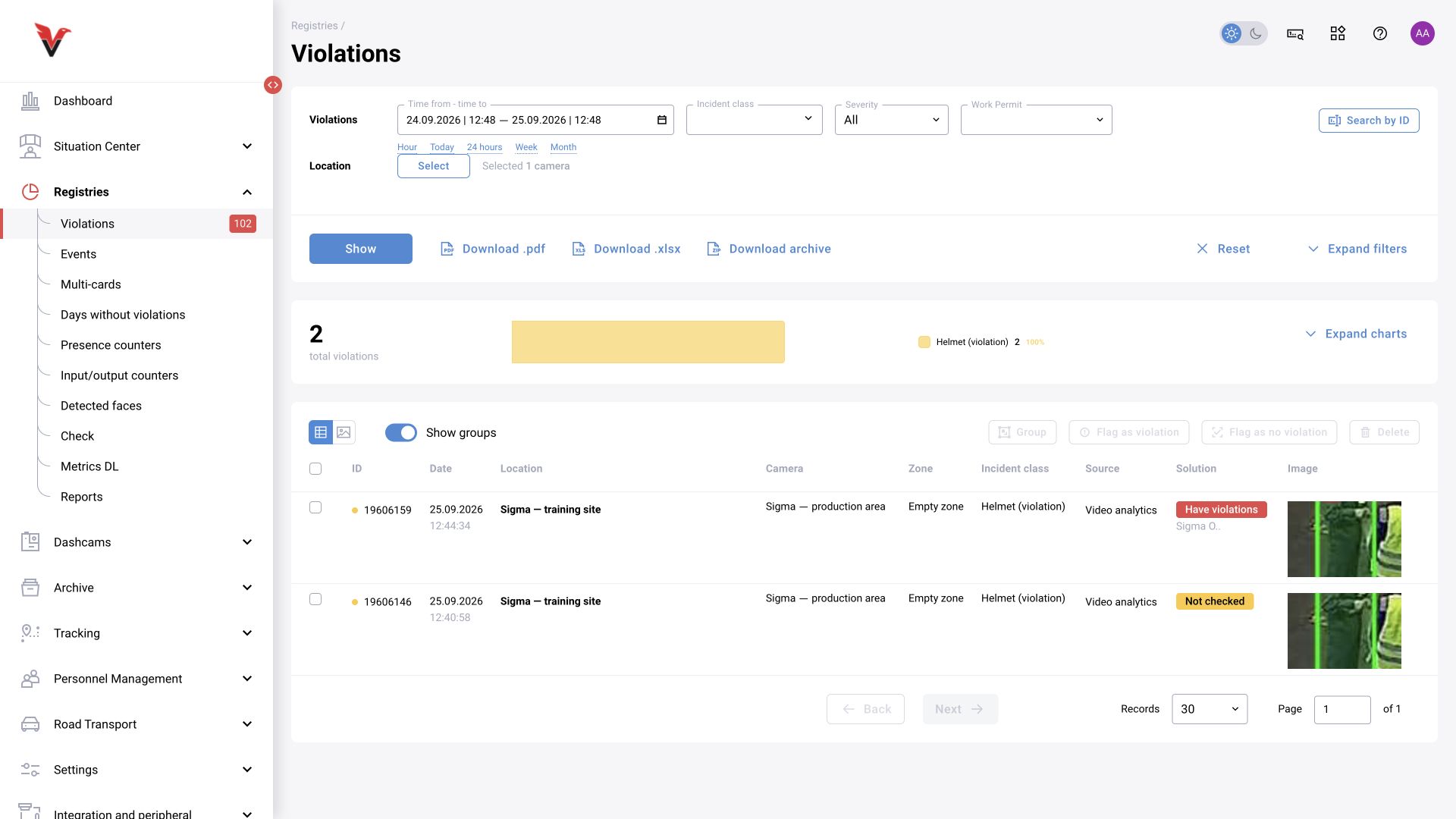
Open “Logs → Violations”. Set the period and required camera. Start with “Not reviewed” entries. If the list is empty, check the filters: yesterday's episode will not appear in the “last hour” period.
Match the camera, time and notification type in the row. Open the details by clicking the image thumbnail. After closing the details, check that the required filter period is retained.
2. View the original image
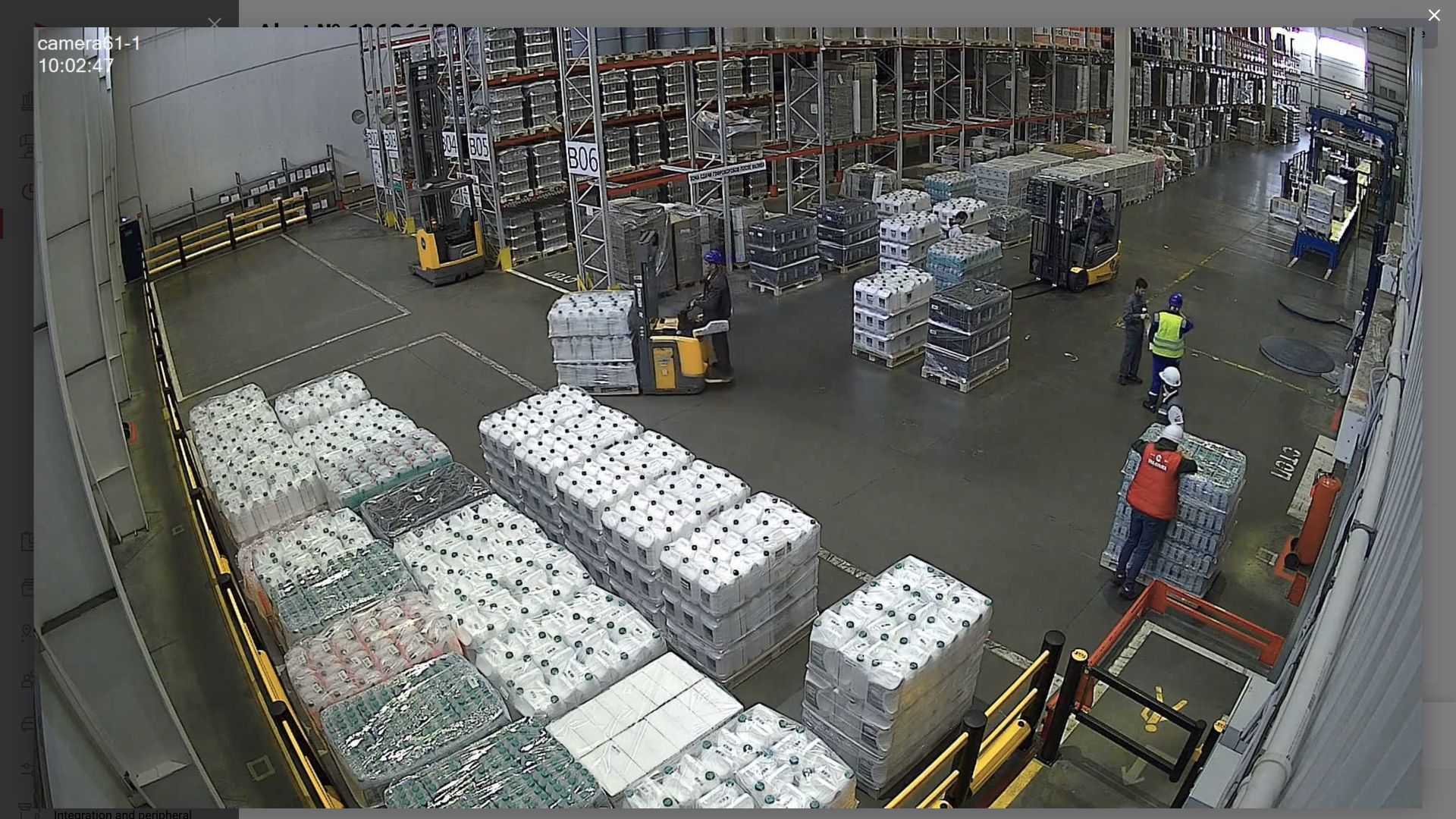
In the details, check the start and end times, source, zone and category. Enlarge the image. Make sure you are examining the person identified by the event bounding box, not the nearest neighbor.
For a helmet check, the head must be distinguishable and the absence of protection visible. The detector's confidence percentage provides guidance but does not replace visual review. If a video clip is available, examine adjacent moments: a single frame may hide the object.
In the warehouse training episode, people wearing different equipment stand together. It is therefore important not to attribute one person's helmet to another during the review.
3. Complete required fields
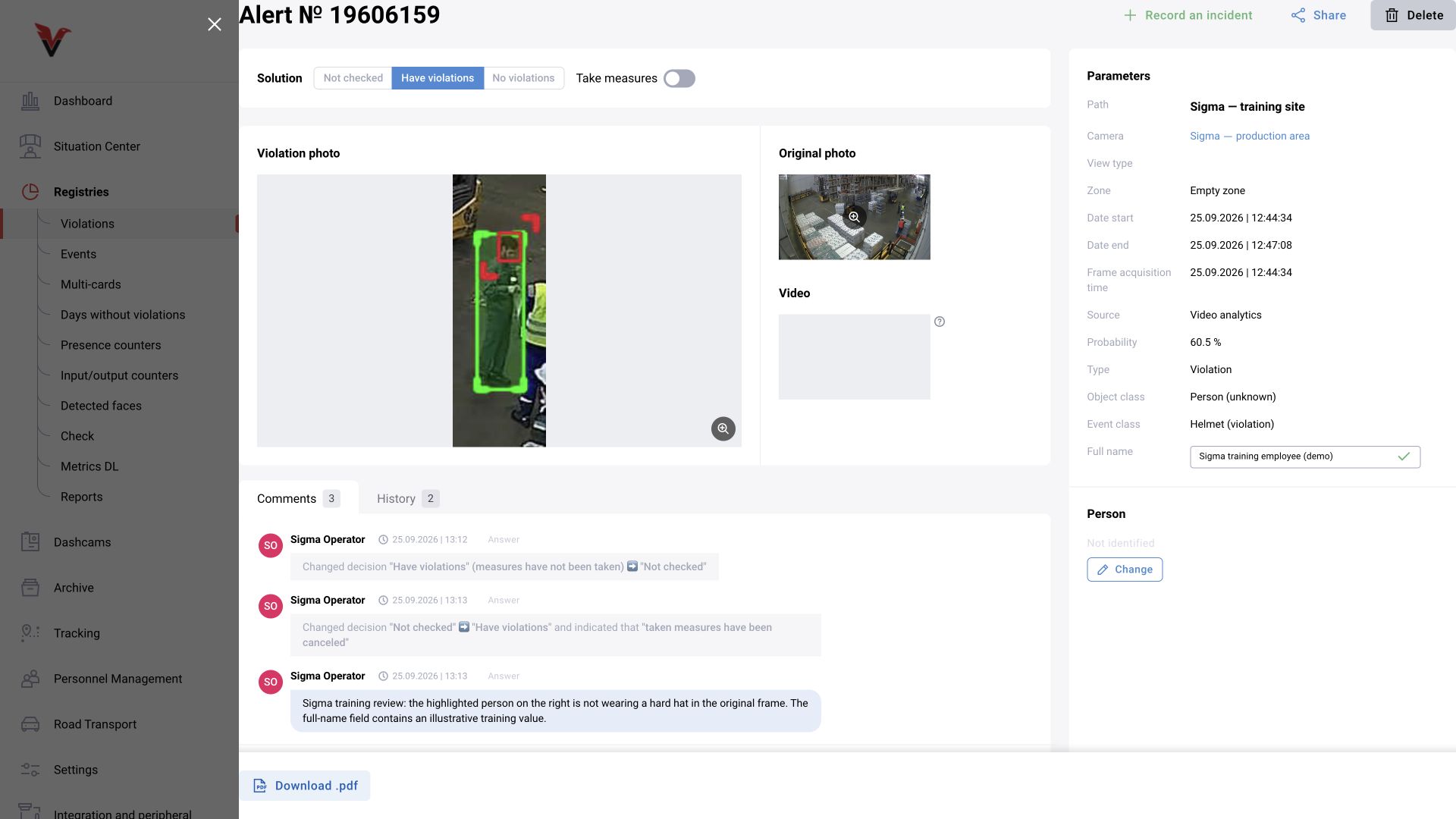
If decision buttons are unavailable and a required-fields warning appears, complete the fields marked with an asterisk. Move focus away from a completed field and confirm that its value was saved.
In this exercise, full name was required. The demonstration used “Sigma training employee (demo)”. This is a fictional entry, not identification of the person in the video. If a required value is unknown in the operational process, follow the agreed procedure for clarifying the data.

4. Leave a comment and decision
Briefly describe what is visible: “The highlighted person on the right has no helmet; the head is distinguishable.” Then select the appropriate decision. The training workflow used the “Violations present” button.
If the evidence is insufficient, do not turn uncertainty into confident confirmation. Use the additional review procedure available in your configuration. The comment should explain the decision to the next employee.
Recording measures taken is a separate action. Confirming a violation does not yet mean that someone contacted the responsible person or resolved the situation.
5. Check the history
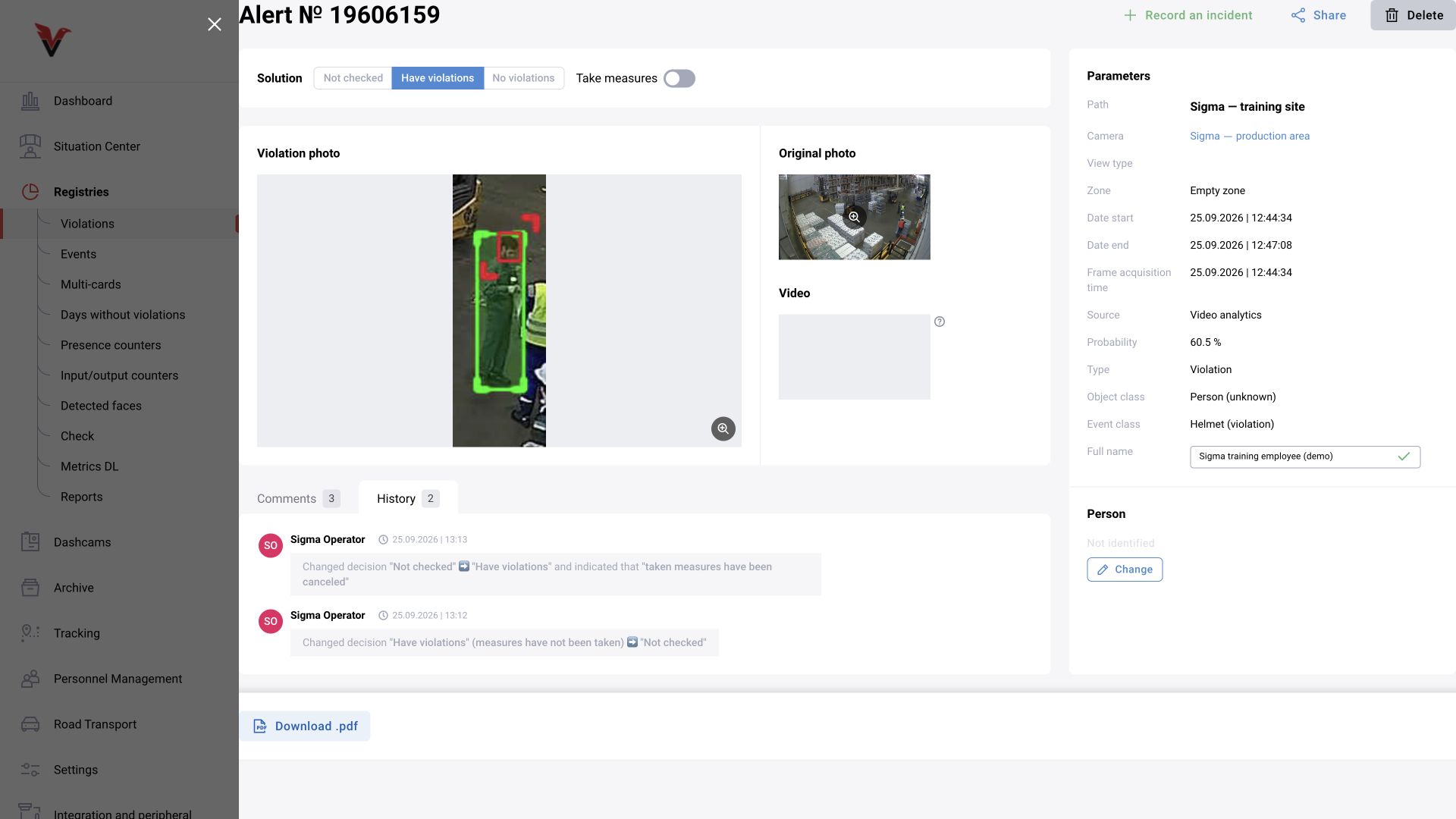
Open the “History” tab. Find the status change, author and time. Return to the log: the new decision should appear there too.
In the verified example, the status changed from “Not reviewed” to “Violations present”, authored by Sigma's operator. This completes event review; subsequent measures are recorded according to the organization's workflow.
6. Prepare a report
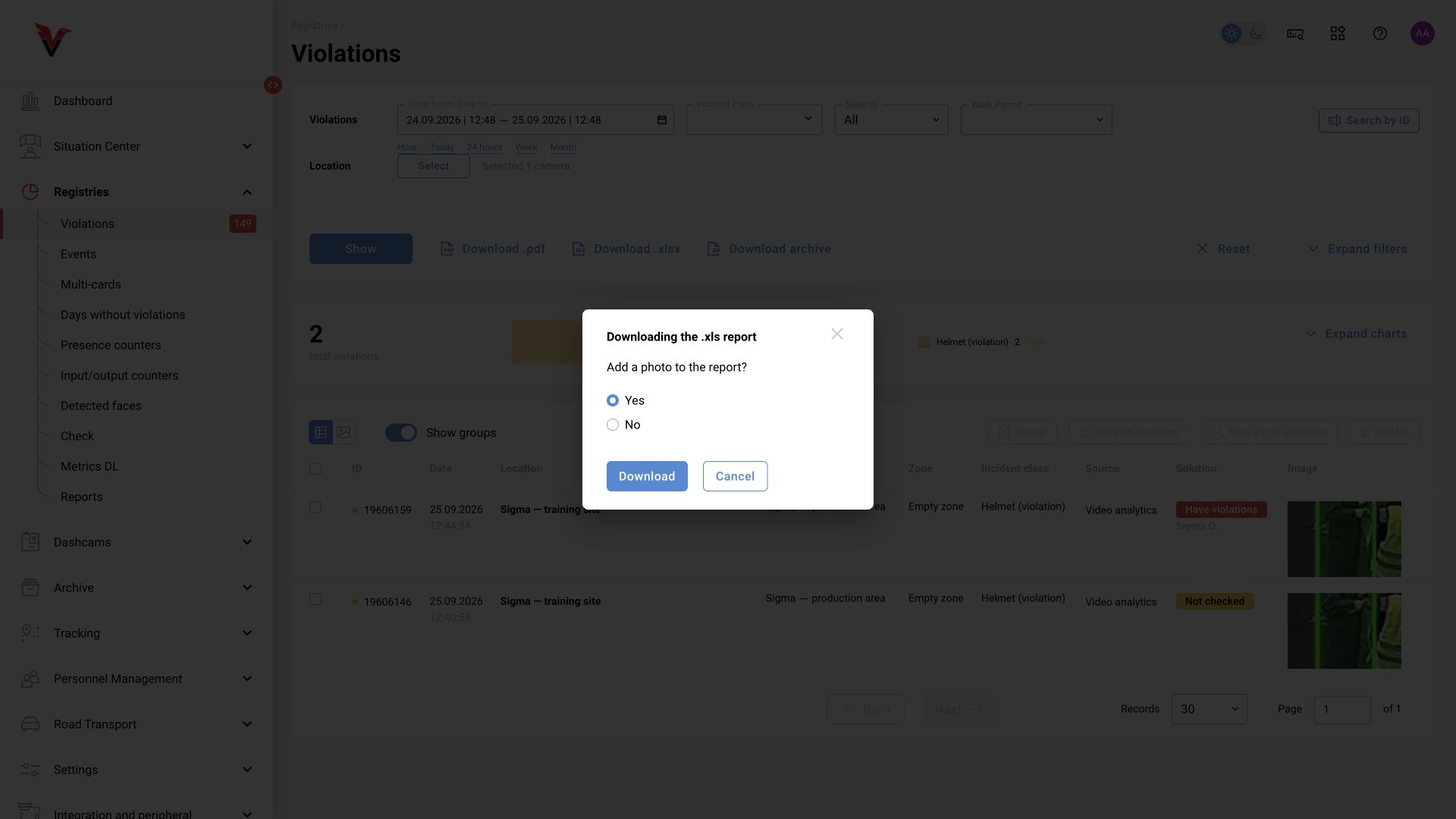
Before exporting, recheck the period, camera and statuses. Select the report format in the log. For XLSX, the inspected interface asks “Add photos to the report?”. Photos help investigation but increase the file size.
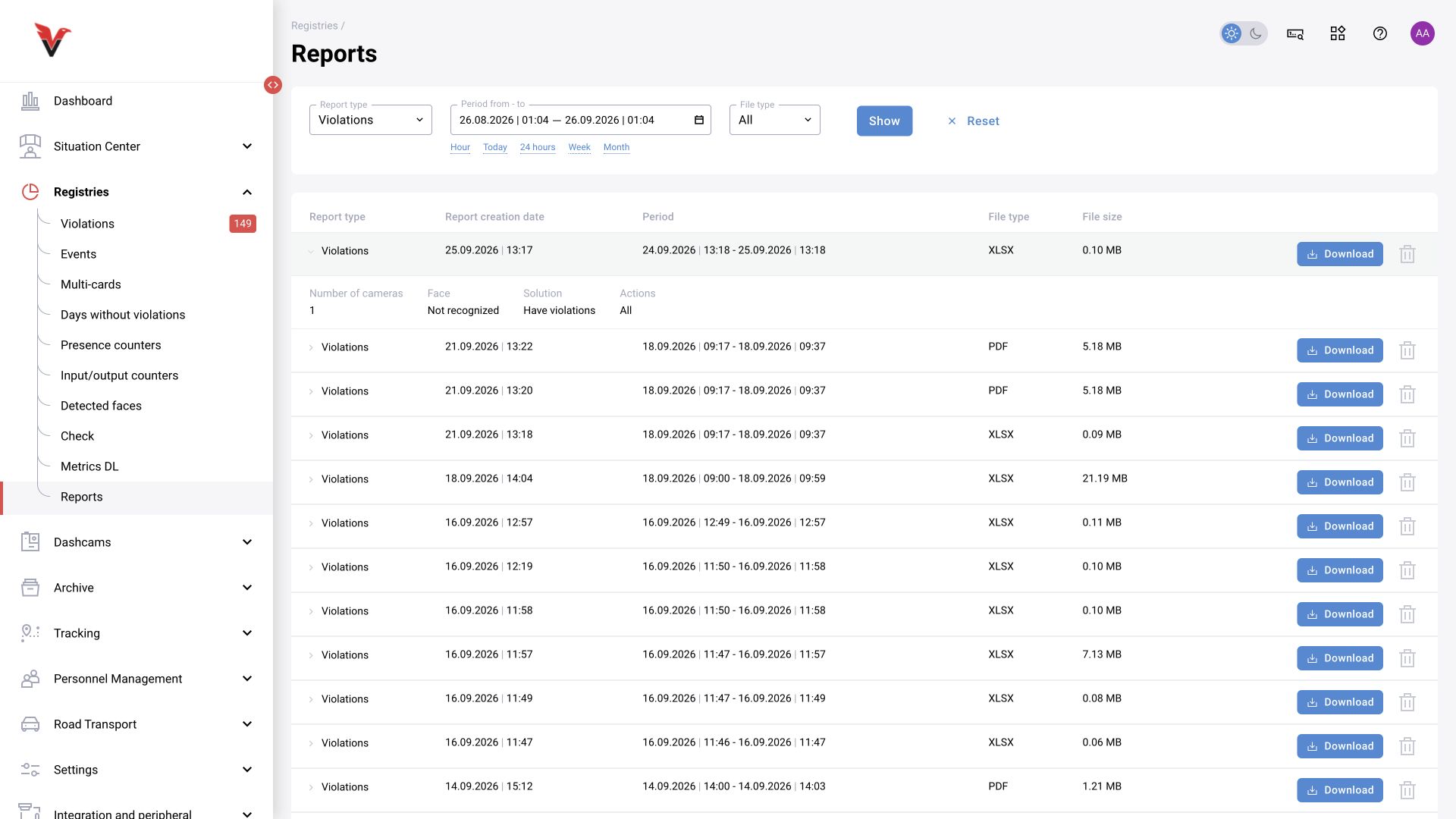
Click “Download” and wait for the result. If the export runs in the background, check the report list. A completed job and a received file are different stages: open the file and check the period, row count and images.
The training workflow generated an XLSX for one camera: six records, one reviewed and five still unreviewed. The file was obtained with operator permissions; it retains the decision, reviewer, fictional additional full name and images. The completed report appeared in “Logs → Reports”.
What to hand over to the next shift
Leave specific information: which events were reviewed, what requires clarification, where video data is missing and which measures remain unconfirmed. A notification number is more useful than “somewhere in the warehouse this morning”.
If a similar episode appears again from a looping training clip, it may be a new analysis record. Do not confuse it with the notification already reviewed.