Monitoring operation and load
Use camera monitoring, cluster monitoring, node processes and model analytics. Check frame freshness, actual processing rate, latency, GPU/CPU and memory usage, dependency status, error count and time since the last event separately.
GPU utilization alone does not determine available capacity: memory, decoding, queues or the network may be limiting factors. Increasing FPS increases computation and changes the meaning of windows measured in frames. Infrequent sampling may be sufficient for a slow process; a fast line crossing or brief hazardous action requires a separate calculation and test.
Measure one camera first, at the working resolution and with a typical number of objects, then measure a group. Where possible, share a common detector between branches with compatible logic, but do not promise automatic consolidation of all identical models across all cameras: this depends on graph execution and load distribution.
Node processes
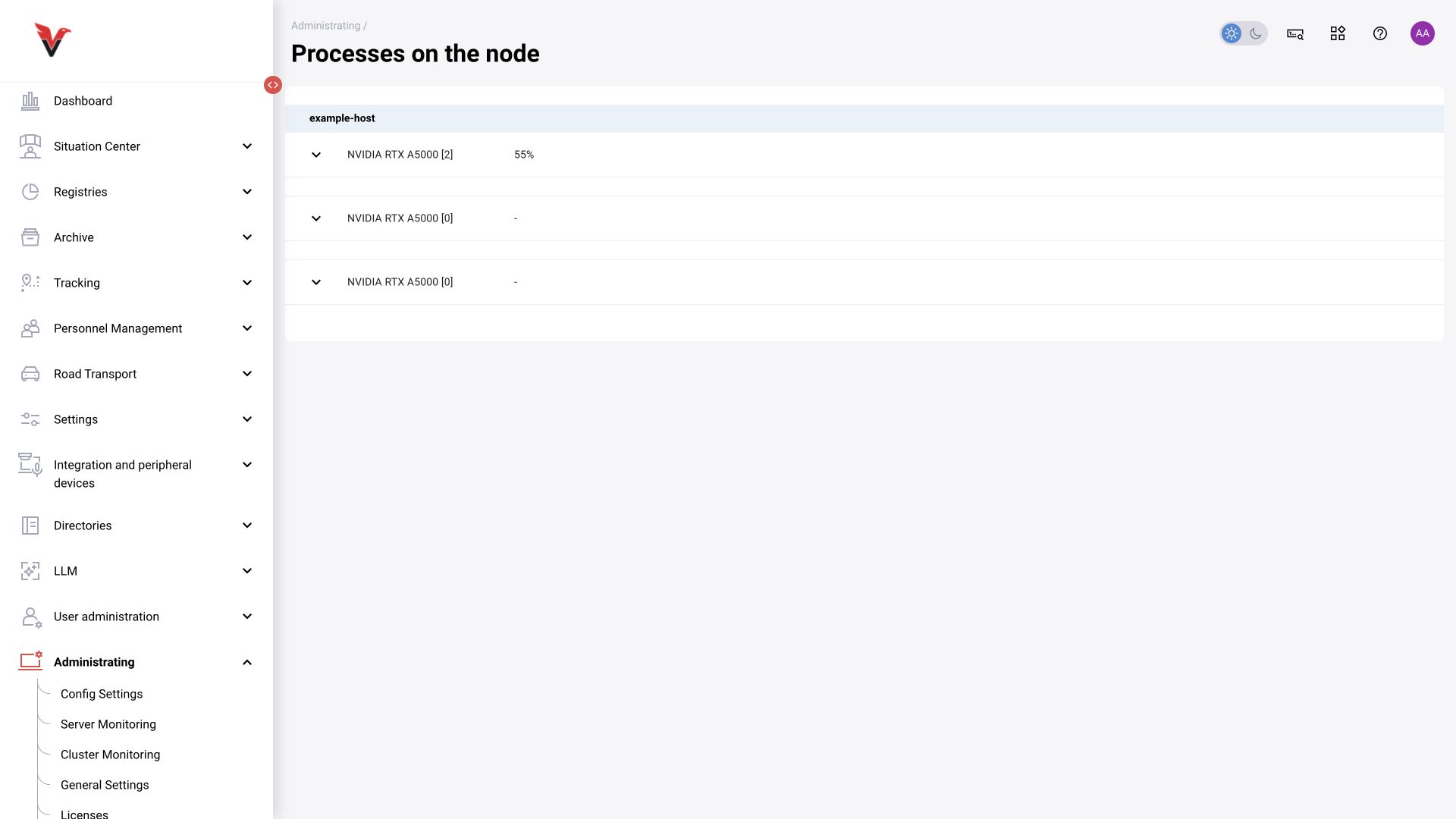
Path: Administration → Node processes, /administrating/processes-on-the-node. View computational processes by node and GPU. Expand a device row to move from aggregate figures to details.
The device name, index and current load help locate execution. A dash means no value is displayed, not necessarily zero load. For a scenario problem, match time, camera, version and process against cluster monitoring; do not terminate a process just because the GPU is busy.
Inference packages
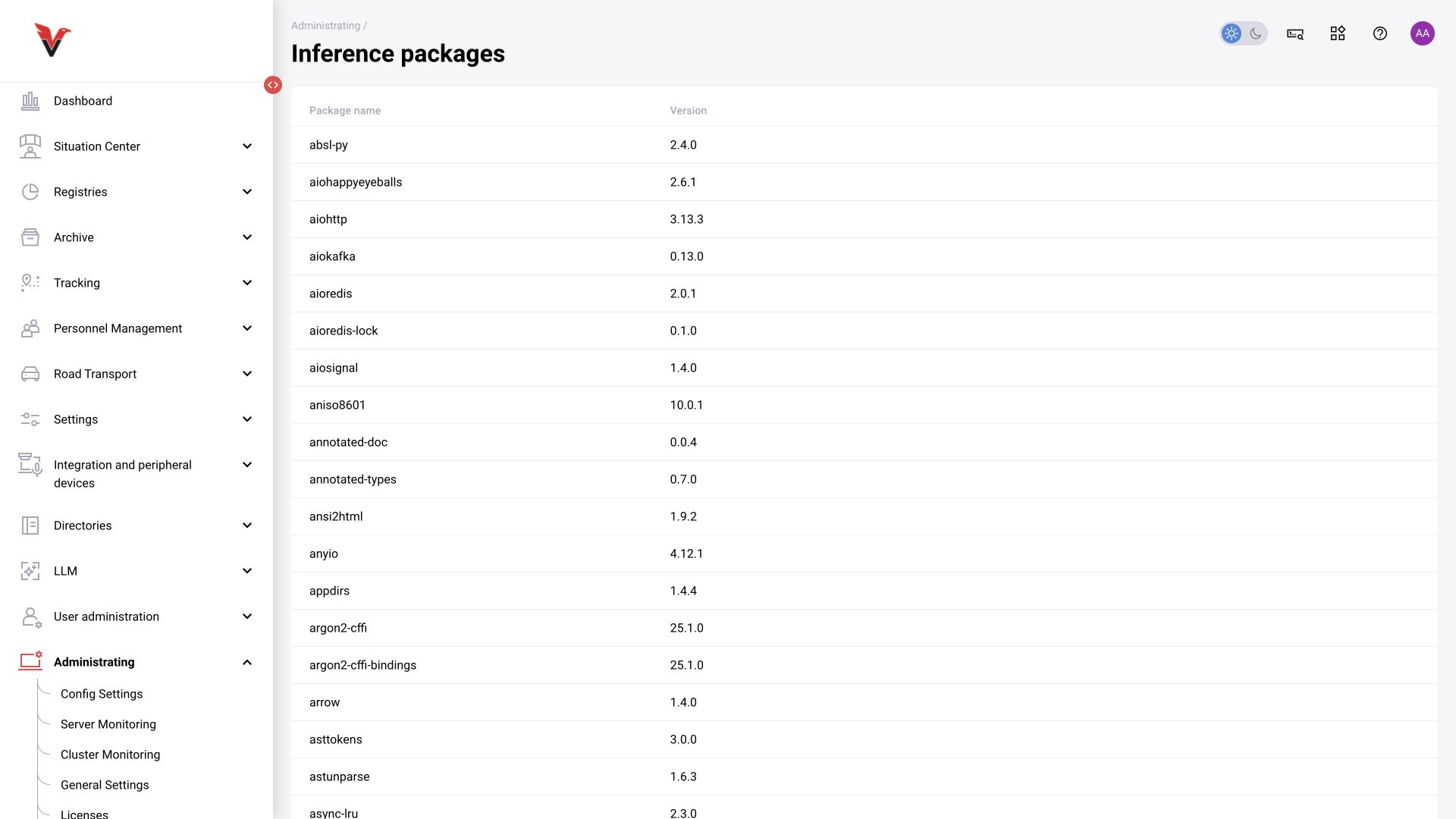
Path: Administration → Inference packages, /administrating/inference-packages. The table shows installed software packages and computing environment versions.
Use this for reproducibility: when behavior differs, record the versions of NRI, model libraries and execution engines. This is an information list, not a package installation form. The system administrator updates the environment according to the deployment procedure.
Model analytics
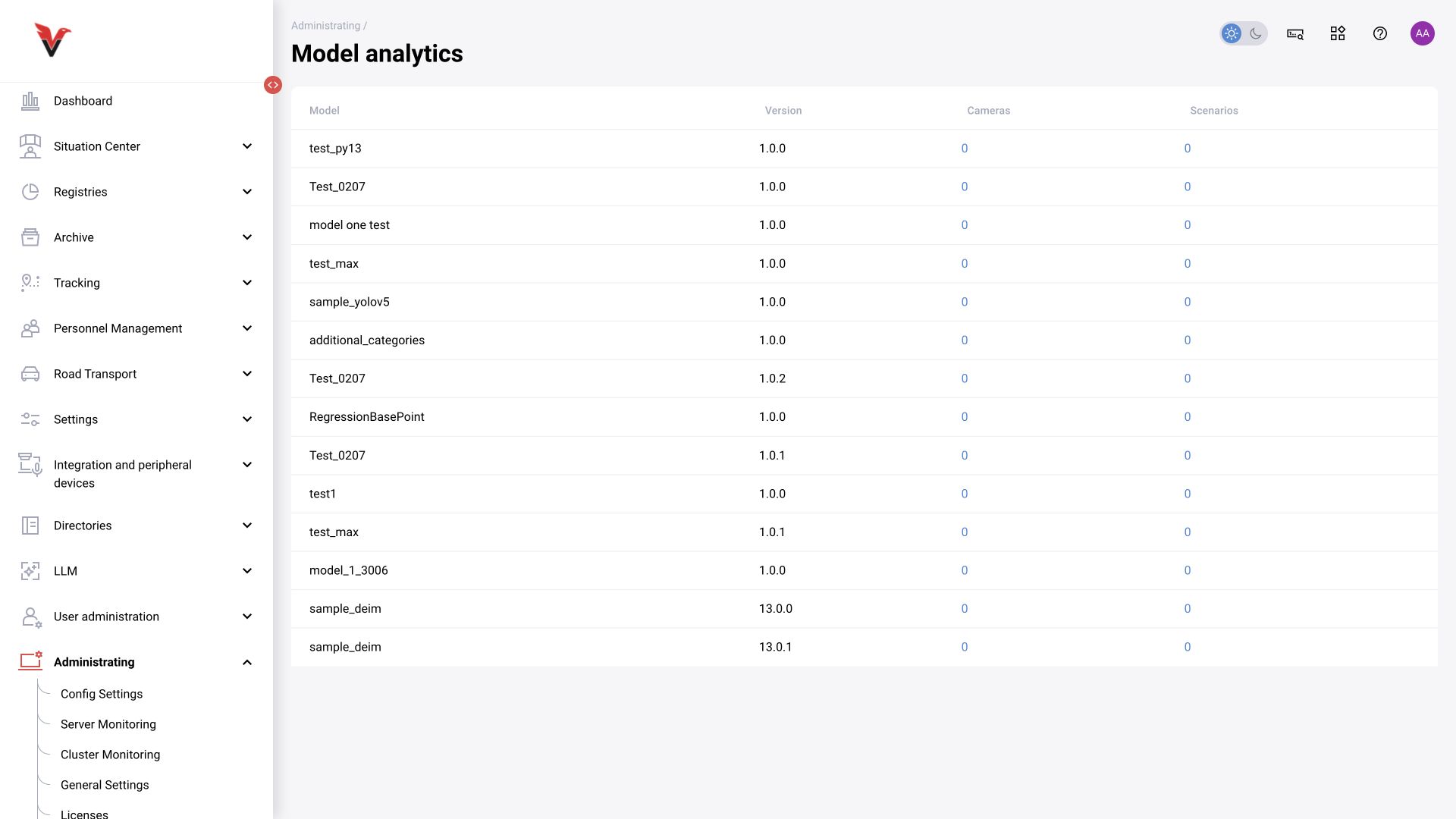
Path: Administration → Model analytics, /settings/model-analytics. Columns show model, version, cameras and scenarios. According to the operating document, clicking a count opens the list of uses.
Before updating, select the required version and inspect its dependencies. A zero value refers to the assignments tracked by the system; by itself it does not prove that the package is unused outside this environment. For operational cameras, verify the actual assignment and execution monitoring.