Checks at the start of work
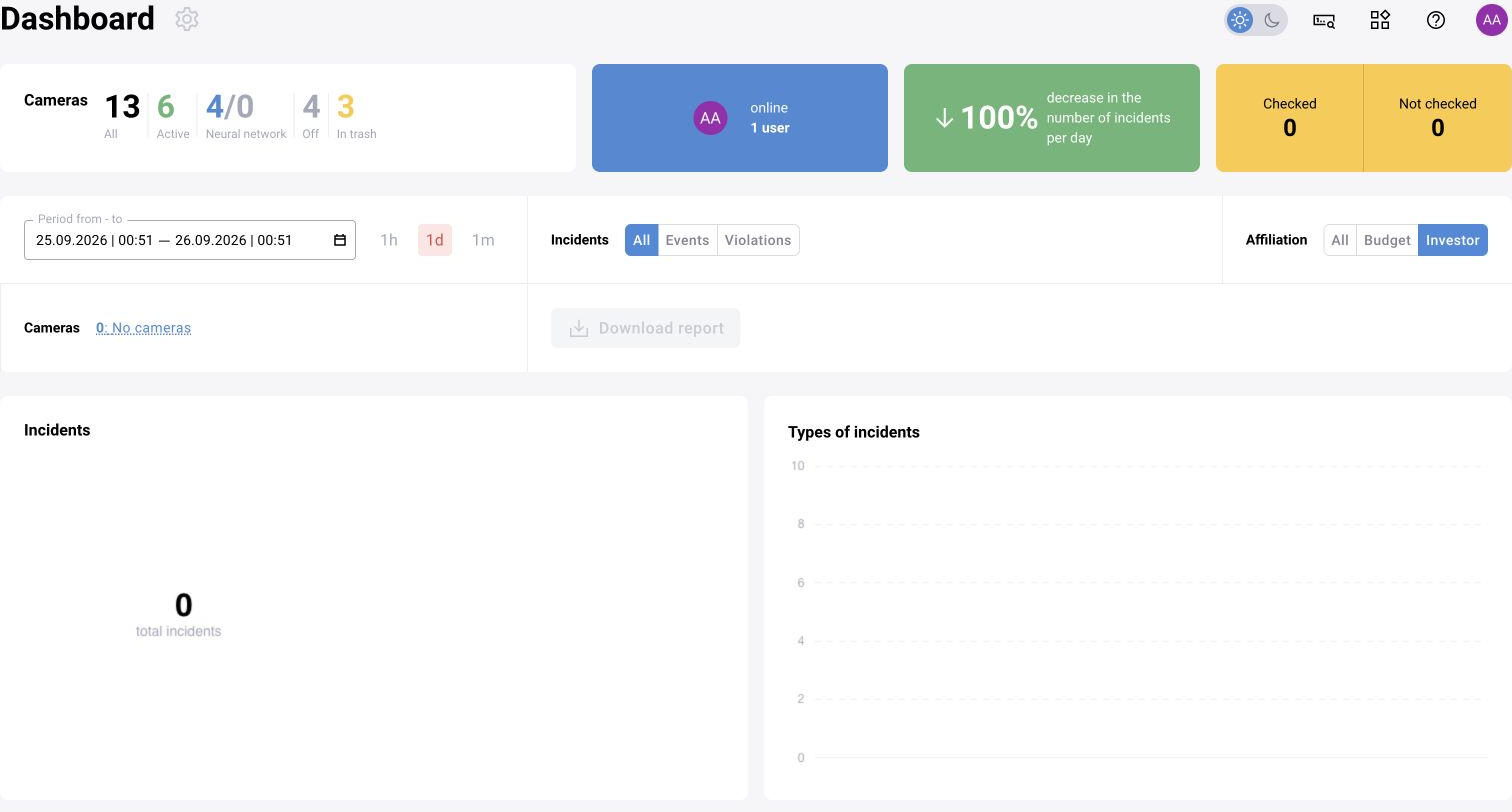
Make sure the correct user is selected and the required cameras are accessible. Open several operational sources, check that the video is current and review the log’s time period. Look at the queue of unreviewed events.
Check processing status and the time of the last result where these indicators are available. Do not treat the absence of new violations as sufficient evidence that analytics are healthy.
If there is no video
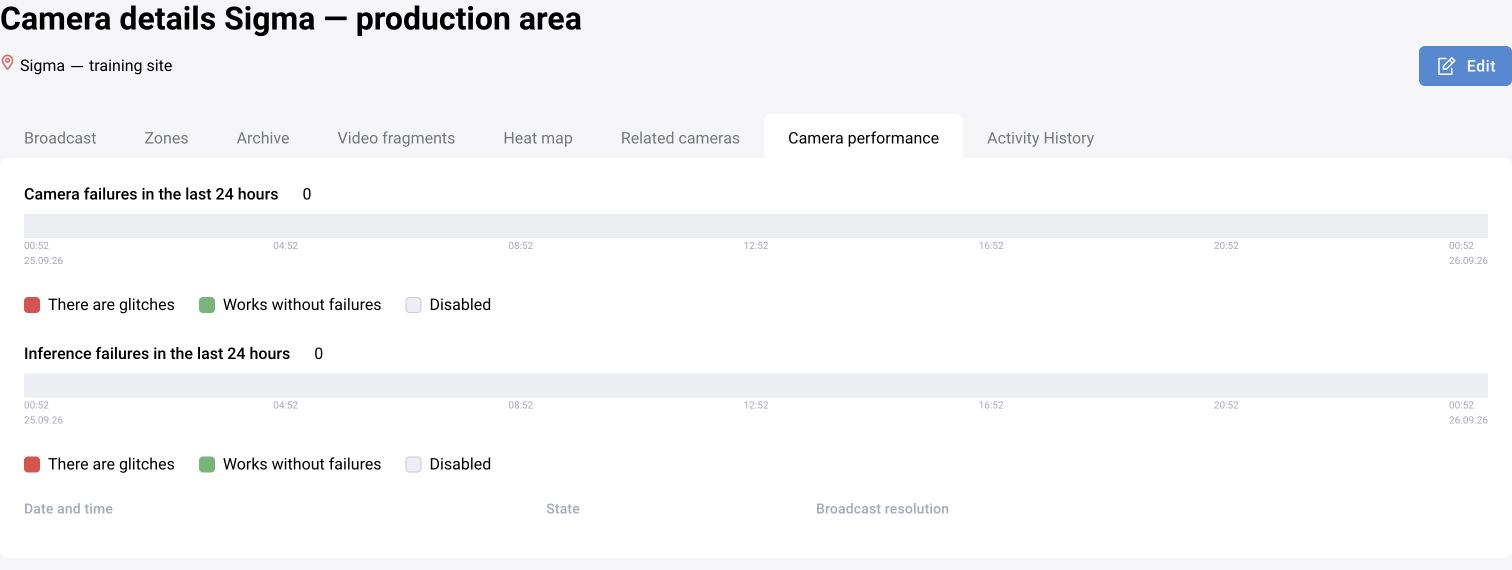
Determine the scope: one camera, a site or all sources. Check camera status, connection parameters, permissions and source availability. Compare the current time with the last available frame.
If the problem started after editing, compare it with changes to the address, source password, resolution or site. Restore a setting to a known working value only within the accepted maintenance procedure.
If video is available but there are no events
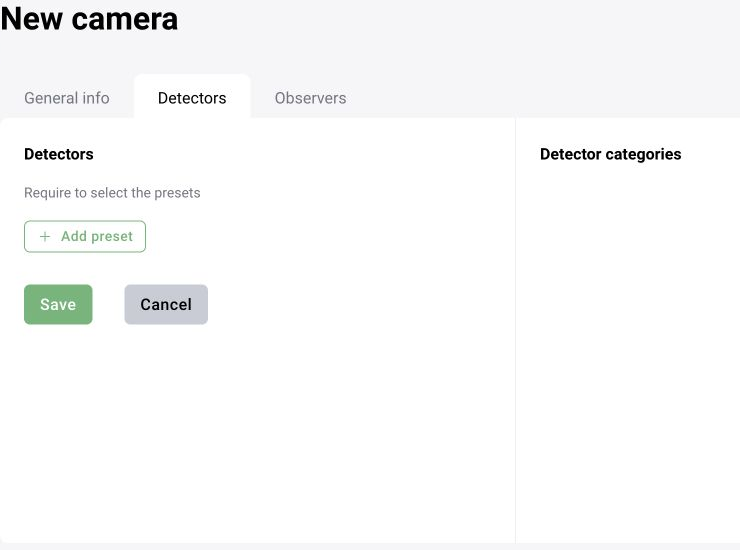
Check that processing is enabled, the assigned preset or scenario version, categories and thresholds. Then check zones, schedule, and event generation and sending rules. Check filters and access scope in the log.
For an LLM, separately check the run, response retrieval and response processing. Visible model text alongside an error may indicate a schema or directory problem rather than an unavailable LLM.
Activity log and incorrect settings
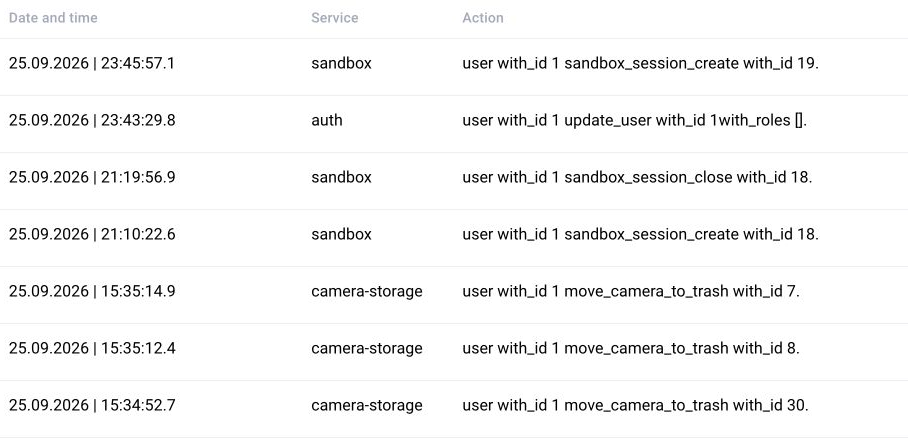
In the available activity log, set the period and user, then find changes made before the problem began. Correlate the record with the time of changes to the camera, role, rule or scenario version.
Record which value changed and what began happening. Do not change several independent parameters at once: it will be difficult to determine which action restored operation.

What to provide to the administrator or support
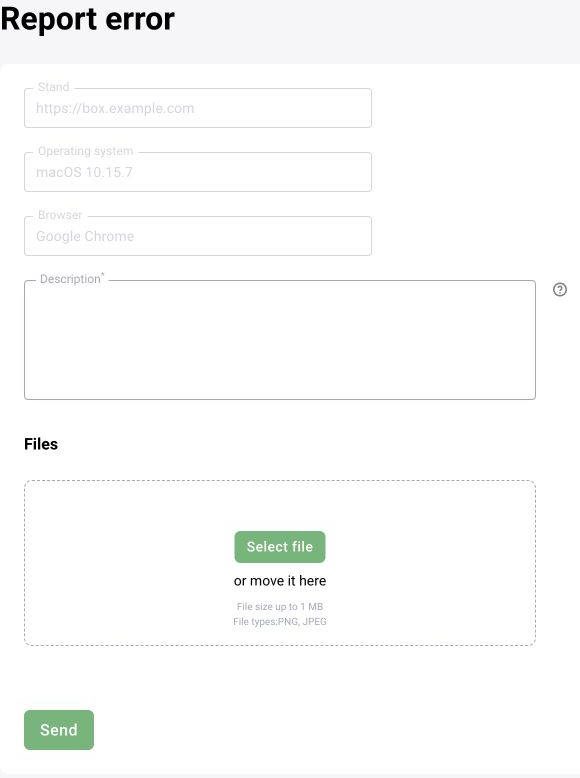
Prepare a brief description: expected result, actual behavior and steps to reproduce. Include the BOX version, time with time zone, site, camera or event ID, user role and last known change.
Attach an available screenshot and the error text without passwords, tokens or stream addresses containing credentials. For a scenario, include the version and run ID; for an LLM, include the prompt type and failure stage. State whether one source or the entire system is affected.