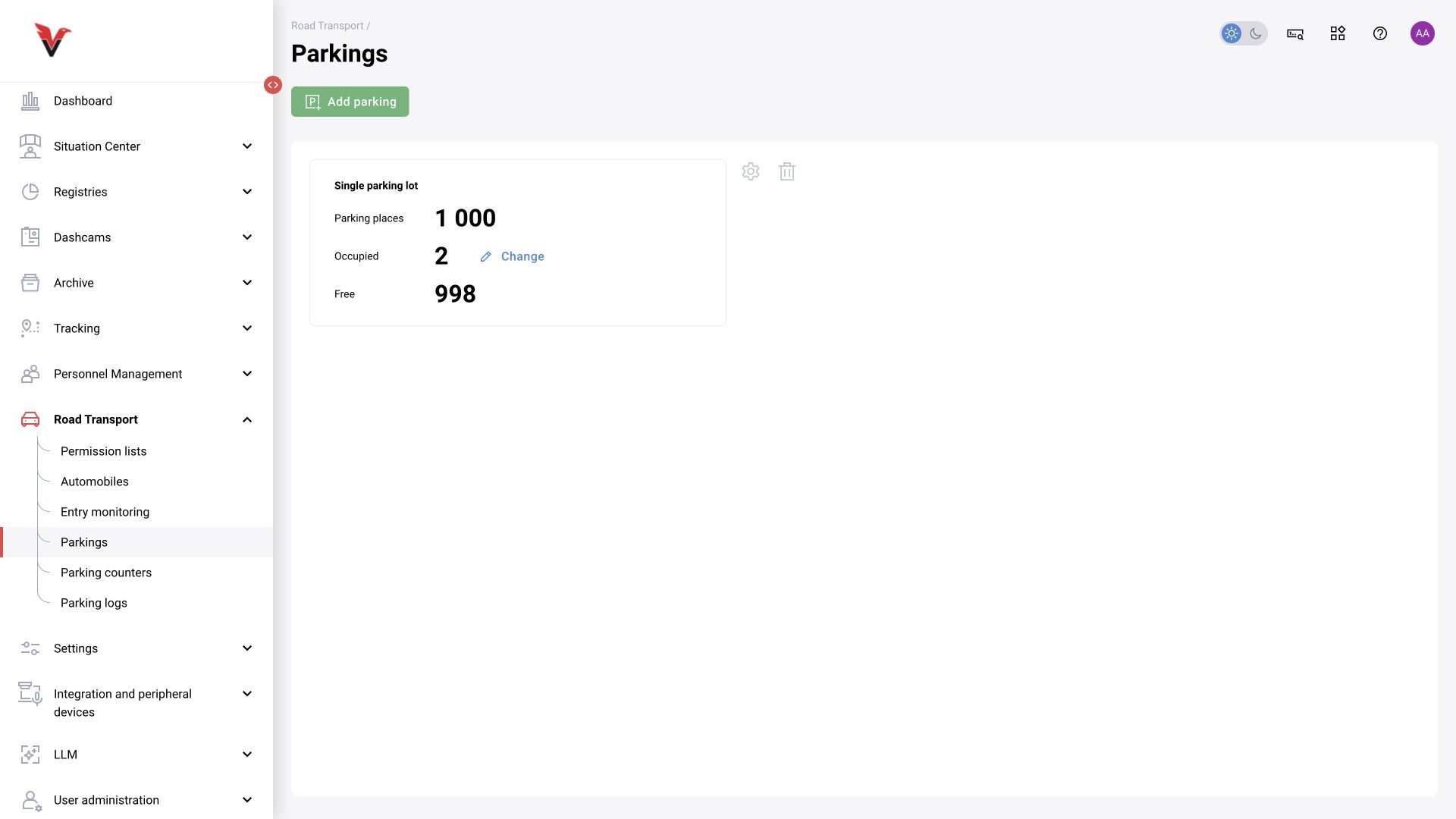
Parking lots
Path: Vehicles → Parking lots, /road-transport/parkings.
Cards show total capacity, occupied spaces and available spaces. “Change” next to the occupied-space count manually adjusts the counter; “Edit” opens the parking lot configuration.
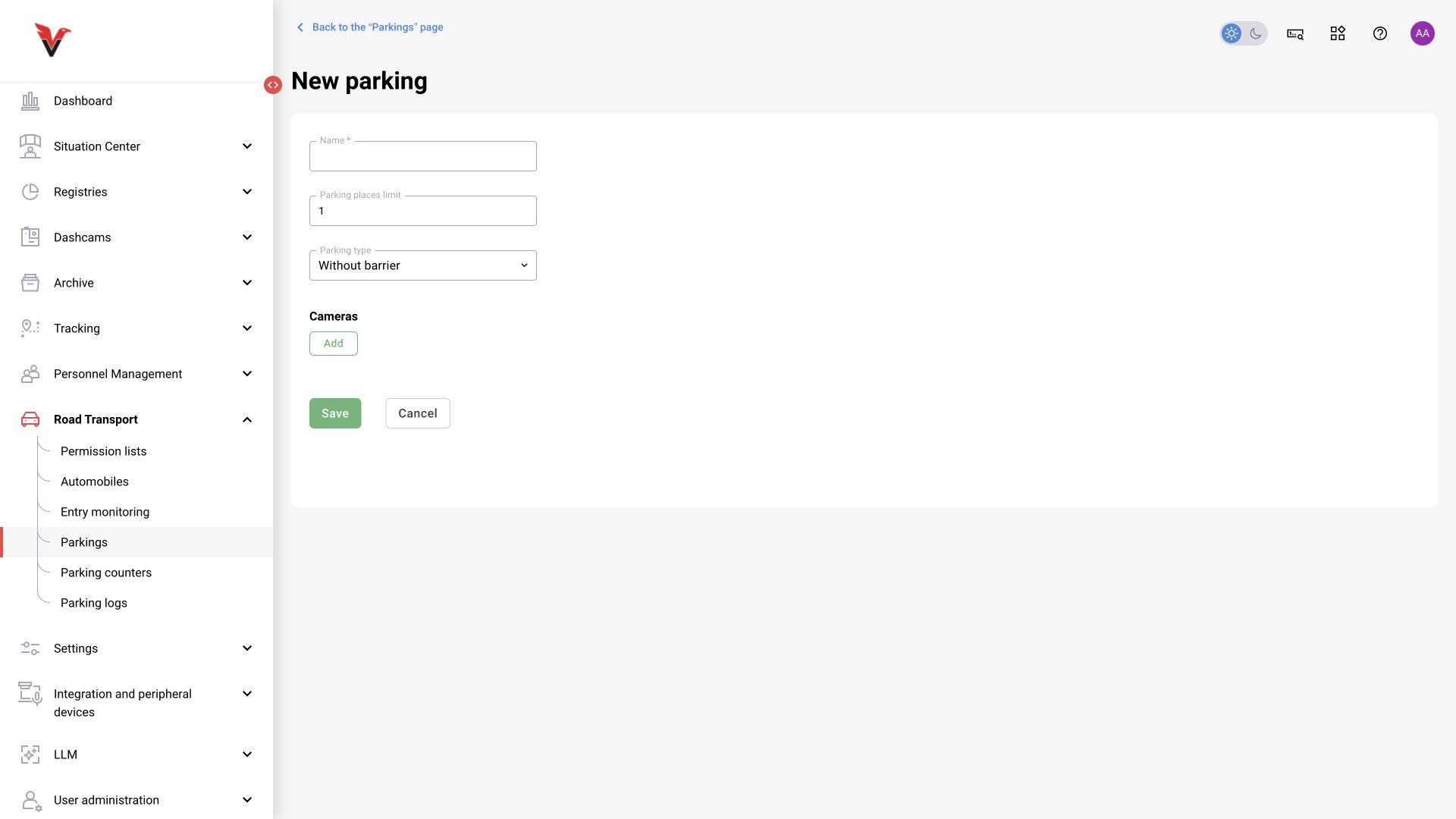
| Field | Meaning and input |
|---|---|
| Name* | For example, Sigma — visitor parking |
| Number of parking spaces | Actual capacity, as an integer |
| Parking lot type | “Without barrier” or “With barrier” |
| Cameras (without barrier) | Sources for counting vehicles |
| Device no. … (with barrier) | Registered control device for a particular access lane |
| Barrier cameras | Associated sources, their type and zone; available after selecting a device |
| Entry denied | Device for the entry-denied light signal |
| No spaces available | Device signaling that the parking lot is full |
| Entry allowed | Device for the entry-allowed signal |
| Monitoring → Device | Input device that confirms physical passage |
| Entry / exit monitoring → Channel | Specific input channels on the selected device |
| Add barrier | Another access lane within the same parking lot |
Configure in this order: devices → cameras and zones → lists and vehicles → parking lot → passage checks. The presence of a recognition camera does not imply the presence of a sensor that confirms actual passage. Without that distinction, an open command and a vehicle that actually enters may be counted incorrectly.
Parking counters
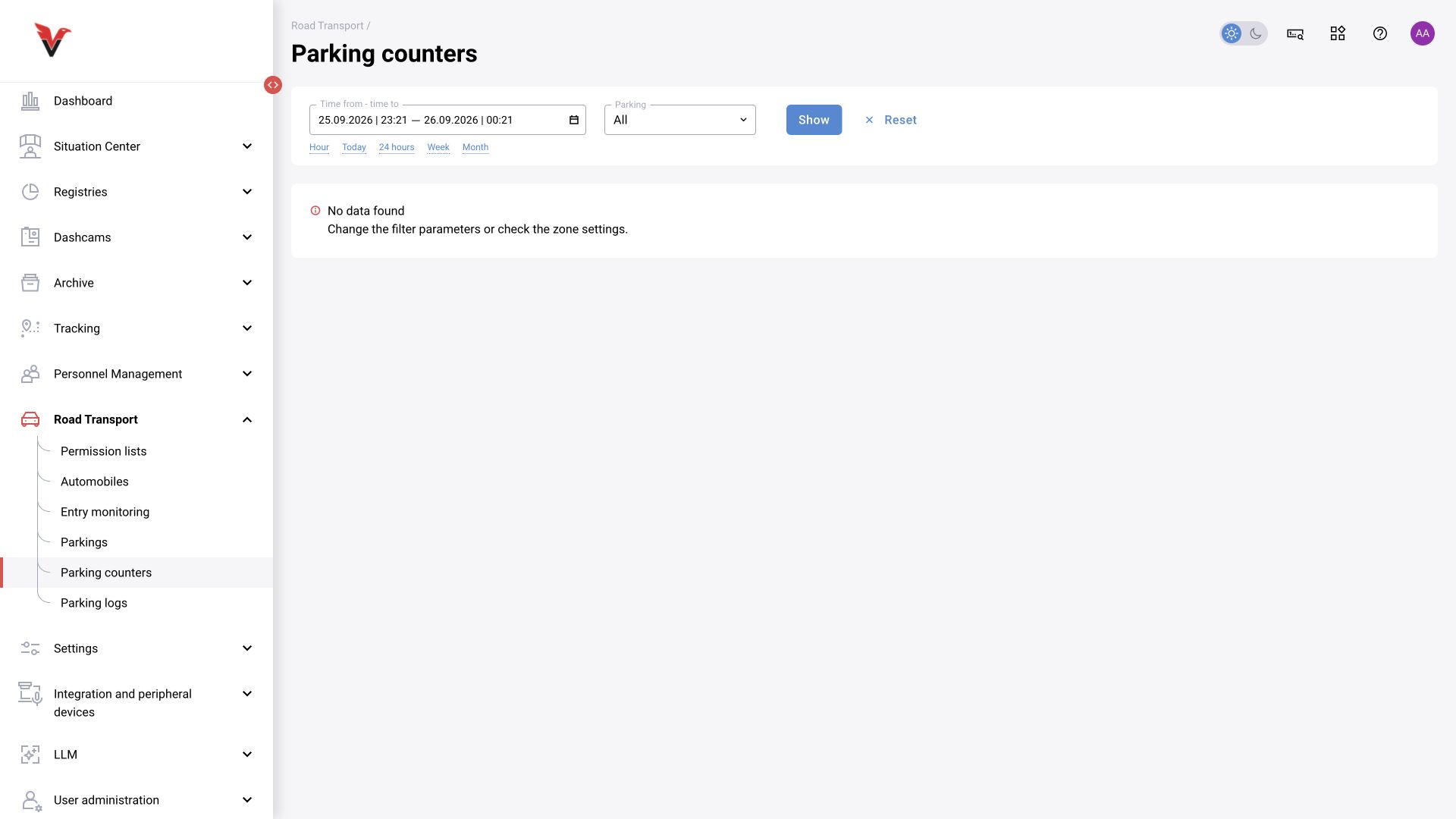
Path: Vehicles → Parking counters, /road-transport/counters.
Select the start and end times and a parking lot, then click “Show”. Counters show occupancy / movement data for the configured parking lot. If there is no data, check cameras, zones, entry/exit direction and actual signal reception. A manual adjustment of occupied spaces affects subsequent calculations and must be considered when analyzing a sudden change in the chart.
Parking logs
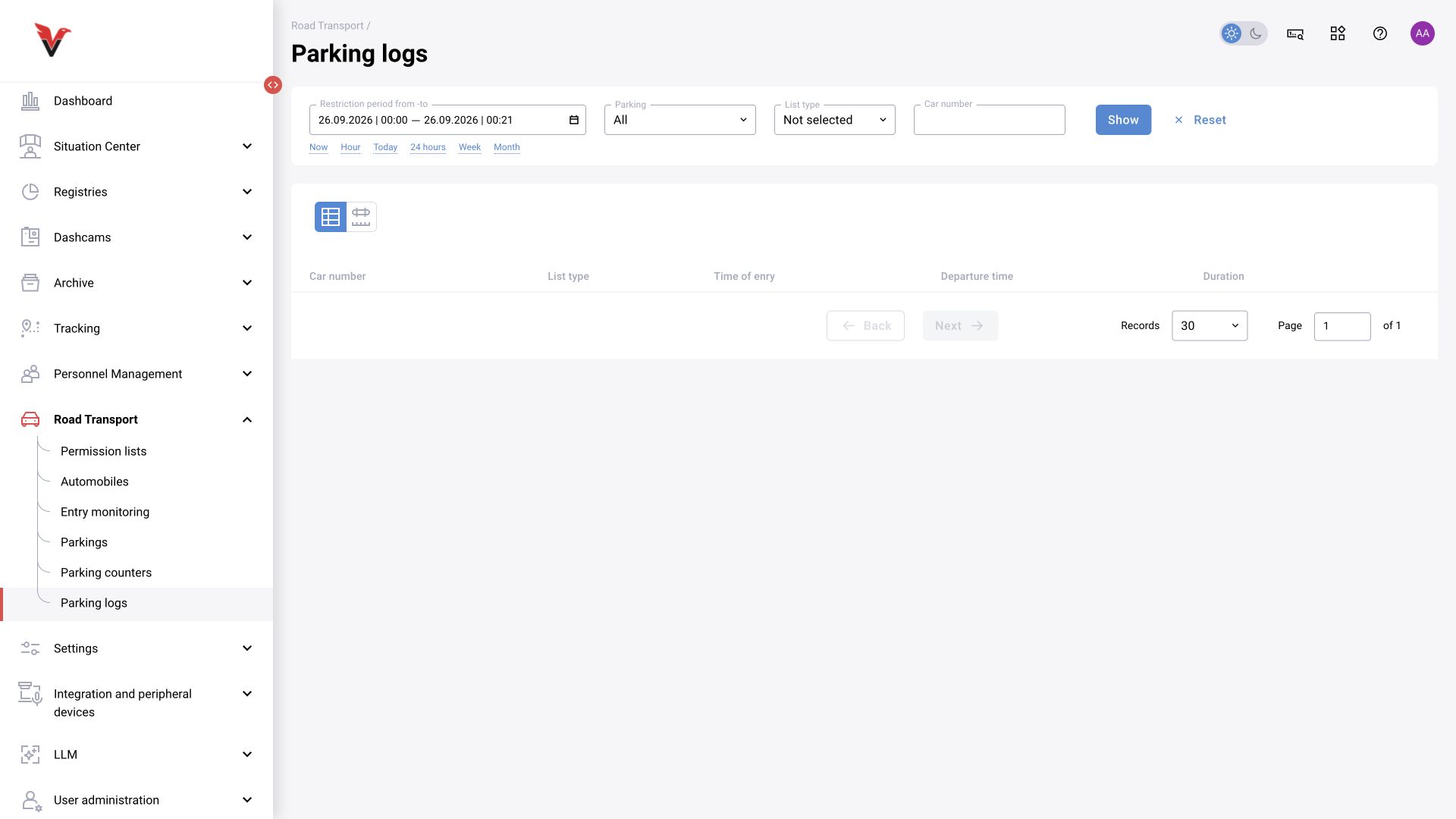
Path: Vehicles → Parking logs, /road-transport/logs.
Filters: Restriction period, from–to (as labeled in the current interface), parking lot, list type and vehicle registration number. Quick time ranges, “Show”, “Reset” and table / visual views are available.
The table contains the vehicle, list type, entry time, exit time and duration. A missing exit does not always mean the vehicle is physically still inside: check the exit camera, sensor and completeness of the time range. For an accurate report, distinguish ongoing visits from completed visits.