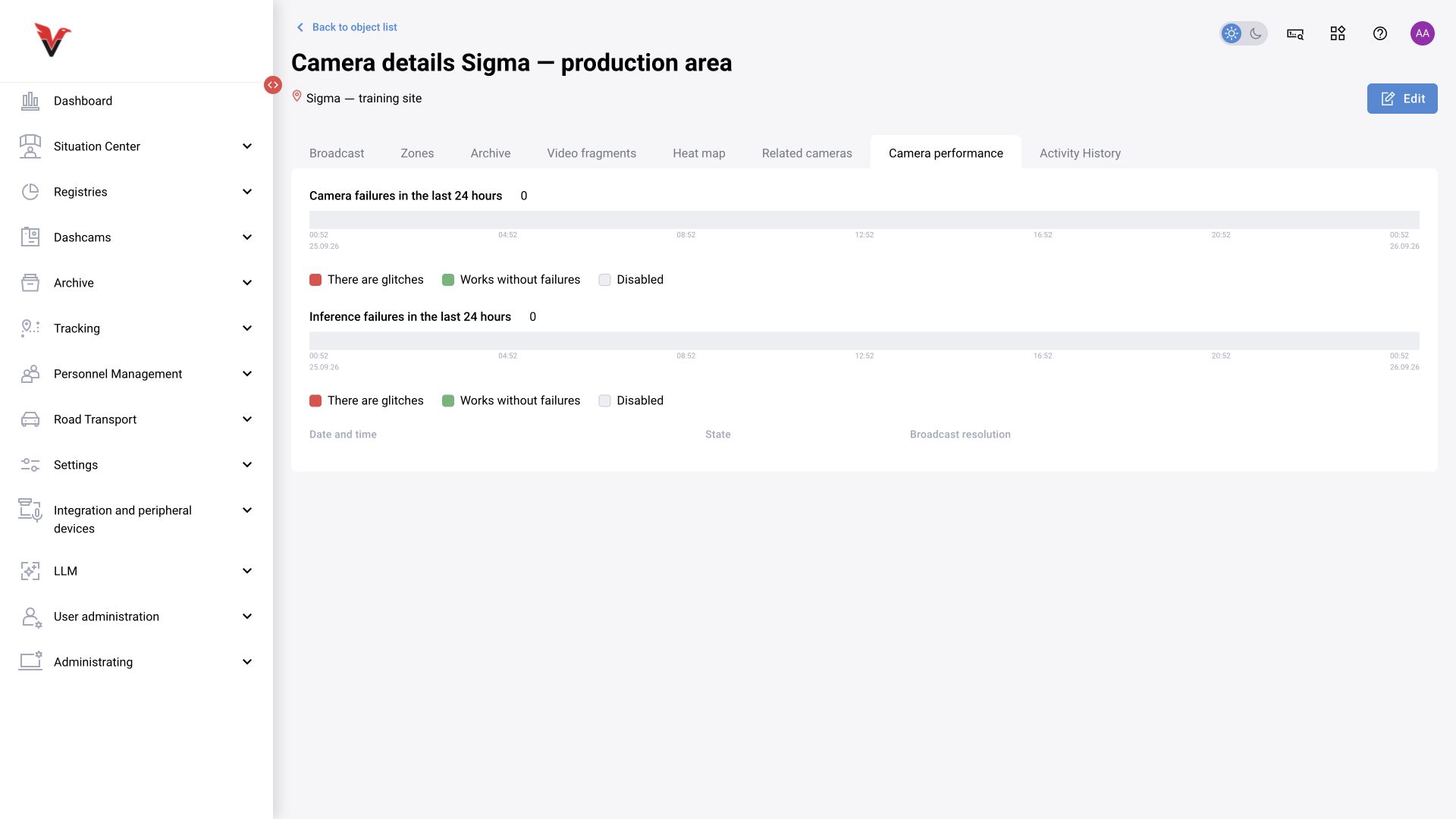
Adding a camera
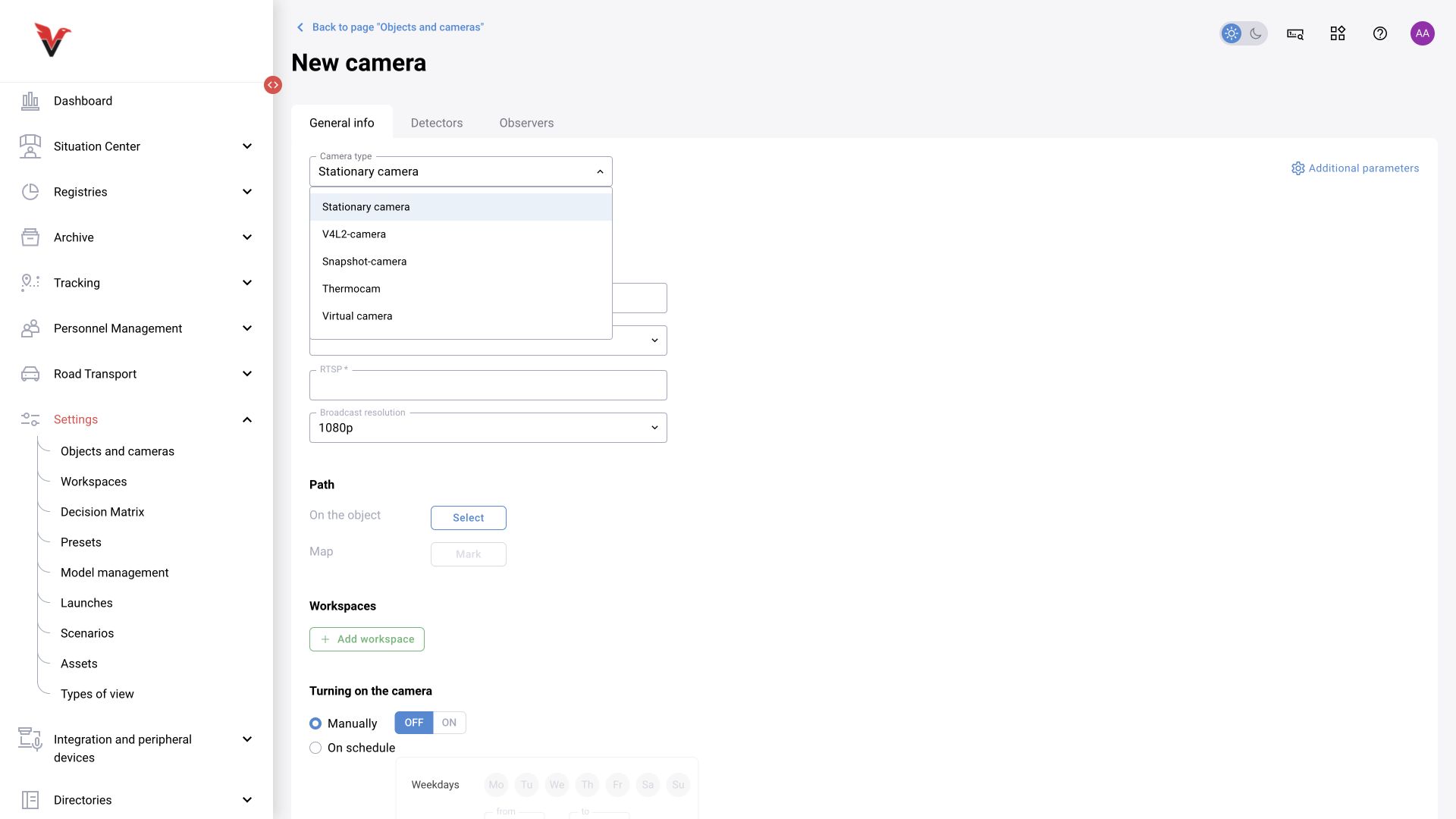
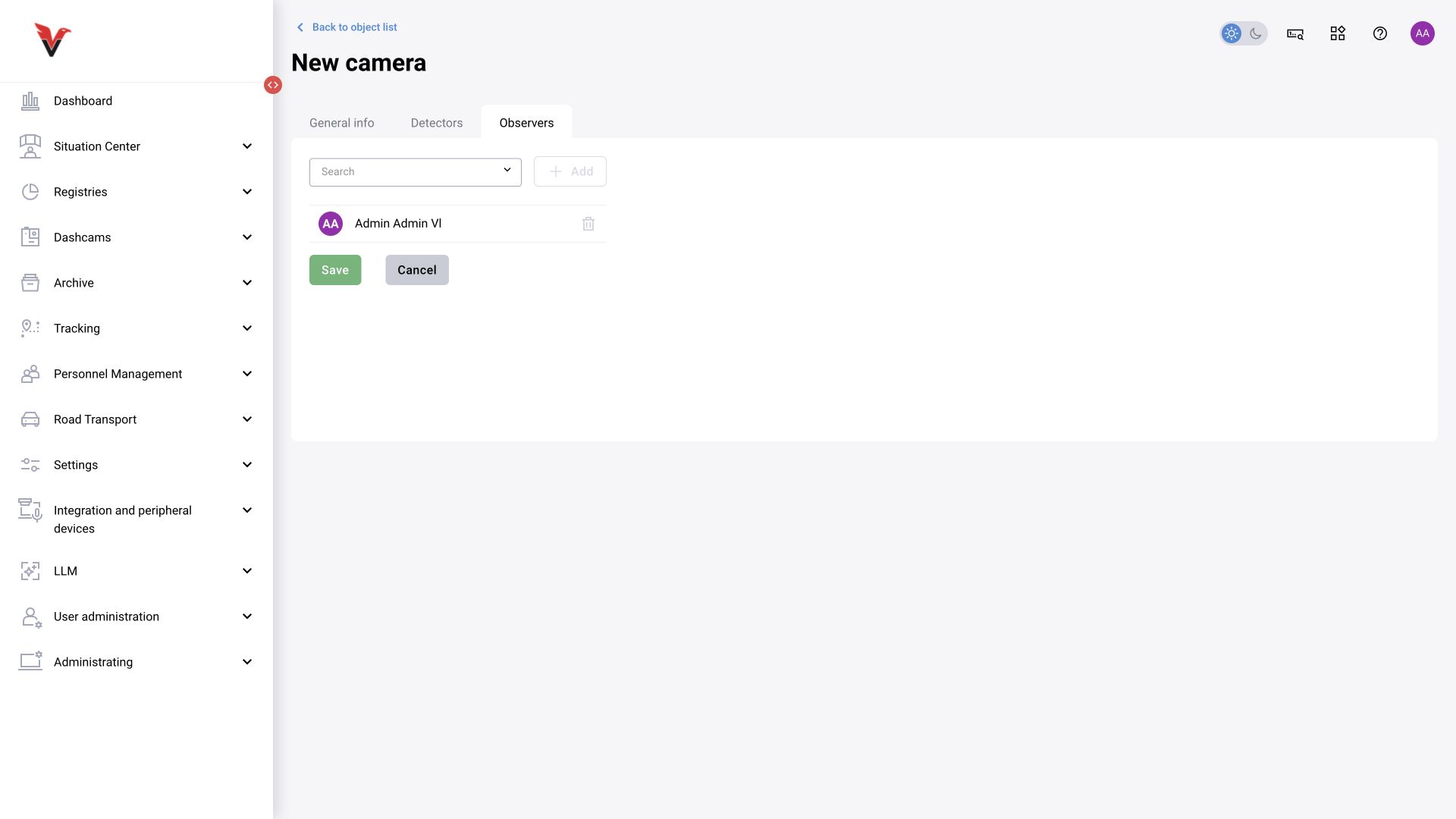
In the tree, click “Add camera”. The main form contains the tabs “General information”, “Detectors”, “Observers”; the detectors tab is absent for some source types.
General fields
| Field | Meaning | What to enter / select |
|---|---|---|
| Camera type | How material is received and processed | The actual source type from the table below |
| Camera name* | Name in the tree, logs and reports | Sigma — workshop 1 — workstation 01; avoid duplicate names |
| RTSP* | Source address field; some other types retain this label too | The address provided by the camera administrator or integrator. For a standard IP camera, this is the video stream address, not a link to its web page |
| Protocol | Connection transport for a fixed source | An option compatible with the source; the technical TCP/UDP values are described in the API |
| Stream resolution | The stream quality selected in the available form | Choose according to the source image and system load. Selecting 1080p does not create detail missing from the original stream |
| At site → Select | Camera location in the tree | Site and, where applicable, floor |
| Map → Mark | Camera position on the floor plan | Becomes available after a suitable site is selected; mark the actual installation location |
| Workspaces → Add | Membership in organizational camera groups | Select existing workspaces; these are not physical zones in the frame |
| Camera activation → Manual / Scheduled | Source operating mode | For a schedule, select the days of the week and start/end times. These fields do not apply in manual mode |
| Camera status, OFF / ON | Whether the source is used | Switching it on does not confirm that the server actually receives an image |
| Neural network, OFF / ON | Whether the connected analytics runs | Enable it after configuring the analytics in use; the stream can also run without analysis |
| Video recording, OFF / ON | Whether to maintain a video archive | Availability depends on the camera type and storage. This switch does not control saving all event photos |
| Monochrome image | Conversion of the image to grayscale | Use only when justified by the model configuration; color information is lost |
| Additional parameters | JSON settings for processing this camera | Supported filters and algorithm settings. See the format, example and limitations below; preserve the other keys when editing. |
A stream may have several address options: the main stream, a secondary stream or different codecs. Obtain the address from the camera/VMS documentation. If credentials are required in the address, enter them in the operational system, but remove the secrets before including the address in a report or support request.
Additional parameters: JSON settings for one camera
The Additional parameters field stores processing settings for this camera as JSON. It may contain detection and event filters, video processing options and settings for individual algorithms. It is not a free-text notes field: a key only has an effect if the installed component supports it.
Applicability. The settings below come from BOX documentation, the media server test guide and completed development tasks. Some belong to specific modules or deployments. The same field in BOX 5.0 does not imply that every scenario consumes these keys: check which camera parameters its blocks read. A completed development task confirms a change, but does not prove that it is installed in every system release.
Minimum object size and event suppression
| JSON key | Purpose | Format and example |
|---|---|---|
size_filters |
Rules that filter detections by minimum object size | An array of objects; each rule identifies the classes it applies to |
size_filters[].labels |
Classes covered by the rule | An array of strings, such as ["person"]. Use class codes from the installed model, not translated display names |
size_filters[].min_size_width |
Minimum width of the detected object | Pixels; 70 in the example |
size_filters[].min_size_height |
Minimum height of the detected object | Pixels; 70 in the example |
time_window |
Time window used by the event suppression filter | Seconds; 10 in the example |
Example field contents:
{
  "size_filters": [
    {
      "labels": ["person"],
      "min_size_width": 70,
      "min_size_height": 70
    }
  ],
  "time_window": 10
}
This example applies the size rule to the person class and sets a ten-second suppression window. The values 70 and 10 come from a deployment example. They are not defaults and must be chosen for the scene and task. A size filter can remove small detections; a threshold that is too high can also remove a person in the distance. The precise suppression algorithm and the meaning of zero depend on the component that reads the setting.
The source manual states that camera settings take precedence over the preset. Do not assume that every custom scenario follows this rule: it may read the parameters differently or ignore them.
The face detector documentation uses the same size_filters structure with the classes mask_off, mask_viol and mask, and 70 × 70 pixel thresholds. In that example, both dimensions must exceed 70 pixels. Class names depend on the installed model.
Media server: decoding, frame rate and processing group
| JSON key | Purpose | Values and verification |
|---|---|---|
mediaserver.decoder_use_ffmpeg |
Use the FFmpeg decoder for this camera | JSON boolean: true enables it. Check HLS playback after saving |
mediaserver.decode_hardware_decode_enabled |
Hardware decoding | JSON boolean: true enables it and false disables it. Requires compatible hardware and service configuration; successful playback alone does not prove that hardware decoding is in use |
mediaserver.fps |
Frame-rate limit for this camera | Frames per second. The guide shows 25, with 1 or 2 suggested for an easily visible test. The complete range and the meaning of 0 for this JSON field are not established |
group |
Group used to allocate the camera to inference processes | A string, such as "group_name". Use a name agreed with the processing configuration. This is separate from the object hierarchy and user access scope |
Example: limit one camera to two frames per second.
{
  "mediaserver": {
    "fps": 2
  }
}
A low value is useful for testing, but may be unsuitable for fast movement or brief events. After the test, set a frame rate that meets the analytics requirements. A media server limit does not replace the camera schedule or the LLM execution interval.
For an MJPEG stream, the guide specifies a GENERIC camera with software FFmpeg decoding:
{
  "mediaserver": {
    "decoder_use_ffmpeg": true,
    "decode_hardware_decode_enabled": false
  }
}
When combining settings, place them in one mediaserver object and preserve its existing keys. Do not create two root keys with the same name.
After saving, check that HLS plays correctly, colours and proportions are natural, and playback delay does not keep growing. An operations engineer can verify the processing group in the media server log messages Camera group is and Adding camera to inference. To confirm hardware decoding, the guide uses nvidia-smi -q -x and the decoder_util field.
The limit for all cameras is configured separately through the service environment variable DECODE_MAX_FPS. Its documented values are positive integers; 0 disables the limit, and the documented fallback when the variable is absent is 25. This is a server setting. For one camera, the documented JSON path is mediaserver.fps. Do not automatically apply the environment variable's zero behaviour to the JSON field.
Linked cameras and crane cabin position
| JSON key | Purpose | Values and limitations |
|---|---|---|
event_filter_seconds |
Time interval for suppressing duplicate person events in a linked-camera configuration | Seconds; 5.0 in the example. When omitted, the service setting applies: five seconds in the documented deployment. This is a separate setting from time_window |
cabin_position |
Cabin position used by the lifting and handling safety algorithm | One of "LEFT", "RIGHT", "DOWN" or "TOP". Set on the downward-facing, or nadir, camera. Match the installed camera and its calibration |
camera_position |
Camera role within the linked set | The documentation screenshots show "NADIR", "FRONT" and "UNSPECIFIED". These are observed values, not a verified exhaustive list |
links |
Linked cameras and their roles | An object such as {"5":"FRONT","6":"NADIR"}, with camera IDs as string keys. Preserve existing links; do not copy IDs from another installation |
Example of a cabin-position setting:
{
  "cabin_position": "DOWN"
}
Manage the links themselves through the system's linked-camera screen. When changing another setting, preserve links and camera_position if they are already present. The documented event_filter_seconds change concerns duplicate filtering by person ID and zone type. It does not set the event clip length or a universal interval for every detector.
Speed settings by vehicle class
The speed detector configuration uses a speed_table object. Each key is a class code and each value is a numeric speed setting. The documented example is:
{
  "speed_table": {
    "car_sedan_suv": 40,
    "bus": 30,
    "truck": 20
  }
}
The available description does not specify units, the comparison rule, allowed ranges or the behaviour for an omitted class. Do not present 40/30/20 as universal limits in km/h. First check the configuration contract and calibration of the installed speed detector.
Settings for individual modules
A completed development change confirms support for reading module settings from the camera's additional parameters. This is a way to supply parameters, not a universal key catalogue for all algorithms.
The activity module documentation describes activity_thresholds with the levels low, medium and high, using 10/20/50 as an example. A later change groups the settings under person_activity and adds aggregation by time or frame count: aggregation_by_time, time_seconds_aggregate and num_frames_aggregate. Camera settings take precedence over this module's configuration; missing settings fall back to that configuration.
Check the installed contract before copying the old aggregation example. The task description misspells the key as aggretation_params, while the implementation comments use aggregation_params. The example's 30-second period is not a reliable default either: the change history records a new default of 60 seconds. Confirm the nesting and values for the installed release. These sources do not define the units of the activity thresholds.
Other completed tasks mention early_send_on_zone_exit and controlling pose detection through camera parameters. The reviewed descriptions do not provide their complete JSON contracts. For RTSP sources with malformed SDP, support was added for the GStreamer property force-noncompliant-url, requiring GStreamer 1.24.7 or later. However, these sources do not establish the exact camera JSON key or nesting. Apply these options using the module's configuration contract, not a task title alone.
Other parameters found in configurations
The following keys appear in deployment examples. This table records their structure and actual example values. It does not define allowed ranges or recommend copying the entire configuration to every camera.
| Group | Keys and example values | Applicability |
|---|---|---|
movement_detection |
turn_on: "true", threshold: 55, close_ksize: [31, 31], gb_ksize: [11, 11], gb_sigma: 3, silhouette_height: 0.05 |
Motion processing options. Consult the installed algorithm's contract for threshold meanings and ranges. The source uses the string "true"; do not replace it with boolean true without checking |
check_movement |
labels, sub_label, time_for_report: 8, percent_frames_for_report: 0.5, drop_after_time: 30 |
The example sets sub_label to "person_lay_down_secondary". The units of the time fields and result accumulation rules are not established here |
A completed development task confirms the motion-checking module. Its description does not establish the units of time_for_report or drop_after_time, threshold ranges, or how percent_frames_for_report is calculated. The key names alone are insufficient to determine those rules.
Entering and checking changes
- Copy the current field contents before editing. Preserve unrelated keys when changing one setting.
- Enter a JSON object with double quotes around keys and strings. JSON does not allow comments or a trailing comma after the last item.
- Check the model's class codes and the units. Do not reuse pixel thresholds in a different view without checking the image scale.
- If a separate editor is open, select Apply, then save the camera. Use controlled footage to compare required detections, small objects and repeated events before and after the change. For media server settings, also check HLS playback.
- If required events disappear, restore the saved configuration and check the size filter, event suppression and interaction with the preset or scenario.
BOX 3.2 API: the reviewed CreateCamera.etc_params schema is string | null, with the default "{}". The field's JSON must therefore be sent as a string with escaped quotes, for example "etc_params": "{\"time_window\":10}". This is a request-body fragment, not a complete camera creation request. An empty object means that no keys are set here; it does not define universal analytics defaults.
If the field is unavailable: check permission to edit the camera and its additional parameters. A project-specific role model was extended to give administrators and data analysts access, including for synchronised cameras. Your installation's permissions determine actual access. If the button does not open the editor, or existing values disappear when editing, record the interface version and contact support: this behaviour has been documented and fixed as a defect. Do not save an empty form over a configured camera.
Camera types and fields that differ
| Type in the form | Use and specific features |
|---|---|
| Fixed camera | Continuous video stream. Protocol, address, resolution, manual mode / schedule, recording, analytics and monochrome image are available |
| V4L2 camera | A device accessible to the server component through V4L2. The form retains the “RTSP” label, but the actual device identifier is set according to the integration contract. This is not a USB camera attached to the operator's browser |
| Snapshot camera | Periodic frame capture. Adds the numeric field “Snapshot interval”. No unit is shown next to the field: check it against the driver parameters; do not assume minutes by analogy with LLM |
| Thermal camera | Temperature monitoring. Fields under “Monitoring”: “People” / “Zones”; “Temperature threshold”. For zones, the form adds “Monitoring type”: minimum temperature, maximum temperature or temperature difference. Select the threshold according to the measurement method and device settings; a demonstration value is not a regulatory limit |
| Virtual camera | Analysis of a prepared video file. Fields: “File”, “Upload”, “Download”, name, site, workspaces, status and neural network. Select an existing file or upload your own. The absence of a recording button for this type does not mean the file is not stored |
| Auto-detected camera | A source whose type is identified by the supported connection mechanism. Use only an address compatible with the deployment; the mode name does not guarantee recognition of every protocol |
Switching the type changes the available fields. Select the type first, then enter the address and type-specific parameters. Do not enter internal API enumeration values in the name field or copy them from hidden interface elements.
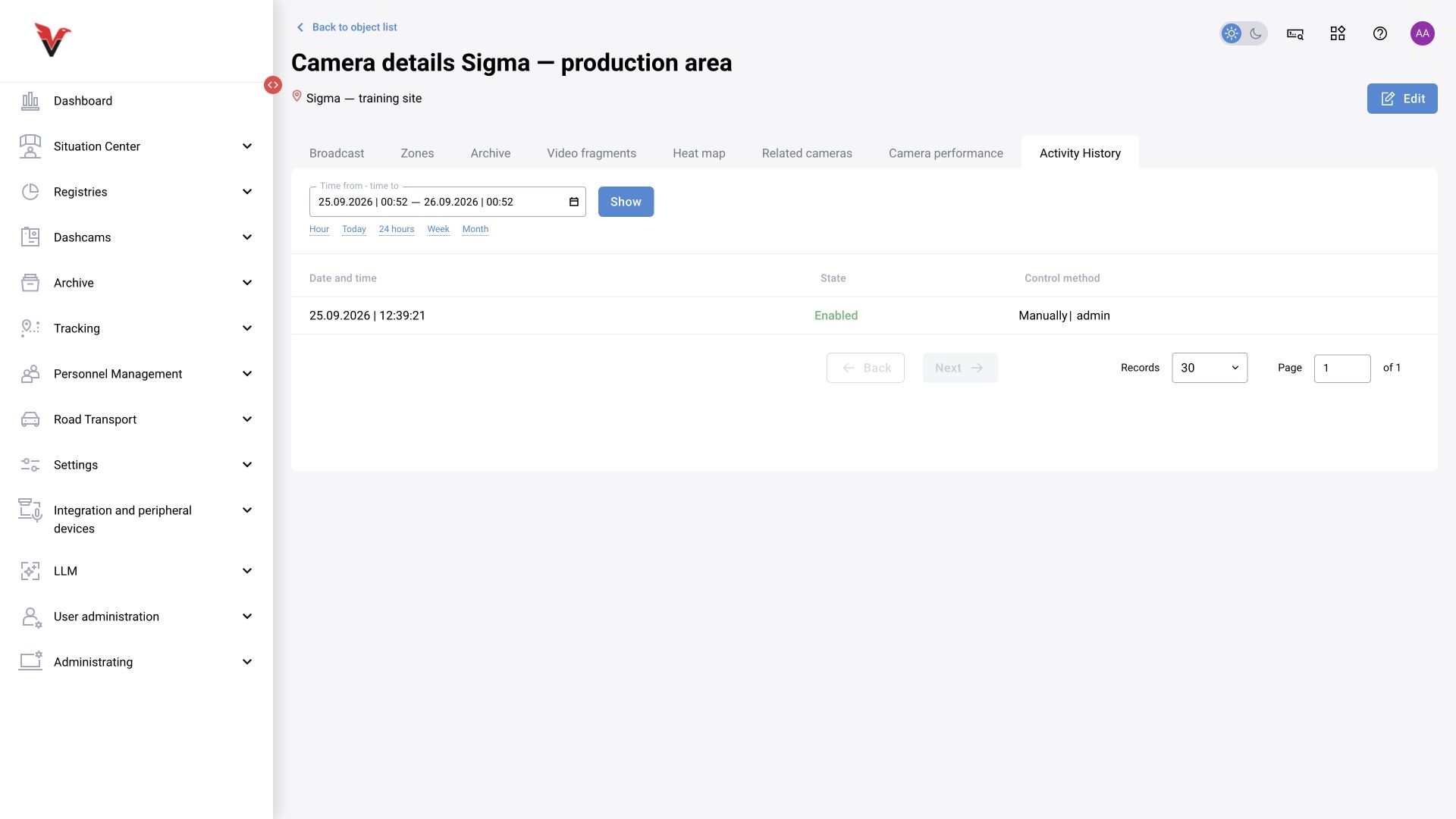
The “Detectors” tab
Click “Add preset”, then select an existing preset. Rows can be deleted or moved. Review the resulting set of classes and save the camera. There is no need to add the same preset twice. For a full description of thresholds and states, see §9.5. In the inspected BOX 5.0 form, this tab does save presets. The platform procedure for assigning scenarios, versions and individual parameters is covered in [§4.11–4.13](/docs/platform-scenario-versions#s4-11); the available tabs depend on the build.
The “Observers” tab
Find the user, select them and click “Add”. Check the entries already added: the creator may be in the list. Save. An observer is responsible for the camera and participates in the notification route; their actual access is also governed by their role.
Checks after saving
- Find the camera under the correct site.
- Open the live stream and confirm that the view is correct and the image updates.
- Check the camera status and neural network status separately.
- Open the zones and confirm that their boundaries match the frame.
- Use an approved test example to check the expected detection and log entry.
- If recording is enabled, check the archive separately.
- Open the camera using the operator's working role.
Copying a camera does not replace these checks: verify the new camera's address, site, zones, presets, observers and schedule. Closed issues BOXD-5278 and BOXD-5285 addressed preset saving/copying; this is a reason to check the result, not a promise that every copy will automatically be correct.
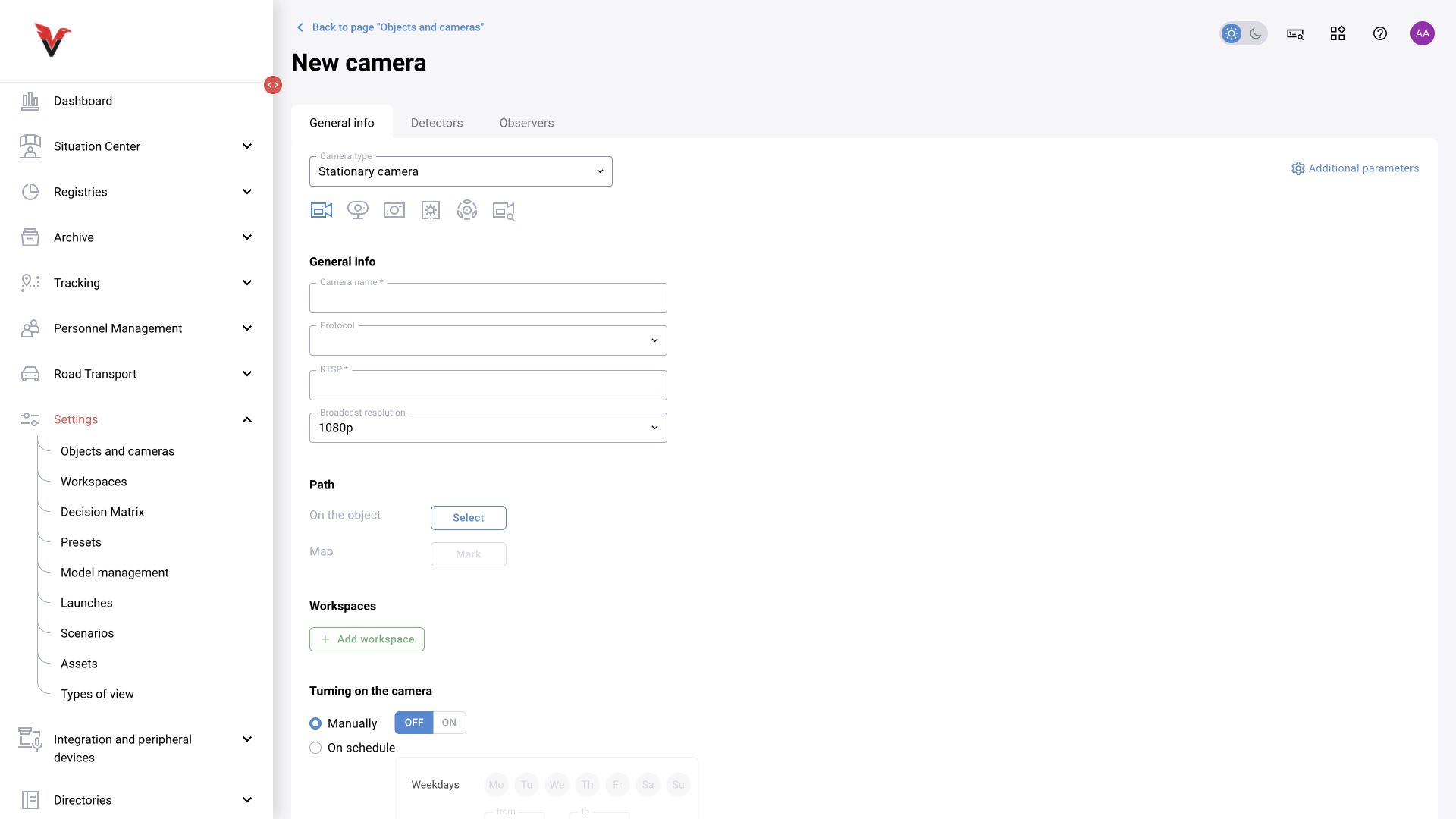
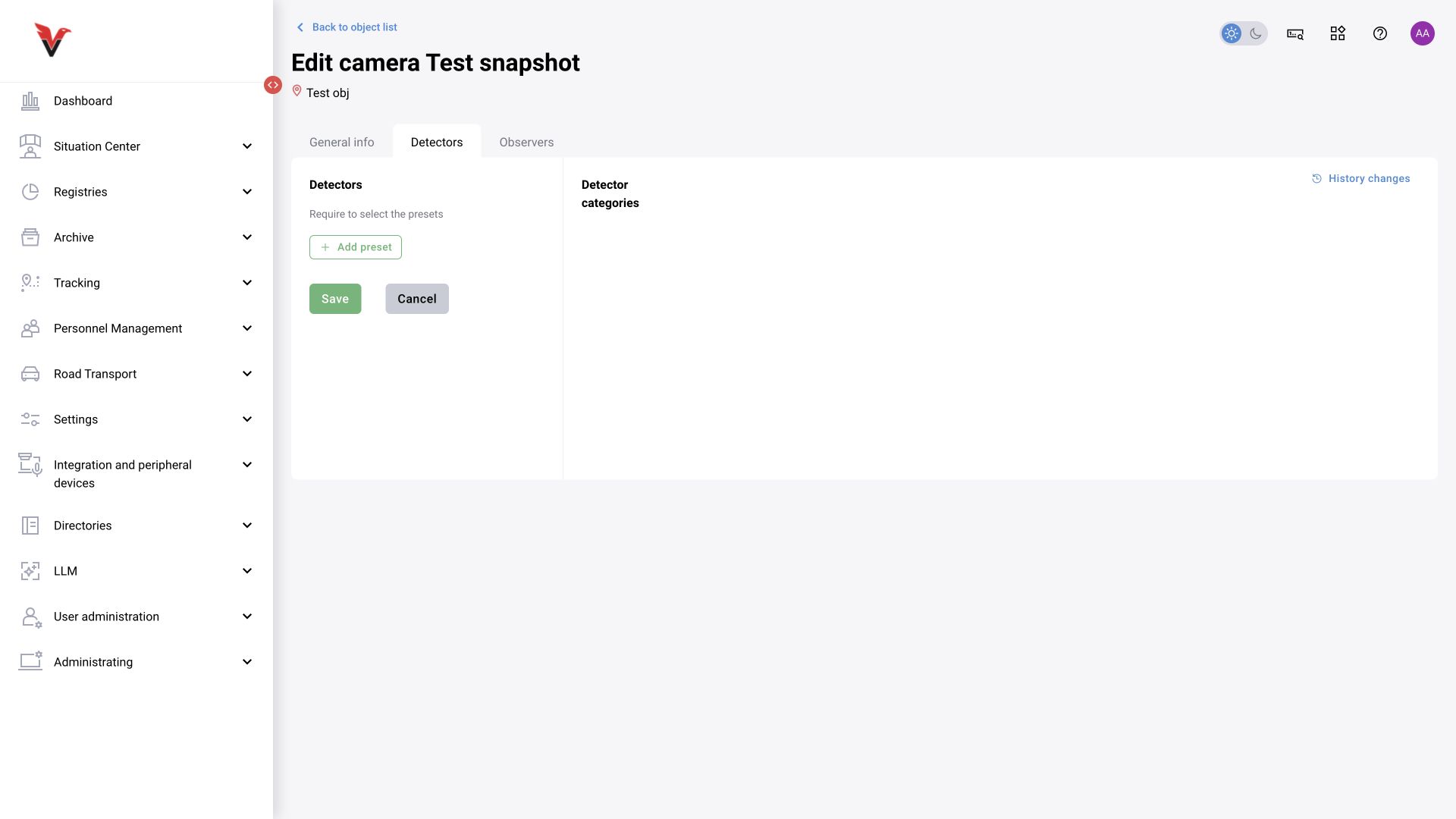
Camera details: all tabs
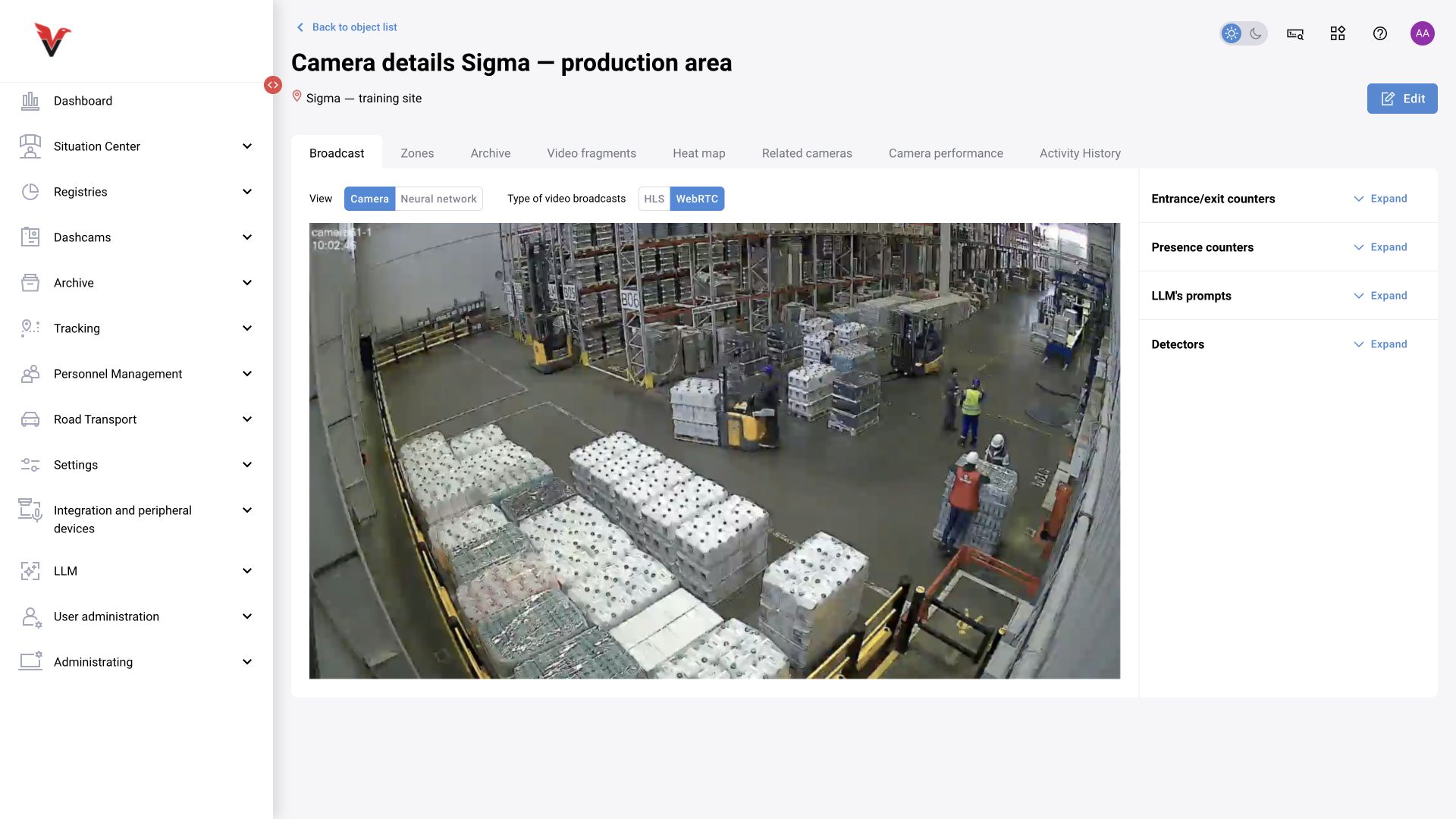
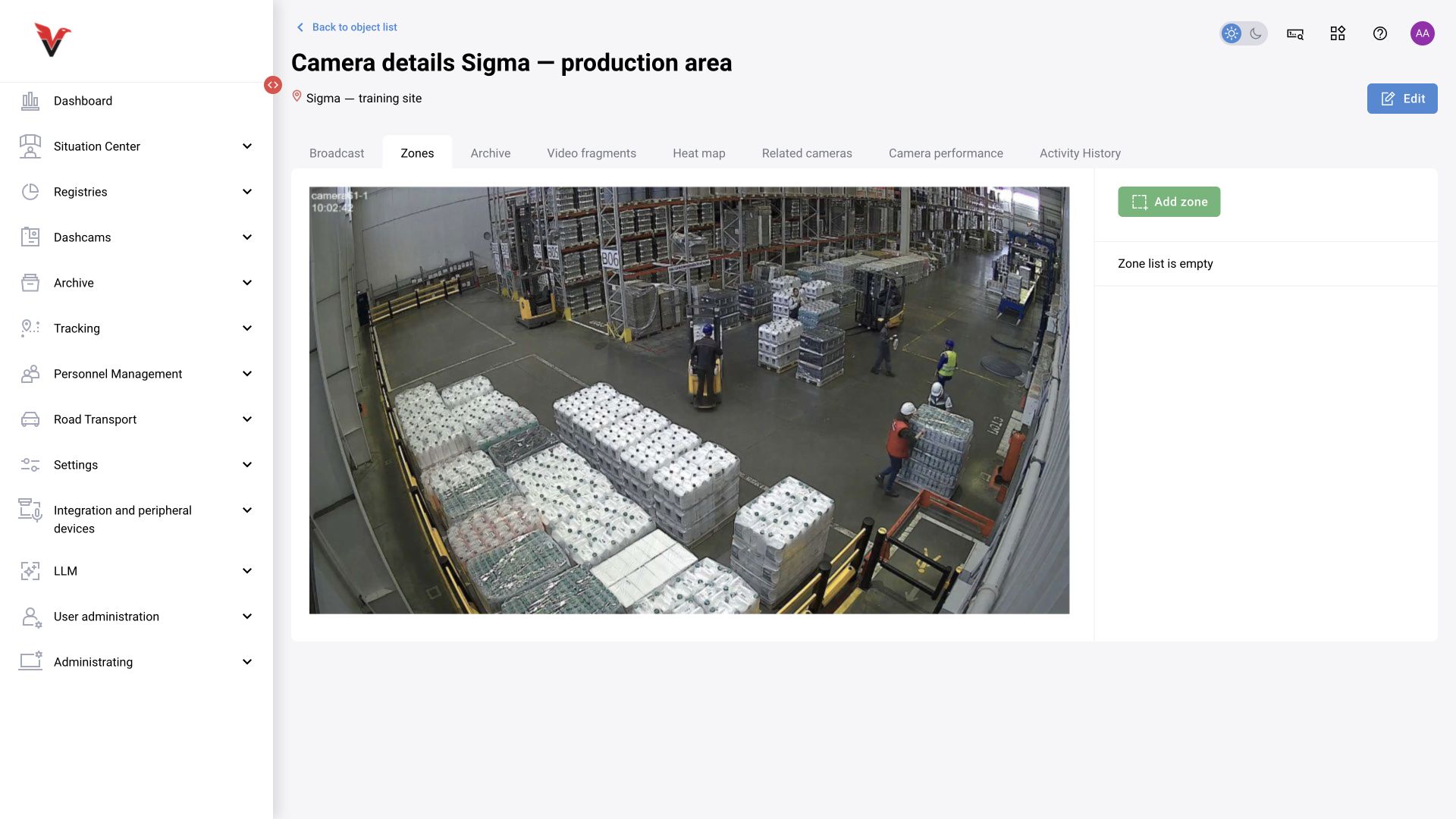
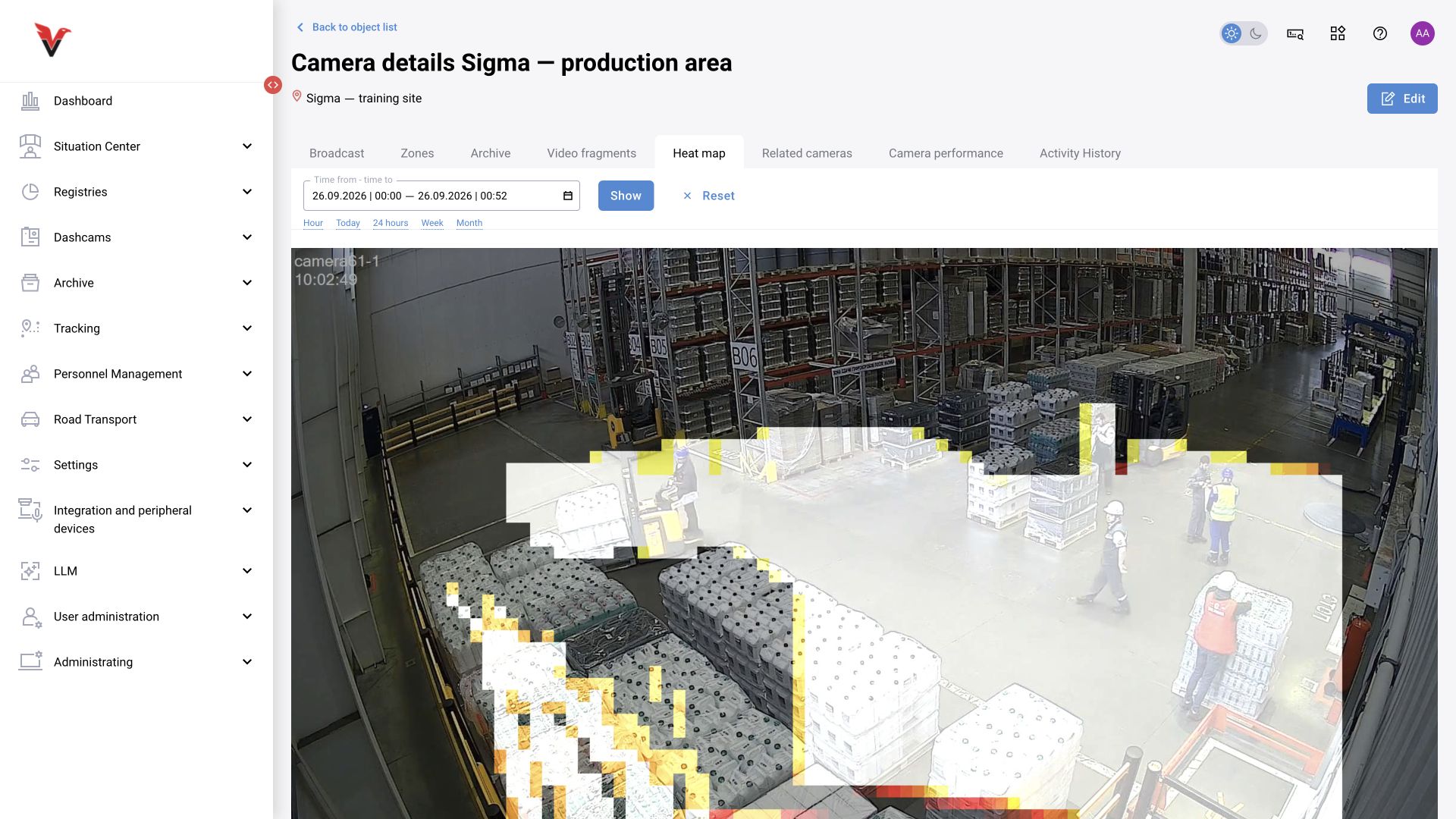
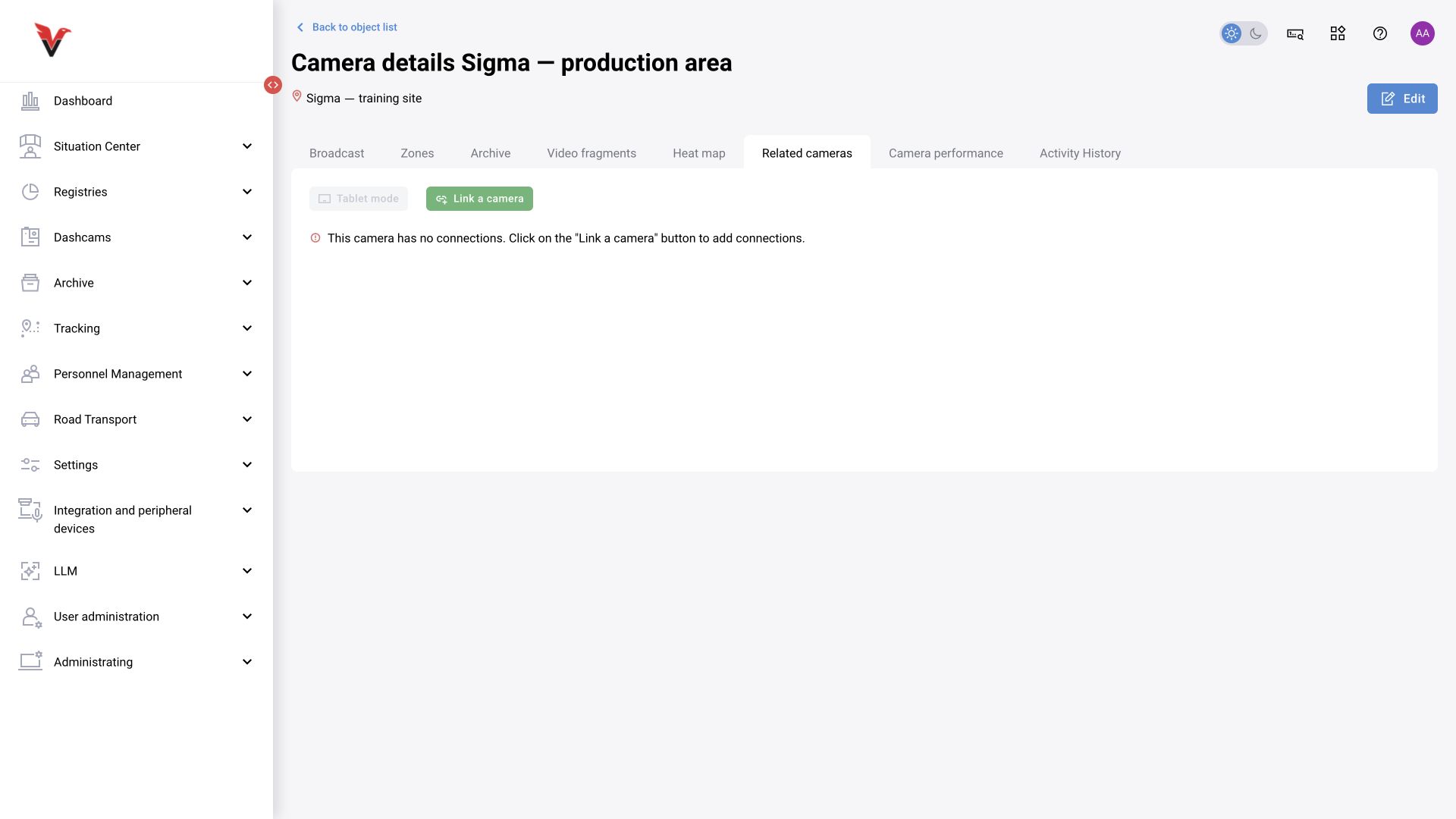
Open the details page from monitoring or the tree. Common actions are back, “Edit”, and map location when a floor plan is available. The common BOX family tabs are described below; their availability depends on camera type, permissions and enabled modules. Platform 4.0 scenario camera details additionally provide “Scenarios” and, when integrated, “External signals”.
| Tab | Fields and operation |
|---|---|
| Live stream | “Camera” / “Neural network” mode, HLS / WebRTC, playback, player settings and full screen. Expandable panels contain entry/exit and presence counters, LLM prompts and detectors |
| Zones | List of frame regions and “Add zone”. For editing geometry and type, see §9.4 |
| Archive | Period, zone, “Show” / “Reset”, zone display and timeline. If “Video recording is disabled” appears, check recording and storage; it does not prove that event photos are absent |
| Video clips | Period, zone, event type, measures and decision; select an episode on the timeline and play the linked material. Video may fail even when a photo is available |
| Heatmap | Period and “Show” / “Reset”. Shows the accumulated spatial distribution of observations; this is not a thermal camera temperature image |
| Linked cameras | “Link camera” and viewing linked angles. “Tablet mode” is used with a prepared set; it may be unavailable when no links exist |
| Camera health | Graphs for the last 24 hours, separately for the camera and neural network; “running”, “off” and “fault” states. The table shows time, state and stream resolution |
| Camera activity | Period, “Show”, state change history and control method, including manual user actions |
First distinguish a video reception problem from a neural network processing problem. A working stream with analytics disabled does not produce new detections. The activity history helps determine whether a shutdown was scheduled or manual.
The inspected BOX 5.0 editing form contains “General information”, “Detectors” and “Observers”. A separate “Scenarios” tab is not shown in this form. Its instructions are based on the Platform 4.0 operating document; the version update screen in the scenario catalog was confirmed separately. If the tab is absent, do not substitute adding a preset for assigning a scenario: check the interface configuration with the integrator.