
Scenarios: card and versions
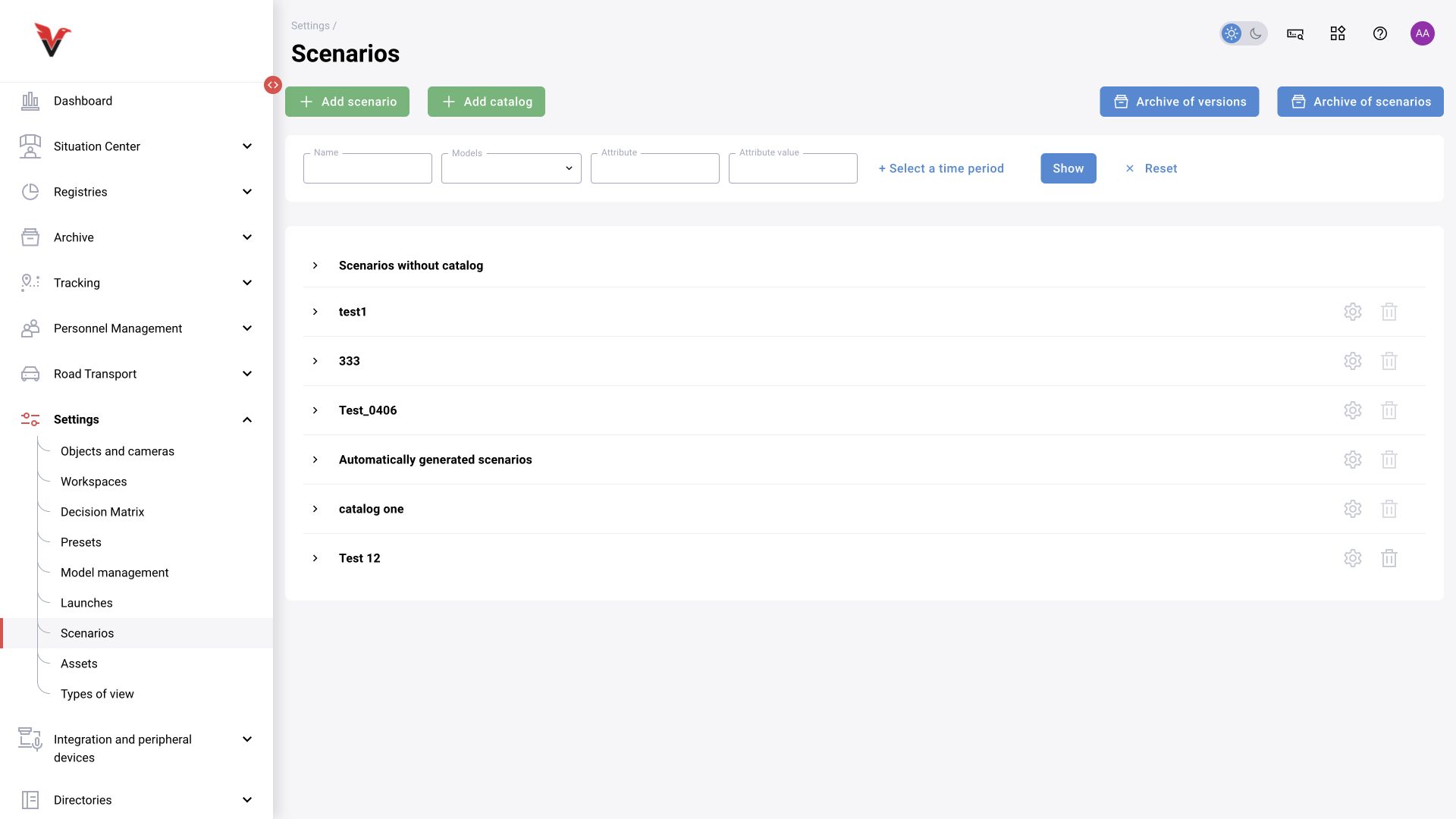
Path: Settings → Scenarios, /settings/scenarios. The list provides folders, searches by name, models used, attributes and dates, scenario creation and archive management. Open a row to view its versions.
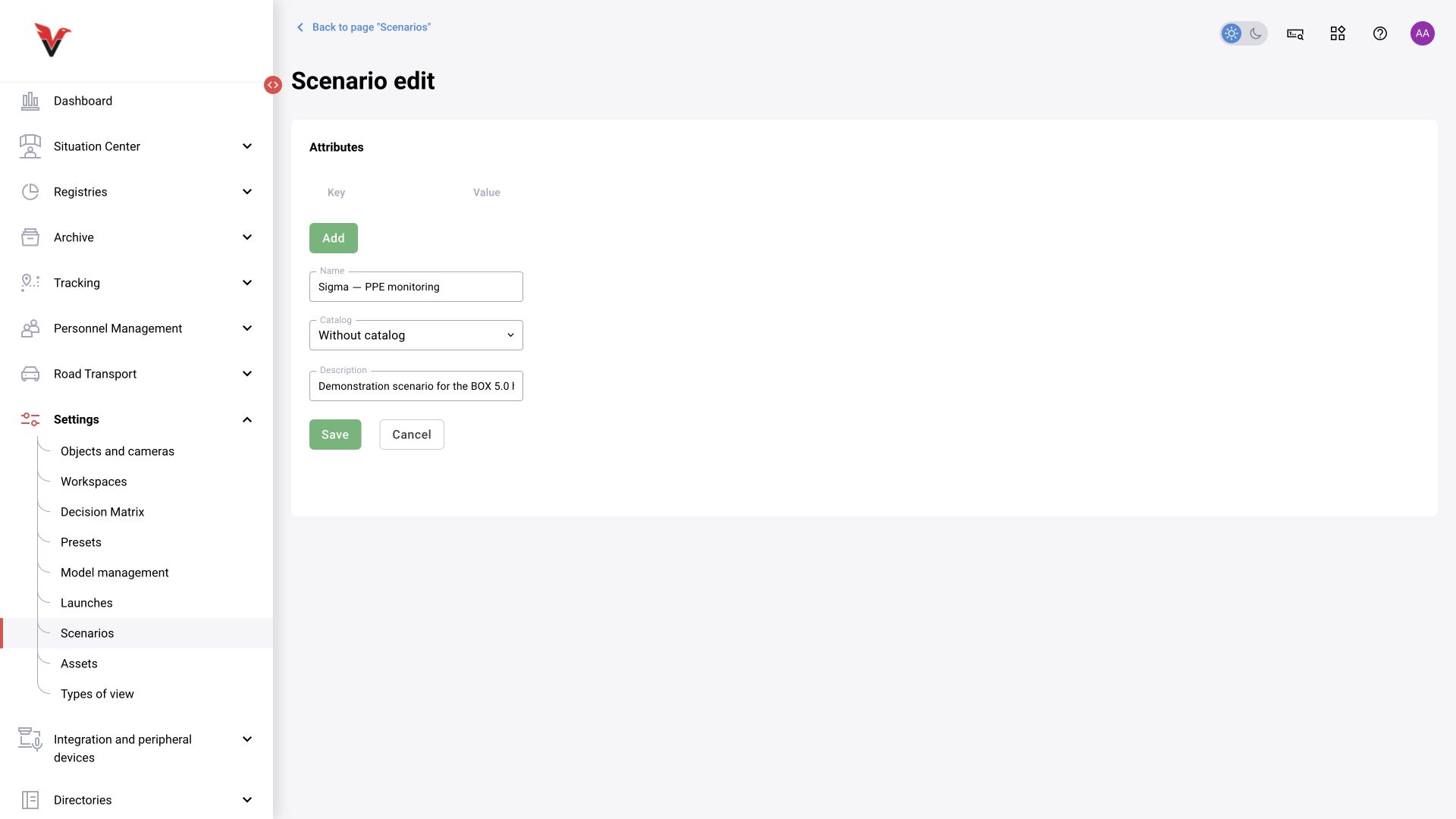
| Field / action | What to enter and why |
|---|---|
| Scenario name | Business task: Sigma — missing hard hat in a production zone |
| Folder | For example, “Industrial safety”. Do not create a separate, unrelated copy for every camera if only the zones or thresholds differ |
| Description | Who or what is monitored, where, under which conditions and what result is expected |
| Attributes | Searchable properties of the scenario or a particular version; their scope is shown in the card |
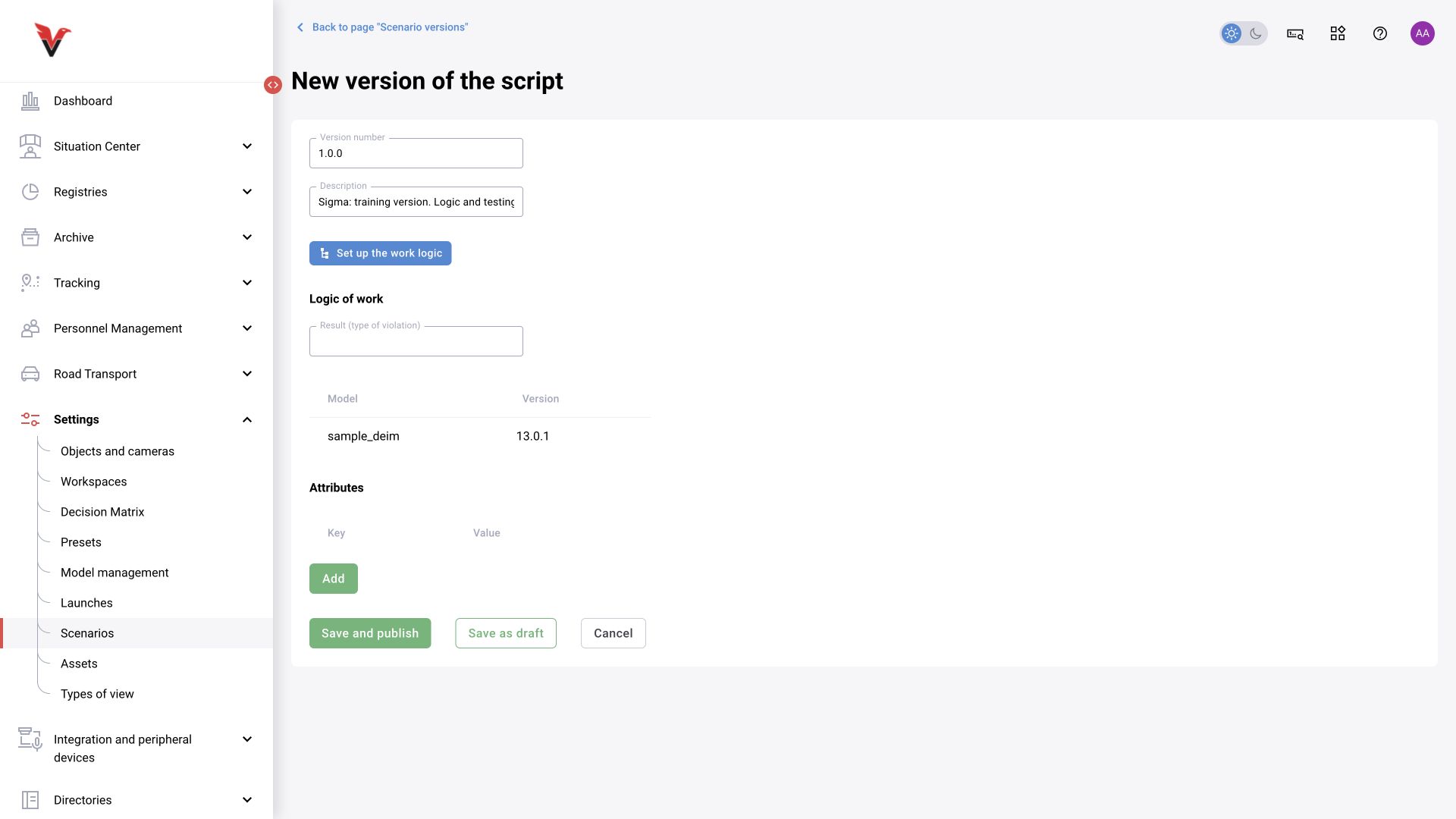
| Version number | Identifies a graph release. Record it together with the versions of dependent models |
| Version description | What changed from the previous version: a threshold, block, category or time window |
| Configure operating logic | Open the graph editor and testing |
| Result (violation type) | Links the scenario result to the system classification; verify it against the event code/meaning in the graph |
| Models | Graph dependencies and model versions; check after saving the logic |
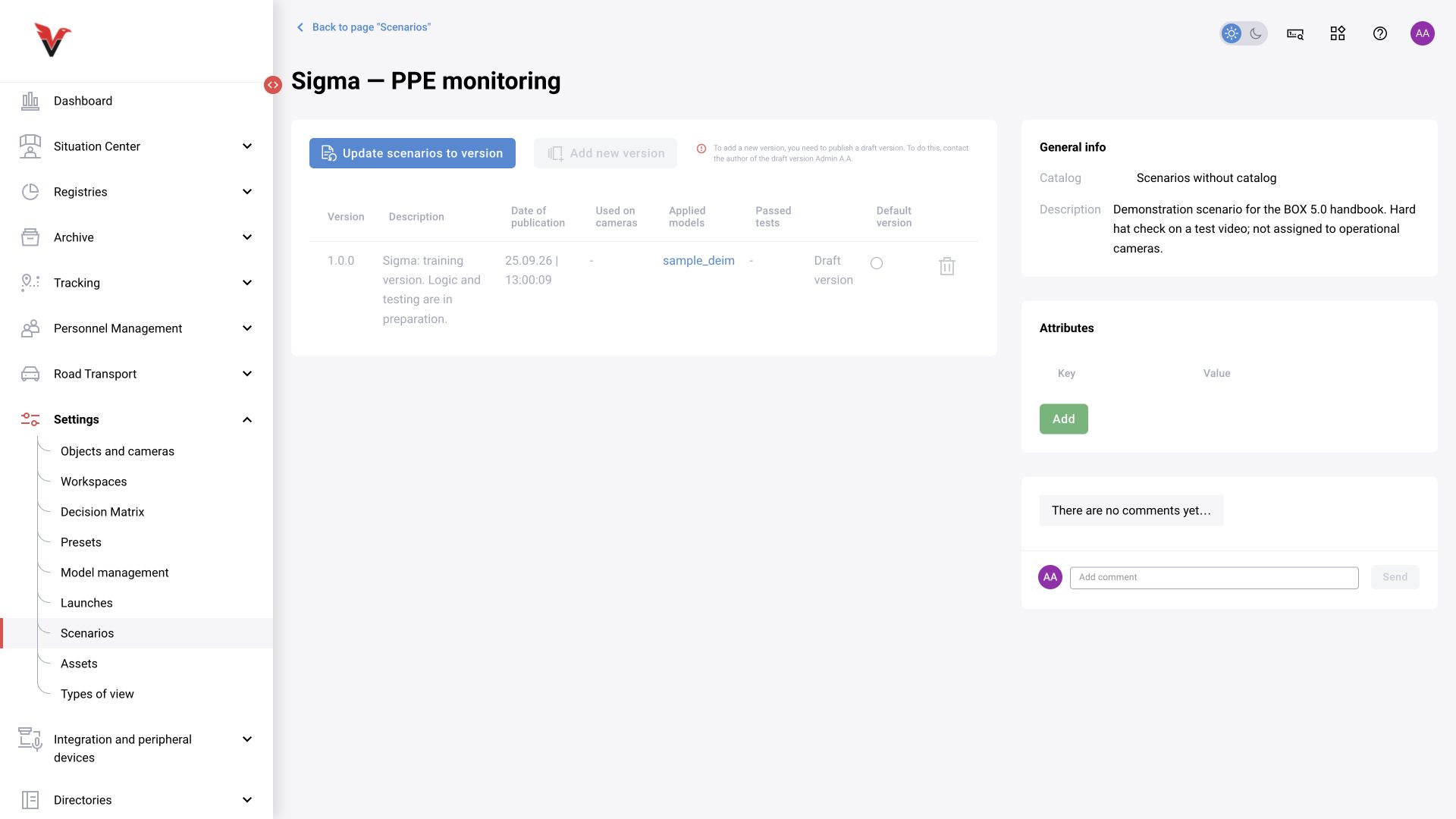
| Used on … cameras | Where this version is used; access assignment / update |
| Save as draft | Continue development without releasing the version for camera assignment |
| Save and publish | Release the prepared version for assignment to cameras |
In the inspected training scenario card, an existing draft prevents creation of the next version: the system asks you to finish publishing the draft or contact its author. When collaborating, first agree who is responsible for the current revision.
Treat a published version as a reproducible release. Create a new version to make changes. The name “1.0.0” says nothing about quality on its own: evidence comes from recorded tests on a specific asset and an operational camera.
Publishing and assigning to a camera
After successful testing, save the logic in the version, return to the card, specify the result and description, and publish. According to the Platform 4.0 operating documentation, assignment takes place in the camera card/edit form, in the “Scenarios” section.
- Select a camera and open its scenario settings.
- Add a scenario from the catalog and select a published version.
- Check the camera zones and result categories.
- If needed, open the advanced parameters for the particular assignment.
- Save. Make sure the camera and analytics are enabled and the schedule permits operation.
- Check the run on the node, the current frame, the result and the expected event’s appearance in the log.
Do not look for a draft among operational versions available for assignment. If a published version does not appear, check permissions, publication status, model dependencies and list refresh. For local assignment fields, follow your interface build; the general procedure is confirmed by the Platform 4.0 operating document.
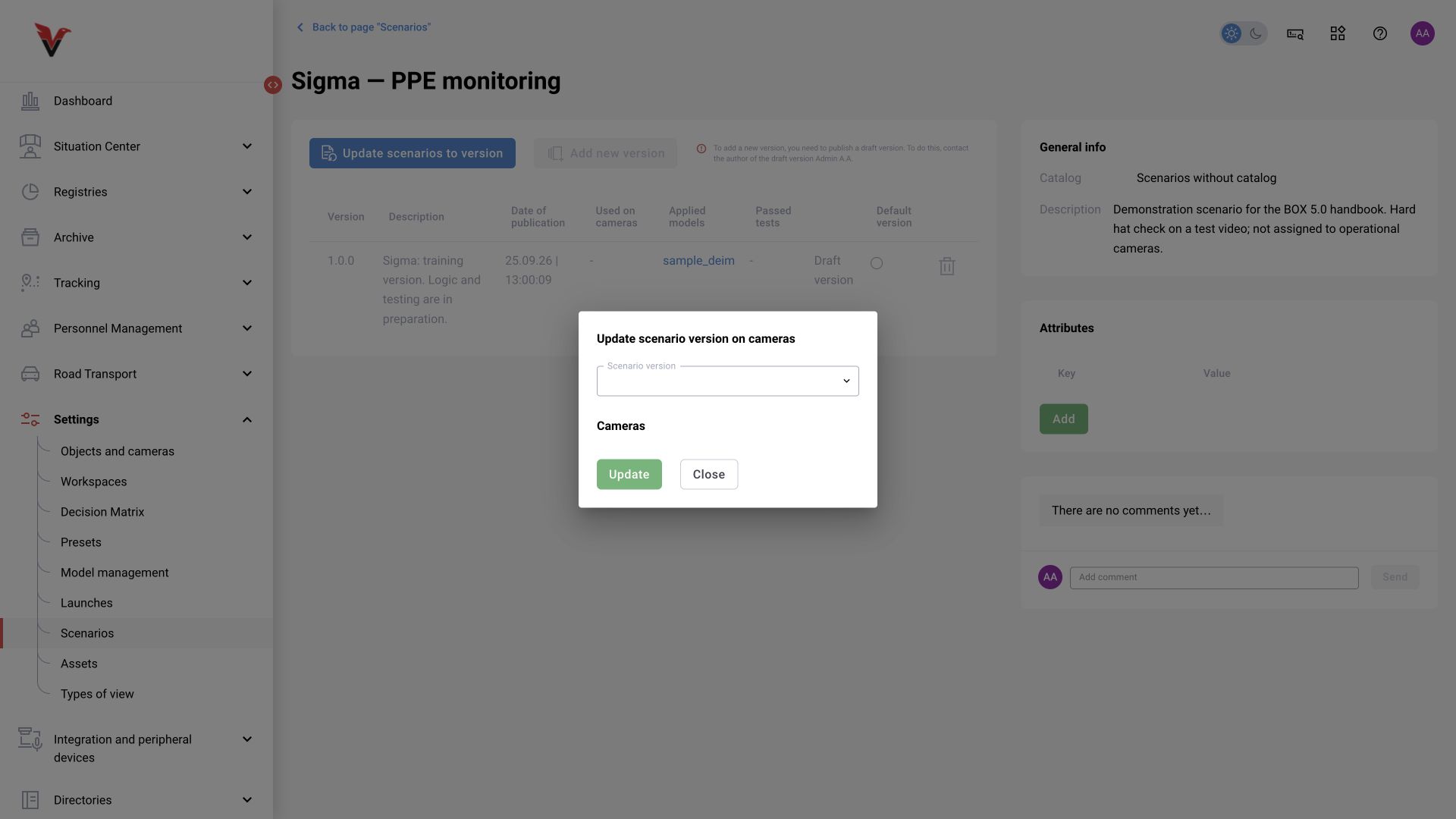
Difference in the current interface. The inspected BOX 5.0 camera form displays “General information”, “Detectors” and “Observers”; the “Detectors” tab assigns presets. No separate “Scenarios” tab is shown in this form. However, the scenario catalog has a confirmed “Update scenarios to version” button, which opens the “Update scenario version on cameras” panel with version and camera selection. This screen is shown in §4.13. If your card lacks the required assignment option, confirm the form configuration/revision with the integrator; adding a preset does not replace assigning a graph.
Camera fine-tuning, “Unique” and “Inherit”
These mechanisms allow the same graph to be used for different views. Base values are stored in the version; individual values are stored in the camera assignment.
| Setting | Meaning | When to use |
|---|---|---|
| Advanced / fine-tuning parameters | Local graph field values for the camera | The view requires a different minimum size or confirmation setting |
| Unique | According to the documentation, protects an assignment from automatic bulk version updates | A camera is undergoing separate acceptance testing or must stay on a verified release |
| Inherit | Preserves the previous assignment’s individual parameters during an update | Verified local settings need to be carried over to a new version |
| Inherit disabled | Applies the new release’s base parameters in place of the old individual values | The new version deliberately changes settings and this has been tested |
Do not assume that “Inherit” is always the correct option. An old threshold, topic name or category selection may become incompatible with the new graph. Before a bulk update, compare the changed parameters and test a camera with individual settings separately from one using base values.
The operating documentation also describes a “Global visualizer” for a camera with several scenarios. Shared overlays are selected according to individual settings and, if several such settings exist, scenario order; in the described implementation, disabling it in one assignment disables the camera’s shared visualizer. This differs from LocalVisualizer inside the graph. Check your build’s behavior before making changes so that you do not mistake missing shared boxes for stopped analytics.
Updates, dependencies and reverting a version
First open the model/scenario usage view and the list of dependent cameras. Select the target published release and cameras, and assess the effect of “Unique” and “Inherit”. Update a small group, confirm the result, then proceed.
To revert, assign the previous working version, restore compatible parameters and check execution. Do not delete the previous resource immediately after a new release: it is needed for comparison and rollback. Reverting the graph does not undo events already recorded; their history remains a record of the processing that actually occurred.
A model version can be updated in dependent scenarios through the provided usage interface. This affects more than accuracy: categories, topics, GPU profile and input size may change. Run a regression test after replacement even if the connection layout looks unchanged.
Preset or scenario: what to choose in BOX 5.0
The current system provides both “Presets” and “Scenarios”. Therefore, moving to BOX 5.0 cannot be described as simply renaming a tab.
| Mechanism | Purpose | Where the logic is configured |
|---|---|---|
| Preset | A set of category settings for a supported detector | The preset form and its available parameters |
| Scenario | A sequence of models, conditions, zones, time rules, branches and actions | The graph version, blocks and individual camera parameters |
| Decision matrix | Processing an event that has already occurred and its associated actions | Rule conditions, decision, recipients and devices |
| LLM prompt | Instructions for a multimodal model and the format of its result | Prompt list, testing, schedule or assignment |
Use a scenario for new composite logic. Keep existing presets where the selected module uses them. Do not assign two routes for the same rule at once without checking: this can cause extra load or duplicate events.