
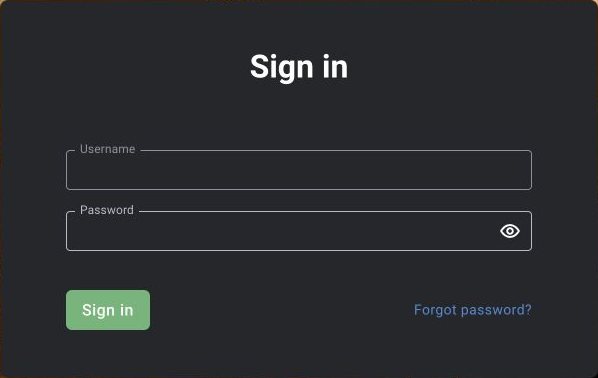
Sign in
Open the BOX address provided by your administrator. Enter your own account’s username and password and sign in. After loading, check the username and available menu sections.
If login fails, check your keyboard layout, system address and account details. If they are correct, ask the administrator to check the user’s status. Do not include your password in an event comment or support request.
Check your profile
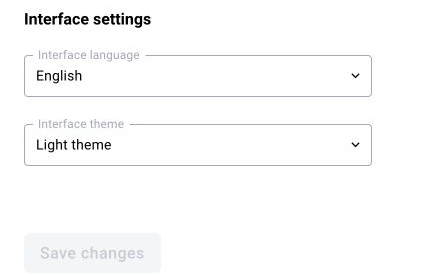
Open the user menu or profile. Check the displayed name and language if this setting is available. After making changes, save the form and reopen the profile. Available fields depend on the role and BOX version.
The username helps identify the author of a decision in the card history. Work under your own account; sign out when ending your shift on a shared workstation.
Find the required section
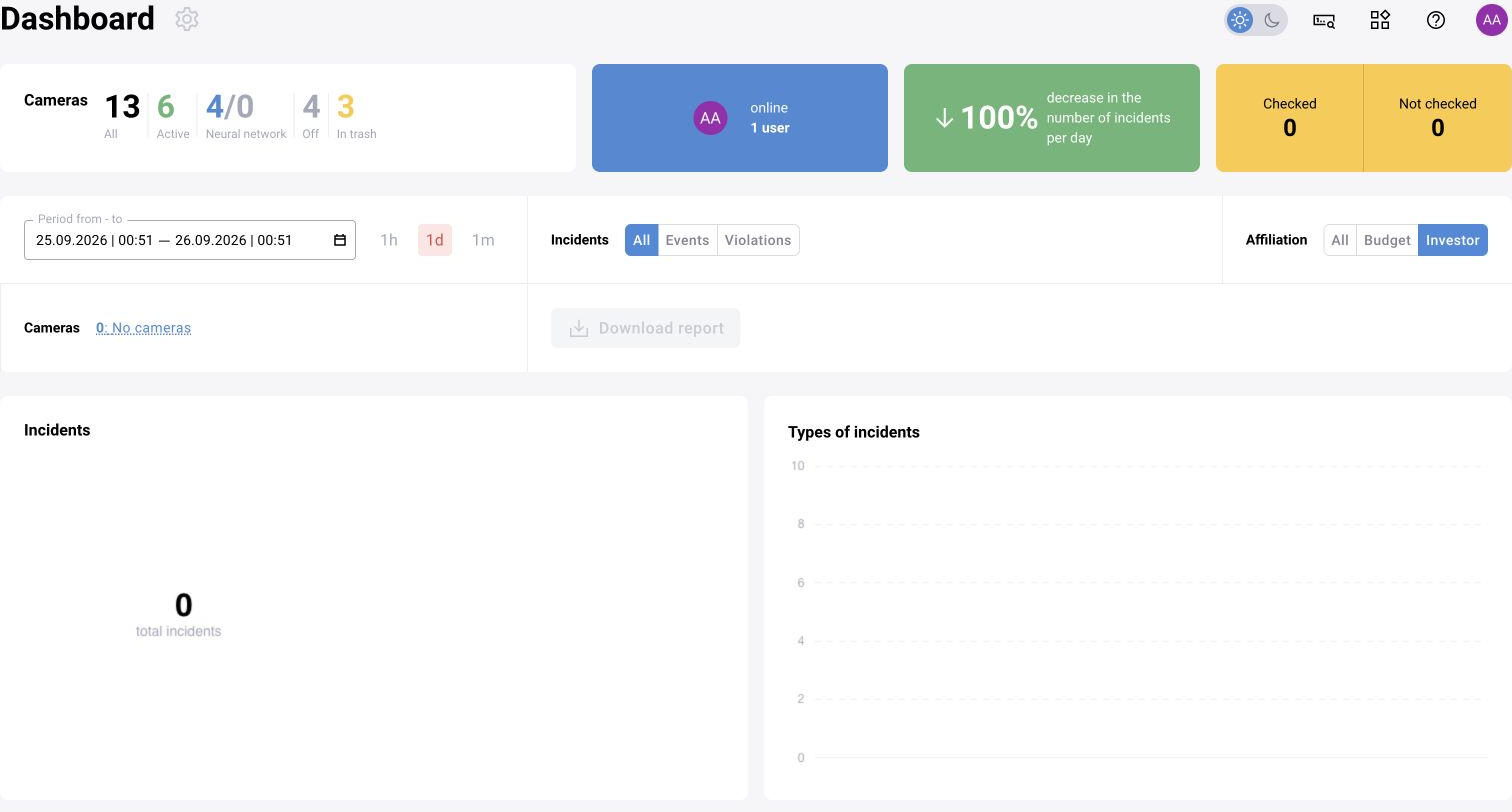
Cameras and sites manage video sources. Analytics handles processing. Logs contain detected events and decisions. Users and roles control access. Statistics, archive and reports may be separate menu items depending on the enabled modules.
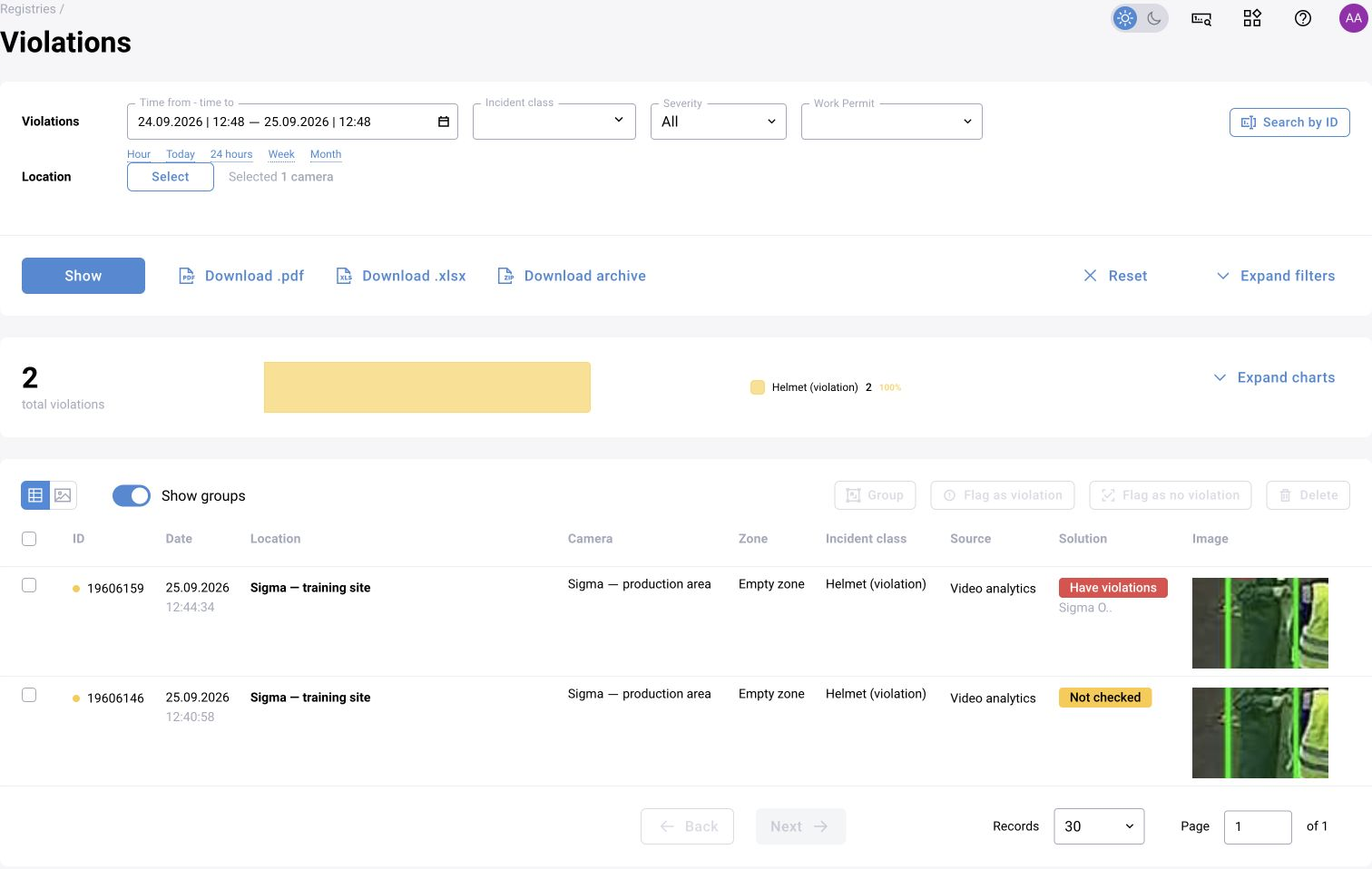
When working with a list, first check the period, selected site, camera and status. No rows under an active filter does not mean the entire system has no data. Menu item names may differ between versions.
How roles differ
| Role | Main work |
|---|---|
| Application administrator | Sites, cameras, analytics settings, users and access scope |
| Operator | Viewing accessible cameras, reviewing events, decisions and comments |
| Scenario developer | BOX 5.0 models, graphs, versions and test runs |
| Manager / analyst | Summaries and reports within granted access |
Initial setup sequence
First define the observable condition: what the system should detect and who reviews the result. Then configure one source and check the chain through to the operator’s decision. Scale the configuration after this check.
- Create a site and attach a camera.
- Make sure video is available and suitable for the task.
- Assign a preset or scenario version, and configure zones and conditions.
- Generate and check a test event.
- Grant the user access and repeat the operational workflow under their role.
- Check the report and agree on actions for missing video or events.