Prepare the source
Identify the source type: a supported IP camera, VMS, or recording for a virtual camera. Prepare the address and connection parameters, credentials, installation site, and a clear name. For a file, check that it contains the required episode and opens correctly.
The camera angle, lighting, and size of the observed object must suit the detector. An available stream does not necessarily provide an image suitable for the selected task.
Add the camera and check its location
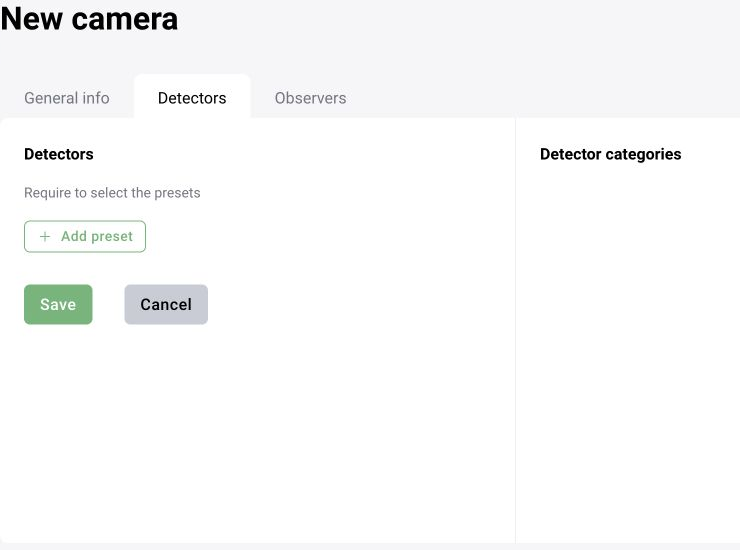
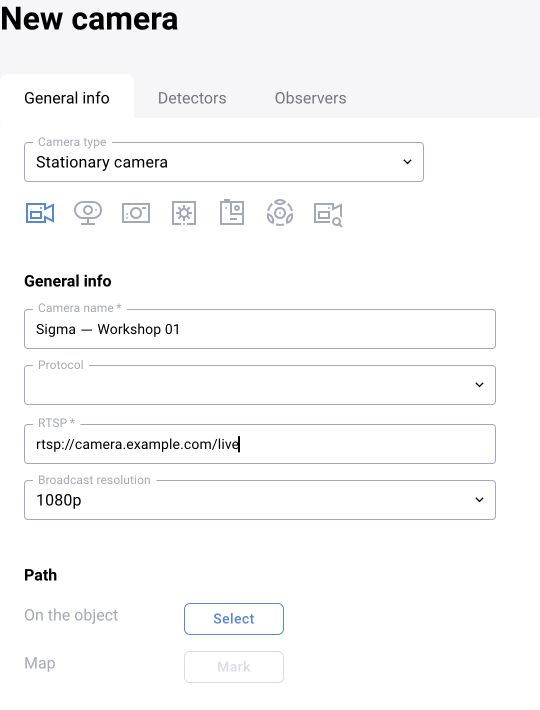
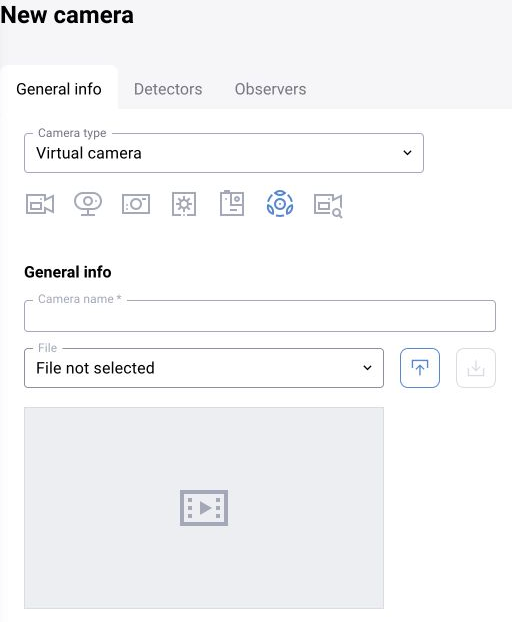
Open the source list and the camera creation form. Select the type and enter the name and source parameters. Specify the installation site and save. For BOX 3.2, the link below provides a detailed virtual-camera procedure.
After saving, locate the camera in the tree. If the form responds slowly, first check whether the record was created before repeating the action. This helps avoid duplicates.
Open the video
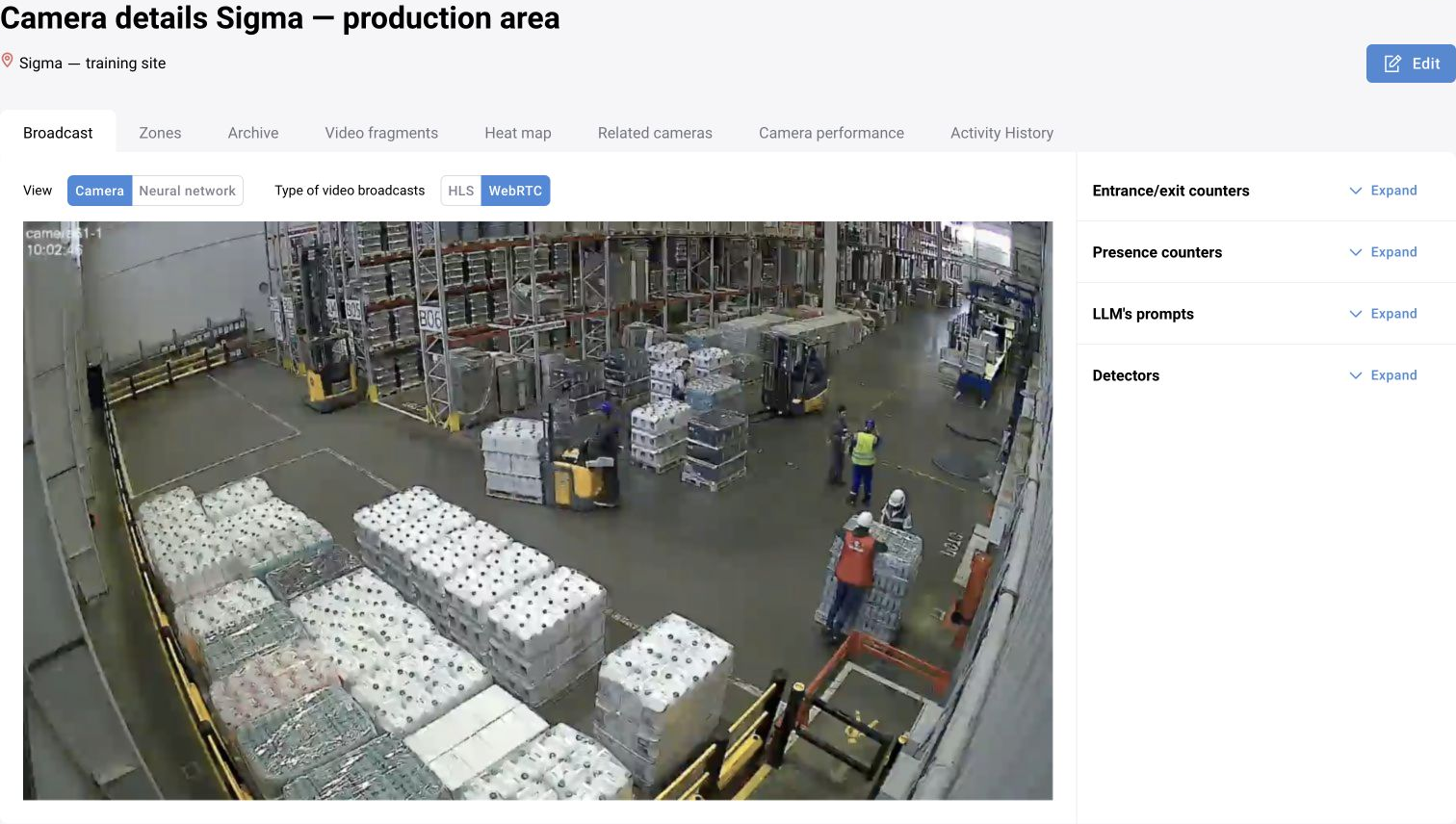
Open the camera view and make sure the image updates. Check the scene and time: the screen must show the required camera rather than a stored frame from another source. For a recording, inspect the beginning, middle, and end.
If video is unavailable, check source availability, stream parameters, and user permissions. Record the last successful viewing time; it will help with diagnosis.
Distinguish camera and analytics states
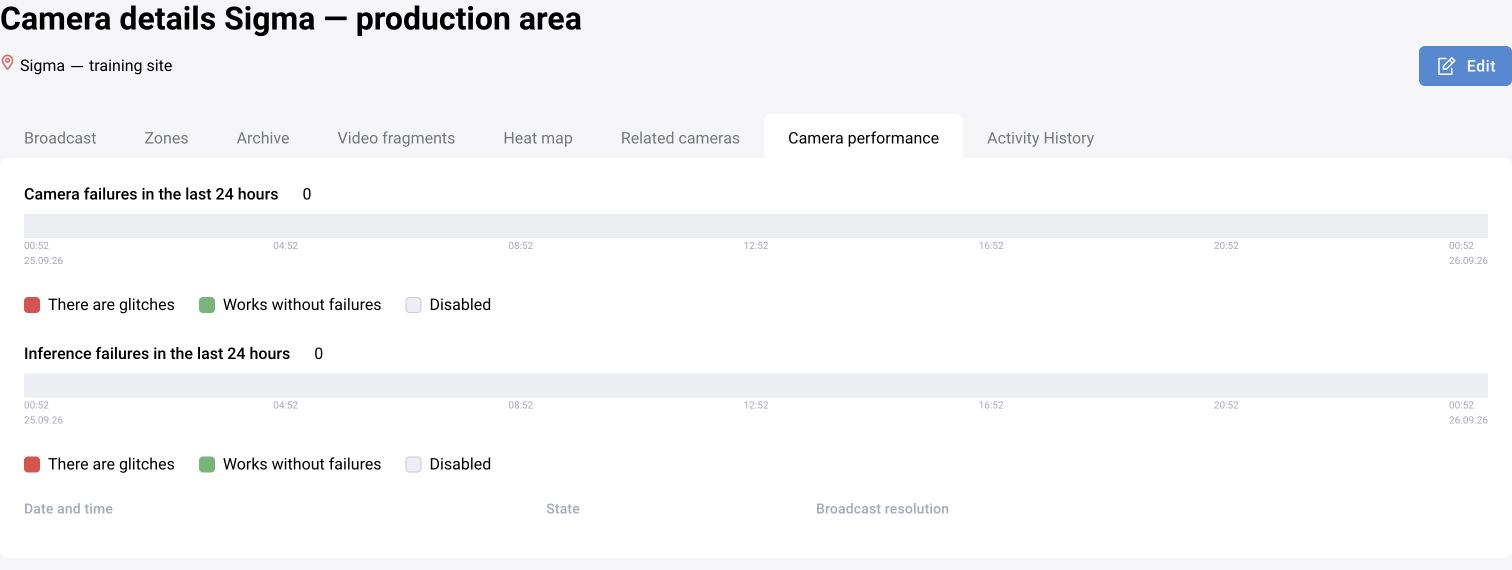
The video source and processing may have separate states. In BOX 3.2, the camera form enables the camera and neural network. In BOX 5.0, also check which scenario version is assigned and is actually running.
After enabling processing, check the result: detections, a test event, or an available counter. An open video stream and an enabled switch do not by themselves confirm that events are being generated.
Verify the change
Change parameters one at a time and retain a clear record of the original value for rollback. After changing the address, resolution, or camera angle, reopen the video, check zones, and test a short analytics episode.
If the source has moved to another site, check the operator's access scope. A renamed source should appear under its new name in the list, filters, and new cards; older data may retain previous attributes.