Events and violations: key distinctions
Detection — the result of recognizing an object or attribute. Event — a situation recorded by the system. Violation — a situation classified as a violation by the configuration. Reviewer decision shows whether an operator or LLM has confirmed this record. The record type and the decision about it are separate parameters.
For example, Hard hat (violation) appears in the violation journal but still has a Not reviewed decision. After viewing it, an operator can confirm or reject it. Appearance in the journal alone does not mean a person has already checked its validity.
Violations and events
For scenario-based processing, the BOX 5.0 table shows the scenario ID and version. Retain them during investigation: events from different versions may have been generated under different rules.
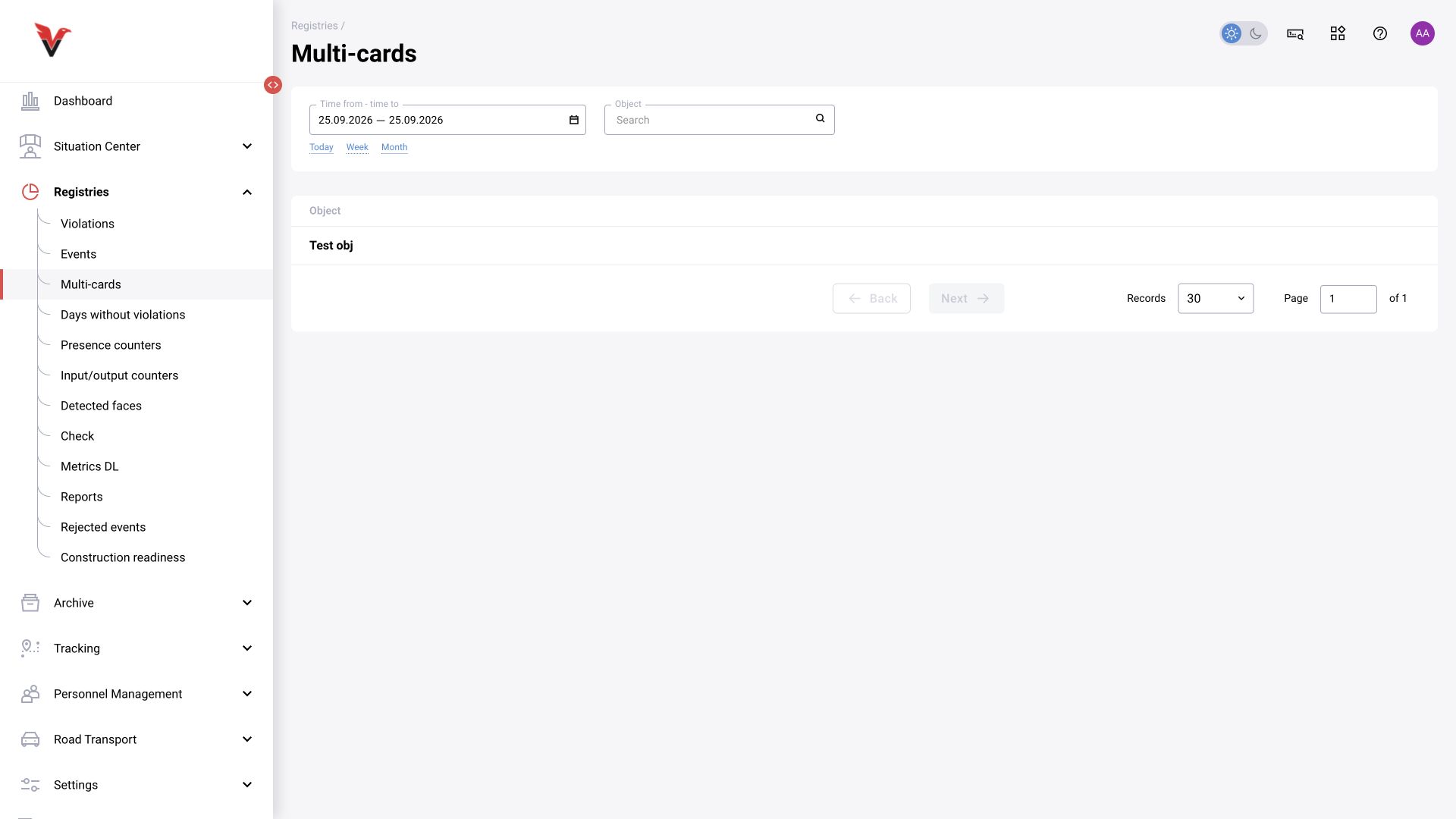
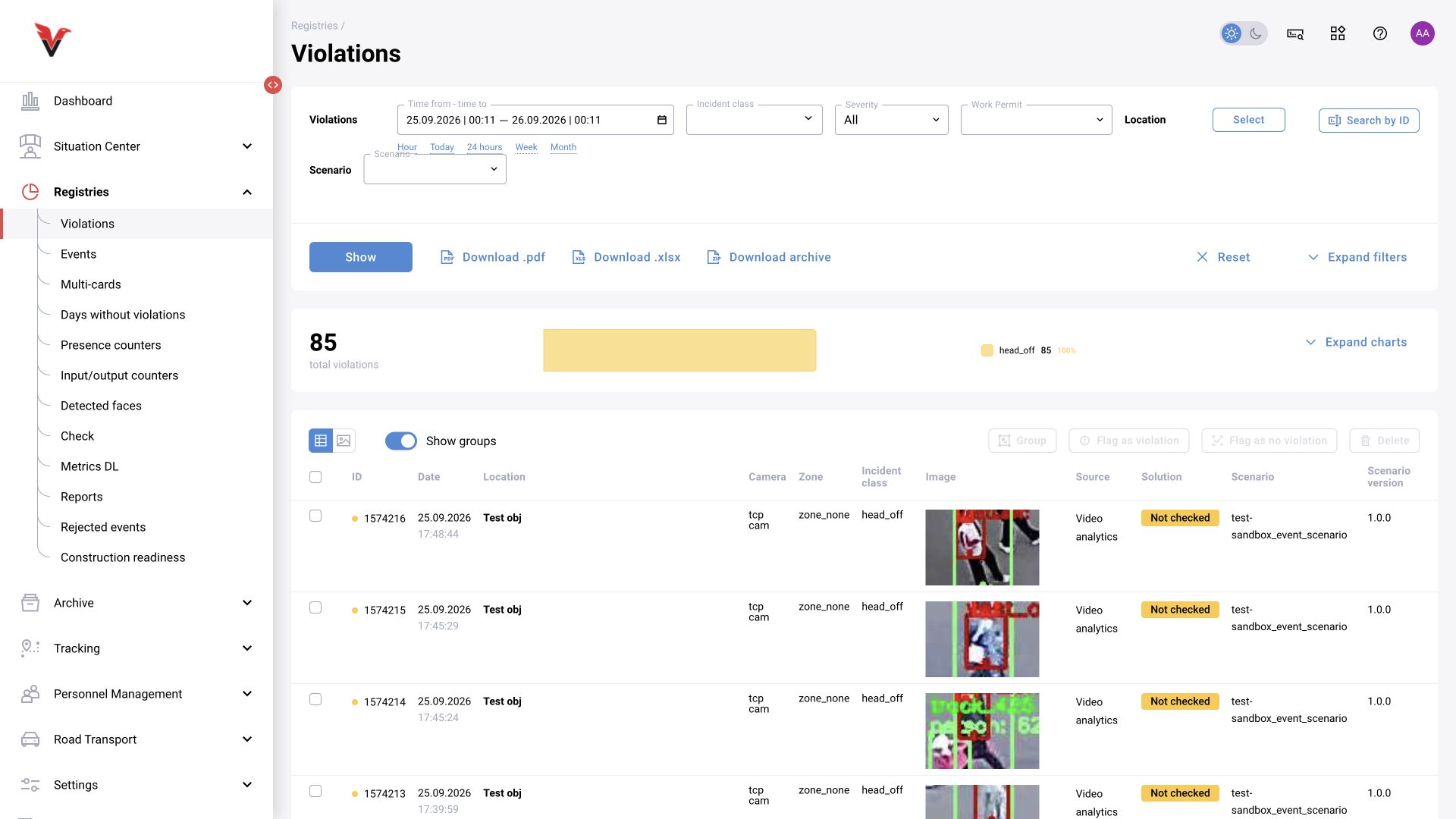
Paths: Journals → Violations, /statistic/violations; Journals → Events, /statistic/events.
Basic procedure: set the period → select the location and classes → expand additional filters if needed → click Show → open a record → make a decision or prepare a report.
| Field | Meaning | What to select / enter |
|---|---|---|
| Period / time from–to | Time of recorded incidents | The shift or investigation interval; for a specific record, start with a narrow window |
| Incident class | Type of detected situation | For example, Hard hat (violation); this is not a model name |
| Severity | The configured significance of the class | All or a specific level; configured by the administrator separately from the operator's decision |
| Work permit | Association with work under a permit | The relevant permit, if this module is used |
| Location | Sites, cameras, and zones supported by the form | Limit the scope, for example to one workshop |
| Find by ID | Search for a known alert | The numeric ID from the card or report |
| Detection → Method | Source of the record | All or an available method, such as LLM |
| LLM | A specific model connection | Select after choosing a compatible detection method; the field may be unavailable beforehand |
| Prompt | The instruction that generated the record | Select a saved prompt from the list |
| Subject | Who or what the record concerns | All, person, or vehicle, according to the available options |
| Vehicle plate number | Vehicle search | A registration number, for example ABC123, in the format accepted by the system |
| Face | Identification status | All, identified, or unidentified, according to the list |
| Department | The recognized person's department | An existing department |
| Full name | A specific person | Select an entry from the directory; distinguish people with the same name by department and employee number |
| Probability → Condition | Compare the detector score with a threshold | Full range, less than, or greater than |
| Limit, % | A number for the probability condition | For example, 80; the field is disabled for Full range. This filters results; it is not a model setting |
| Decision | Review result | Not reviewed, confirmed, rejected, and other available states |
| Measures taken | Action by the responsible person | A value from the configured measures directory |
| Reviewer | Who performed the review | An available reviewer type; LLM and human reviews should not be combined without explanation |
| Reviewer name | A specific user | Select the reviewing account, not the person in the image |
The table shows ID, date, location, camera, zone, class, source, decision, and image; the role controls the available columns. Tiles are useful for visual review; the table is useful for comparing details. The chart reflects the current selection criteria.
Groups. Select related records and use Group. Show groups changes the view. You can remove an individual record from a group or ungroup it. Do not combine different situations solely because they share a class: retain the relationship in location and time.
Bulk actions. After selecting rows, you can mark them as violation / no violation and delete them, subject to permissions. Before acting, check the number and contents of selected records; applying a filter does not select them. Deleted records can be found in Trash until their retention period expires.
Export. PDF, XLSX, and archive buttons were checked on the violations page. Journals do not all offer the same exports. Account for the global limit on downloaded events and the selected period; also check generated files in Reports.
Alert card
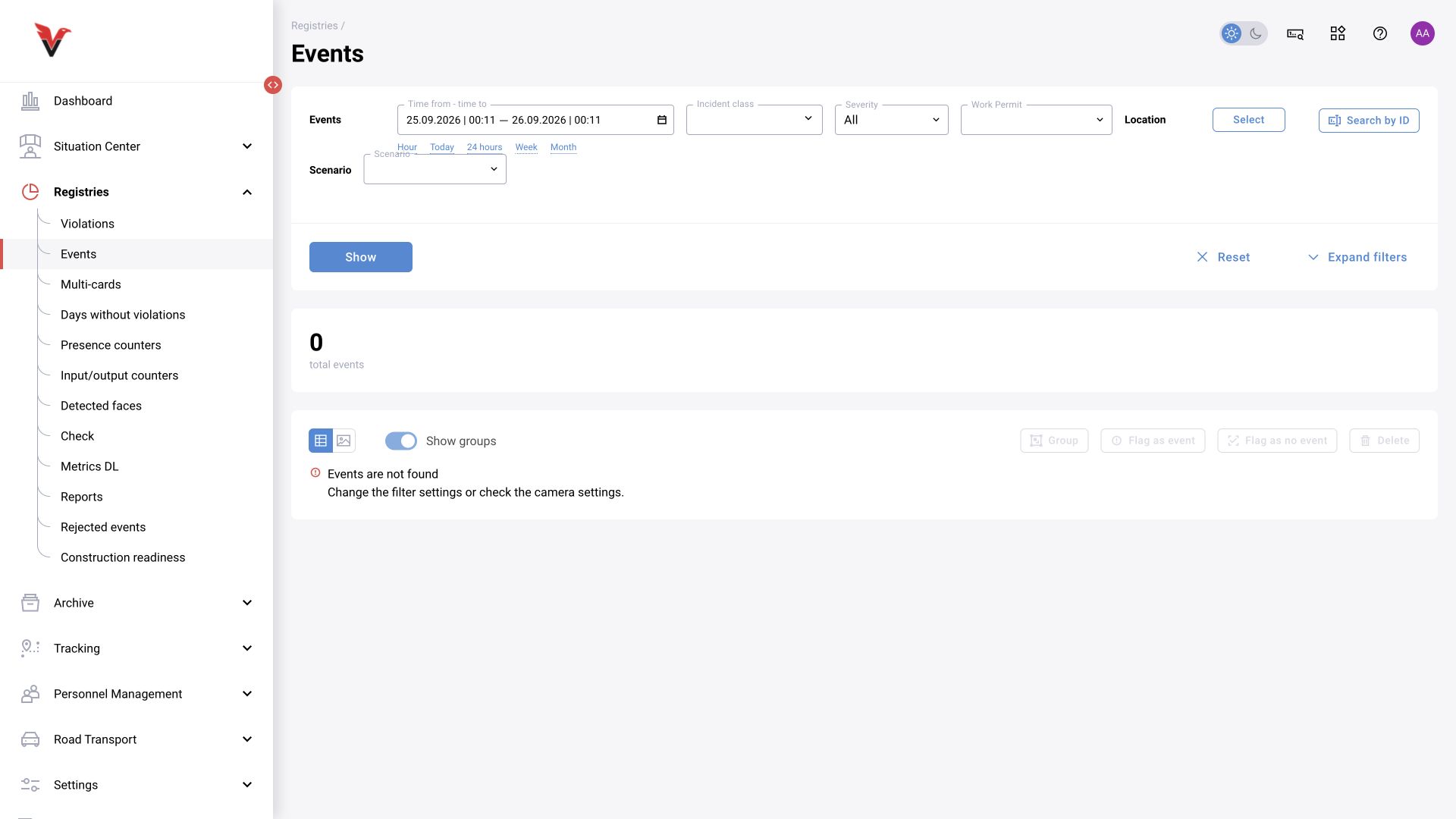
Open a row or image in the journal. The card brings together supporting evidence and the review result.
| Field / block | Meaning and use |
|---|---|
| ID, start/end dates, snapshot acquisition time | Record identification and distinct timestamps. Do not mistake the latest decision time for the snapshot time; provide the ID when contacting support |
| Location, camera, zone | Where the situation occurred. The camera link helps return to the source context |
| Object class, event class, source, and probability | The primary object category, secondary situation, detection mechanism, and recognition score. Probability is not the operator's decision |
| Image / original photo / bounding box | Check that the box corresponds to the relevant object. Turning off bbox display helps reveal details obscured by lines |
| Video / clip | Allows you to examine how the situation developed, if recording is available. An event image may exist without a continuous video archive |
| Person / vehicle | The identification result and directory details. When recognition is uncertain, do not substitute an arbitrary person |
| Decision | Confirmation, rejection, or no review |
| False-alert reason | Why the record was rejected; selected from the configured list |
| Measures taken | What was actually done in response to the event; do not record a planned action as completed |
| Comment | A brief factual explanation of what is visible and why the decision was made |
| Additional parameters | Administrator-created fields, such as an additional reference detail. These are not standard across all installations |
| AI conclusion / LLM response | The automatic analysis result, where available. Technical success and substantive correctness are assessed separately |
| History / reviewer information | Who changed the result and when; take this into account during a repeat review |
The inspected card provides Record incident, Share, Delete, PDF, Violation present / No violation, Take measures, and comment and history tabs. Comments have a Reply action; entering new text enables sending. Use actions according to their purpose and your permissions: saving a comment does not change the decision, and Share does not automatically grant the recipient access.
Example comment: A hard hat is visible in the original frame; the detector box included the edge of the equipment. The alert is rejected. A poor example is Error: it does not explain the reason.
If the image is insufficient, do not replace uncertainty with arbitrary confirmation. Use the supported state and workflow for referring the case to the responsible person. LLM details are in section 11.
Multicards
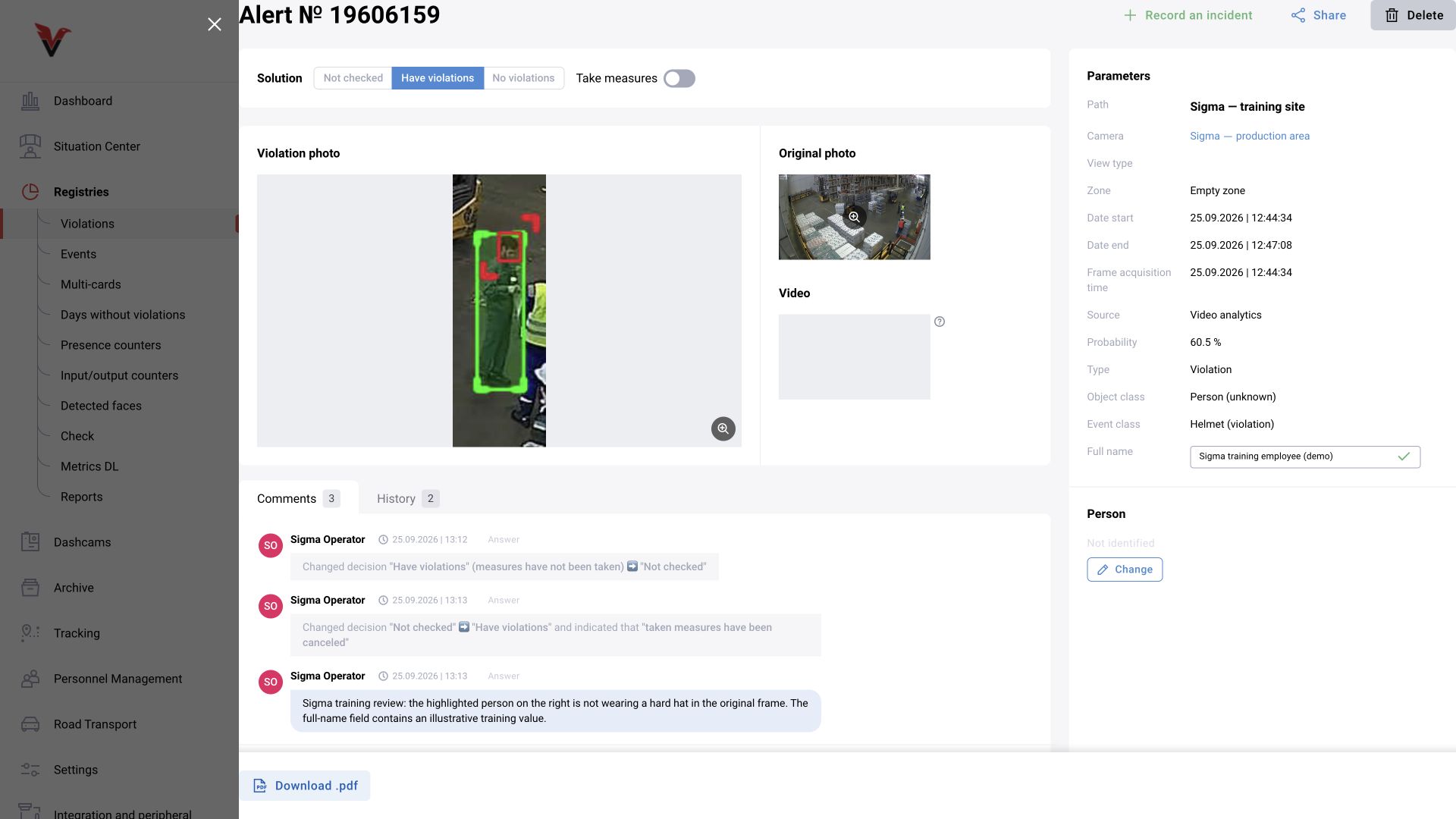
Path: Journals → Multicards, /statistic/multiCards.
Set the date from–to and site. Quick intervals are today, week, and month. The table groups the view by site for the period; open the relevant row for the related selection. This provides an overview of several records in one context rather than a new independent detection. When counting results, do not count records twice by adding their multicard presentation to the same records in the regular journal.