Users
Path: User administration → Users, /administrating/users/list.
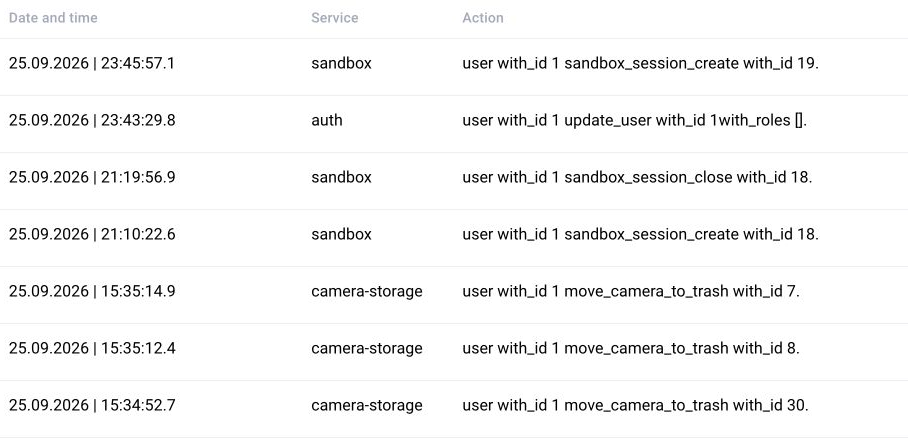
The list is divided into the ViewLogic account and ActiveDirectory account tabs. Filters: login, full name, roles, email, Telegram, and Active. You can export the list with access permissions to .xls.
A local account is created in BOX. A domain account is linked to Active Directory and depends on the configured integration. Do not create a second local account with a similar name to fix a domain sign-in problem before establishing its cause.
New user
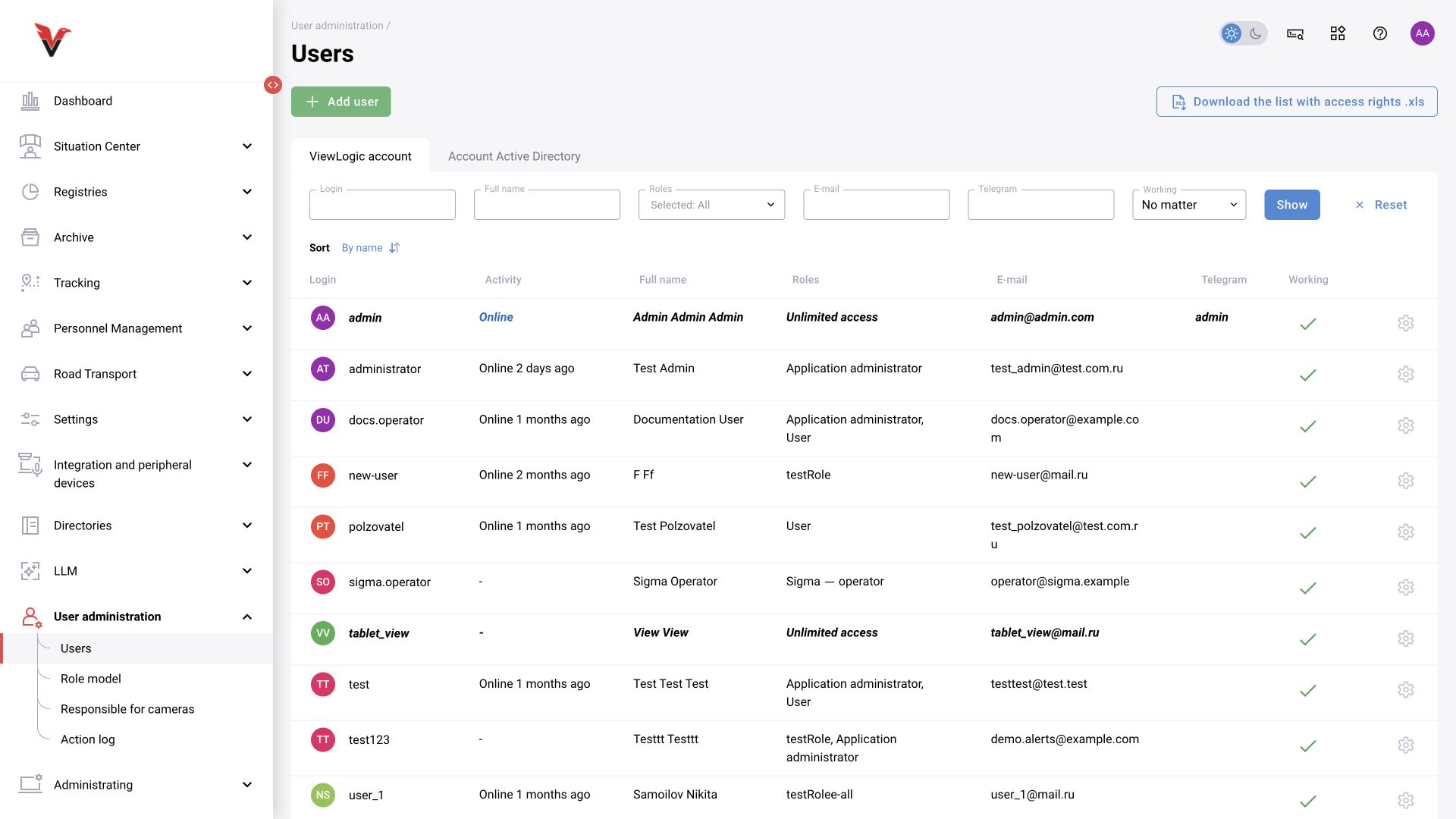
The wizard shows five steps: account → cameras and sites → distribution → pop-up notifications → agent notifications.
| First-step field | What to enter |
|---|---|
| Login* | A unique name, for example sigma.operator |
| Password* | A password that meets the organization's policy and BOX settings; deliver it to the user through an agreed channel |
| Last name* / First name* | The account owner's actual details |
| Middle name | If applicable; the current form has no required-field asterisk |
| E-mail* | The user's work email address |
| Telegram | Recipient username, for example @sigma_operator, if this channel is used |
| VK Teams | Account address in the corporate messenger |
| Unrestricted access | Broad access. For a regular operator, do not enable this as a substitute for configuring camera scope |
| Roles | Select predefined roles according to responsibilities |
| Interface language | The user's language |
| Next | Move to the next step; this does not yet validate the created account |
At the cameras and sites step, set the actual working scope. At the notification steps, configure only the required channels, cameras/classes, and conditions offered by the installation. Common notification settings are described in the profile. At this review stage, the first step and the wizard structure were checked directly; steps that create an account or grant permissions were not executed.
Sigma operator example. Prepare a role with access to the workplace camera, the journal, and decision-making. Select only the workshop site/cameras, configure the necessary notifications, and finish the wizard. Then sign in with this account in a separate session and verify that the required camera is visible, unrelated cameras are inaccessible, an allowed decision is saved, and administration is unavailable. Checking for a menu item alone is insufficient: access through a direct link must also comply with the role.
The Active flag refers to the user's status, not the camera's network status. To revoke access, use the standard account-disable procedure; removing a person from recognition does not disable their separate sign-in account.
Role model
Path: User administration → Role model, /administrating/roles.
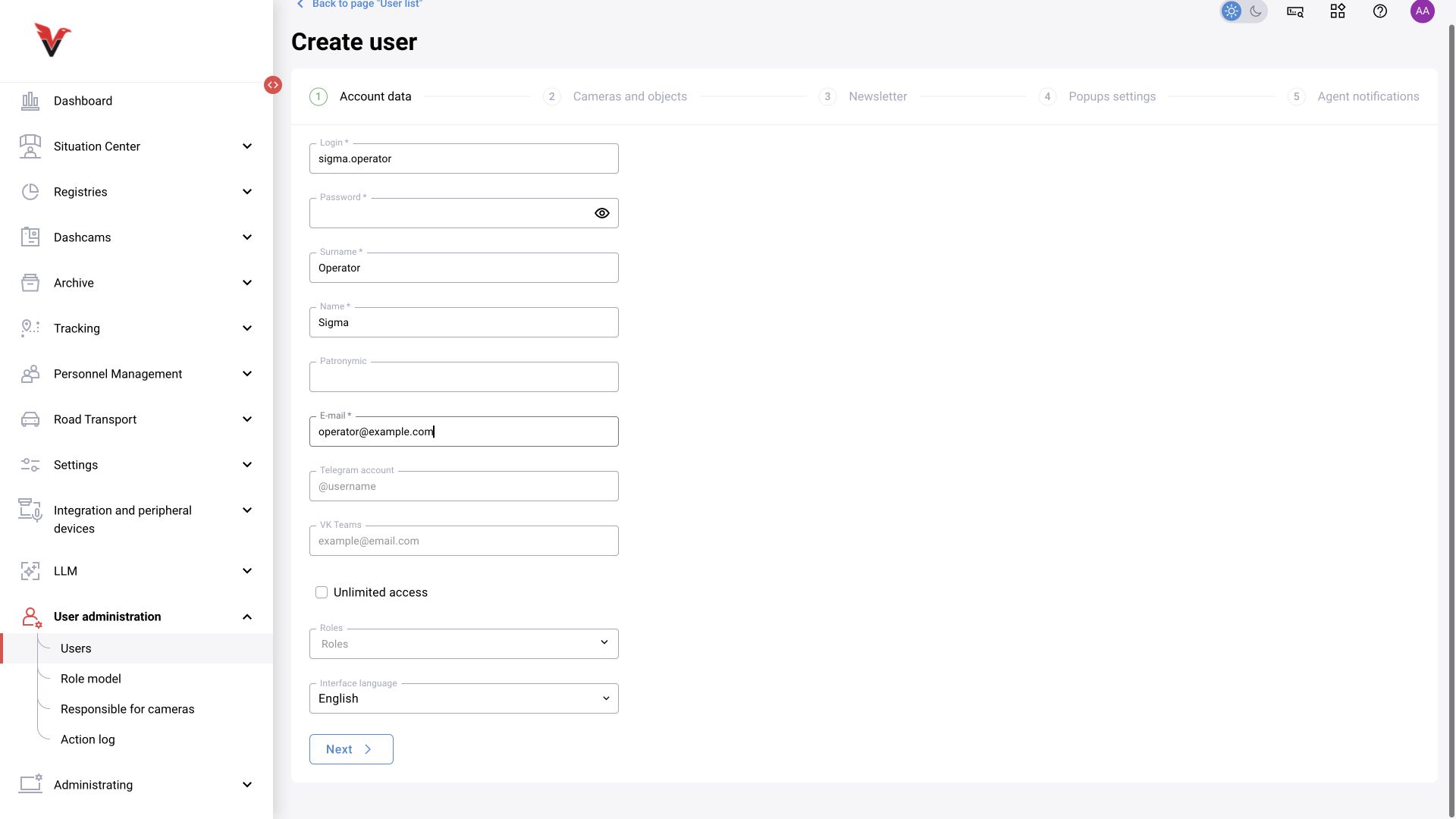
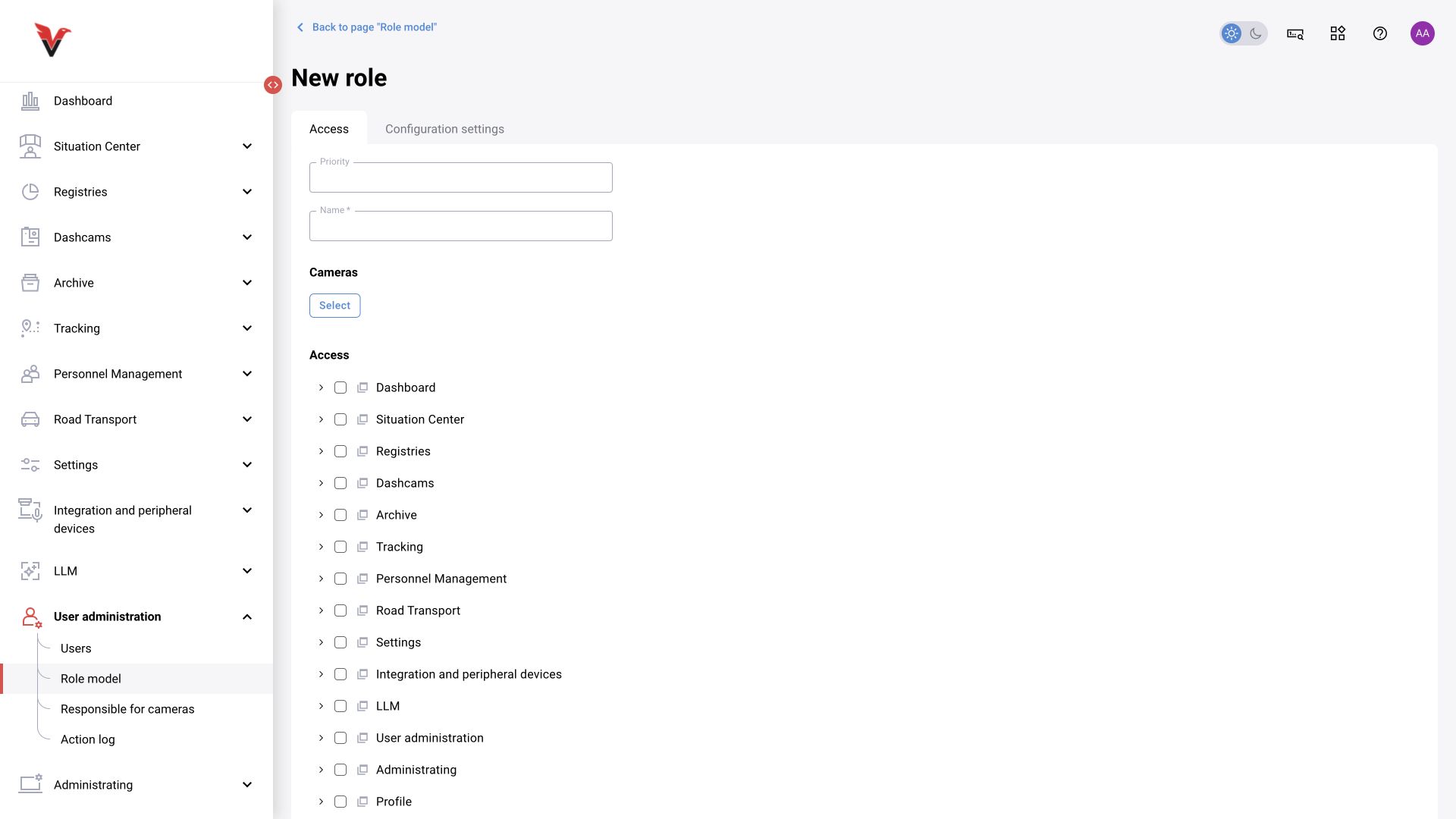
A role defines permissions and display configuration. The list provides New role, download and upload role model .json. These buttons are confirmed in the current interface; import/export development is described in BOXD-4901.
Access tab
| Field / group | How to use |
|---|---|
| Priority | A numeric role parameter. Check how conflicting permissions are combined in the specific configuration; do not apply the decision matrix priority rule here |
| Name* | Purpose, for example Sigma — workshop operator |
| Cameras → Select | Source scope supported by the role form |
| Permission tree | System sections and available actions: view, create, edit, and other permissions shown in the tree |
| Profile, help, services, and search permissions | Separate capabilities that must not be assumed to accompany journal access automatically |
| High-quality photos / image quality settings | A separate image-display option in permitted views |
Expand groups down to individual actions. Access to Users and permission to change roles are separate powers when the tree distinguishes them. When assigning several roles, verify the effective access using an actual account, especially when camera scopes differ.
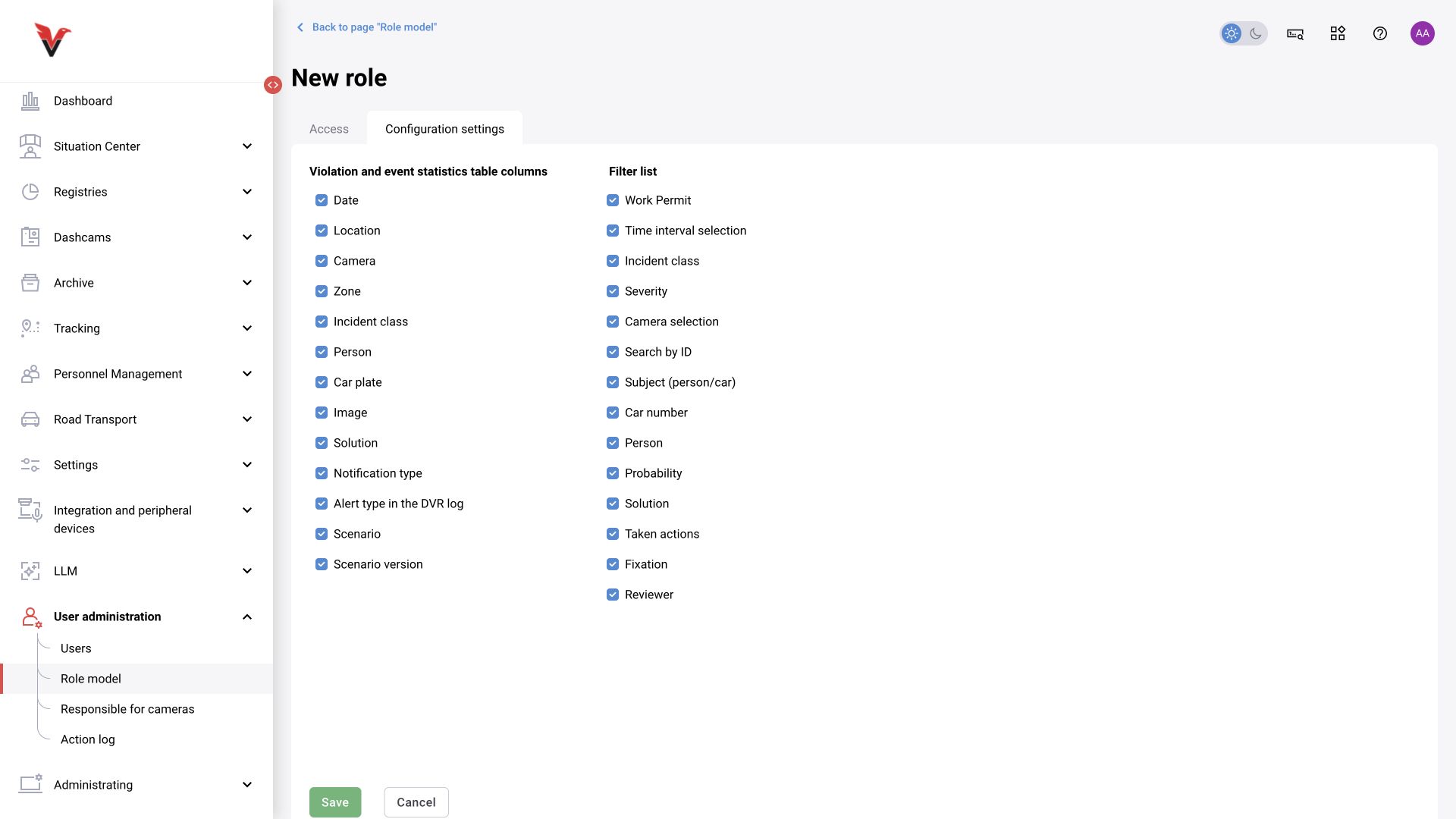
Configuration tab
Configures visible columns and filters. The current form includes these columns: date, location, camera, zone, class, person, vehicle plate number, image, decision, alert type, DVR alert type, scenario, and scenario version.
Filters include work permit, time, class, severity, cameras, ID, subject, vehicle, person, probability, decision, measures, detection method, and reviewer. Enable what the workflow needs and check the resulting journal.
Hiding a column does not deny access to the data. Use permissions and visibility scope to restrict capabilities, and column settings for convenience. Scenario fields in the shared journal configuration do not prove that this version includes the BOX 5.0 scenario editor.
Role export is useful for comparison and backup. Import changes access settings; before importing, save the current model and check the roles assigned to users, then test a restricted account after import.
Camera responsibility
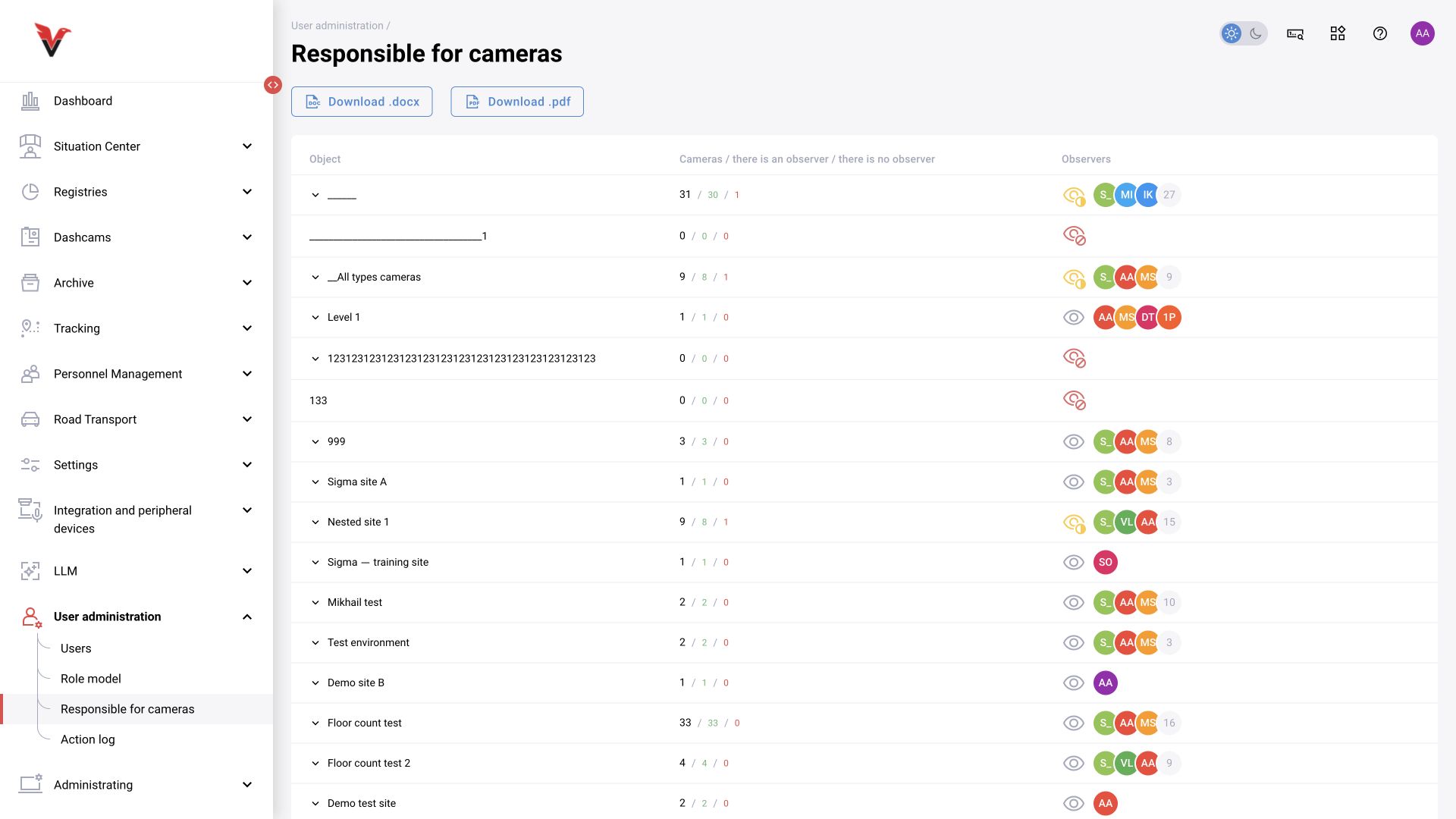
Path: User administration → Camera responsibility, /administrating/responsible-users.
Shows sites, cameras, whether observers are assigned, and the assigned users. DOCX/PDF reports are available. This section helps identify cameras without a responsible person and check workload distribution.
Assignments are made through the camera's Observers tab. After assignment, check the user's access and delivery settings. A person's name in this report does not guarantee that email distribution is enabled.
Activity logging
Path: User administration → Activity logging, /administrating/log.
| Filter / field | Purpose |
|---|---|
| Period | When the action occurred |
| Login | Who performed the action |
| Service | The subsystem in which the action occurred |
| Action | Operation type |
| CSV | Export the available log for investigation |
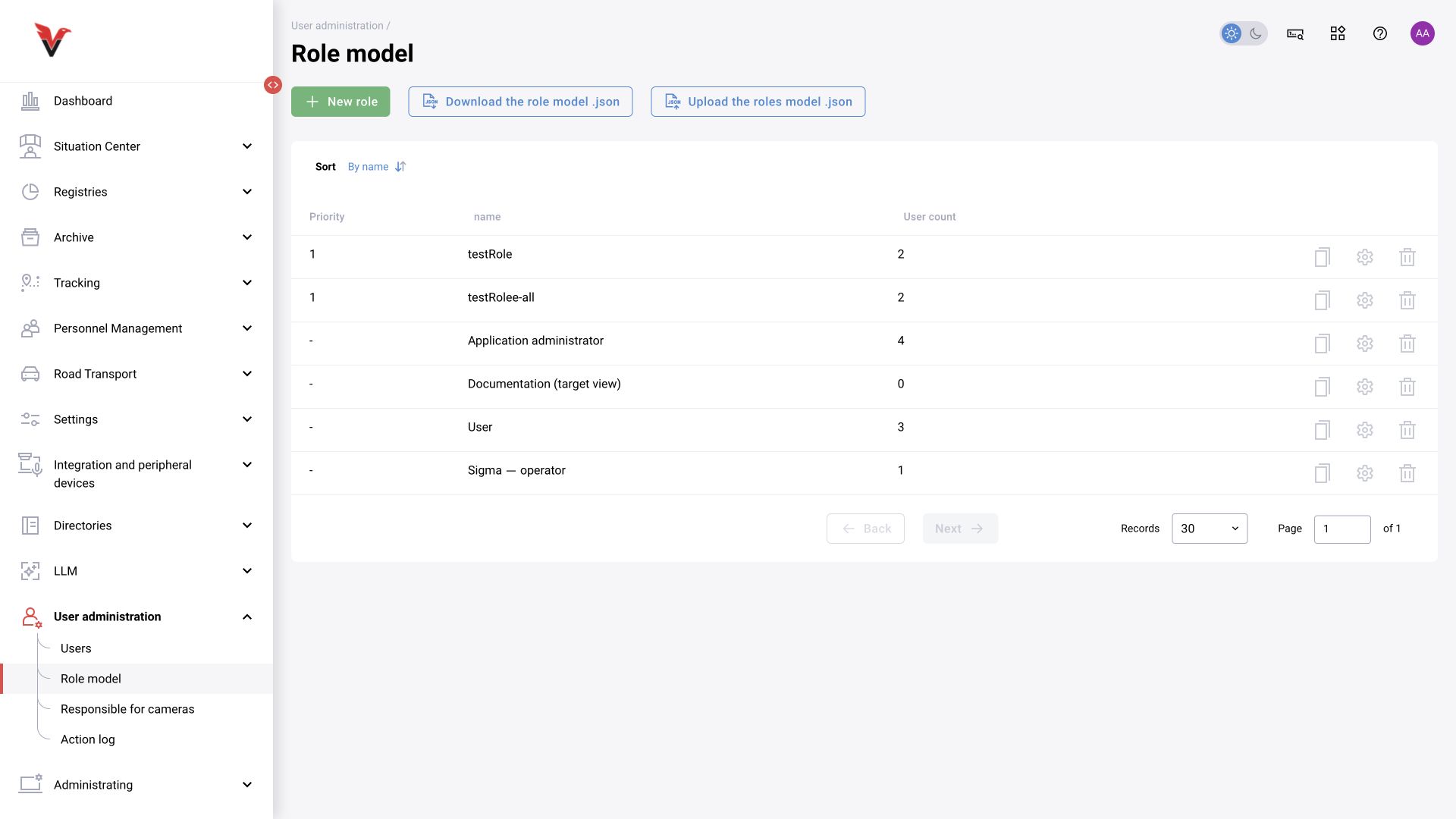
| Columns | Login, IP address, full name, date/time, service, action |
Example: first locate a camera change by time, then narrow the results by user and action. Correlate the record with camera activity history and the configuration change. Keep the user activity log, alert-card history, and server technical logs distinct: they answer different questions.