Video surveillance systems
Path: Integration → Video surveillance systems, /administrating/video-monitoring-systems.
This section connects BOX to an external VMS that supplies the camera list and connection parameters. Before adding a system, obtain the service addresses, account and synchronization rules from the VMS administrator.
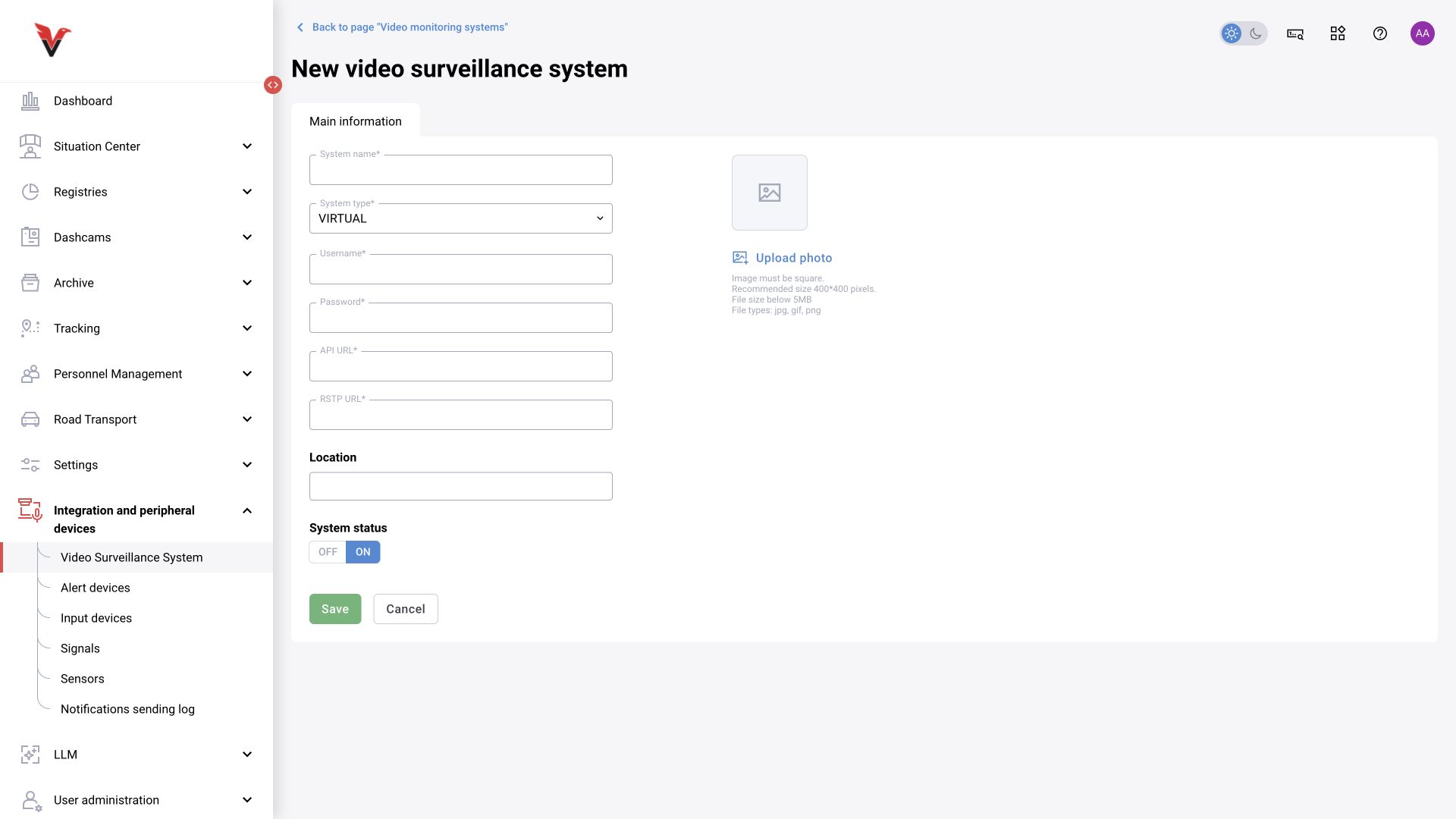
| New system field | Meaning and input |
|---|---|
| System name* | A clear connection name, for example Sigma — workshop VMS |
| System type* | Confirmed options: VIRTUAL, CISCO_VSM, MACROSCOP, MILESTONE, SATEL_VMS, ECHD, ITV. Select the one matching the installed product |
| User* | The VMS service account; this is not necessarily a BOX user |
| Password* | The password for this account |
| API URL* | The VMS API base address from its documentation; not the login page address |
| RSTP URL* | This is the label in the current form; it means the RTSP connection address/base according to the driver contract |
| Location | The site to which the imported sources belong |
| OFF / ON | Enable the connection |
| Photo | Optional image. Hint: JPG/GIF/PNG, up to 5 MB; a square 400×400 image is recommended |
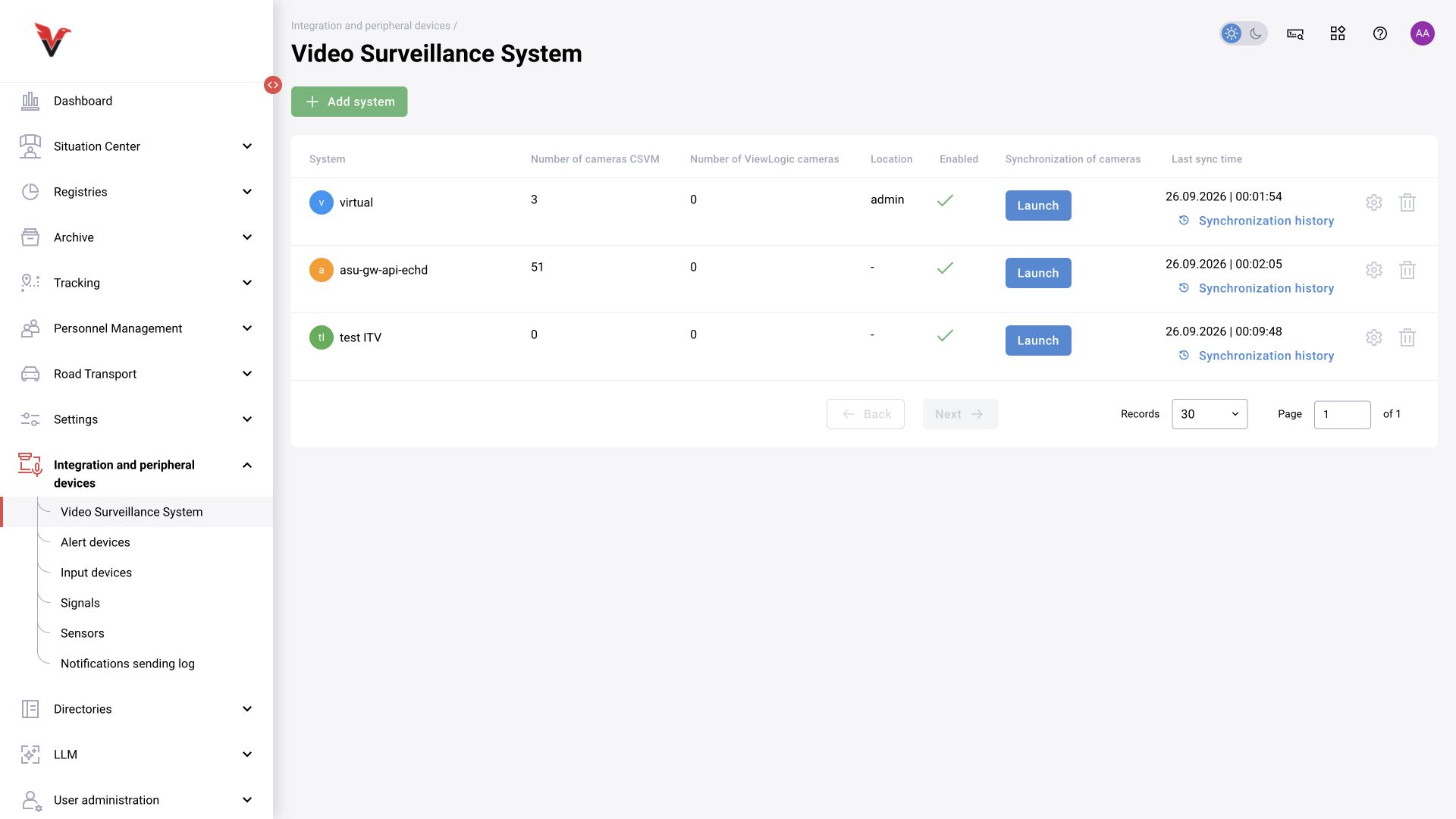
After saving, check the connection and run synchronization with the provided command. The list shows camera counts in the external system and in BOX, location, status and synchronization details. The history contains the start, end, duration, number of cameras received/processed and result. Do not repeat synchronization just because the interface responds slowly: check the last operation first.
Successfully retrieving a camera list does not prove that its streams are available. Open several cameras and check the image, site assignments and permissions.
Notification devices
Path: Integration → Notification devices, /settings/alert-device/list.
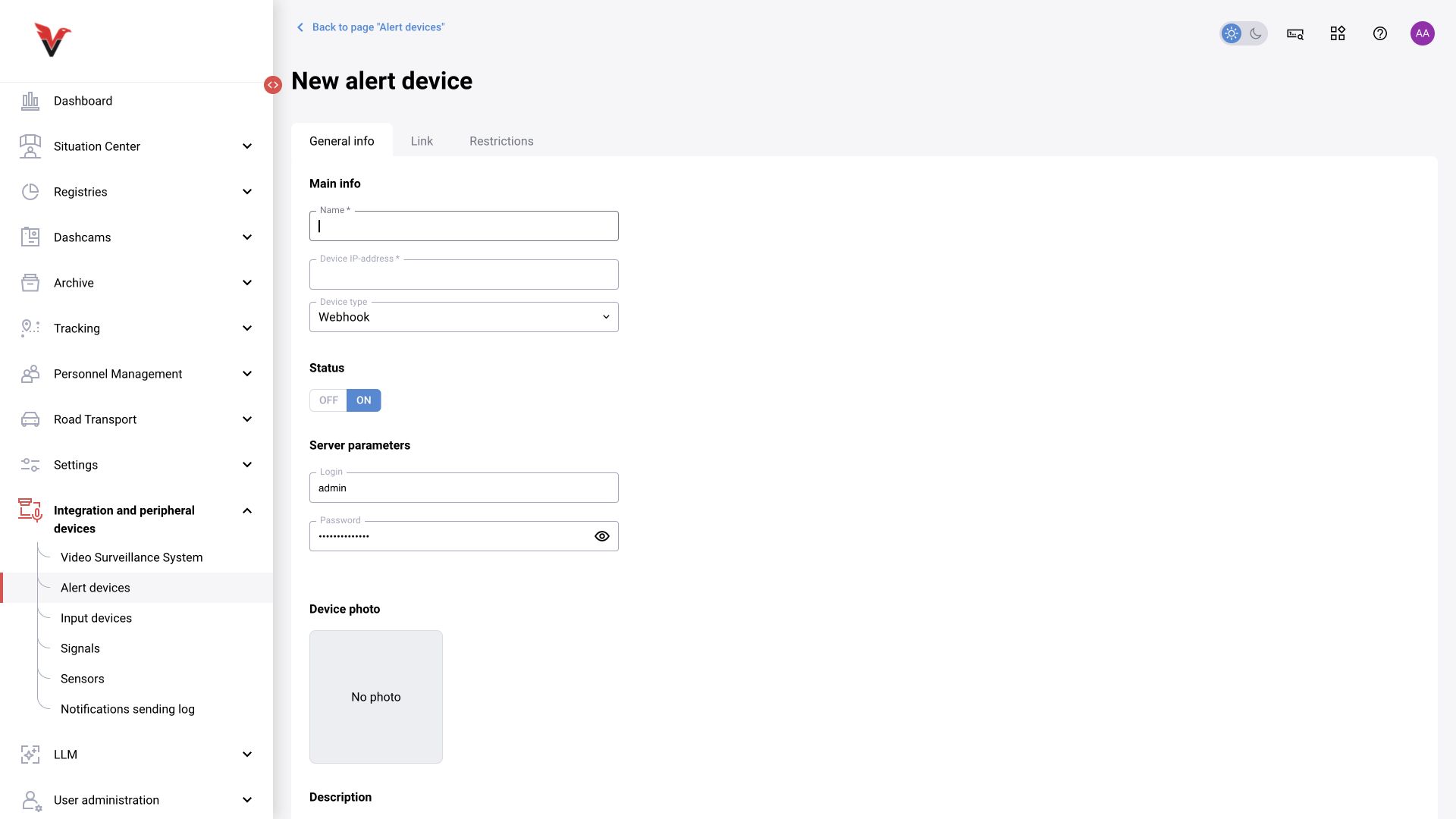
These are outputs: signaling devices, controllers and HTTP integrations to which the system sends an action. The form contains the tabs “Information”, “Assignment”, “Restrictions”.
| Field | Meaning and input |
|---|---|
| Name* | Purpose: Sigma — signal lamp at station 01 |
| IP address* | Device address. For an HTTP driver, the address/URL format is defined by its contract |
| Type | Webhook, Rodos, Rodos barrier, GET request, Laurent and Linsis LEC are options in the inspected list |
| OFF / ON | Device activity in BOX |
| Login / Password | Credentials for this specific device, if required by the selected driver |
| Photo | An image to identify the device |
| Channel | For a supported controller, the physical output number. Check against the wiring diagram |
| Mode | When to issue a command. The Rodos form includes “Activate at start of violation”; select other modes according to the available list and driver documentation |
| Notification | Signal behavior, for example the displayed “Short” option. This is not the notification retention period |
| Assignment → Camera / location* → Add | Sources whose events are linked to the device |
| Restrictions → Add schedule | Schedule-based operating conditions, set for the selected device |
The Webhook contract uses POST with JSON. The interface lists message_uuid, camera_id, timestamp, sets of primary and secondary categories, zones and scores (scores). The receiver must parse the entire structure and distinguish the event ID from the camera ID. Agree on the exact field names, time units and receiver response format using the driver documentation; an IP address alone does not define an HTTP route.
For device schedules, the API describes zones, time zone, days, start/end and presence thresholds; the current dialog may vary by type. Do not copy a workstation schedule to a relay without checking: the meaning of the command and the equipment's safe state are specified separately.
Check: correct channel → correct assignment → permitted time → test event → alarm log entry → physical confirmation. A barrier or relay command has a real-world effect; the person responsible for the equipment must carry out the test.
Input devices
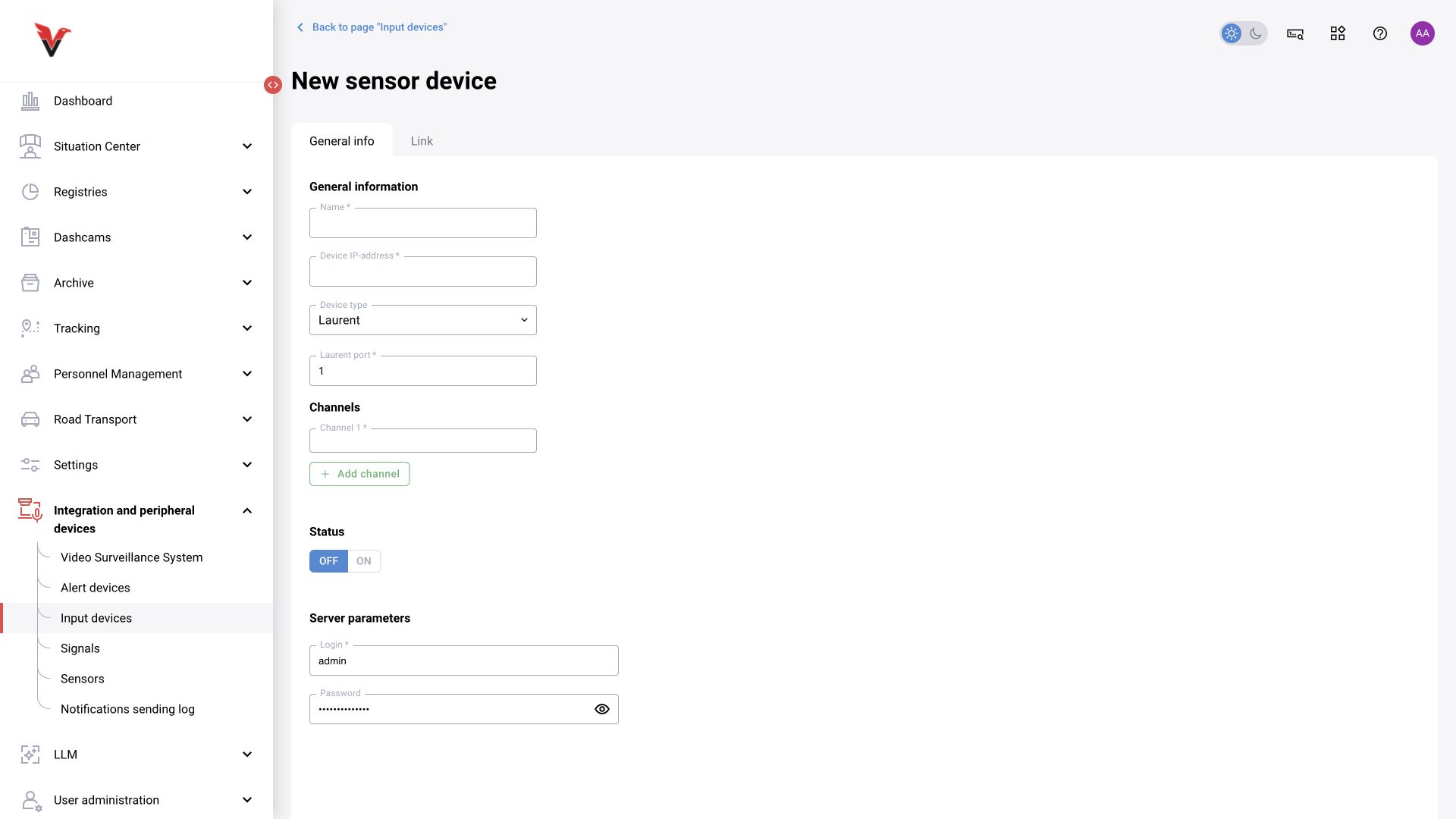
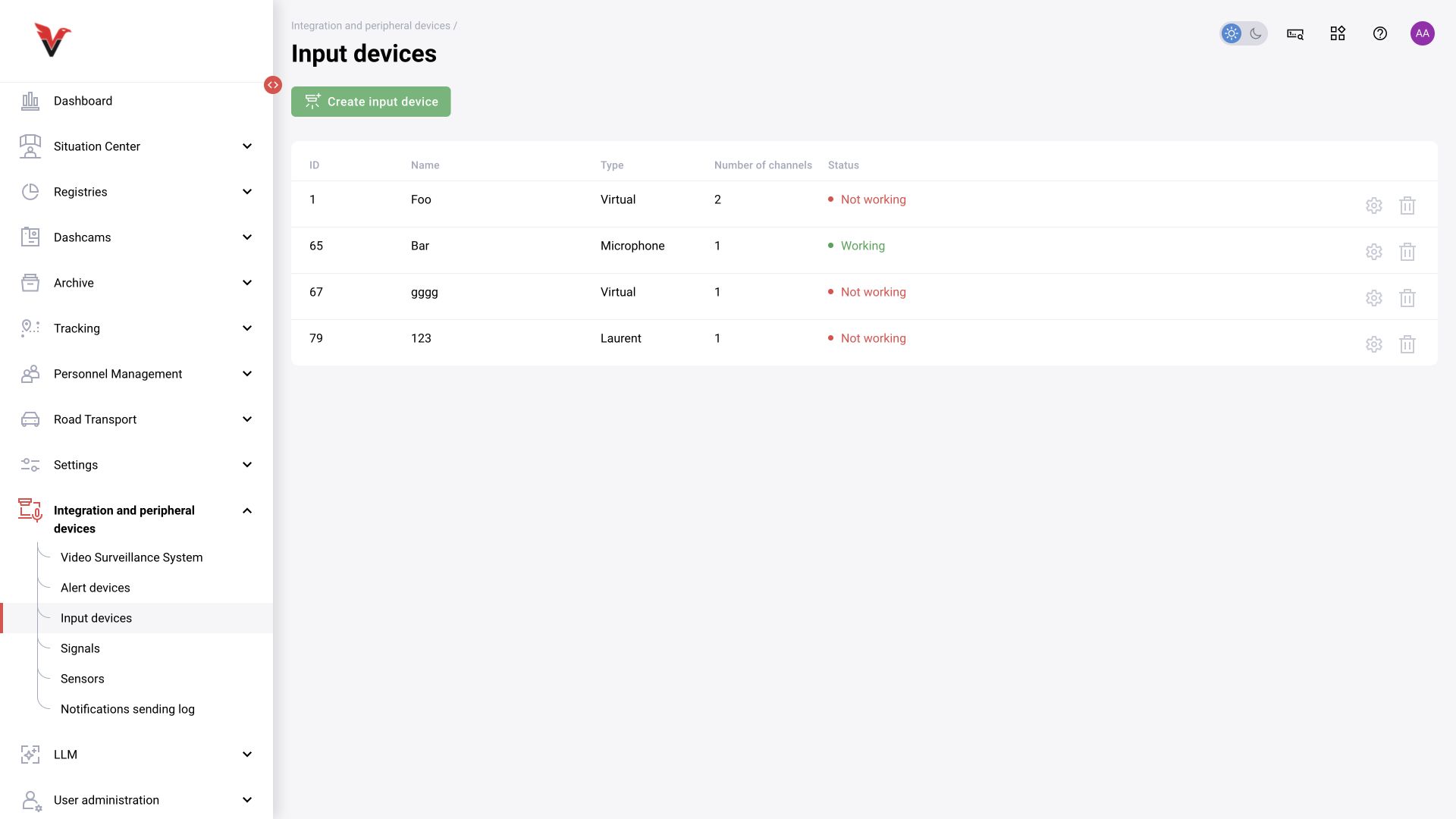
Path: Integration → Input devices, /settings/alert-detectors/list.
These are sources of external signals, such as a vehicle passage sensor. They supplement video analytics and are not neural network detectors.
| Field | How to complete the field |
|---|---|
| Name* | Purpose and installation location |
| IP address* | Controller address accessible to the server |
| Type | Select a supported driver; Laurent is selected in the inspected form |
| Laurent port* | The controller's numeric network port, consistent with its configuration |
| Channel 1* / Add channel | Input names/IDs in the form's format; match them to the physical sensors |
| OFF / ON | Whether the device is used |
| Login* / Password | Controller credentials, where applicable |
| Assignment → Camera / location* → Add | Cameras and locations associated with the signal |
For a parking area, also assign the entry channel and exit channel in its details. Do not swap them to fix an incorrect counter: establish which physical sensor is being triggered first.
Alarms
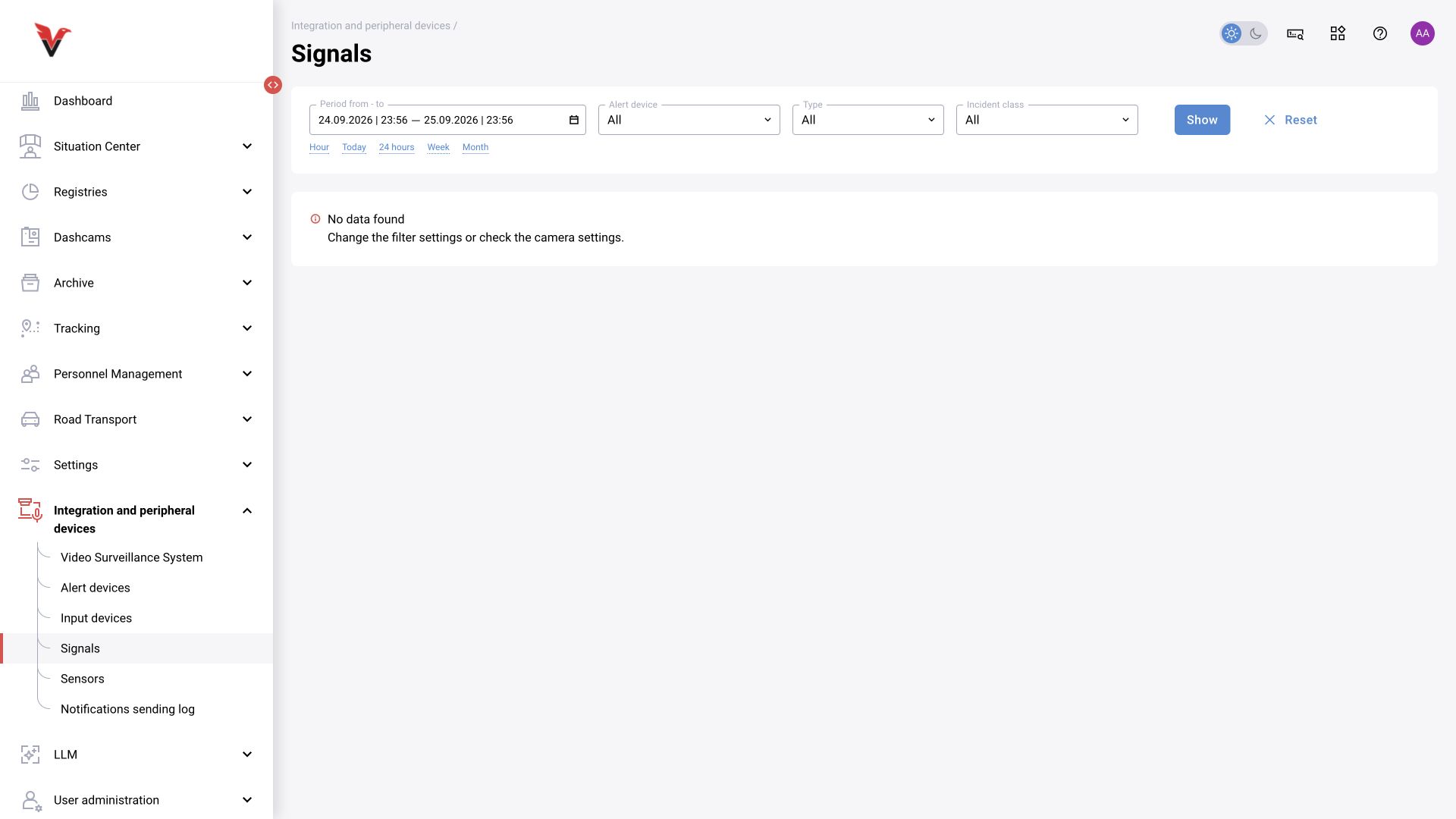
Path: Integration → Alarms, /signal-log.
Filters: period, notification device, type and class; then “Show” / “Reset”. Use the log to find a command for the required time and device. An empty result may mean no matching events, filtering, a disabled assignment or a missing record; by itself it does not prove that a relay is faulty.
Sensors
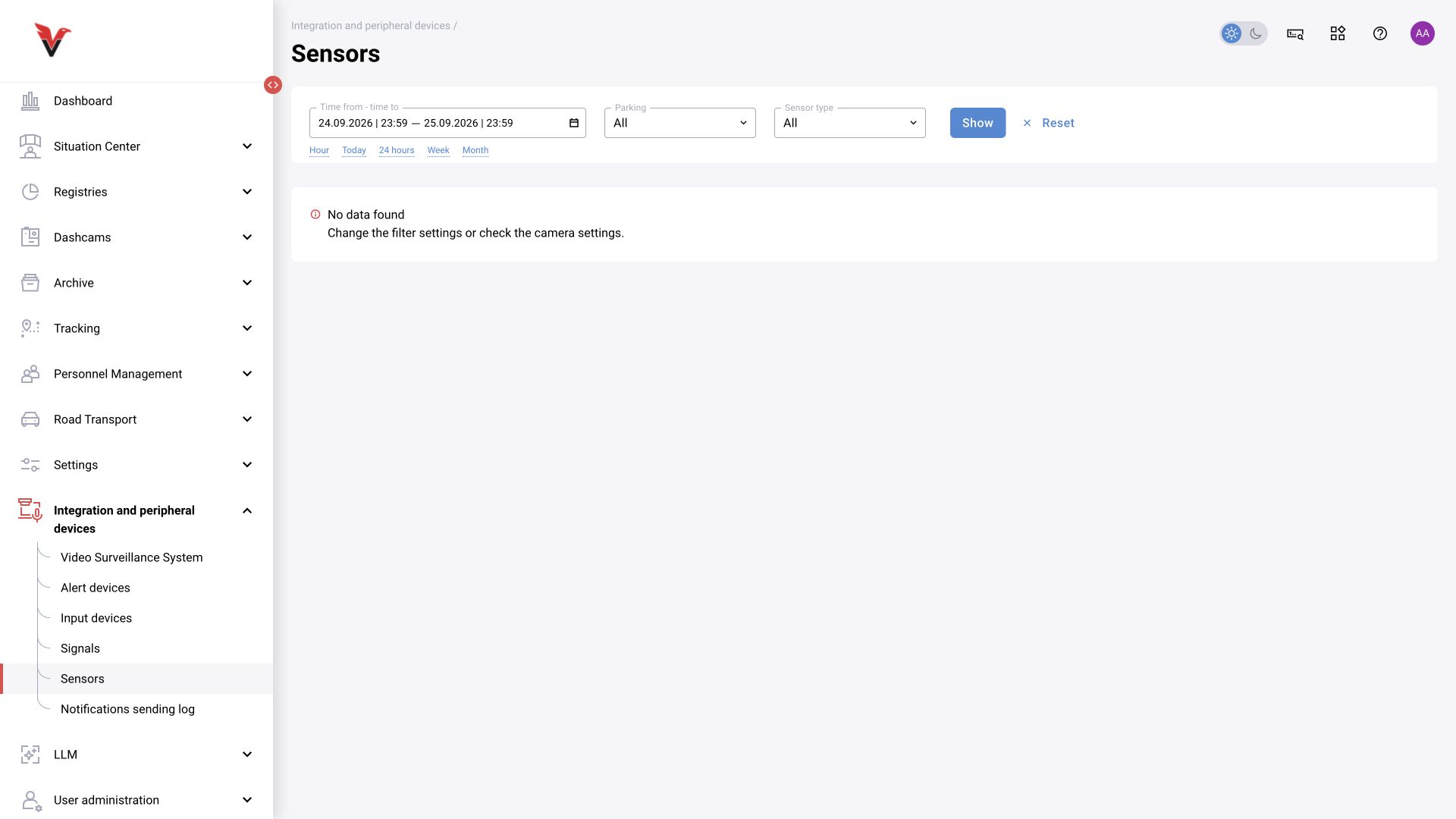
Path: Integration → Sensors, /signal-detectors.
Filters: period, parking area and sensor type. The log helps match an external signal to a vehicle event. Compare the sensor time, recognized entry and occupancy change. If the sensor is in the catalog but there are no signals, check power/network, channel, activity and assignment.
Notification delivery log
Path: Integration → Notification delivery log, /administrating/notification-sending-log.
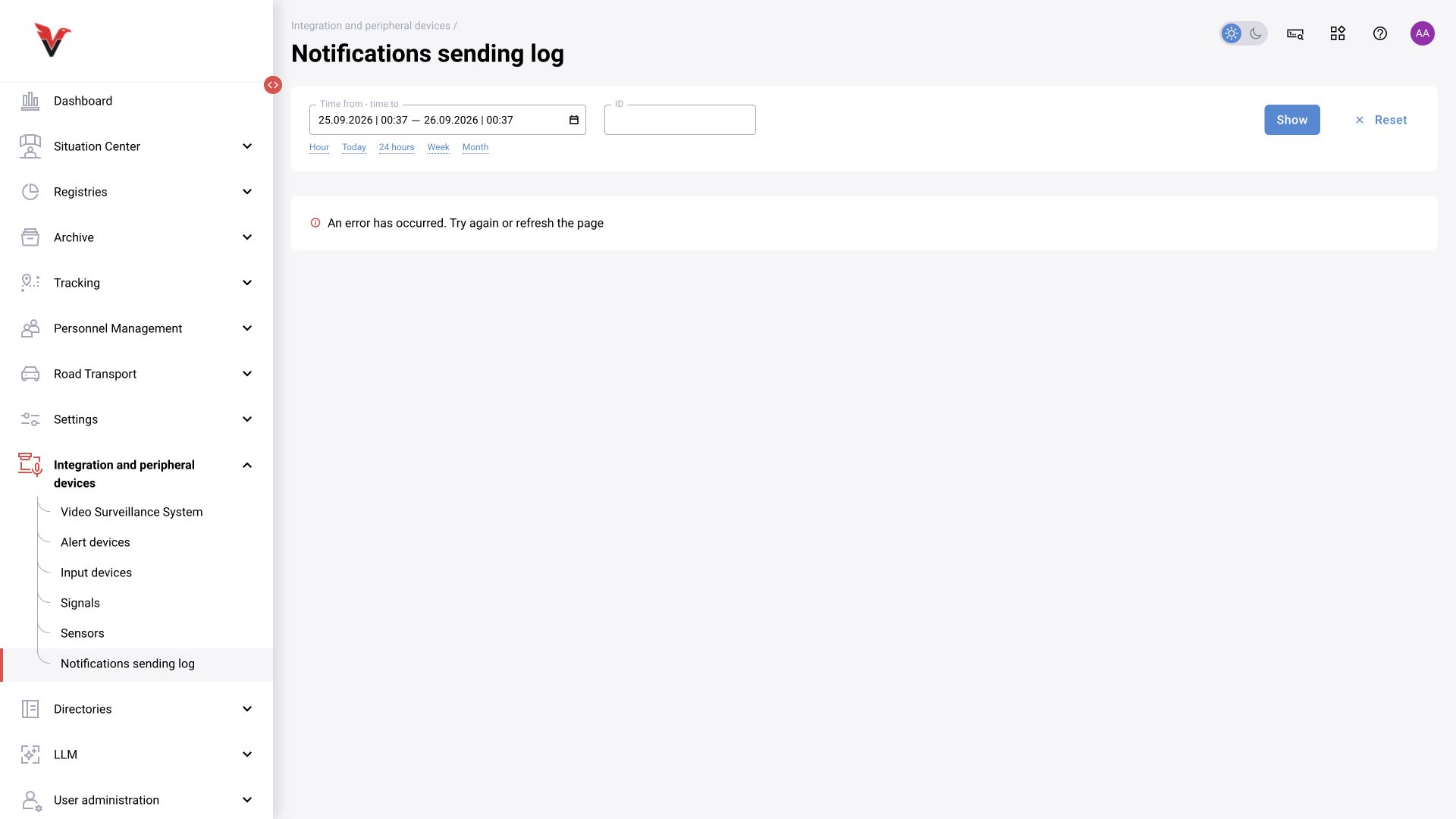
The inspected form has a period and notification ID, “Show” / “Reset”. Start with a known ID and time, then widen the period. Use the available delivery attempt details to diagnose the delivery channel.
Distinguish four stages: the event was registered → the user matches the notification settings → the system attempted delivery → the message reached the final recipient. The existence of an event does not guarantee delivery, and a successful gateway response does not prove that a person read it.