
Zones: geometry and purpose
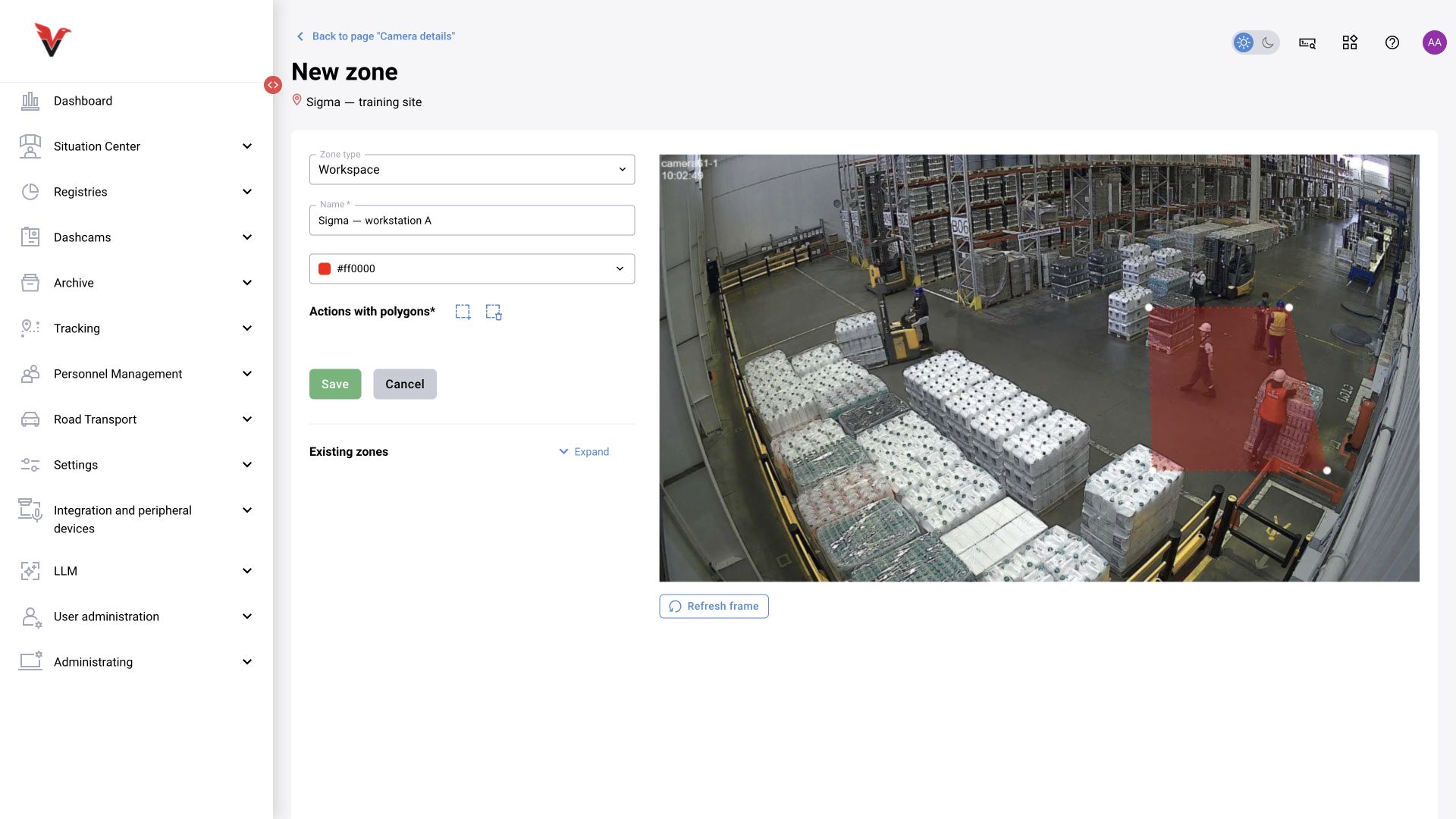
Open camera → Zones → Add zone. A zone is defined on the image of a particular view; do not transfer it to another camera or to a frame after rotating the camera without checking it.
| Field / action | Meaning and input |
|---|---|
| Zone type* | The rule for using the region; select from the table below |
| Name* | A clear purpose: Sigma — workstation 01, Access lane — entrance |
| Color | A HEX code, for example #00A0FF, for displaying boundaries. Color does not determine the event class |
| Add polygon | Draw a contour using successive points. Outline the working region and complete the contour using the method provided by the editor |
| Delete polygon | Removes the selected geometry from the form; the result takes effect after saving |
| Add direction | Appears for an entry/exit zone; defines a movement direction |
| Existing zones | Lets you compare the new contour with regions already created |
| Refresh frame | Fetches a current image for markup |
| Save / Cancel | Applies changes or exits without saving |
| Zone type in the shared BOX module | Purpose |
|---|---|
| Safe zone in which violations are not recorded | Excludes a region from the corresponding violation processing. Do not treat it as a universal way to disable every independent subsystem, including a separately configured LLM |
| Danger zone | Region for monitoring hazardous presence/actions with a suitable detector |
| Vehicle entry zone | Region used by vehicle analytics |
| Abandoned-object exclusion zone | Region that the corresponding abandoned-object detector should exclude |
| Abandoned-object detection zone | Region for searching for abandoned objects |
| Workstation | Region for standard presence and work discipline monitoring; linked to the presence schedule |
| Entry and exit zone | Monitoring crossings with a movement direction; used by counters |
Draw the contour around the visible working area rather than the whole image “just in case”. For a workstation, exclude the passageway, or an employee walking past may be counted as present. Recheck boundary alignment after changing resolution, rotating the camera or selecting a new view.
For entry/exit, define a direction and test known movement in both directions. The older technical description uses the order of the vector’s two points; match the label/arrow in the editor to the actual counter. Do not change direction simply because the arrow looks inconvenient.
In BOX 5.0 scenarios, zone types come from a separate directory (§9.11); geometry must correspond to the codes used by the graph. Geometry alone does not start a model. Suitable scenarios/presets, enabled analytics and, for work discipline monitoring, a presence schedule are required. Zone activity switches mentioned in individual issues should not be assumed to be available in every form in this installation.
BOX 3.2: verifying a safe zone
Applies to: BOX 3.2 configurations where the decision matrix processes violations. You need access to zone settings and an administrator who can check the relevant matrix rule.
A safe-zone polygon defines a region in the camera image. Excluding violations from that region also requires a matching decision-matrix rule. Creating the polygon alone is not sufficient.
- Save the zone, reopen it, and verify its type, boundaries and camera assignment.
- Ask the administrator to check the matrix rule for the required category and zone type. Do not copy a rule from another camera without checking its conditions.
- Use approved test material to compare the same category inside and outside the zone. Check the event journal and records rejected by the matrix.
Expected result: the rule excludes the violations it is intended to suppress inside the region while preserving the required checks outside it. This does not establish that every independent subsystem is disabled: separately configured LLM processing and BOX 5.0 scenarios need their own checks. See the decision matrix guide.