Persons
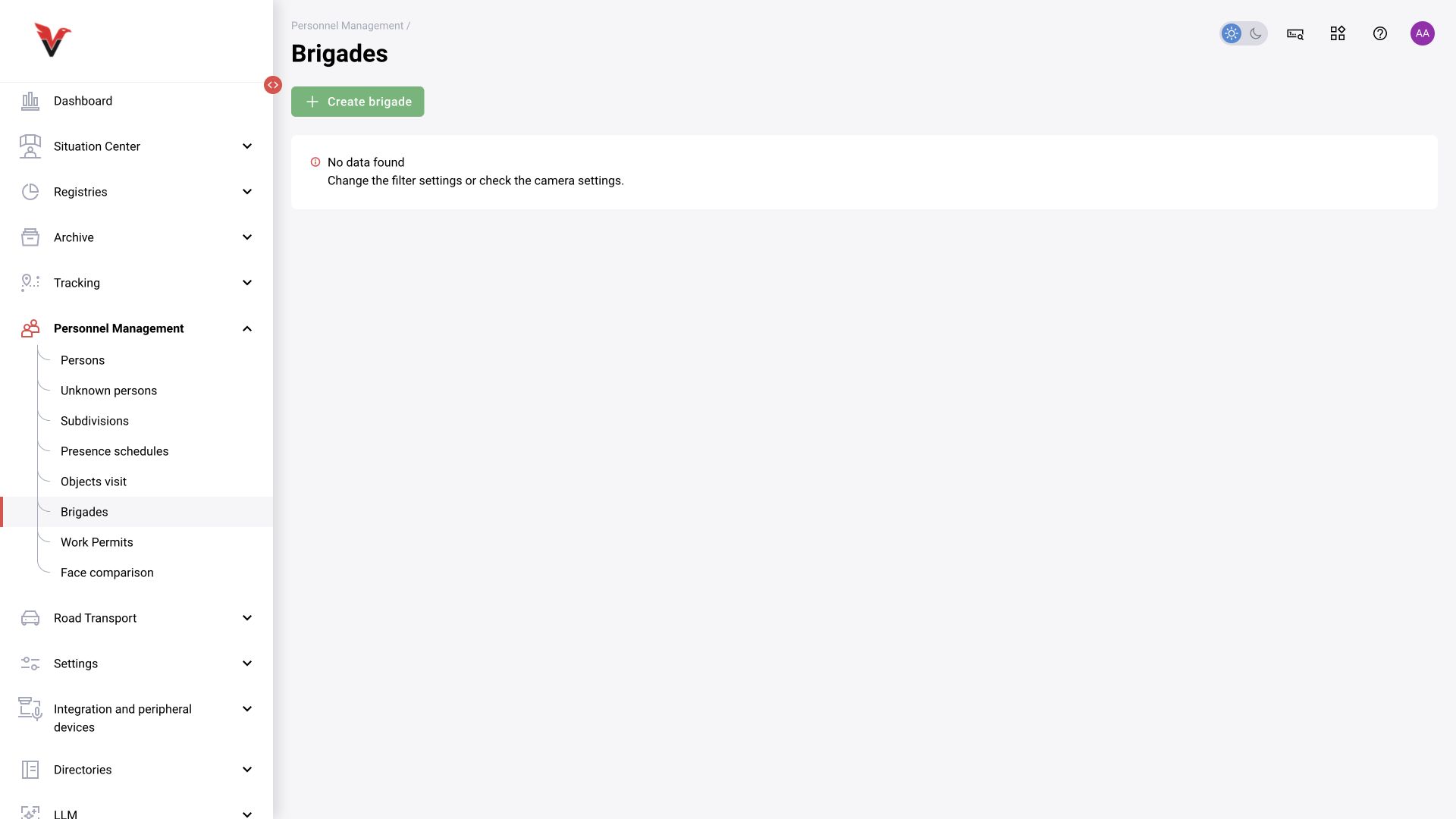
Path: Personnel management → Persons, /personnel-management/persons.
The directory stores employees and other registered persons used in recognition and related processes. List filters: ID, surname, first name, patronymic, department, job title, on staff. After clicking “Show”, you can use the table or photo view, sort by surname, open a card, merge selected persons and delete records according to your permissions.
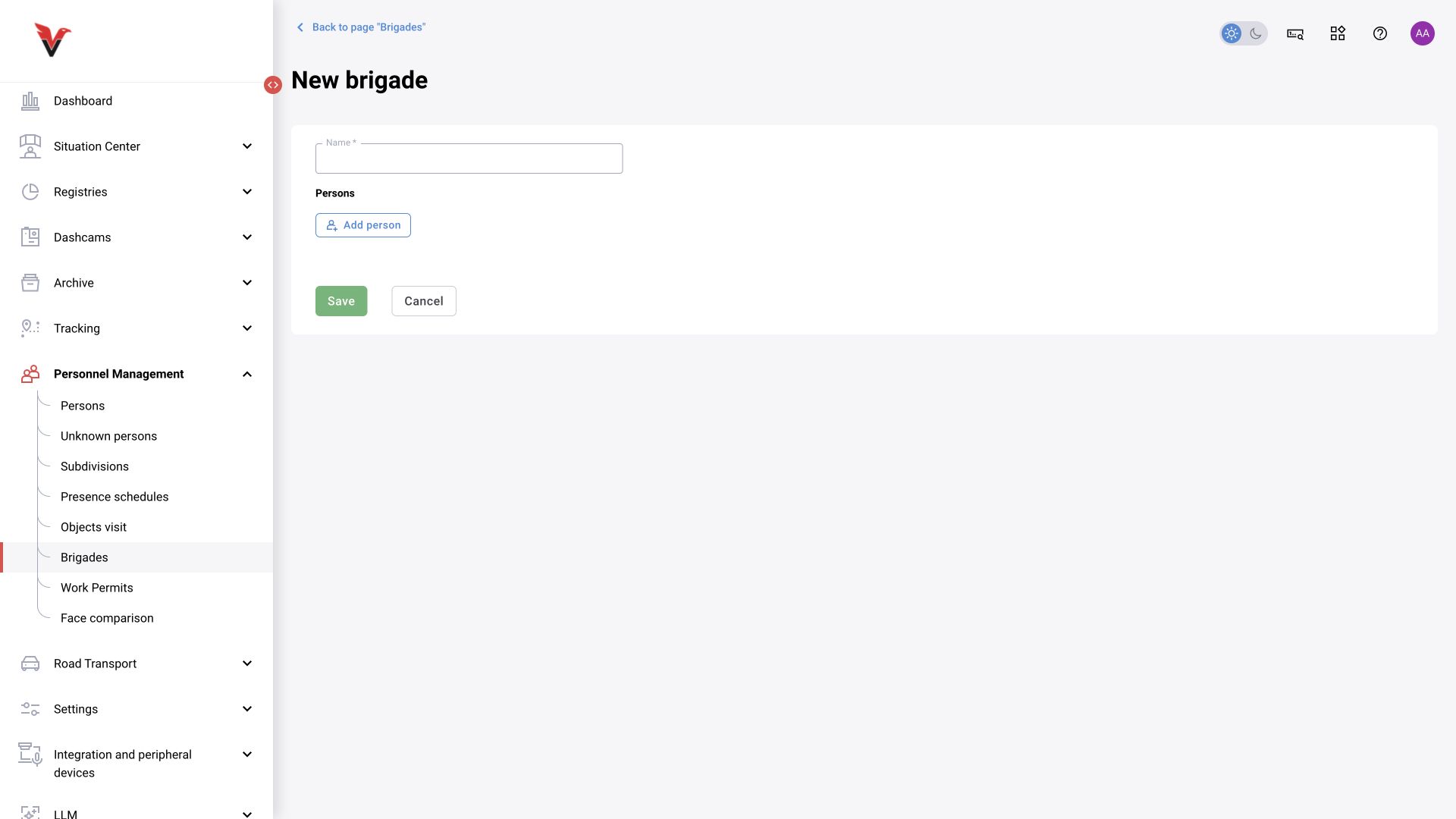
Adding a person: personal details
Click “Add person”, /personnel-management/persons/create.
| Field | Meaning | What to enter |
|---|---|---|
| Employee number* | A stable identifier for the person within the organization | For example, SIG-001; retain leading zeros. Do not replace the number with the table row number |
| Surname* | The person’s surname | Ivanov |
| First name* | The person’s first name | Ivan |
| Patronymic | Patronymic, if any | May be left blank: the current form does not mark it with an asterisk; the change is confirmed by BOXD-5136 |
| Department | Organizational affiliation | Select an existing department or the permitted “No department” option |
| Job title* | Employee’s function | For example, Production area operator; the current form marks this field as required, although the API permits its absence |
| Tag | Positioning device | Select the tag issued to the person, not a camera number |
Save the card and check it in the list. The “Working / On staff” flag is used to track the person’s active status and for filtering; it does not replace management of the BOX user account.
Photos
| Panel / action | Purpose |
|---|---|
| Detection photos | Reference images used for identification |
| Uploaded photos | Album of manually added images |
| Add photo | Current form: JPG, GIF, PNG, up to 1 MB, maximum 8 photos |
| Photos from incidents | Observations from the last 30 days, according to the current form label |
| Add to detection album | Makes the selected photo a reference image; simply uploading it to an album does not always include it in detection |
| Move to another person’s album | Corrects a photo’s mistaken association; verify identity first |
| Remove from detection album | Removes the reference image from use, but does not necessarily delete all photos and events associated with the person |
Use clear photos with a distinguishable face that correspond to the actual person. Different angles are useful if each is suitable for identification. Do not combine photos of different people to increase the number of examples.
Merging persons
Select only records for the same person and use “Merge persons”. Before confirming, check which card will remain primary and which data will be transferred to it. This corrects duplicates; it is not a way to create a crew. The merge action itself was not performed during inspection.
Unknown persons
Path: Personnel management → Unknown persons, /personnel-management/anonymous-persons.
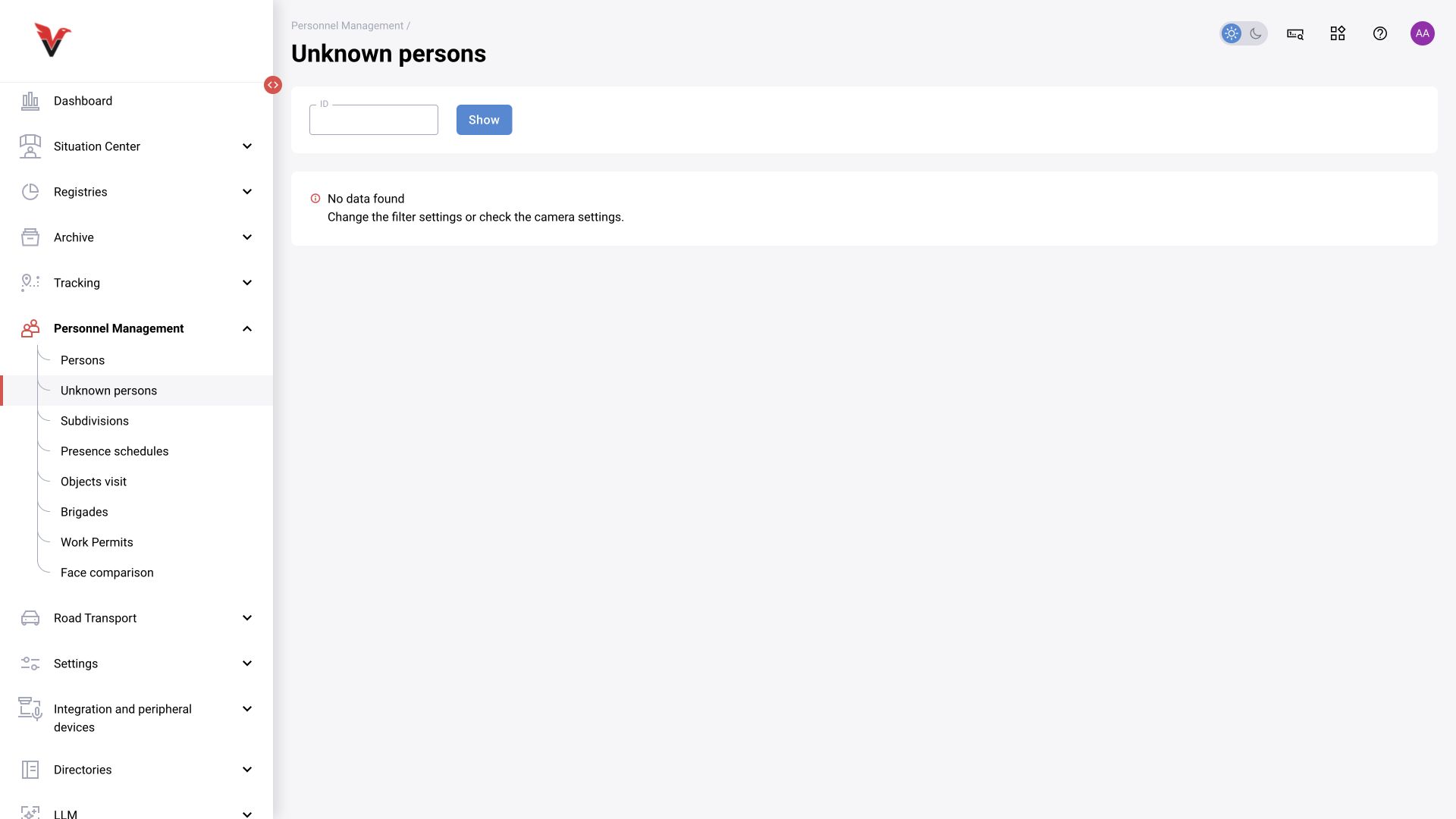
This section contains automatically identified unknown-person records. The filter ID accepts the unknown record’s identifier. Table / tile views, “Select all”, merge and delete are available. Open the card to review the accumulated photos and proceed with identification through the supported workflow.
“Unknown no. …” is a technical record, not a confirmed identity. Similar-looking images require verification: identical clothing does not prove that they show the same person. First find or create the correct person, then link the data.
Departments
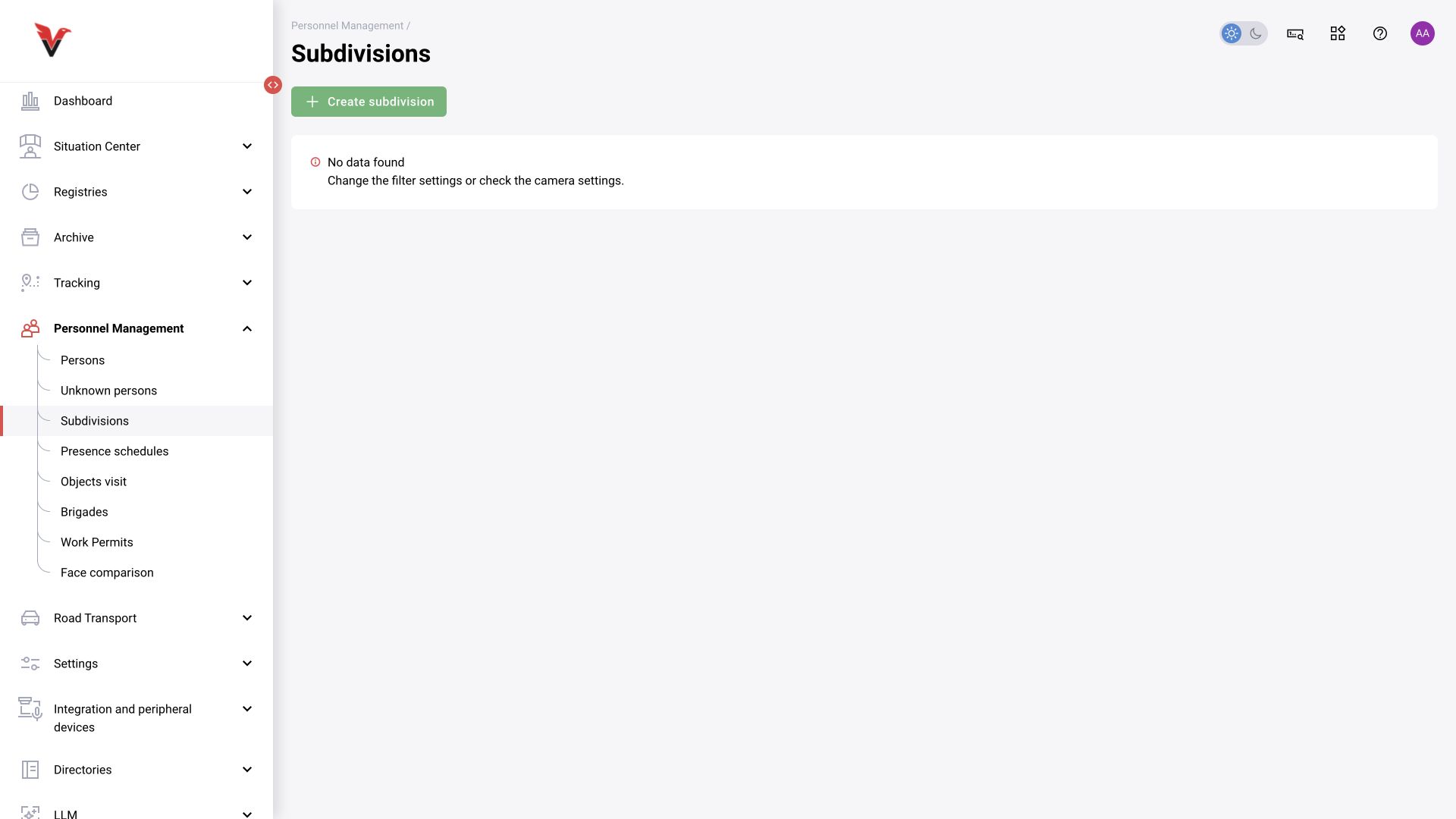
Path: Personnel management → Departments, /personnel-management/subdivisions.
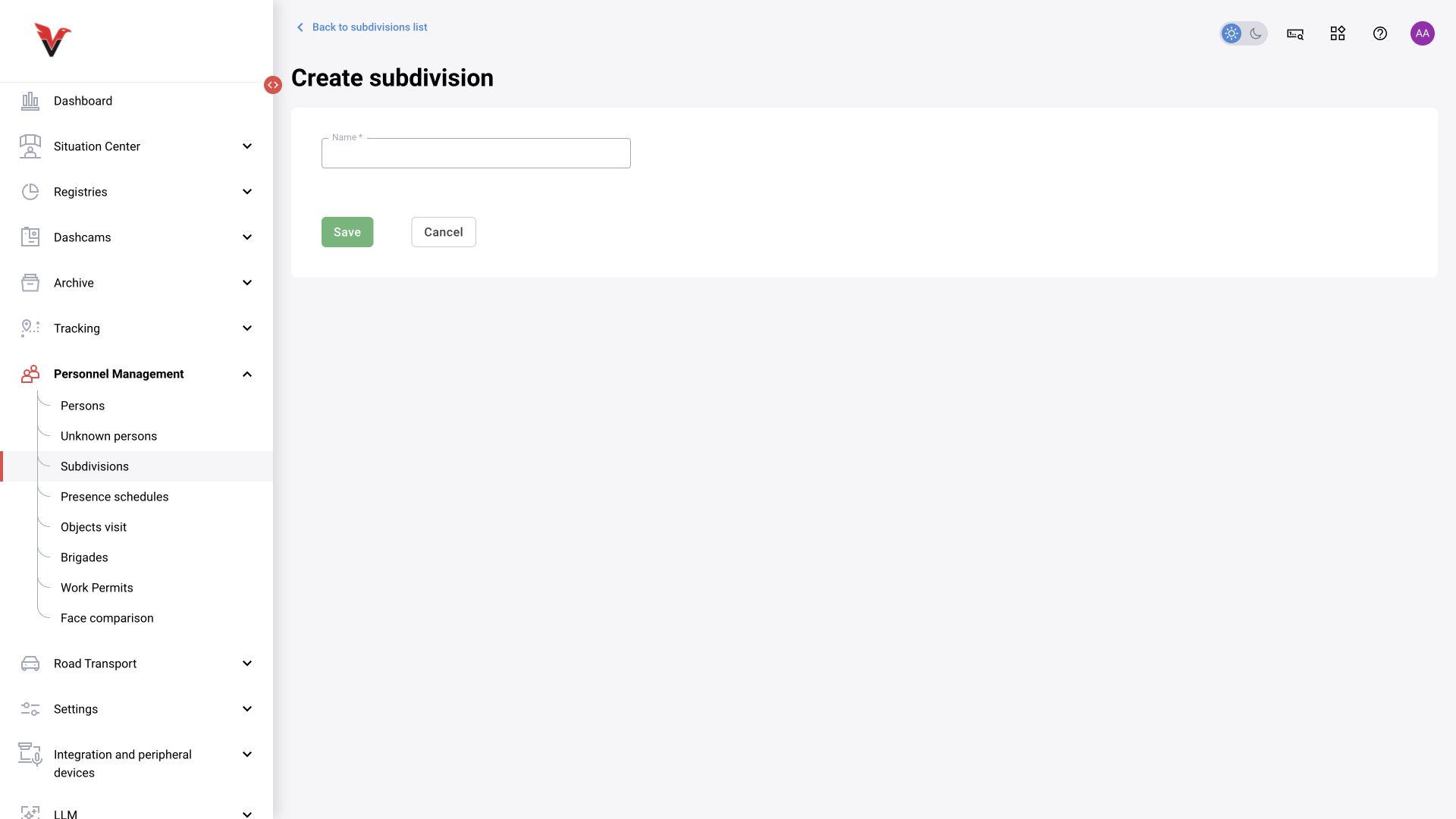
The table shows each department’s name and number of persons. “New department” opens a form with the required “Name” field; when editing, change the organizational unit itself. Example: Sigma — production workshop. A department describes people; a site describes the place being monitored. They may have the same name, but they belong to different directories.
Opening a department helps you view its members; access to this page is controlled separately by the role model. Do not delete a department instead of transferring an employee to another one.
Crews
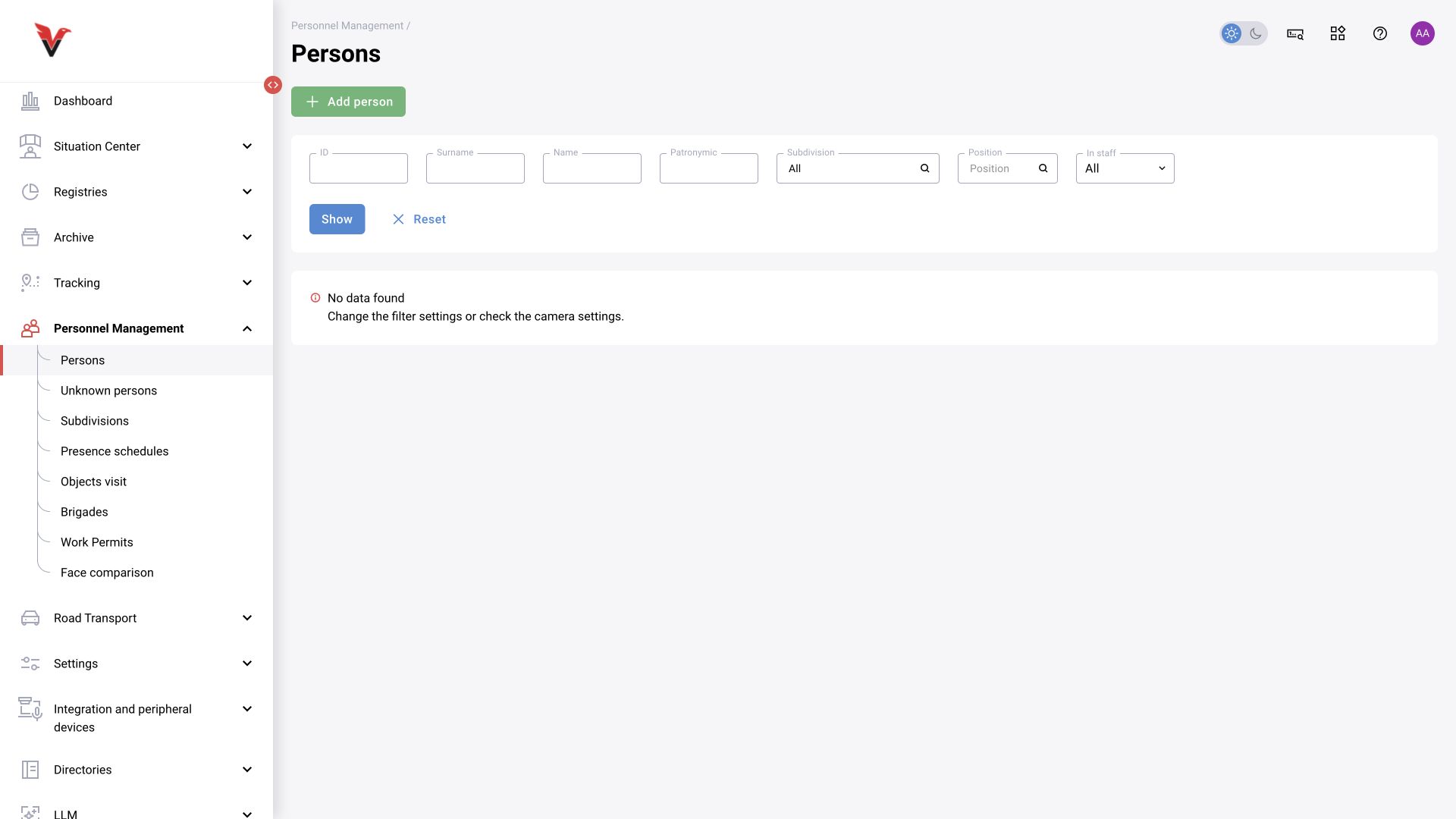
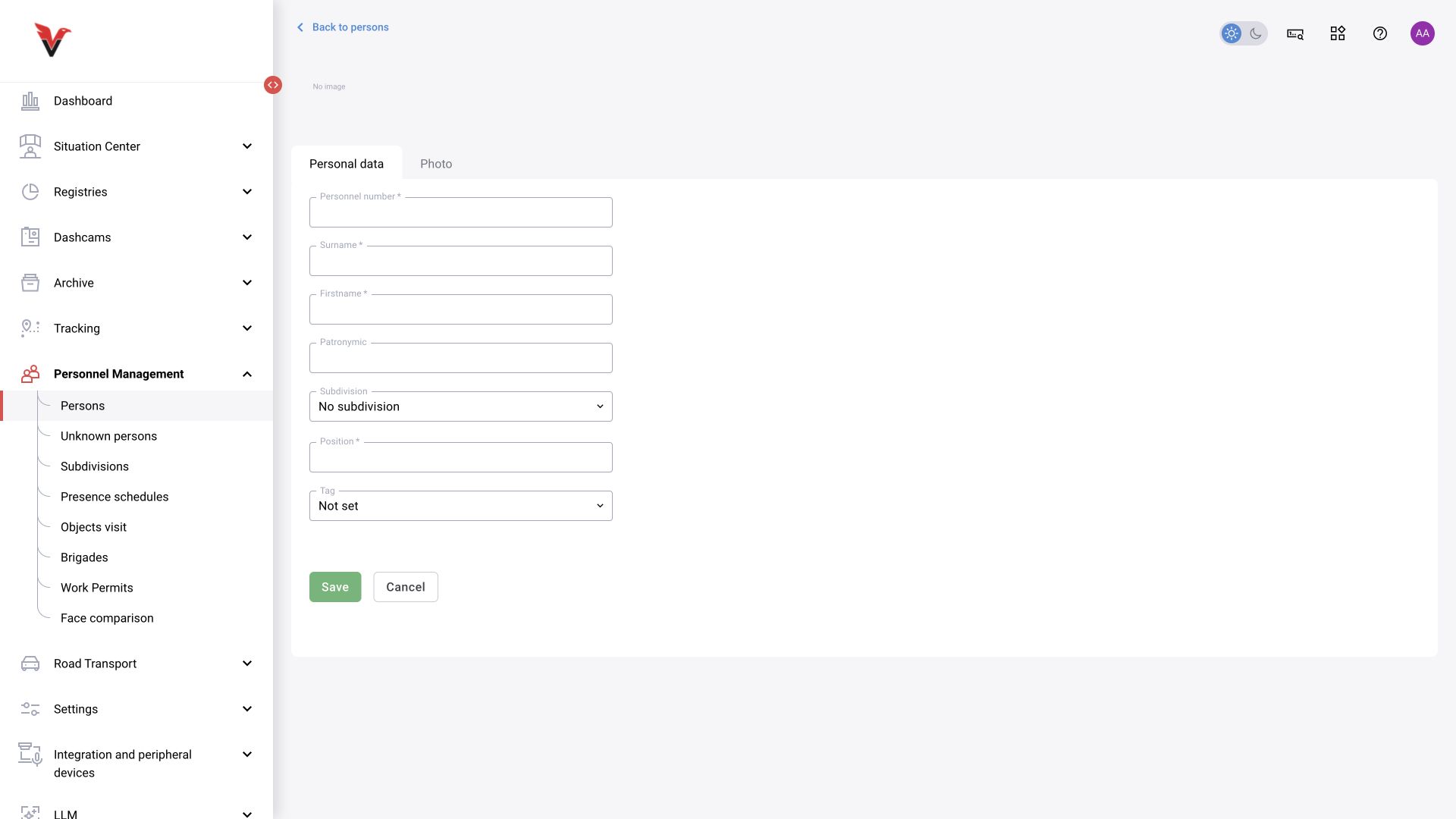
Path: Personnel management → Crews, /personnel-management/brigades.
Create a crew, enter the required “Name”, click “Add person”, select members and save. According to the documentation, adding members involves searching and moving selected records into the crew; the table shows the name and member count. Example: Sigma — shift A. A crew is a working group, not an access role. Adding a person to it does not grant camera permissions.