Lists
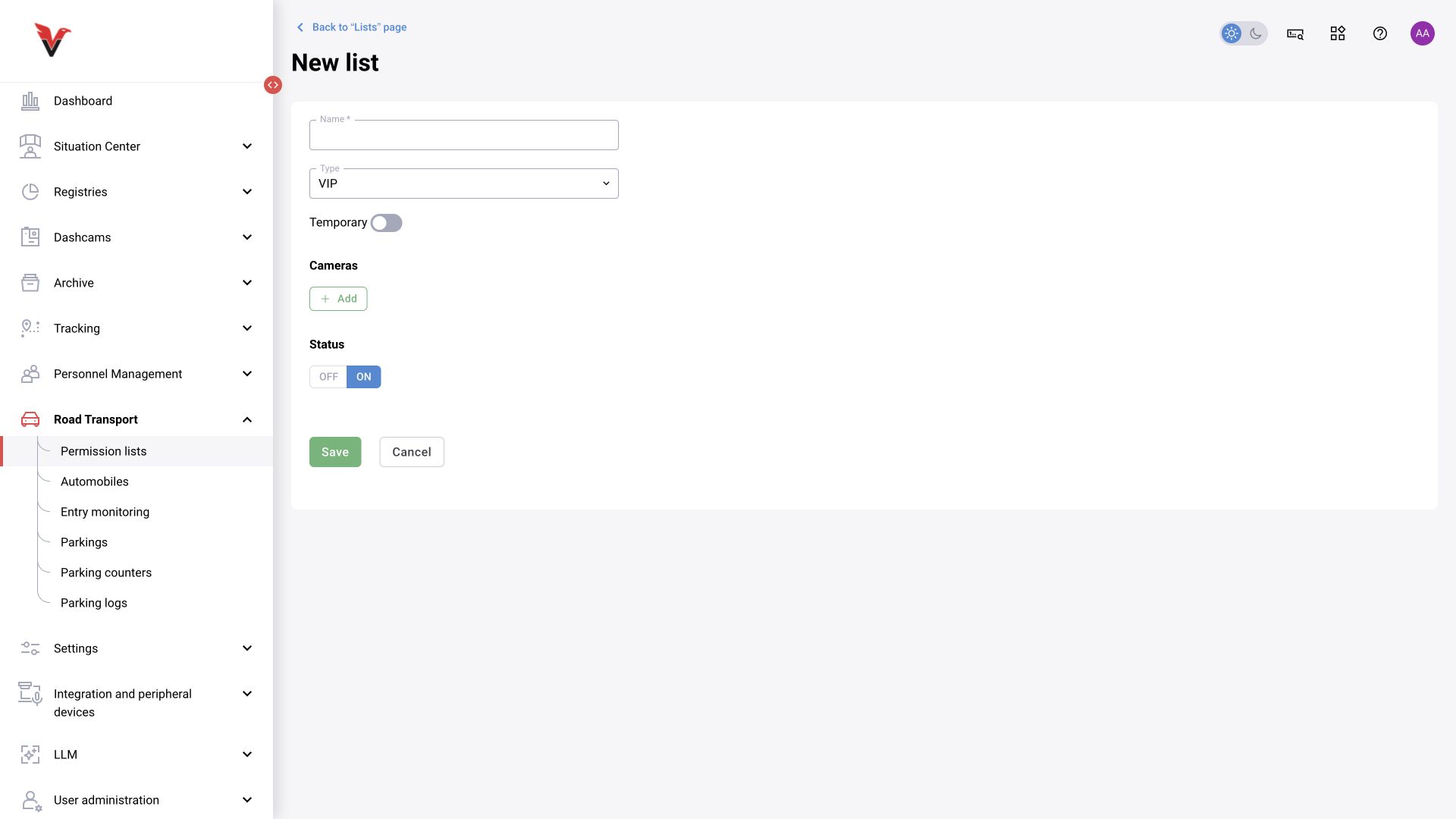
Path: Vehicles → Lists, /road-transport/permissionList.
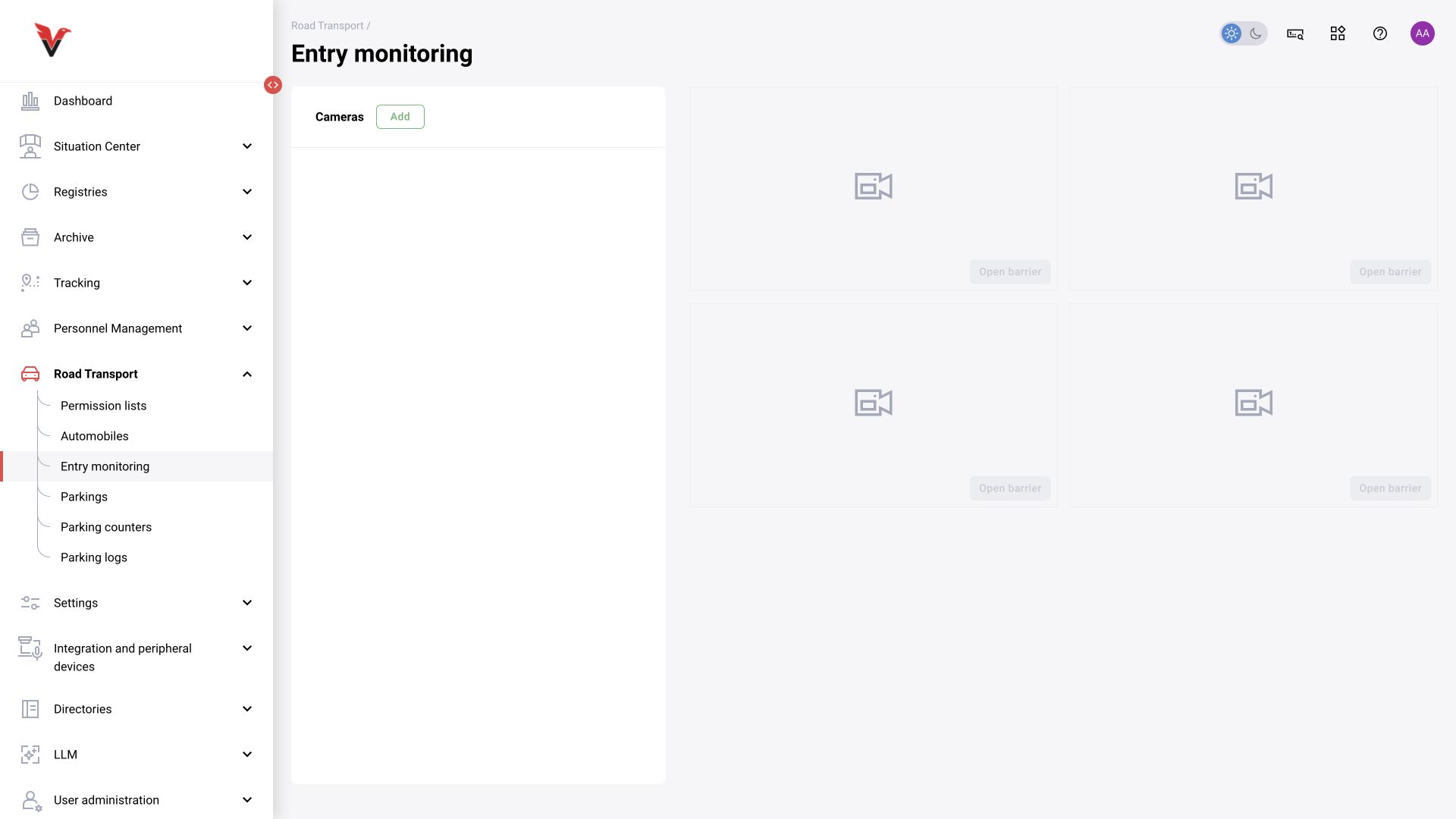
Lists define vehicle access categories for selected cameras. Create a list first, then add vehicles to it.
| Field | What to enter / select |
|---|---|
| Name* | For example, Sigma — checkpoint 1 employees |
| Type | VIP, Allowlist, Blocklist |
| Temporary | In the current description, applies to VIP; enables a limited validity period |
| Period from–to | Temporary access validity, if the field appears |
| Cameras → Add | Cameras to which the list applies |
| Status OFF/ON | Whether the list is currently used |
An allowlist contains permitted vehicles; a blocklist contains prohibited vehicles. VIP is used for privileged access as defined by the rules. The exact priority when a plate is in several lists depends on the configured process and must be tested; do not assume every VIP entry overrides all restrictions.
“Add time restriction” opens a dialog with the fields “Type”, “List” (including “All”) and “Restriction period from–to”, and “Save” / “Cancel” buttons. Select the list category, specific list and both period boundaries. Check the scope before saving: “All” affects more than one list. Expiration of temporary access and deletion of a vehicle are different actions. Test the exact behavior of overlapping restrictions using an agreed example.
Vehicle records
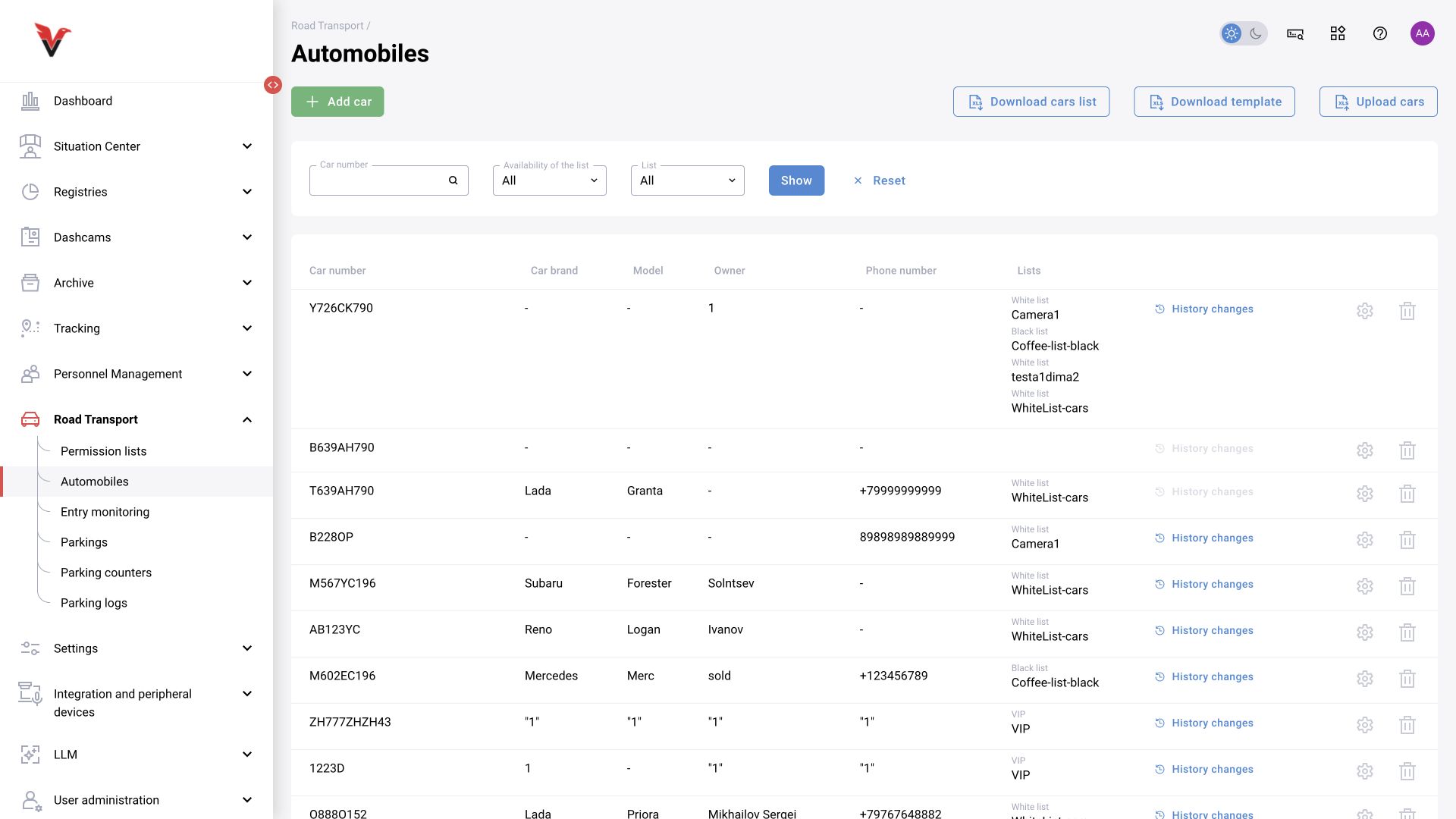
Path: Vehicles → Vehicle records, /road-transport/cars.
Filters: plate number, list membership and specific list. Available actions are “Add vehicle”, “Download vehicle list”, “Download template”, “Upload vehicles”.
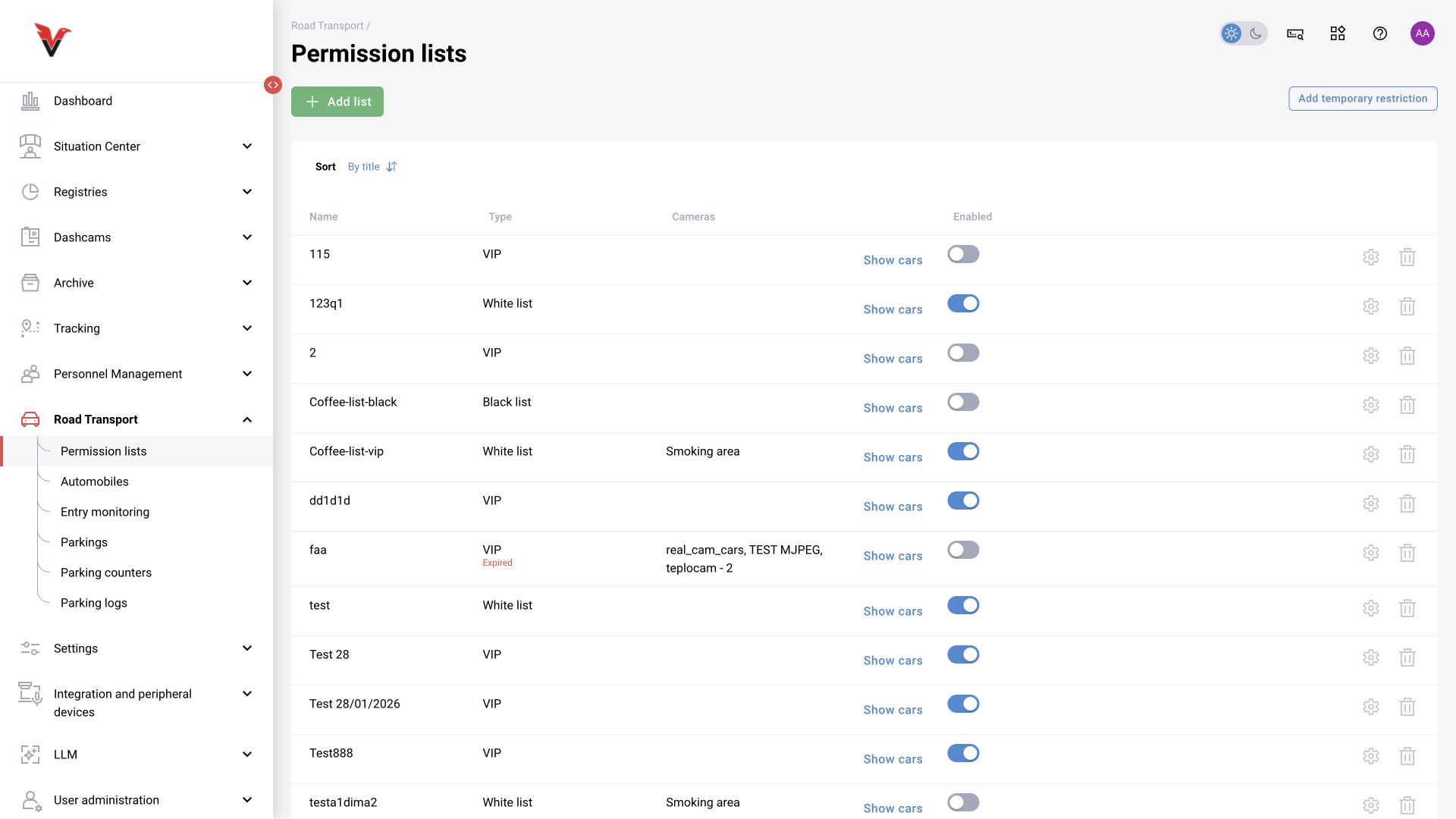
| Details field | Meaning and input |
|---|---|
| Vehicle plate number* | The license plate in the format accepted by the system. Check similar-looking characters and the region code |
| Make | Select or enter the make using the provided combo field |
| Model | Vehicle model |
| Owner* | The owner's full name or accepted identifier |
| Phone number | Owner contact |
| List → List type | Category: allowlist, blocklist, VIP |
| List → Value | A specific existing list of the selected type |
| Add / delete list row | Add or remove membership in another list |
For bulk entry, download the current template, fill its columns without changing the headings and upload the file. Test a small set of records first: correct plate parsing and list assignment matter more than successful file selection. An old export file's format may differ from the current template.
The make in a vehicle record is reference data. A make inferred by an LLM from an image is additional context; do not combine them without checking.
Entry monitoring
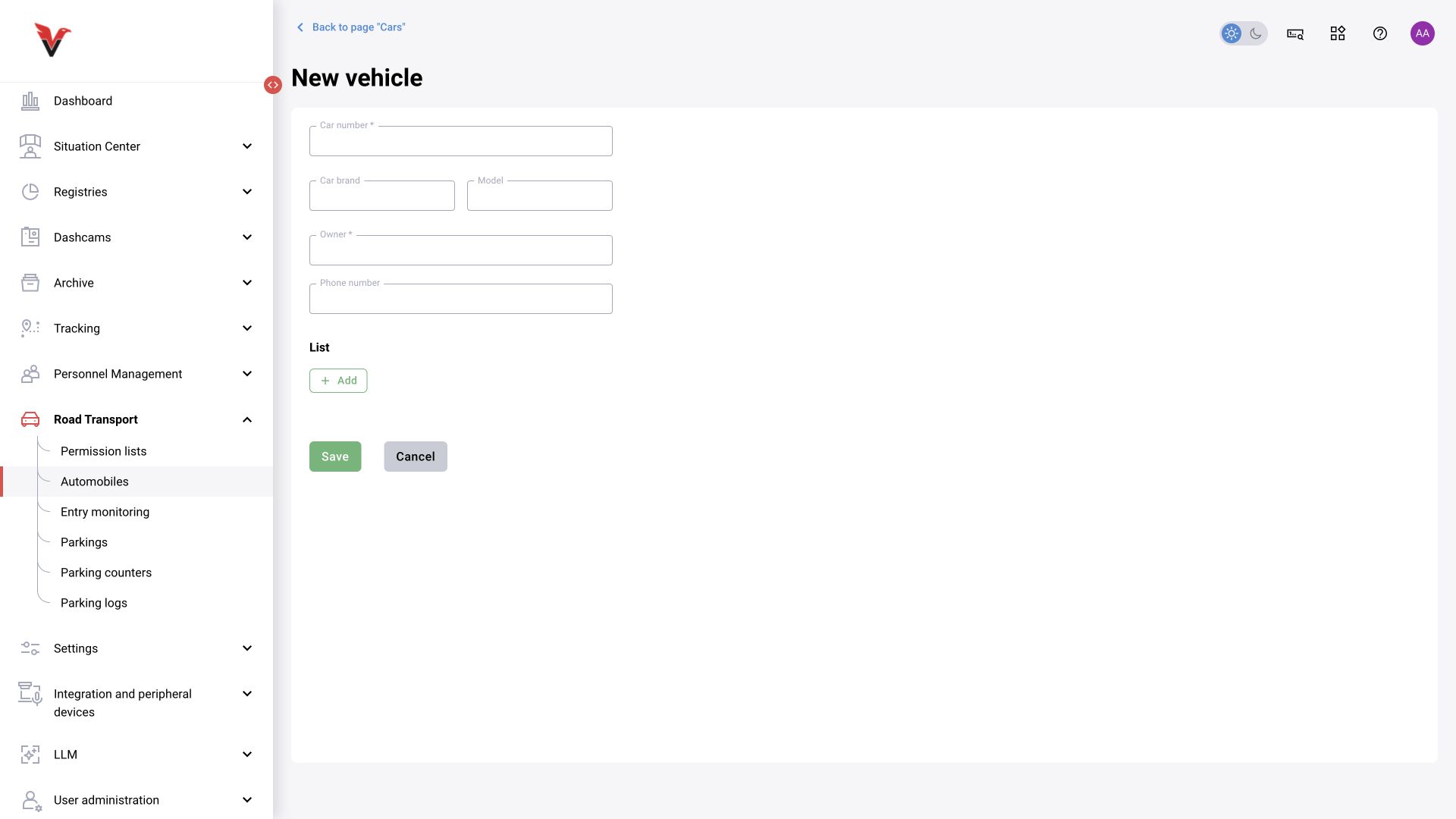
Path: Vehicles → Entry monitoring, /road-transport/entry-monitoring.
Use “Cameras → Add” to select entrances. The screen displays streams and available control actions. “Open barrier” sends a real command to the device; it works only with a configured assignment and appropriate permissions. Buttons may be unavailable until sources are selected and connected.
The operator checks the plate, access status and situation at the entrance. A successful command in the interface does not replace visual confirmation that the passage is actually open and safe. Use parking logs and the alarm log to investigate causes.