
Troubleshooting
Follow the chain from source to result: camera → stream → analytics → conditions/matrix → journal → decision → delivery/report. This is faster than changing several settings at once.
| Symptom | Check first | Next step |
|---|---|---|
| Menu item missing | Role and enabled modules | The administrator checks the permission tree and release configuration |
| Camera missing from the list | Filters, site, access scope | Reset filters; check camera assignment to the role/user |
| Camera disabled | Manual state, schedule, license | View activity history and the configured operating period |
| Camera enabled but no image | Address, network, protocol, VMS source | Open health status; provide the integrator with the time and state |
| Video available but no detection | Neural network, preset, classes, thresholds, zones | Check detector state in the cluster and use a suitable test frame |
| Detection visible but no violation | Class state, matrix, journal type, filters | Check events and the tab for matrix-rejected records |
| Too many false alerts | Camera angle, object size, zone boundaries, threshold | Review examples for one class; change one parameter and compare |
| No presence counter | Zone type, analytics, schedule, period | Cross-check the map/archive and data availability; do not automatically interpret a gap as absence |
| Entry and exit reversed | Zone geometry and direction | Test a known passage in both directions |
| Incorrect parking count | Cameras, sensors, directions, manual corrections | Compare the vehicle log and sensor journal |
| Notification not received | Recipient, channel, activation, sources/classes, schedule | Find the ID in the delivery journal and check the gateway |
| Photo available but no video | Recording enabled, archive period, clip generation | Check the archive, storage, and retention period |
| Empty report | Period, filters, role, job state | Check the source journal with the same conditions |
| Report takes a long time | Job state and volume | Do not create many duplicates; narrow the period for diagnosis |
| LLM does not respond | Connection, activation, network, load | Check the test and execution record |
| LLM responded but processing failed | JSON, categories, required fields, coordinates | Compare the response with the contract; see §11.9 |
| History/data missing | Period, filters, Trash, retention period | Establish exactly what was deleted; recovery is possible only if data remains available |
| Temporary page-loading error | Whether loading completed and whether the section opens on a second attempt | If it recurs, send support the time, route, error text, and versions |
Before contacting support, prepare the section name, user role, camera/event ID, exact period with time zone, sequence of actions, error text, and component versions. Do not assert a cause before checking: processing error is a symptom, not proof of a model or database failure.
Graph and version problems — §4.20. In your support request, specify the camera, scenario and model versions, time with time zone, expected and actual behavior, one reproducible example, and a relevant log excerpt. Describe one problem per request. Obtain contact details and response times from your contract/current portal. After a fix, repeat the original test and confirm resolution.
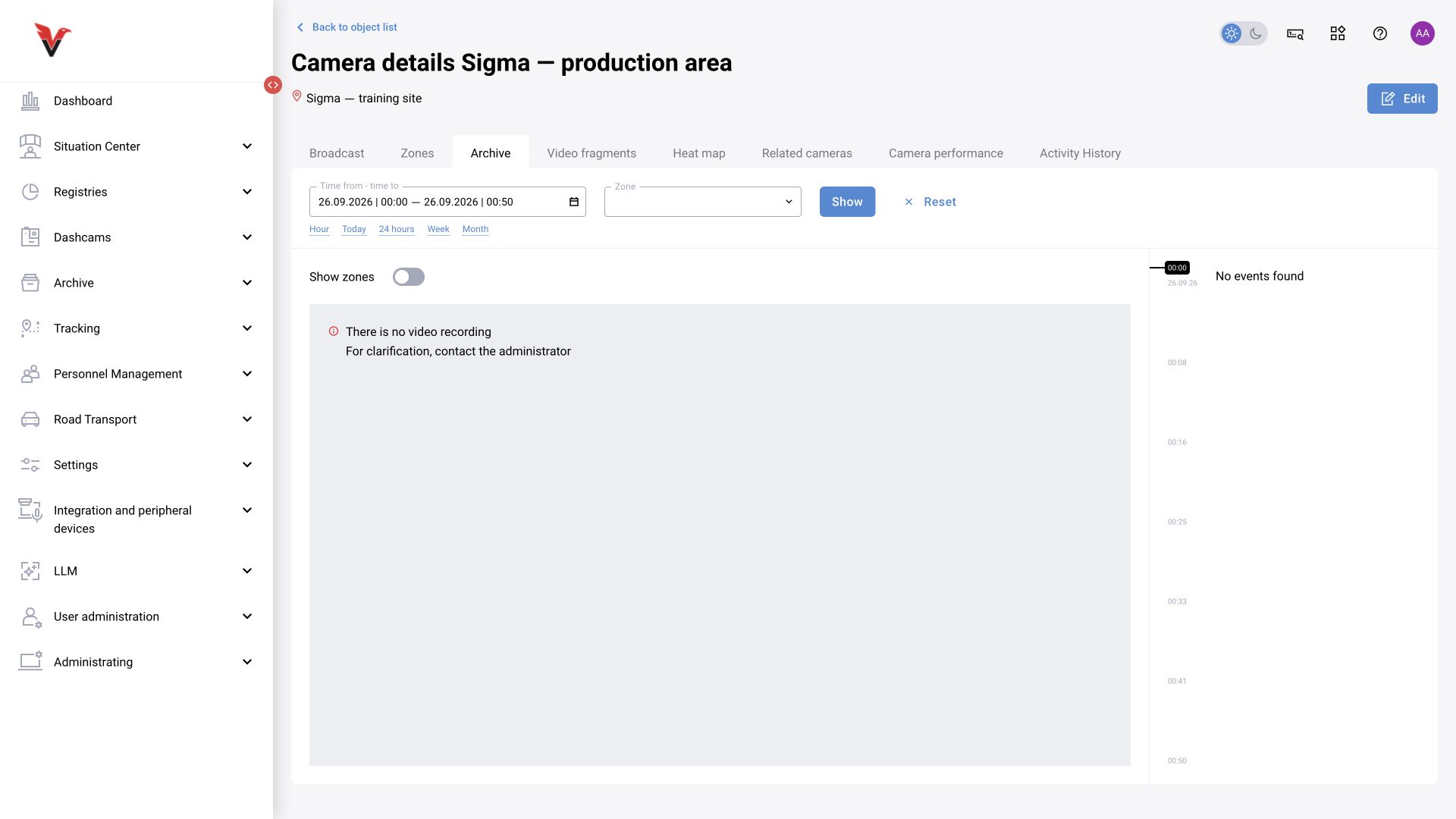
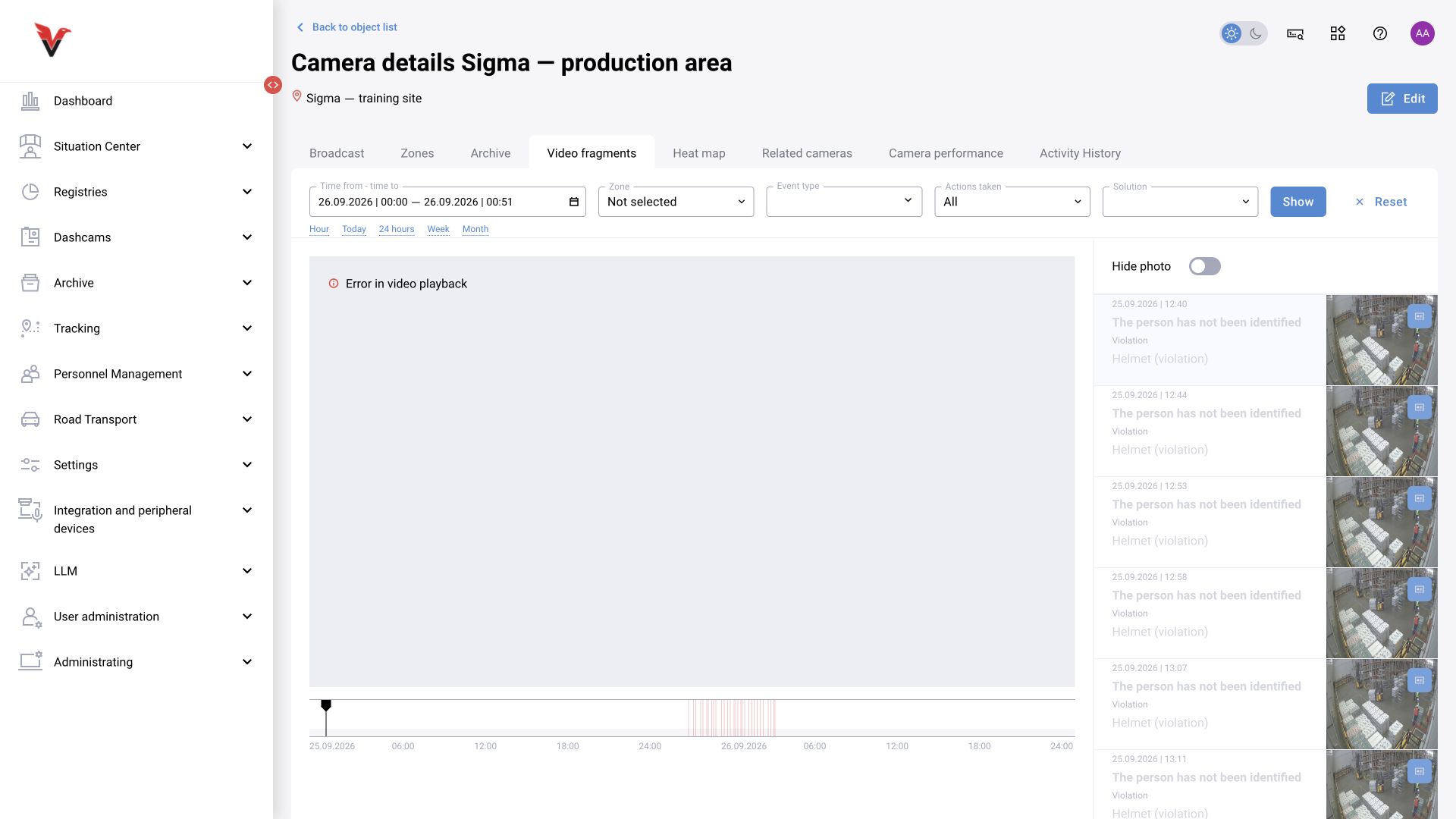
BOX 3.2: when all cameras stop working together
Applies to: BOX 3.2 deployments that include the load-balancer component. These checks help distinguish a shared processing problem from a viewing problem on one camera. Reading server logs requires administrator access; an operator can collect the interface observations.
- Clear monitoring filters, check several cameras from different sites, and compare video and analytics states. Record when the problem began and when viewing last worked.
- If only browser playback fails, compare HLS and WebRTC. Record whether either mode works.
- For a simultaneous camera failure, an administrator should first read
load-balancerlogs for the same interval. Correlate messages with camera states and recent configuration changes, using the log viewer provided for the deployment. - Give support the time and time zone, affected cameras, video and analytics states, component versions and relevant messages. Remove credentials and stream URLs containing passwords from shared diagnostic material.
Expected result: the scope of the failure is established and time-correlated evidence is available for diagnosis. A failure affecting every camera does not by itself prove a load-balancer fault. Preserve diagnostic evidence and agree on a recovery procedure before restarting services or changing camera settings in bulk.
Platform 4.0 / BOX 5.0 may use a different service composition and balancing mechanism. Follow the operating architecture for that deployment.