Define the task before the prompt
This section applies to both BOX 3.2 and BOX 5.0. Use it independently of the practical guide. The installed configuration determines the available models, prompt types and location of individual fields; relevant differences are noted in the corresponding steps.
An LLM lets you ask questions about images in words: assess road conditions, find equipment, verify a detection or obtain more information about it. These tasks require different inputs and different rules for processing the response.
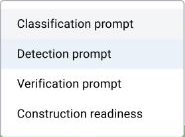
The five workflows below are not five items in a dropdown list: the interface provides “Classification prompt”, “Detection prompt” and “Verification prompt” types. Additional context may be requested through the verification mechanism, while comparison requires multiple frames. Some deployments also provide the specialized “Construction progress” type.
| Task | What triggers processing | What to send | What to receive |
|---|---|---|---|
| Road condition | Schedule | A current frame from the selected camera | A condition class and explanation |
| Find all excavators | A frame analysis request | A frame and a list of target objects | A list of objects with bounding boxes |
| Verify a missing helmet | A standard detector event | Event media and the violation criterion | A verification result and comment |
| Identify a vehicle make | A vehicle detection event | A frame containing the target vehicle | An additional event description |
| Find scene changes | A request or a configured frame sequence | Multiple frames in a known order | A description of their differences |
1. Create a prompt
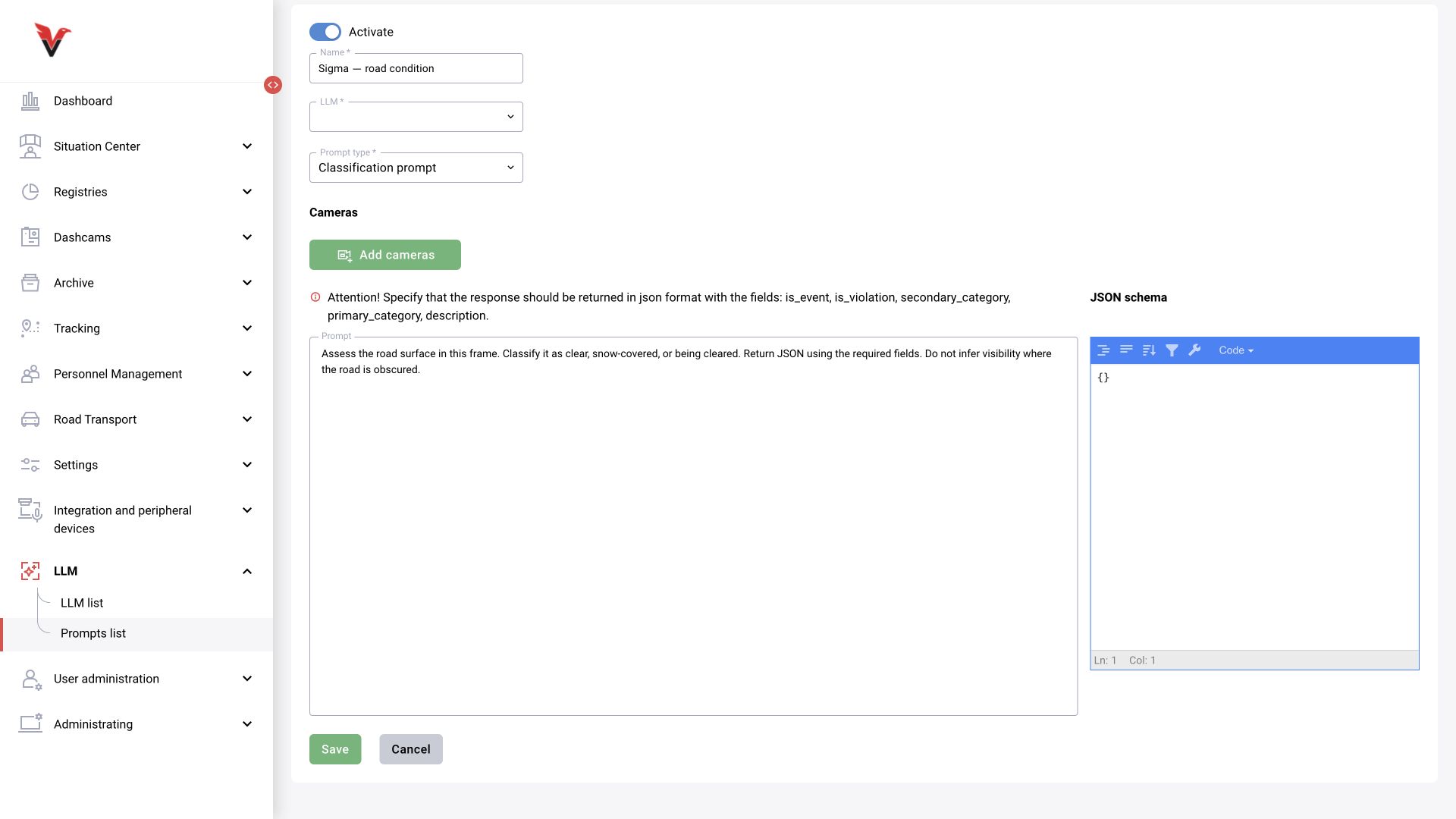
Open “LLM → Prompt list → Add prompt”. Enter a clear name, such as “Sigma — road condition”. Select a connected LLM and the “Classification prompt” type. Fill in the task text and the JSON schema on the right.
First save the prompt without assigning cameras. This makes it convenient to test on prepared images. The list shows the model name, type, modification dates, camera count and activity switch. The test button is unavailable for an inactive prompt: activate it before a manual test.
The task text tells the model what to look for. The JSON schema defines the machine-readable response format. Both must describe the same fields and allowed values. Saying “respond in JSON” alone does not guarantee the correct structure.
2. Scheduled classification: road conditions and snow clearing
Classification answers a question about the scene as a whole: what is visible on the road now? The scheduler sends a frame, and the model selects a state and explains its choice. Bounding boxes for every object are not required for this task.
For Sigma, define four training states: “snow-covered”, “clearing in progress”, “cleared” and “indistinguishable”. This is the vocabulary of our example, not a built-in product catalog. If snow cover and clearing activity must be stored separately, use two attributes: clearing and snow may be visible at the same time.
Run settings connect the prompt, camera and schedule. Choose the interval according to the task: the five-minute training interval is suitable for observing snow clearing but may miss a brief episode. Consider the time zone, operating hours and source availability. The exact location of schedule fields depends on the deployment; saving a prompt alone does not create a periodic run.
Check a series of responses with frame timestamps. “Currently cleared” describes one image. Concluding that “the road was cleared between 09:00 and 09:05” requires comparing multiple observations. Do not ask the model to compare with a previous frame if it was not provided.
Describe the road condition in the current frame.
Choose: snow-covered; clearing in progress; cleared; indistinguishable.
Report clearing only when work is visibly taking place.
If the road is not distinguishable, do not guess its condition.
Explain your choice using visible evidence.
Do not compare with a previous frame: none was provided.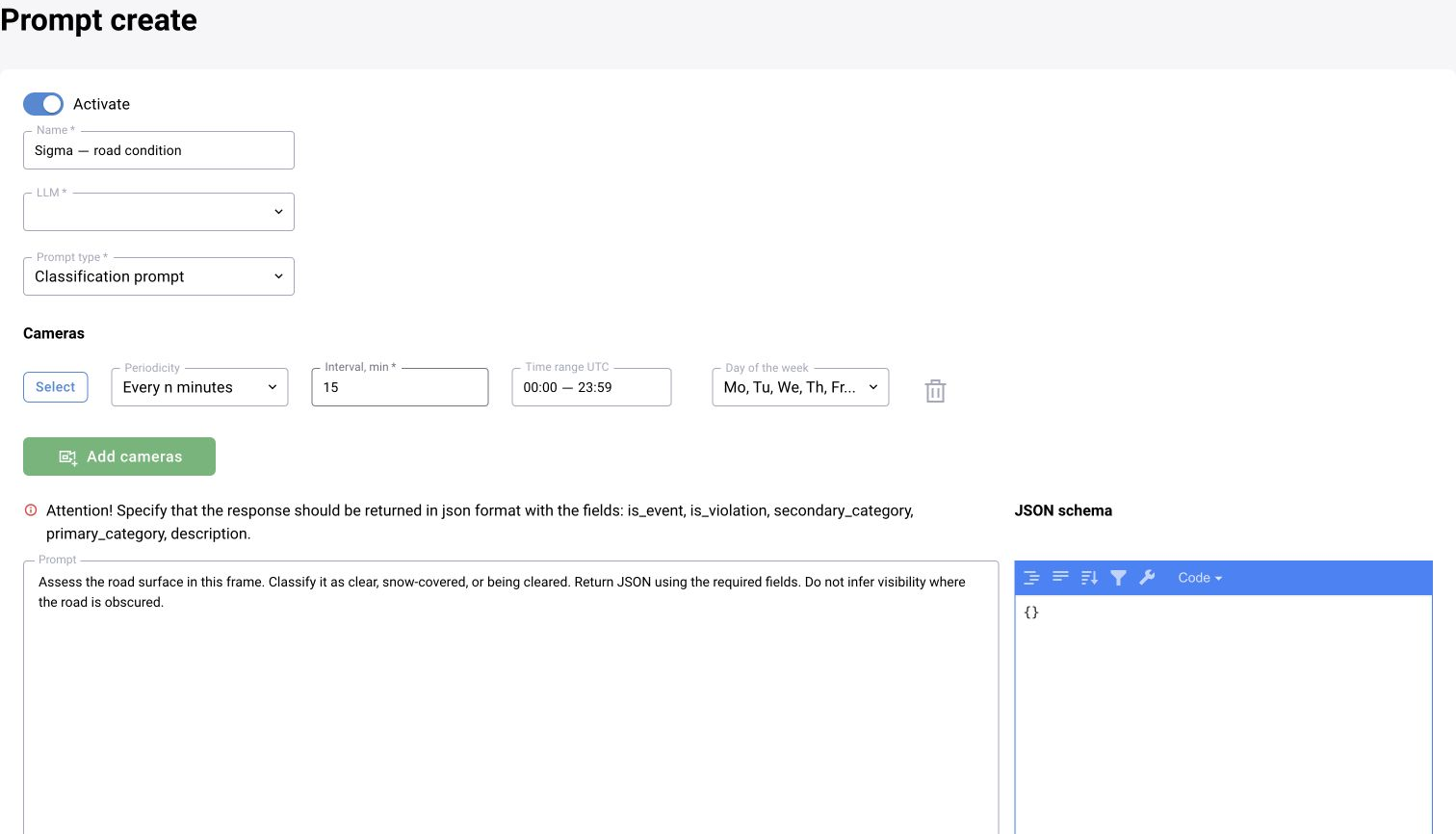
3. Detection: “Find all excavators”
Use a detection prompt when each object found and its location matter. The model returns coordinates that the interface uses to draw bounding boxes on the original frame. This differs from classification asking whether any equipment is present at a construction site.
Specify the target class, rules for partially obscured objects and bounding box format. The training contract uses four integers [min_x, min_y, max_x, max_y] in the range 0…1000. These are normalized coordinates: for a frame of width W, x=250 corresponds to W×250/1000 pixels. Do not confuse them with pixels or the [x, y, width, height] format.
The bboxes and labels arrays must have equal lengths: one label corresponds to each bounding box. If no excavators are present, return two empty arrays. Do not draw one combined box around multiple machines.
The standard detection schema also requires is_event, is_violation, primary_category, secondary_category and description. Select category codes from the deployment's current contract. Detecting an excavator does not by itself mean a violation: that is determined by the task conditions.
- Test frames with one machine, several machines and no excavators.
- Test a small distant object and partial occlusion.
- Check the number of bounding boxes, labels and their positions on the original image.
- Separately test the response to an image containing similar equipment.
Find all visible excavators.
For each, return a bbox around the whole machine and the label excavator.
Do not include cranes, loaders or trucks.
Coordinates: integers 0…1000, [min_x,min_y,max_x,max_y].
For a partially obscured object, outline the visible part;
if the equipment type is indistinguishable, do not guess.
Do not add nonexistent objects. Return JSON according to the schema.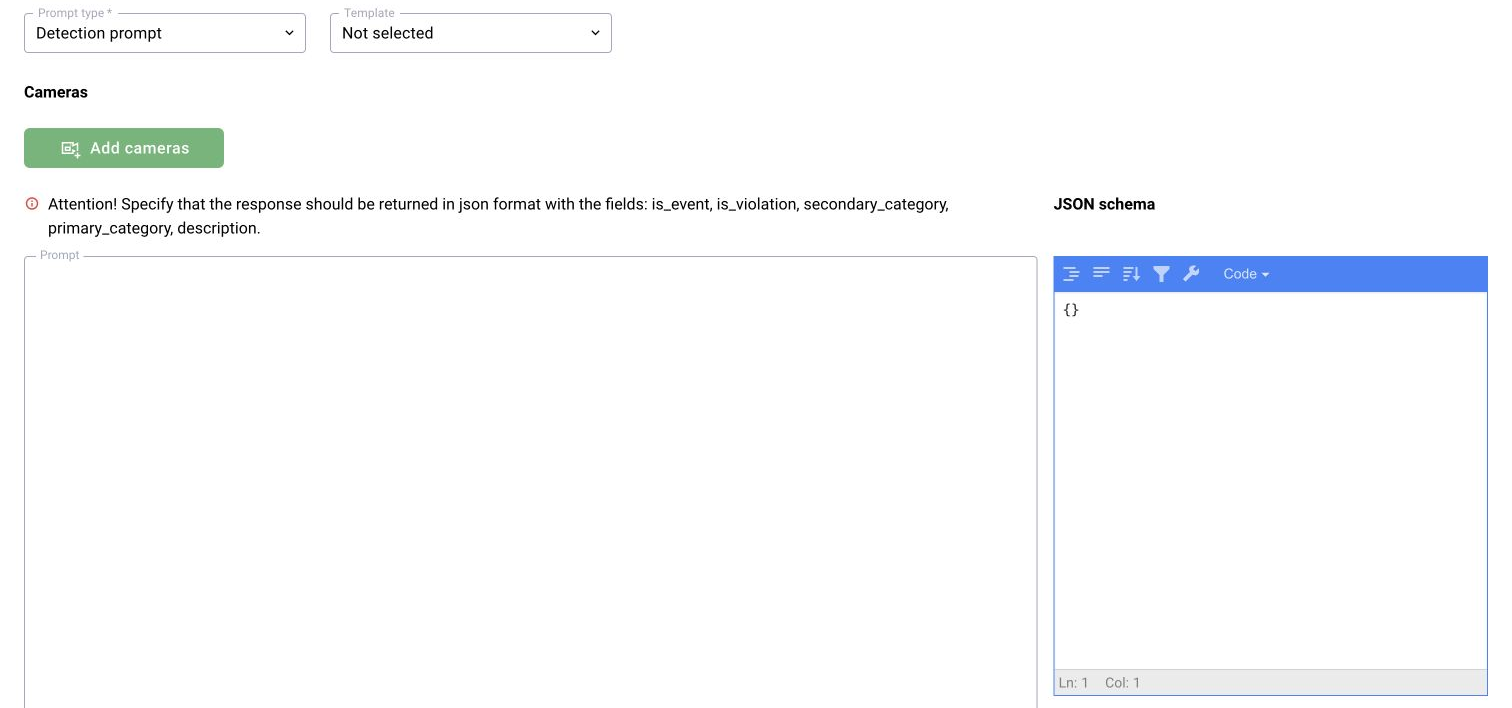
4. Verification: the model reviews an event instead of the operator
A standard detector has already created a “person without a helmet” event. Verification receives its image and checks a specific feature. If automatic application of the result is configured in the deployment, the LLM performs this review instead of the operator.
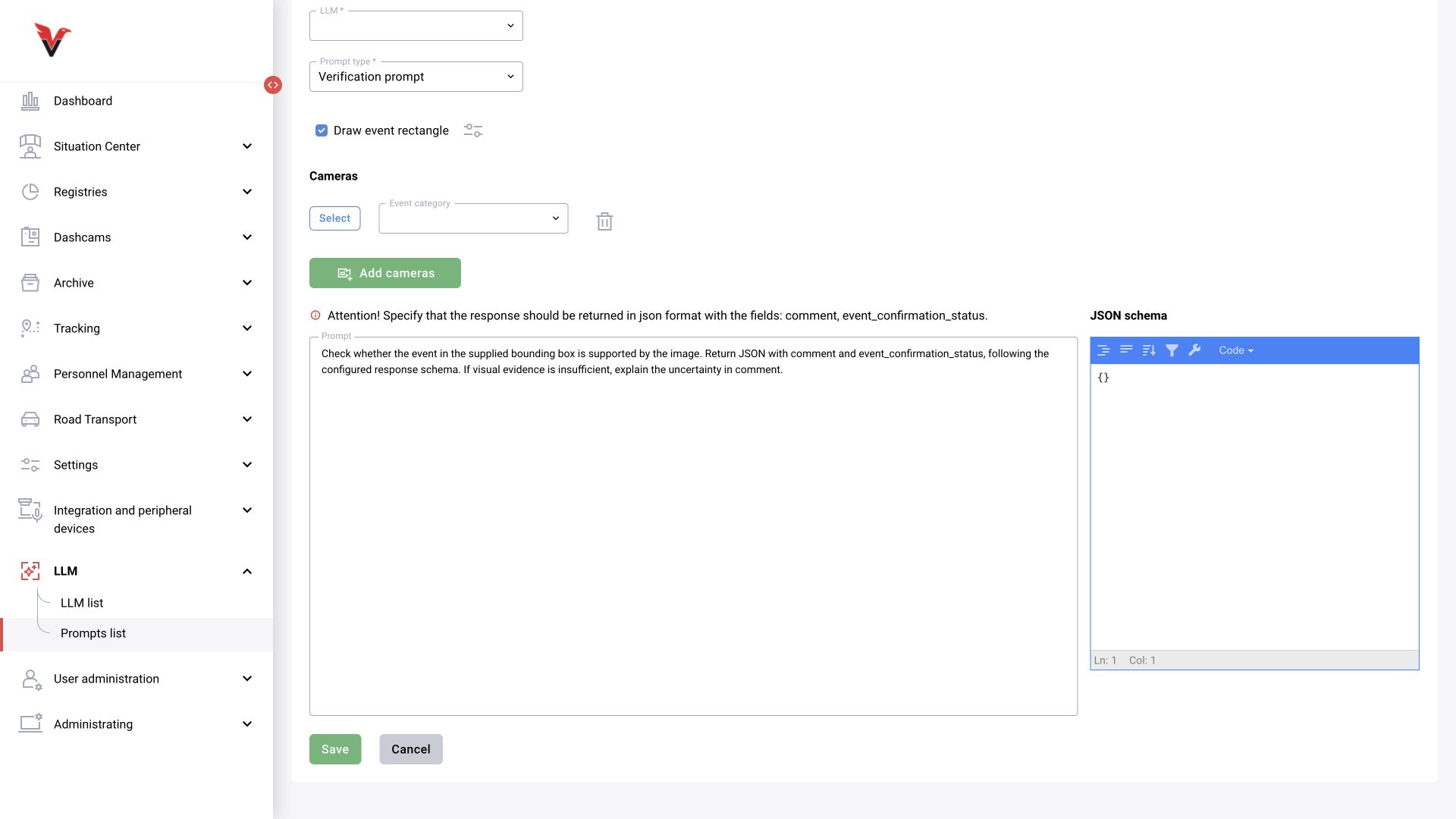
Select “Verification prompt”. The form shows a different contract: comment and event_confirmation_status. The “Draw event rectangle” setting is available: the bounding box helps identify which person to check in a frame containing several people. This is the original event's box, not a new LLM detection.
Describe the criterion in the task: the highlighted person is missing a helmet only if their head is actually distinguishable. A neighboring person's helmet, an obscured head or an object in a hand does not answer this question. The comment must explain the observation.
Take the allowed event_confirmation_status values from the schema and settings of the installed version. Do not substitute is_violation values: these modes have different contracts. Before enabling automatic decisions, check how the response changes the original event's status and what is saved in its history.
- A confirmable event: the violation feature is clearly visible.
- A false positive: the required protective item is present.
- Insufficient data: the head is obscured or too small.
- A technical error: no response was received or it failed processing.
5. Additional context: what is the vehicle make?
A detector has found a vehicle at the checkpoint. Sigma needs to add its make and visible features to the event details. The event is sent through the verification mechanism, but the model's task here is to describe the object, not decide again whether a vehicle exists.
The prompt must identify the target explicitly: “Identify the make of the vehicle highlighted by the bounding box.” Ask the model to use a legible badge or sufficiently distinctive visible features, mark assumptions separately and answer “could not determine” if the image is insufficient. Do not demand a model and year of manufacture at any cost.
The explanation and event status are different results. Configure response processing for this workflow so that an additional comment does not reject or confirm the event against the purpose of the task. If the handler must apply event_confirmation_status, first establish the contract-defined behavior for preserving the original decision; an arbitrary “unchanged” code may not be supported.
A simple comment through verification and a separate advanced “Context” process with tags, regulatory sources and recommendations are different capability levels. The presence of the former does not mean that the entire advanced process is included in the deployment.
Examine the vehicle highlighted by the event bounding box.
State its make and the visible evidence supporting your answer.
If the make is indistinguishable, write “could not determine”.
Do not assess a violation or draw conclusions about the owner.
The result is needed as additional context for the event.
6. Multiple frames: camera shift and abandoned objects
For comparison, the model must receive the images themselves, not just an instruction to “compare with the previous one”. The inspected detection prompt test form has “Current frame” and a “+ Add frame” button that adds “Previous frame”. The classification form has no such button. The type is selected during creation: it cannot be changed in a saved prompt. State each image's role, time and interval explicitly in the task; do not rely only on upload order. Automatic reference frame selection is checked separately in the solution configuration.
To monitor camera shift, ask for comparison of fixed landmarks: building corners, poles and markings. A moving vehicle, shadow or snow does not mean the camera direction has changed. Changes in scale, tilt or field of view must be described separately. An exact angle in degrees requires calibration; ordinary text comparison does not guarantee it.
For an abandoned object, first ask what object appeared and where it is located. Then check whether it remains in successive frames and calculate duration from observation timestamps. A single frame pair shows a scene change; it does not prove that the object is unattended or establish continuous presence between the images.
Include an unchanged scene, lighting changes, moving people, partial occlusion, an appearing object and a real camera angle change in the test set. Check that the model has not reversed “before” and “after”.
Frames from one camera are provided:
current — 08:01:17; previous — 08:00:17.
The interval is 60 seconds. Compare them by their timestamps.
Describe differences using fixed landmarks.
List objects that appeared and disappeared separately.
Distinguish a change in camera angle from object movement and lighting.
If the frames cannot be compared, explain why.
Do not call an object abandoned solely because it appeared.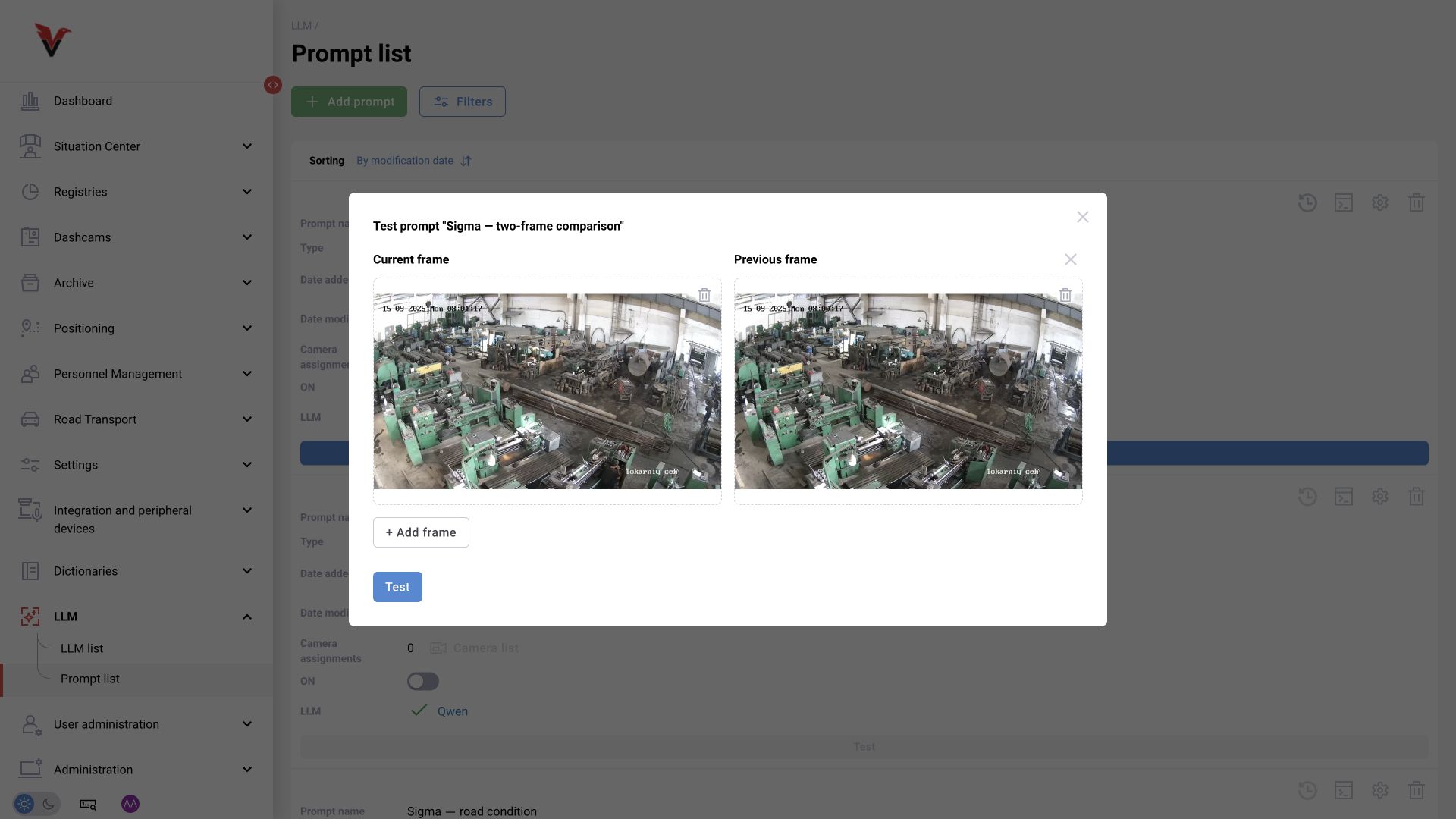
7. Check the response, not just the run
In the prompt list, click “Test”, upload the source frame and start processing. For comparison, add the other frames before starting. When processing finishes, open the result and response history. Compare the original image, raw model response and what the system saved from it.
First check technical success: the request completed, the response was parsed, required fields are present and values are valid. Then check meaning: the model describes the objects actually visible, bounding boxes are correctly placed and the decision matches the task. Valid JSON may contain an incorrect observation, while good text may fail machine processing.
To compare versions, retain the same frame set and expected results. Change one condition at a time: model, prompt or schema. Record duration, technical error rate, false confirmations and cases with insufficient data.
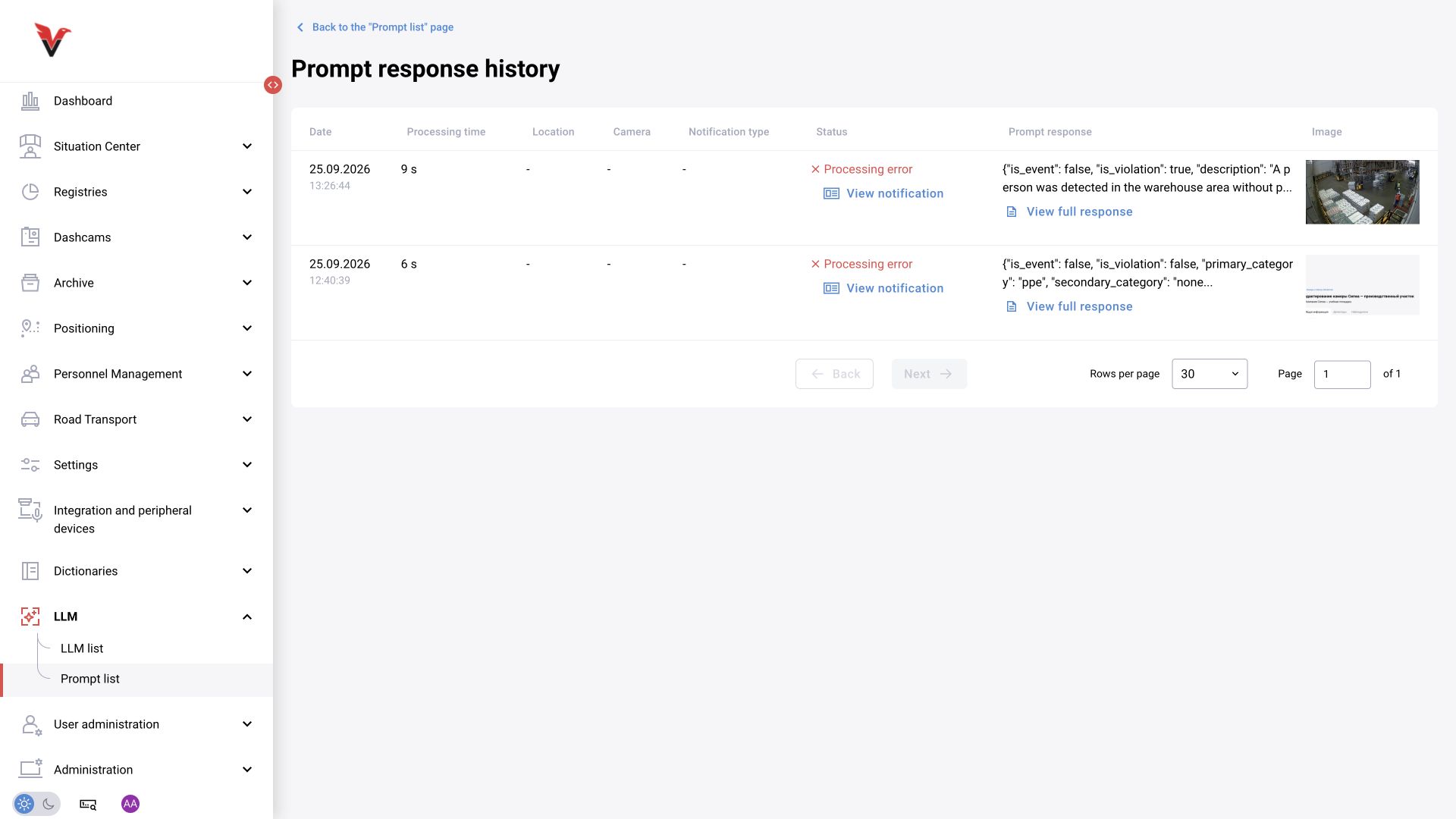
8. “Processing error” does not always mean the LLM is unavailable
If a model response is visible, the request may have reached the LLM and failed later during JSON parsing, schema validation or saving. If there is no response, check model availability, the queue, timeout and input files. A single generic message cannot identify the cause.
In the training test, the error details identified the cause: the handler rejected the primary_category and secondary_category values. The model response and JSON were received, but the template codes were not in the current category catalog. Correct the task text and JSON schema together, then repeat the request using the same frames.
For automatic verification, define in advance what happens to an event on failure: retry the request, leave it undecided or pass it to an operator. This is an error-handling rule for the specific configuration, not universal behavior across versions. An error and a response of “feature indistinguishable” must not be treated as confirmation of a violation.
For classification, retain the time of the last successful observation. An old “road cleared” response does not describe conditions after new snowfall. For context, do not replace an empty response with an invented make; for comparison, do not compare random frames from different cameras.
| Observation | What to check |
|---|---|
| A response exists, but processing status indicates an error | JSON, required fields, value types, permitted codes and result saving |
| No response | Model activity, service availability, queue and timeout |
| Bounding boxes are displaced | Coordinate order, normalization, original dimensions and image transformations |
| The prompt is saved but there are no automatic responses | Activity, camera assignment, schedule or event submission condition |
| Context changes the event decision | Prompt type and rules for applying event_confirmation_status |
| Comparison describes the wrong changes | The set, order and timestamps of the frames sent |