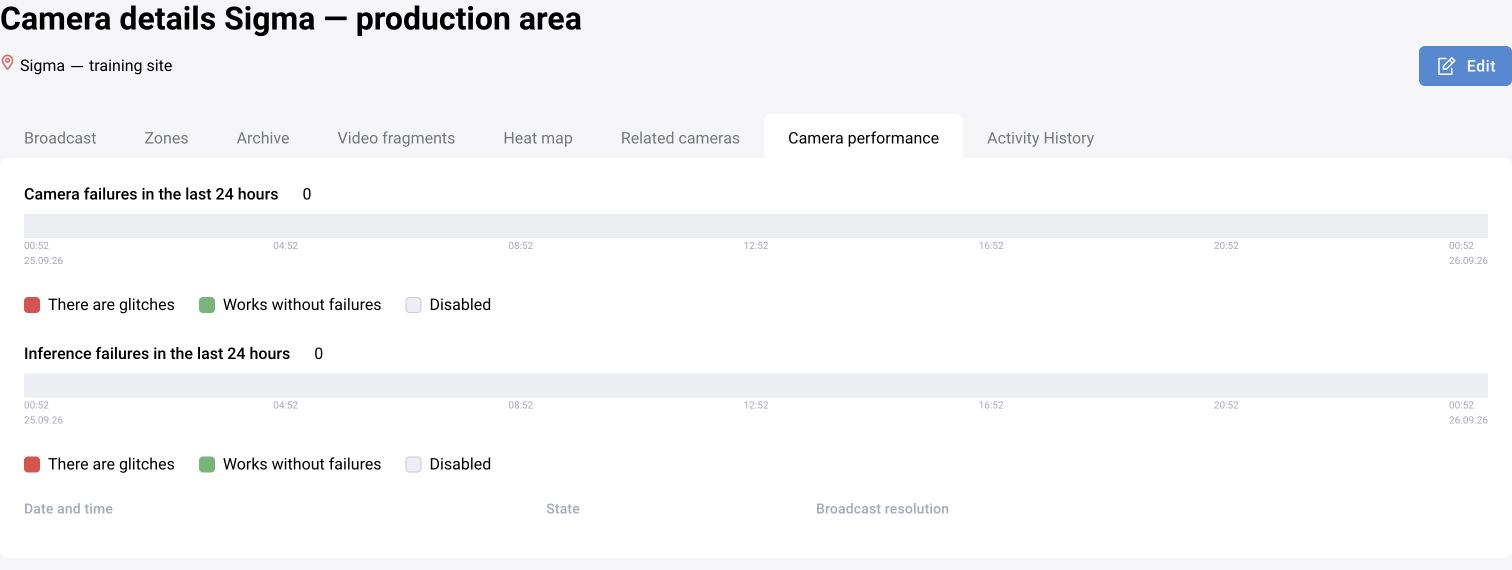
1. Prepare the condition and video recording
This example looks for a person without a helmet. The condition must be observable: the person's head is distinguishable and the required protective helmet is absent. An obscured head is a reason to review the source video, not confidently record a missing helmet.
For repeatable training, use a virtual camera with a clip. This lets you review the same episode without waiting for a real incident. For an IP camera, select a supported source type and its connection parameters instead of a file.
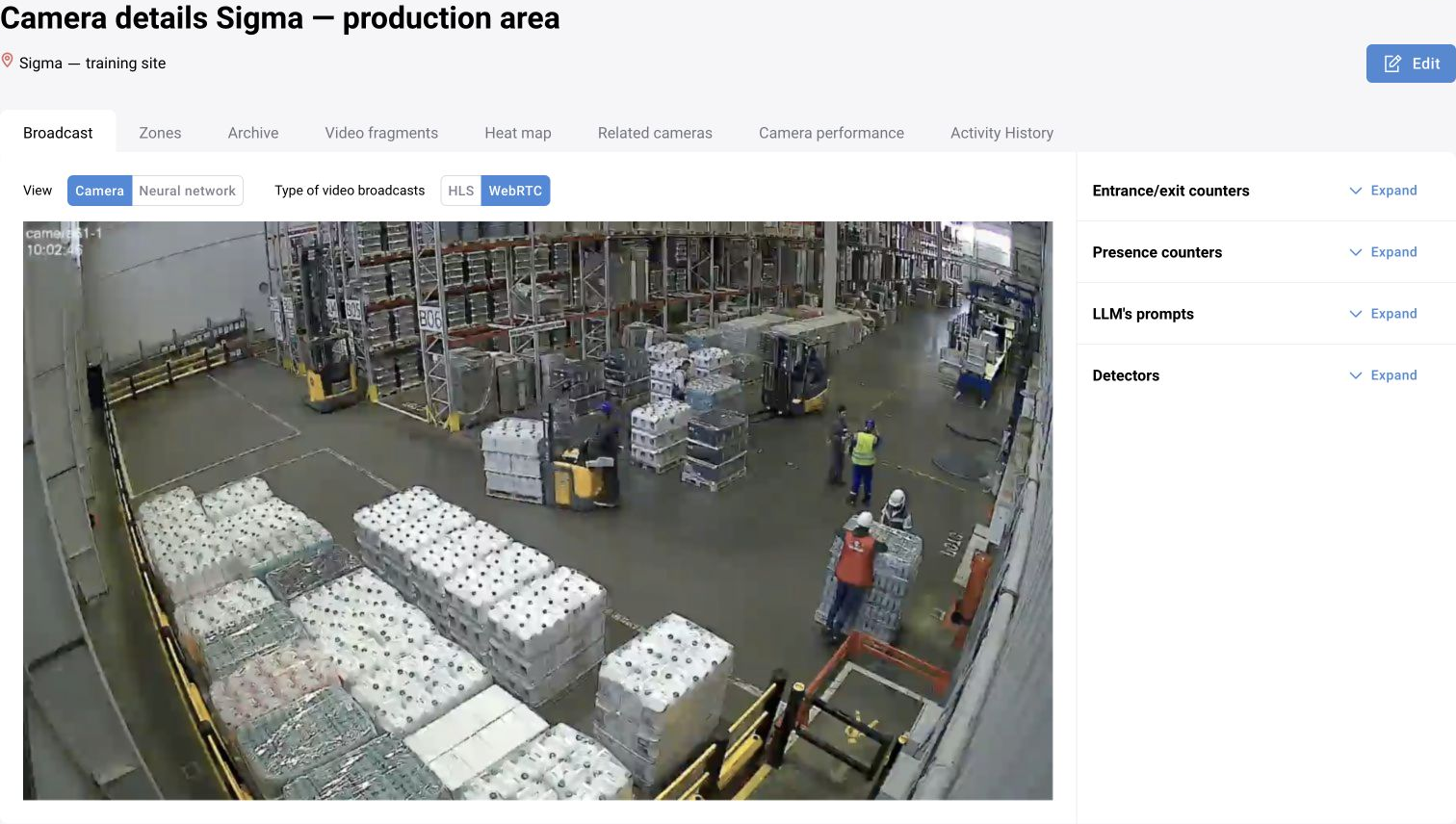
2. Create a site
Open “Settings → Sites”. Create a site with a clear name in the correct part of the tree. Save it and find it in the list again. A site groups sources by location; the camera name alone does not create this assignment.
Check that the correct parent site is selected. For a large organization, it is useful to reflect the physical structure: organization, workshop, area. Use clear names that the operator will recognize in the log.
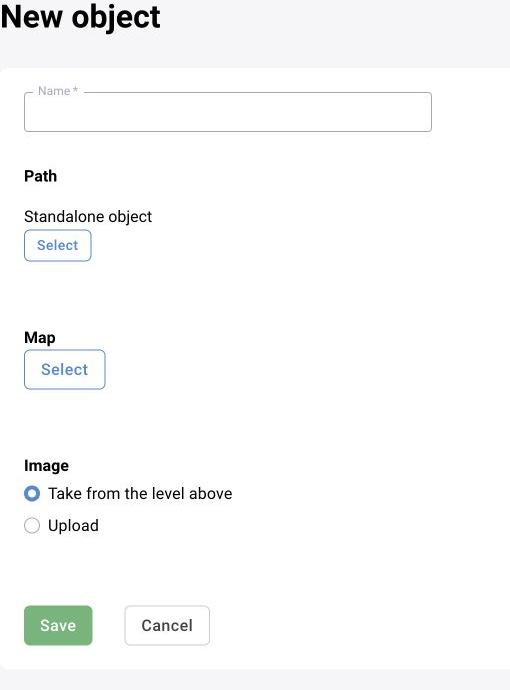
3. Add a virtual camera
Open camera creation under the selected site. On the “General information” tab, select “Virtual camera”, enter the camera name and choose a video file. The training example used the available helmet demonstration MP4 clip. For your own video, upload it and wait for the file to appear in the selection.
Check the site in the “Location” section. Open the video: its content must match the task, and the image must not be an interface capture or title screen. Check the beginning, relevant episode and end of the recording.
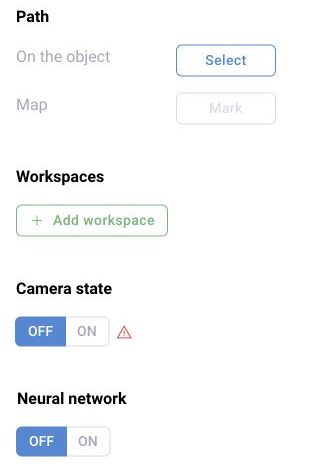
The camera and neural network have separate switches. Analysis requires both the source and neural network to be enabled. Looping playback can be selected for a repeatable exercise. It may generate new events on every loop, which is expected for a training source.
Click “Save”. If the form does not close or the operation responds slowly, find the camera in the tree first. Do not create a second camera just because the interface did not return to the list.
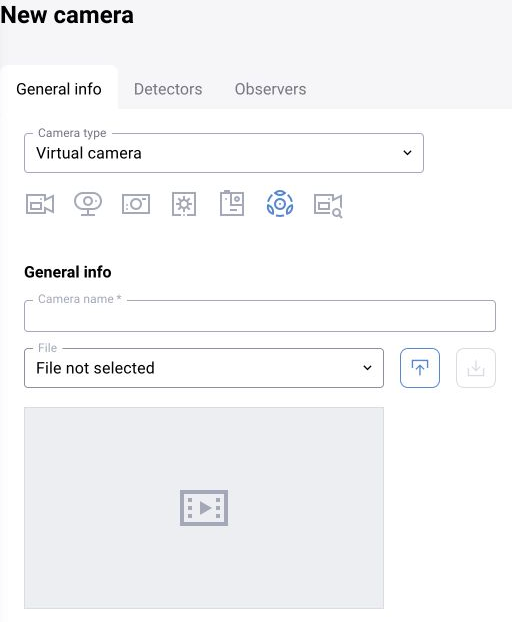
4. Configure detectors and a preset
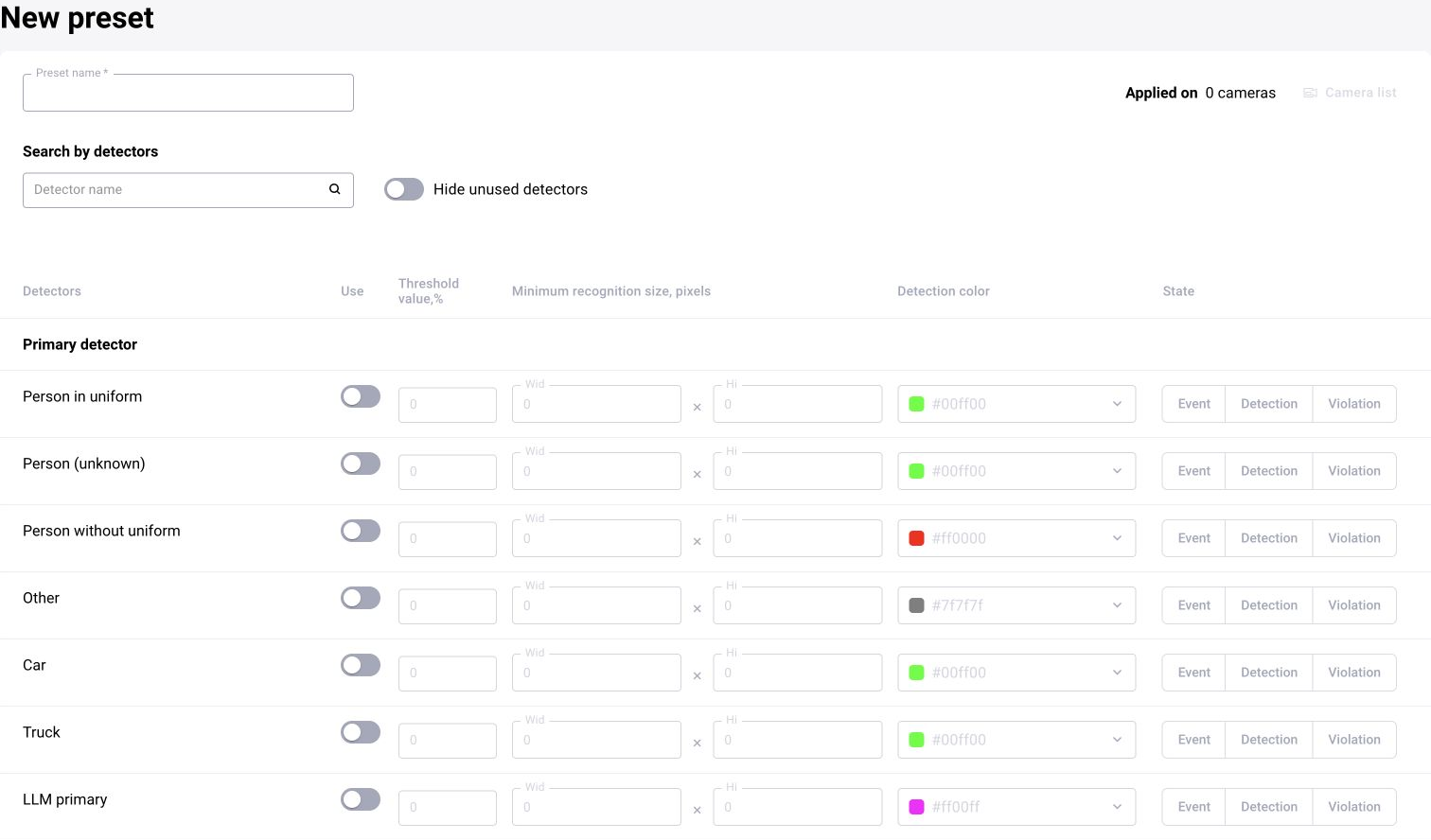
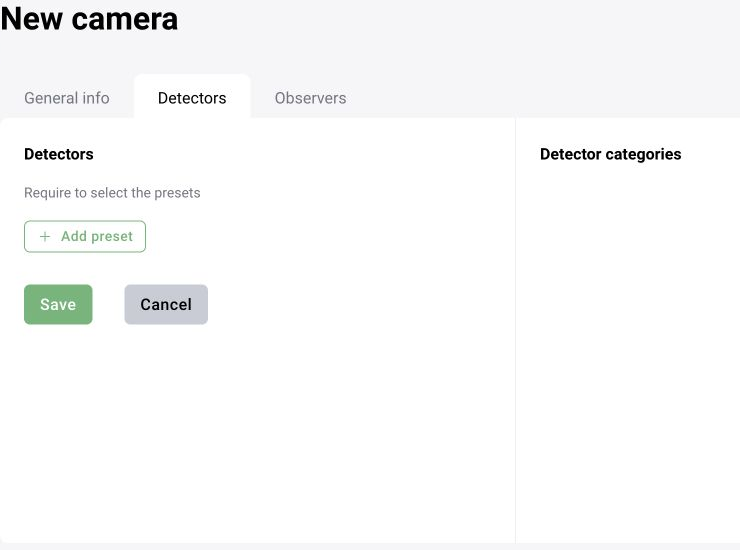
On the “Detectors” tab, select a suitable preset. For example, use “Helmet monitoring” to detect missing helmets. Check the selected categories and parameters, then save the camera.
A preset stores a set of analytics settings. The decision matrix determines how results are processed and classified. These are related but different settings: assigning a preset does not replace checking how a detection becomes a notification.
Do not transfer numeric thresholds from another scene without testing. A person's height in pixels, lighting and occlusion have a strong effect on quality. Examine the source frame and detections first, then change parameters one at a time.
5. Restrict the monitoring area
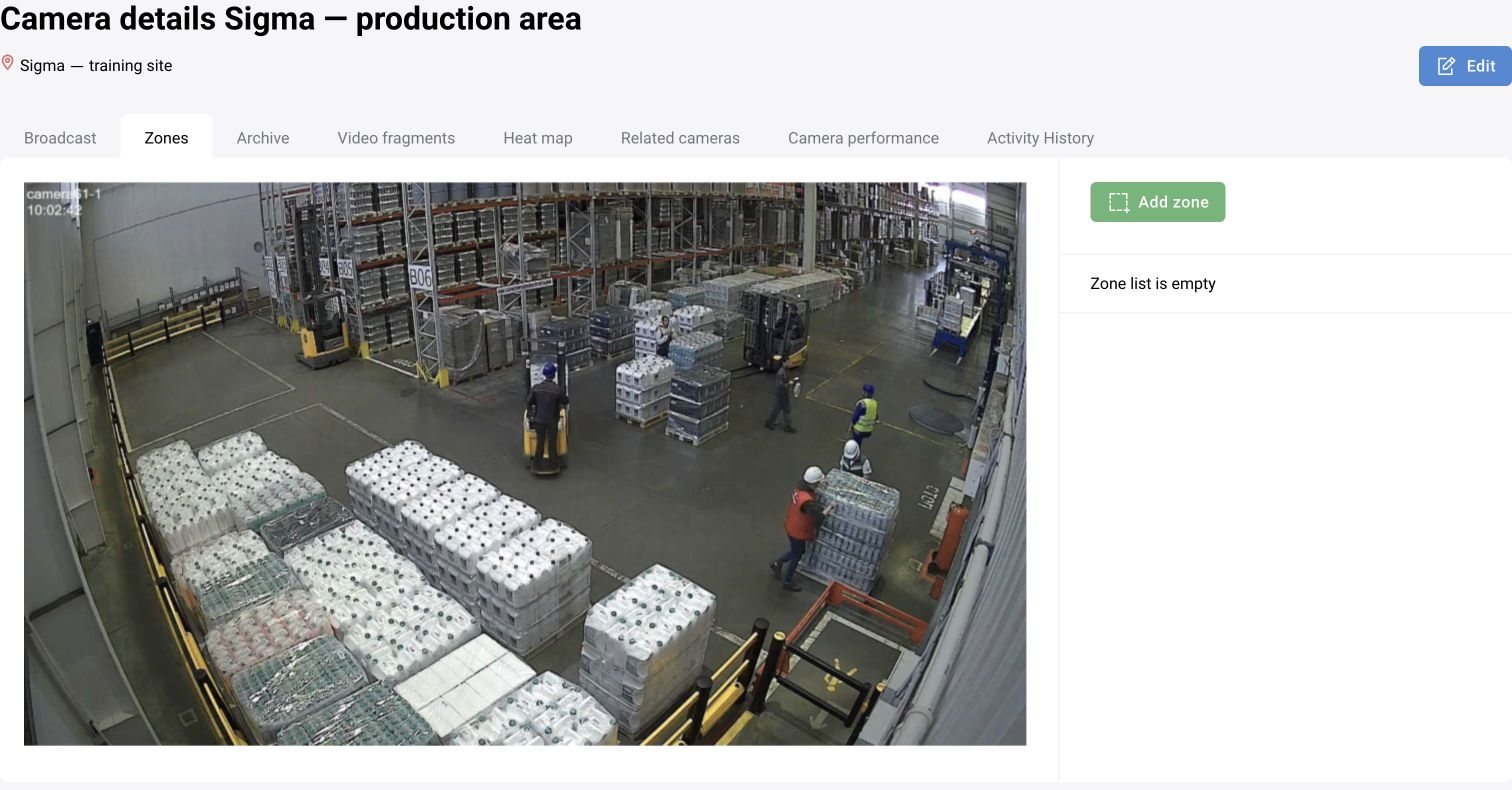
If monitoring is required only in a specific area, configure a zone on the camera image and its purpose. The region must match the actual work area; a neighboring walkway must not become part of the zone unnoticed.
Recheck the annotations after changing resolution, camera angle or position. A polygon on screen does not prove that the selected detector uses it: test the rule on episodes inside and outside the zone.
Sigma's first training event was obtained outside the marked zones. This confirms the basic source-to-analytics chain; zones are checked in a separate exercise.
6. Confirm that events arrive
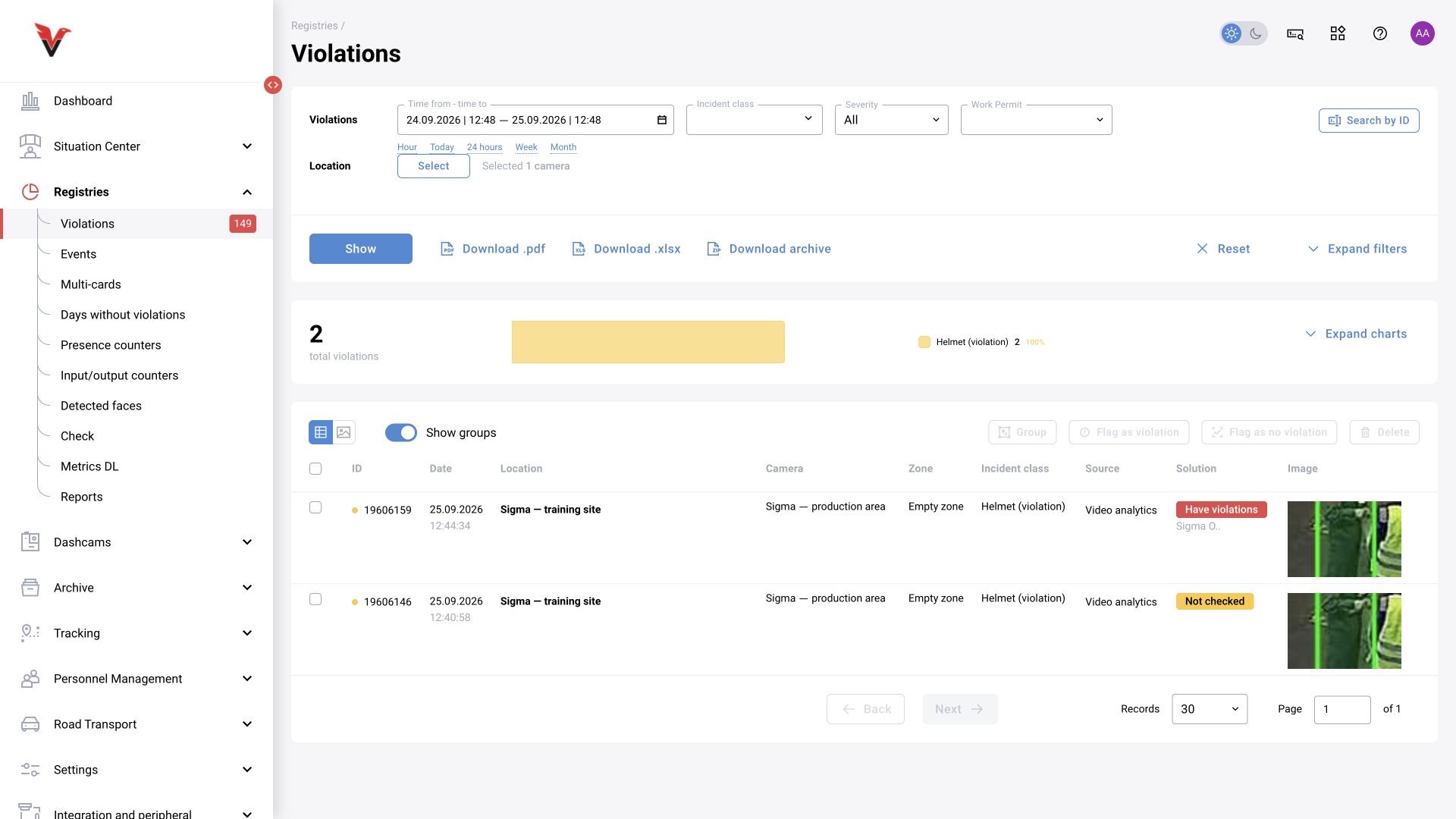
Open “Logs → Violations”. Select the training camera and a period covering its operation. Find a notification by camera name, time and type. Check the image: it must come from the selected clip.
The training run produced “Helmet (violation)” entries. Their initial status was “Not reviewed”. This is a detector result for the operator to review.
If the log is empty
Check the chain in order. The same empty log may mean no violations, an incorrect filter or disabled processing.
| Check | Expected state |
|---|---|
| Source | The video opens and contains the required episode |
| Switches | The camera and neural network are enabled |
| Settings | The preset and categories match the task |
| Zone | The object falls within the monitored area under the rule used |
| Log | Correct camera, period and statuses |
| Permissions | The user has access to the source and log |