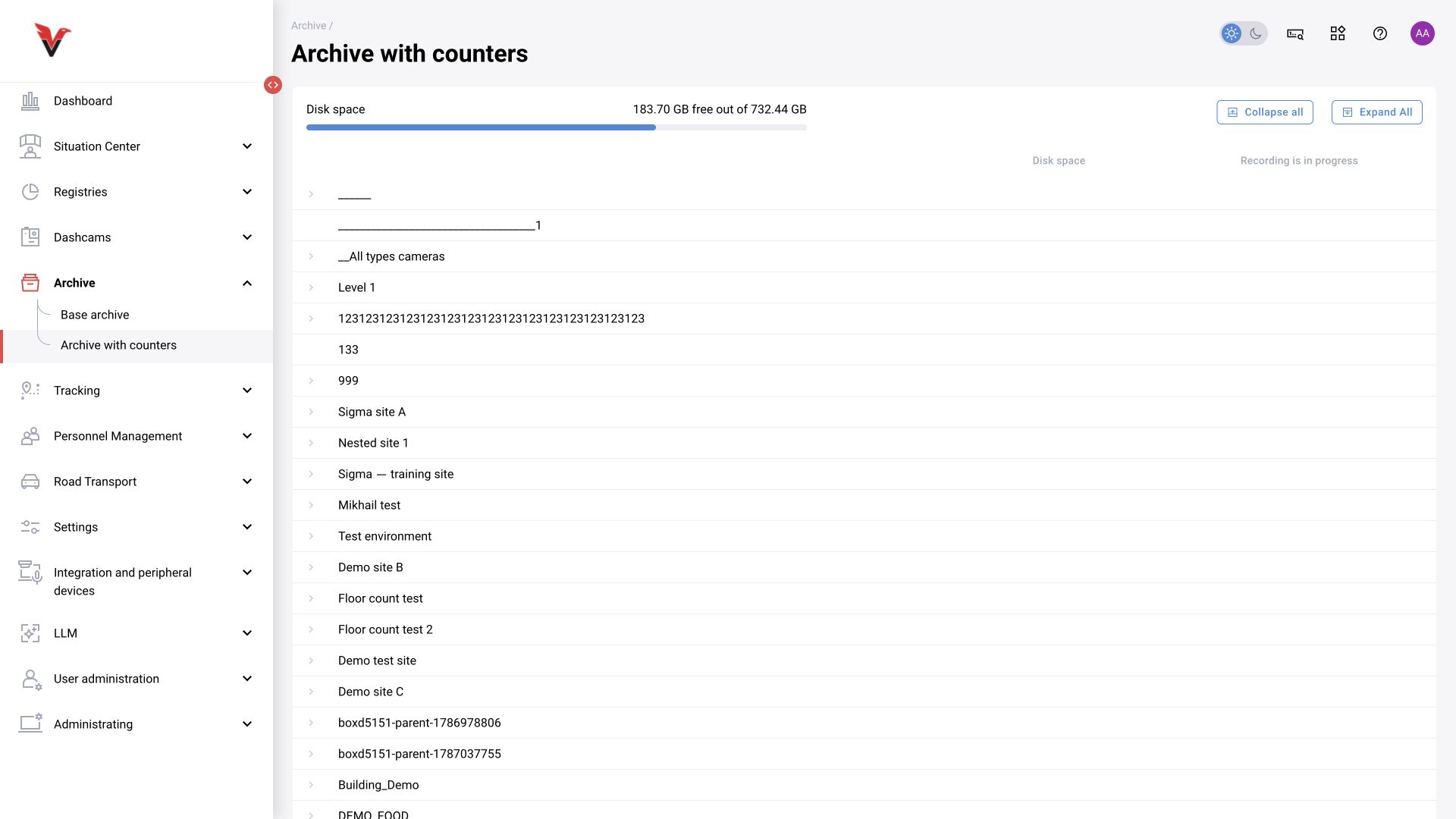
Basic archive
Path: Archive → Basic archive, /archiveWithoutCounters.
The overview shows the site tree, disk space and recording status. Expand a site and select a camera. “Collapse all” and “Expand all” control the tree. The storage occupied by a site does not guarantee a retention period: it depends on the stream, camera count and storage policy.
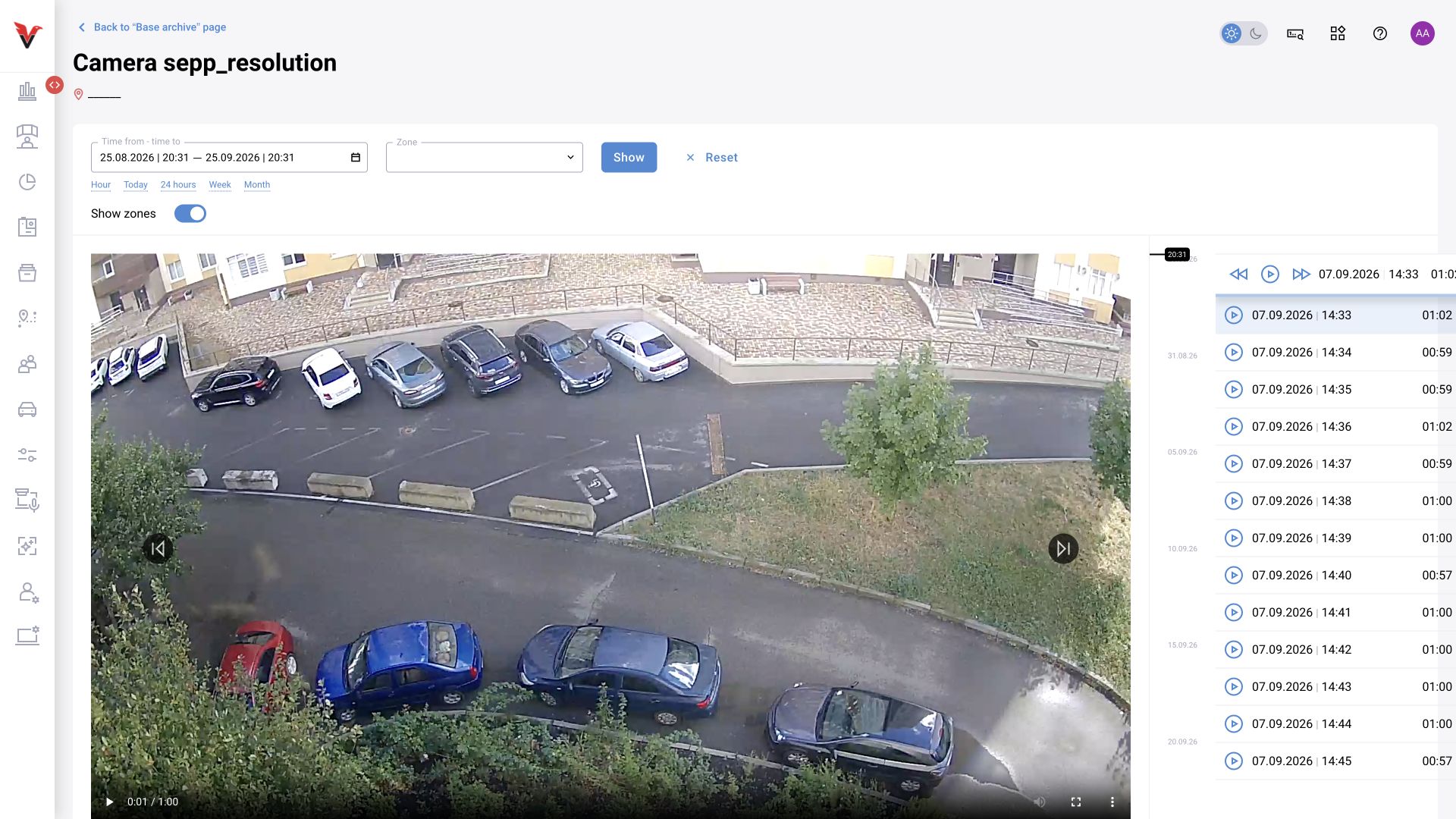
In the camera view, set the period, select a point on the timeline and play the recording. According to the documentation, timeline colors distinguish available and missing clips, and “Download clip” exports the selected range. Check whether a recording actually exists: the system cannot recover video for a period when no recording took place.
Archive with counters
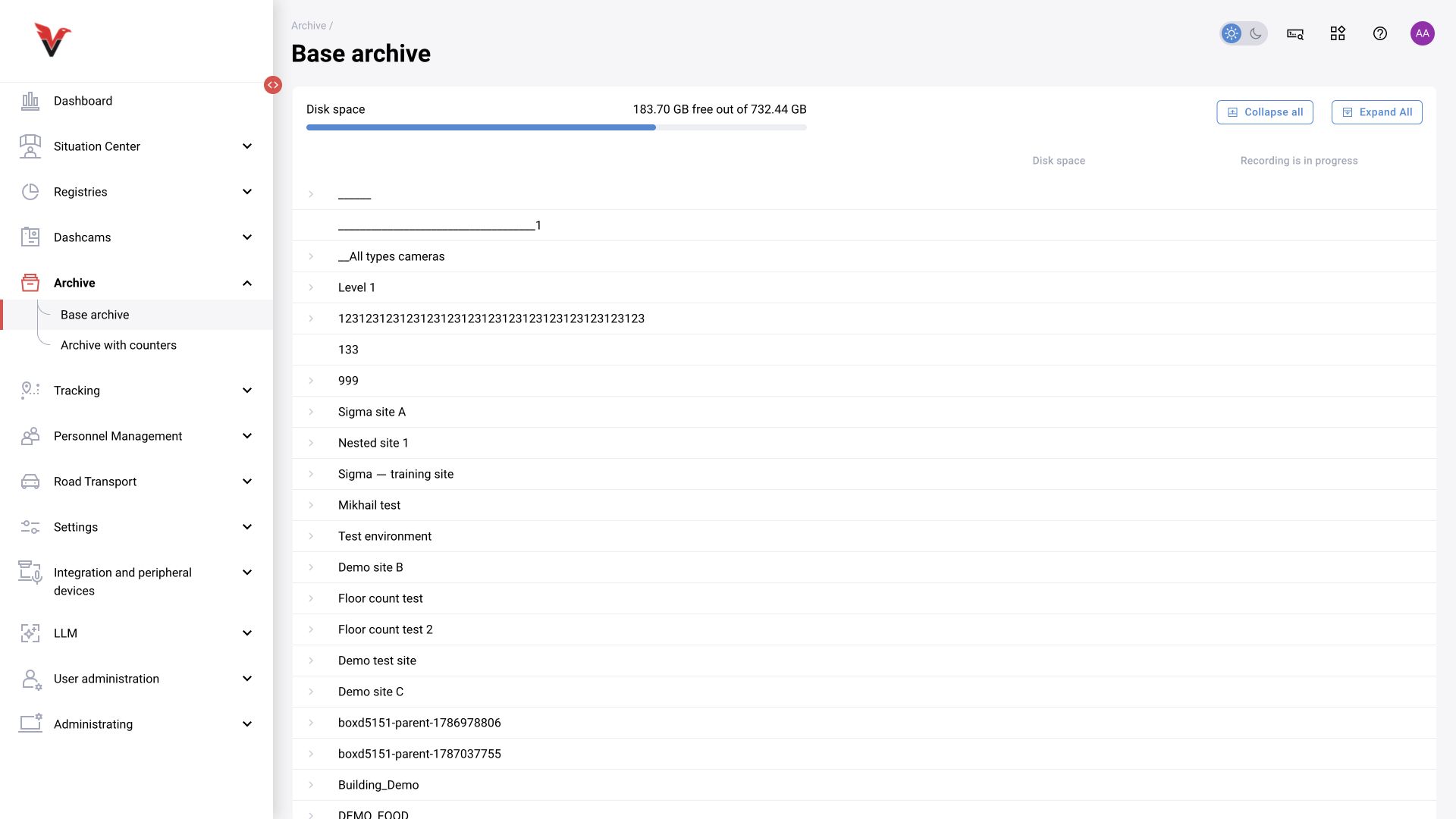
Path: Archive → Archive with counters, /archive.
Contains counter data in addition to video. Select the camera, period and zone, then click “Show”. The graph and reading list help locate the required point in the recording. According to the project documentation, entry/exit readings include timestamps, and selecting a row moves playback to the corresponding episode.
Counters and the archive use different storage mechanisms: numeric statistics do not guarantee video availability for their entire period. If “Video recording is disabled” appears, check the camera configuration and storage rather than changing the incident class filter.