Configuration settings
Path: Administration → Configuration settings, /administrating/config.
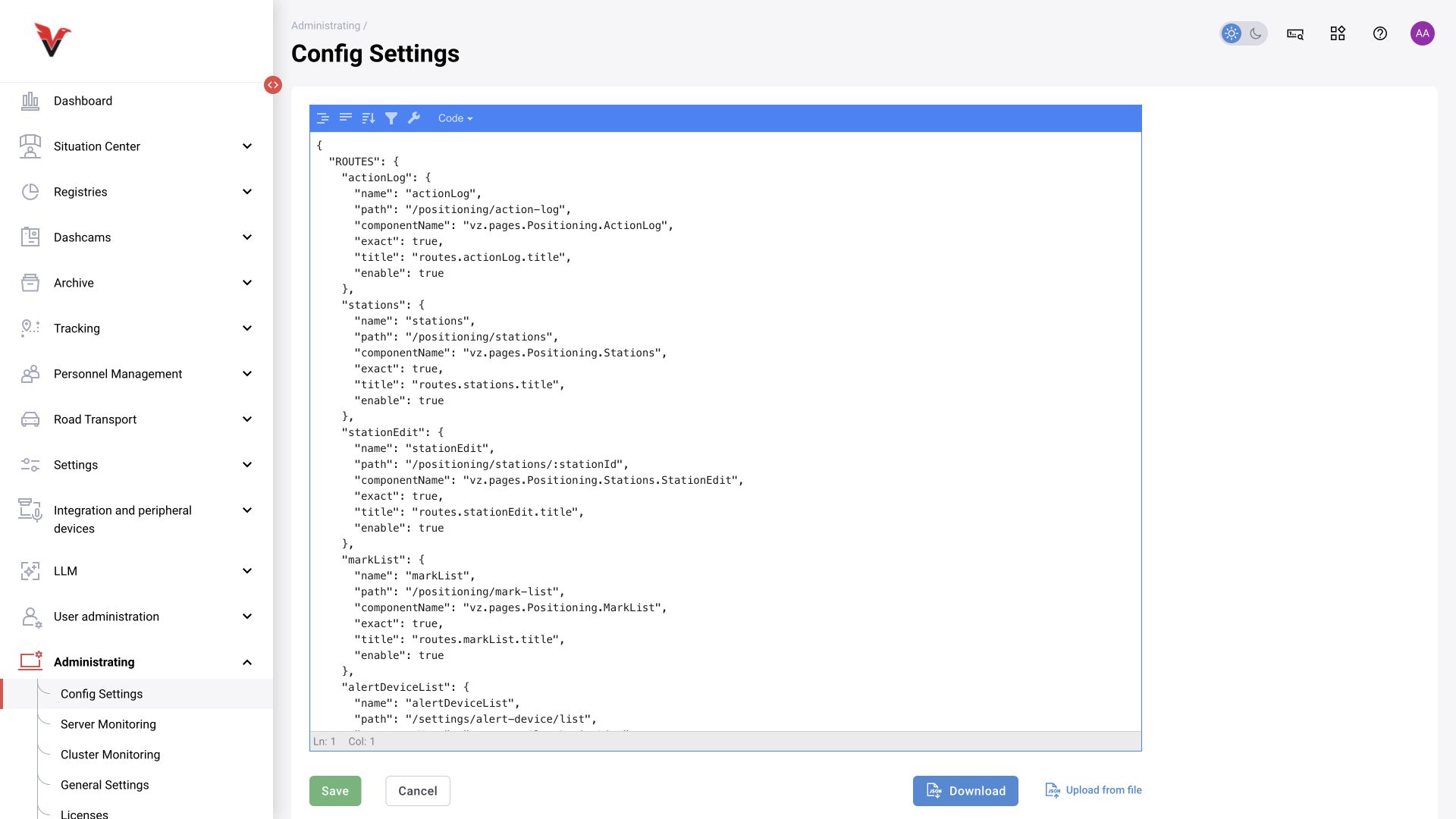
An internal JSON configuration editor. The documentation provides for viewing/editing, formatting, uploading, downloading and saving. The editor was opened during inspection; the configuration content was not copied into the manual.
JSON requires double quotes, correct types and structure; a syntactically valid file does not necessarily constitute a valid BOX configuration. Before making a change, the integrator saves the current version and checks permitted keys and the effect on components. Pasting an entire configuration from another version can disrupt operation.
The application administrator uses dedicated forms where available. If a setting is available only here, determine its value and whether it requires applying changes/restarting from the documentation for the specific component. An outdated description stating that JSON editing is entirely impossible is not treated as a current restriction.
Server monitoring
Path: Administration → Server monitoring, /administrating/grafana.
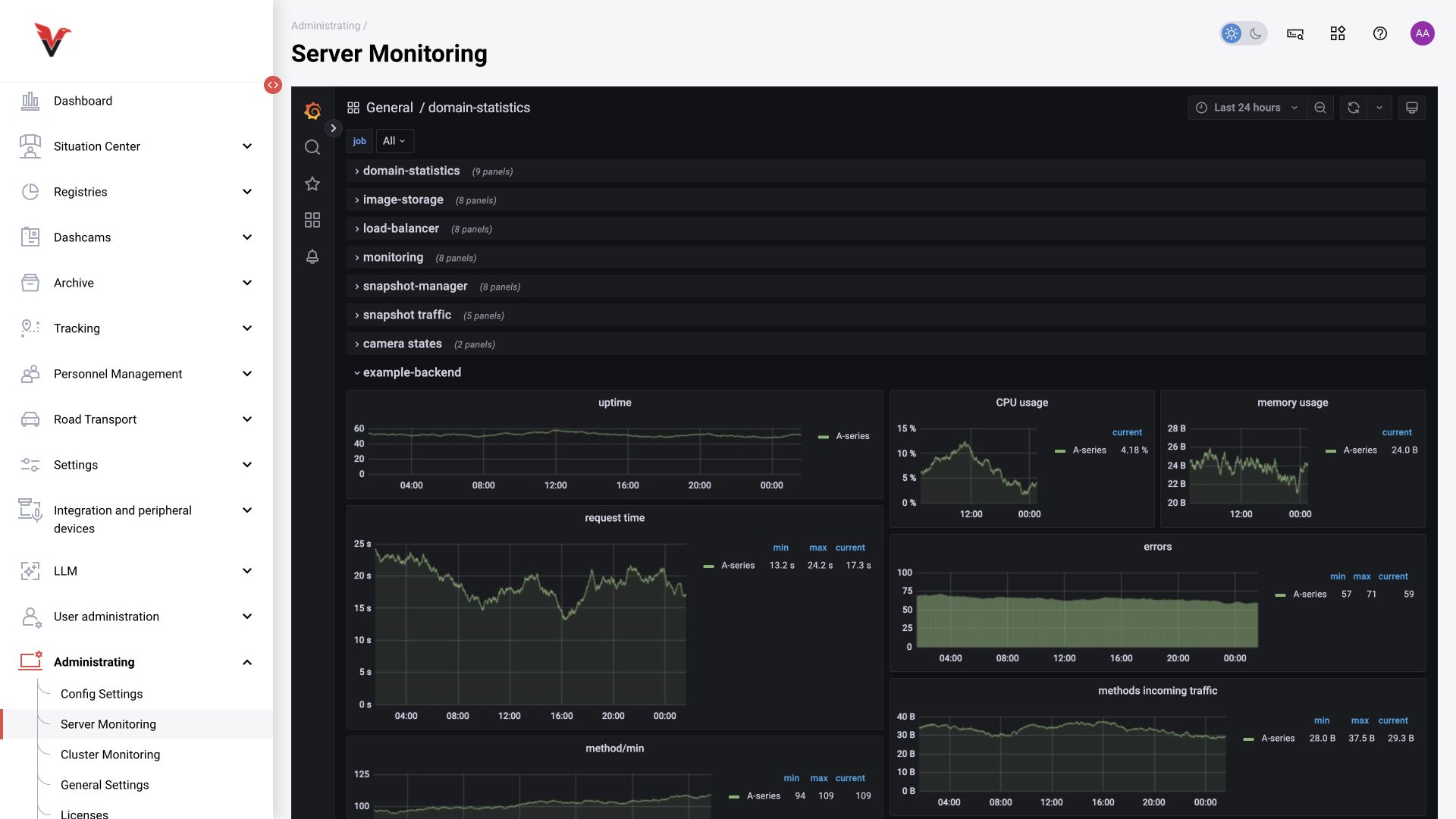
The embedded Grafana interface shows the available status dashboards. Select the period, required source/task and refresh frequency. Review CPU/GPU load, memory and other metrics configured in this installation. The dashboard set is not identical across all installations.
When investigating a report that “video freezes”, record the time period and compare load with camera status. A single high peak does not automatically explain every error, and a missing dashboard may mean that the metric or access is unavailable. Changing data sources and dashboards is a maintenance task, not part of an operator’s daily work.
Cluster monitoring
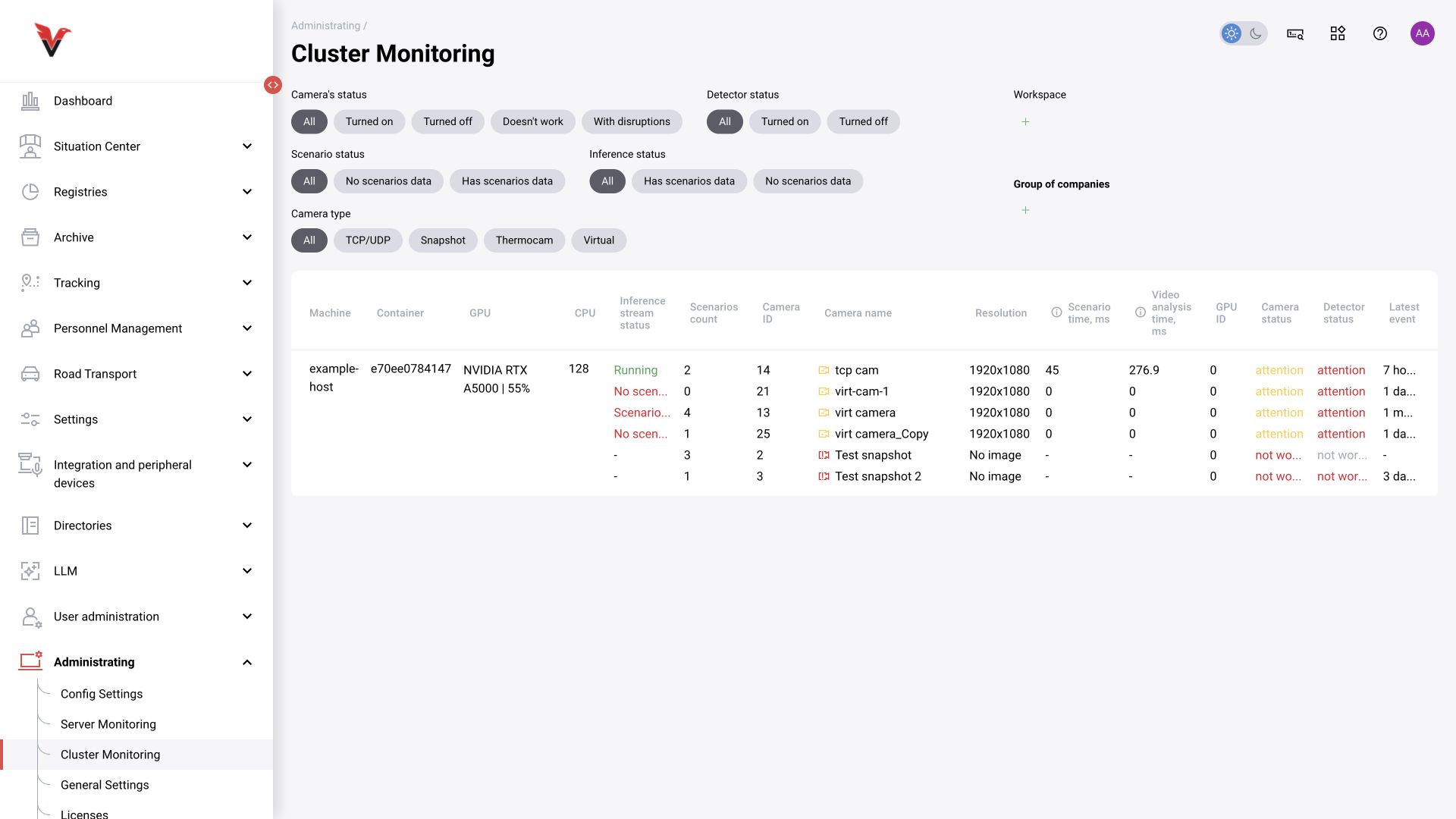
BOX 5.0 additionally displays inference stream status, scenario count, scenario time and video analytics time in milliseconds. Treat the “Scenario status” and “Inference status” filters separately from camera and detector status. Assigning a scenario does not guarantee that the process has started without errors.
Path: Administration → Cluster monitoring, /administrating/cluster.
Filters include status, detector type and workspaces. The table connects each camera with its machine/container and resources.
| Column | How to read it |
|---|---|
| Machine / container | Where processing runs |
| GPU / CPU | Available information about compute resources |
| Camera ID / name | Which source is being examined |
| Resolution | Dimensions of the incoming image |
| GPU ID | Processing device assigned to the camera |
| Camera / detector status | Stream acquisition and analytics operation |
| Last event | Time of the last recorded activity of the corresponding type |
A long interval without an event does not necessarily indicate a fault: the scene may have contained no target situations. “Disabled” and “Fault” are different states. Start with the filter for faulty sources, then open a specific camera and its history.
Licenses
Path: Administration → Licenses, /administrating/licenses.
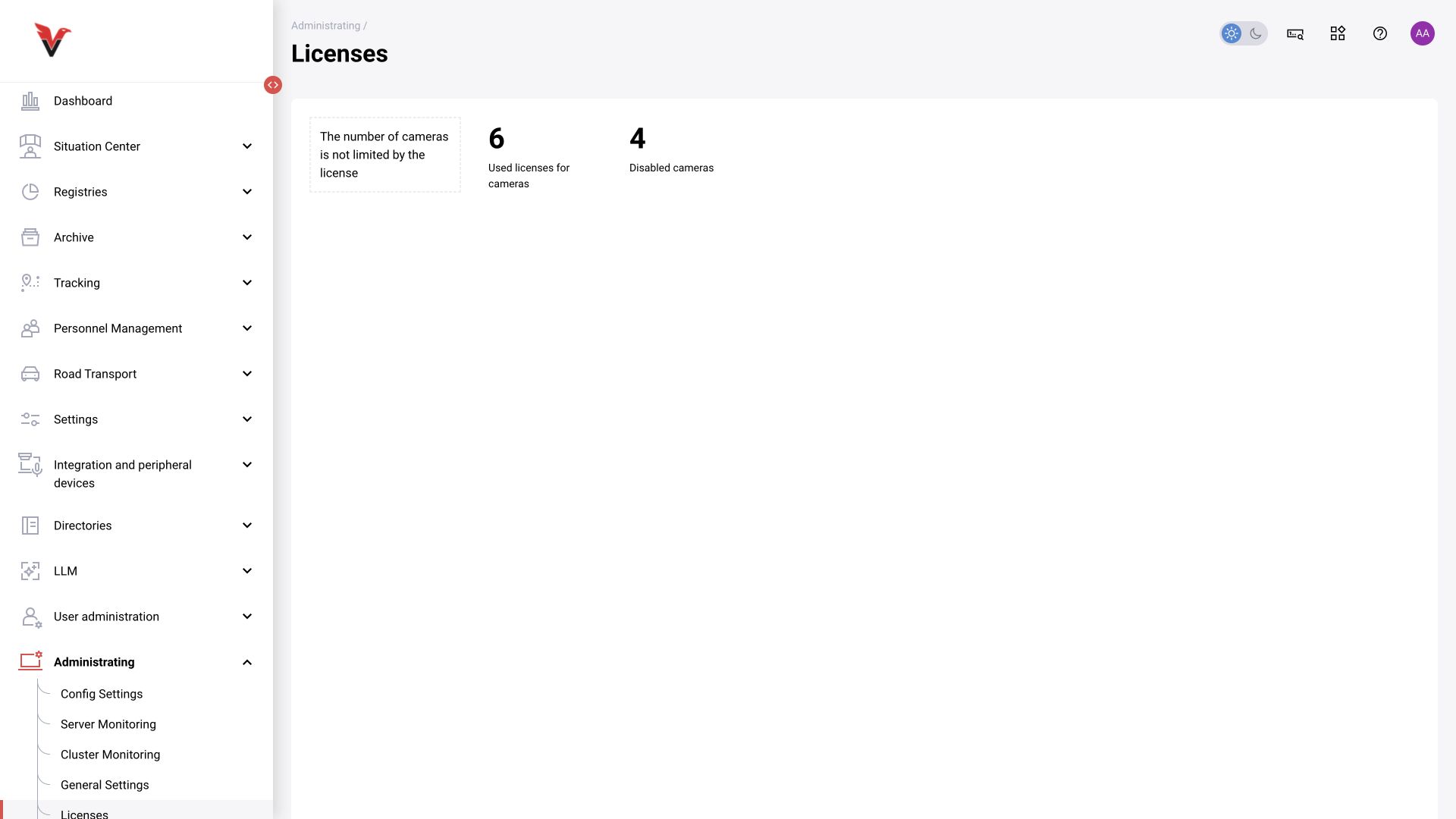
Shows the active-camera limit, number in use, disabled sources and remaining capacity. The figures on a demonstration installation are not product limits for all customers.
If a camera cannot be activated, check the remaining license capacity together with the form’s message. A disabled camera in the tree and an active camera counted toward the license are different accounting states. License expansion follows the delivery procedure; editing arbitrary JSON does not replace a license change.
Recycle bin
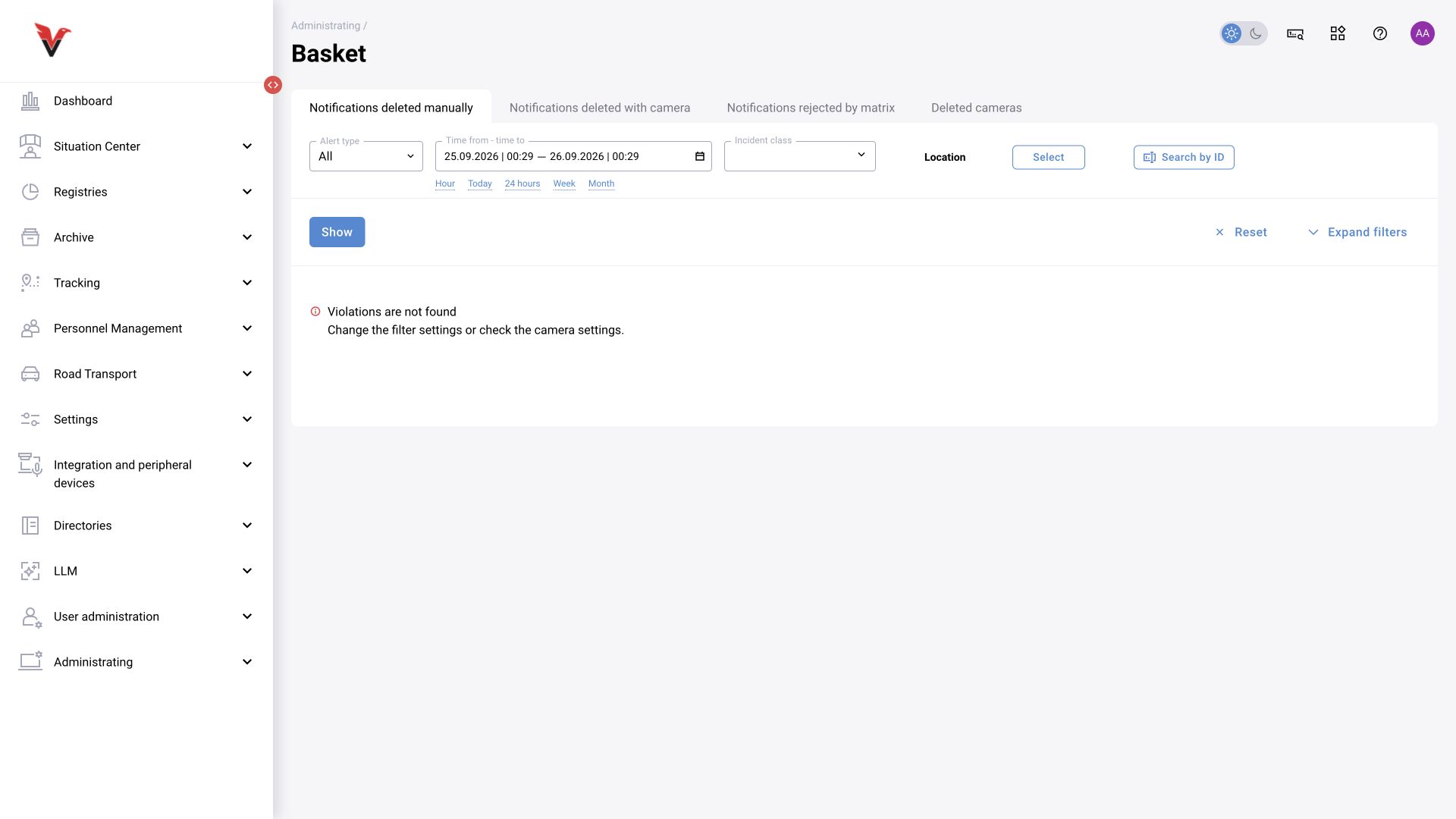
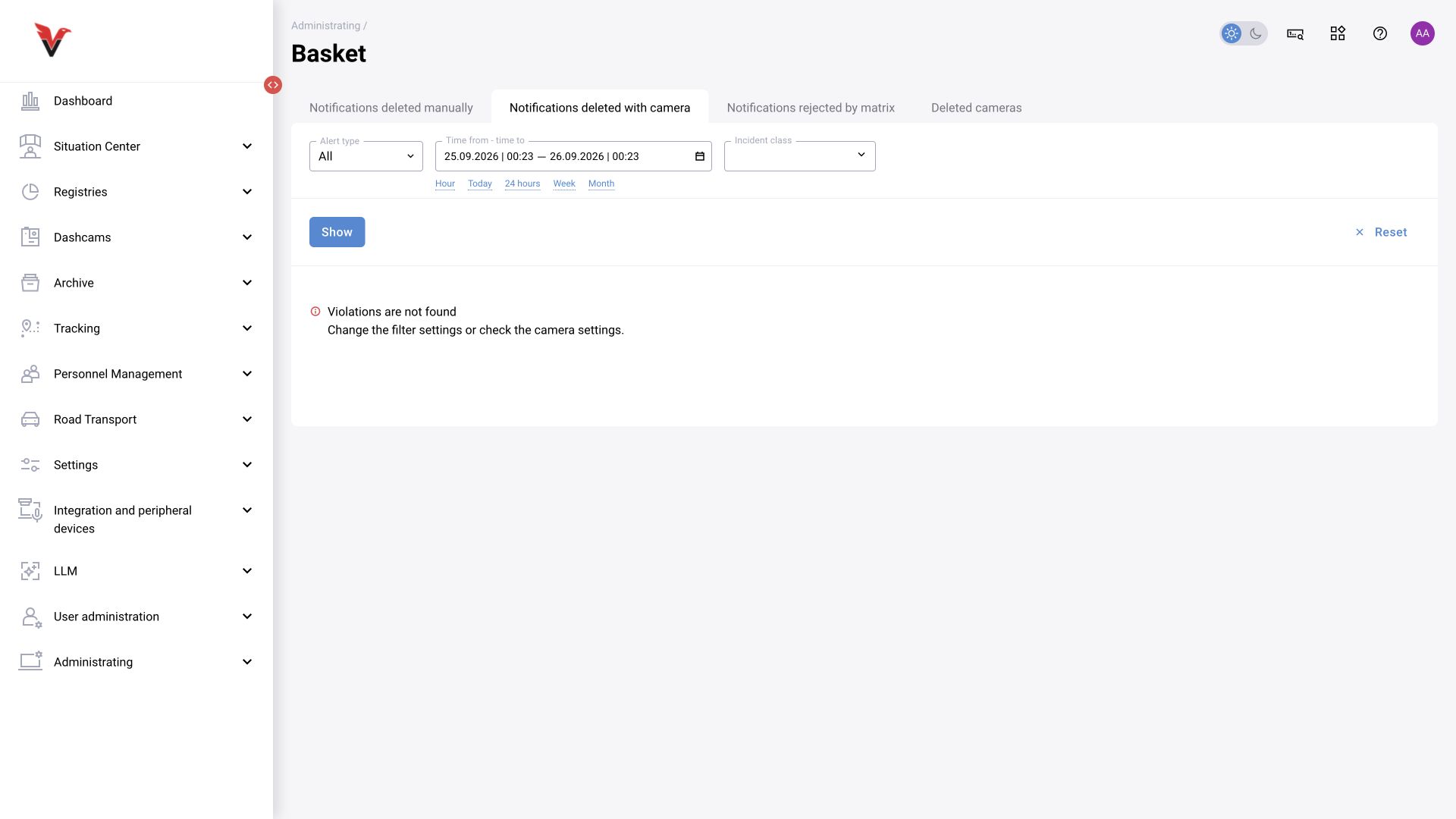
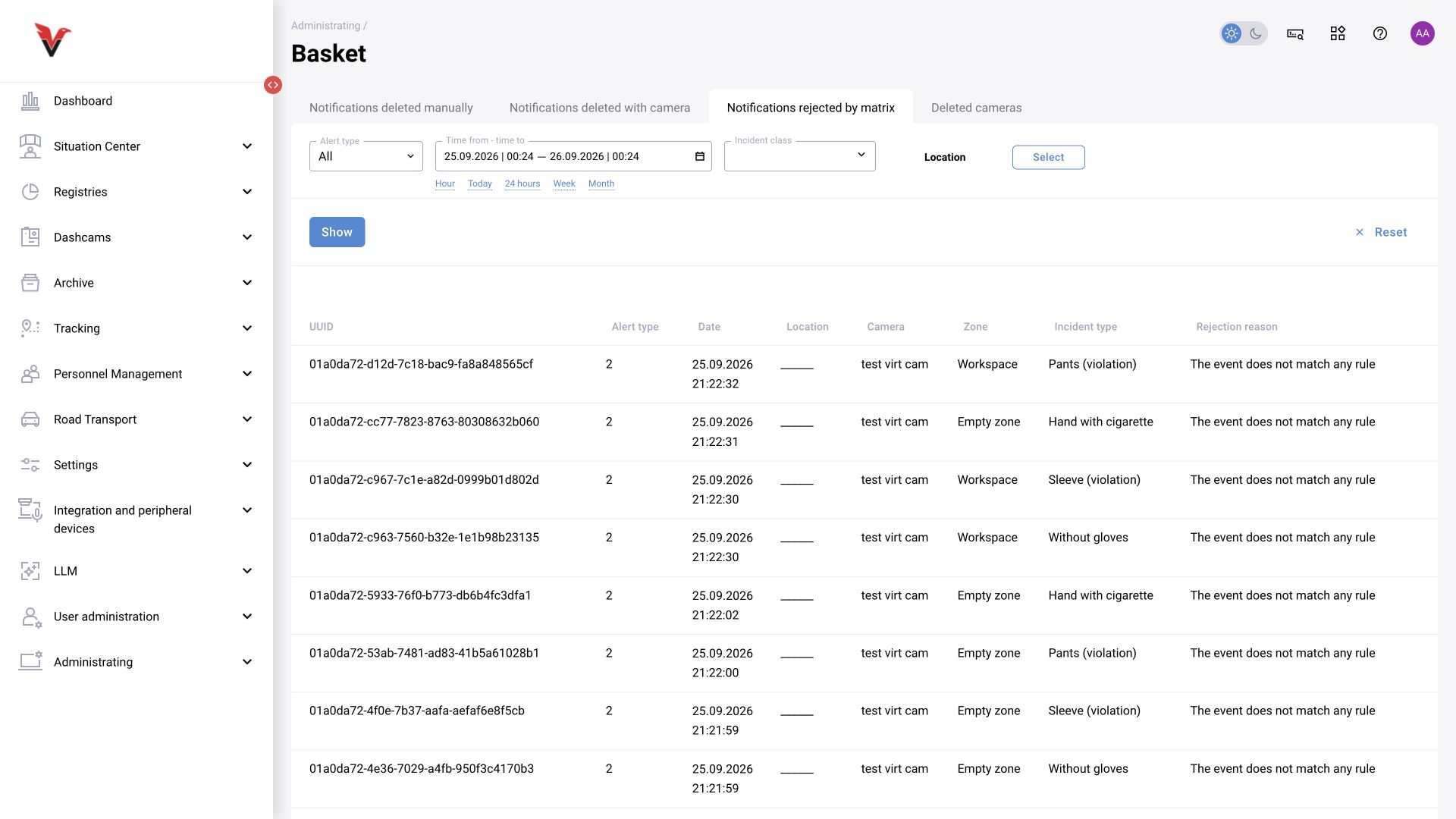
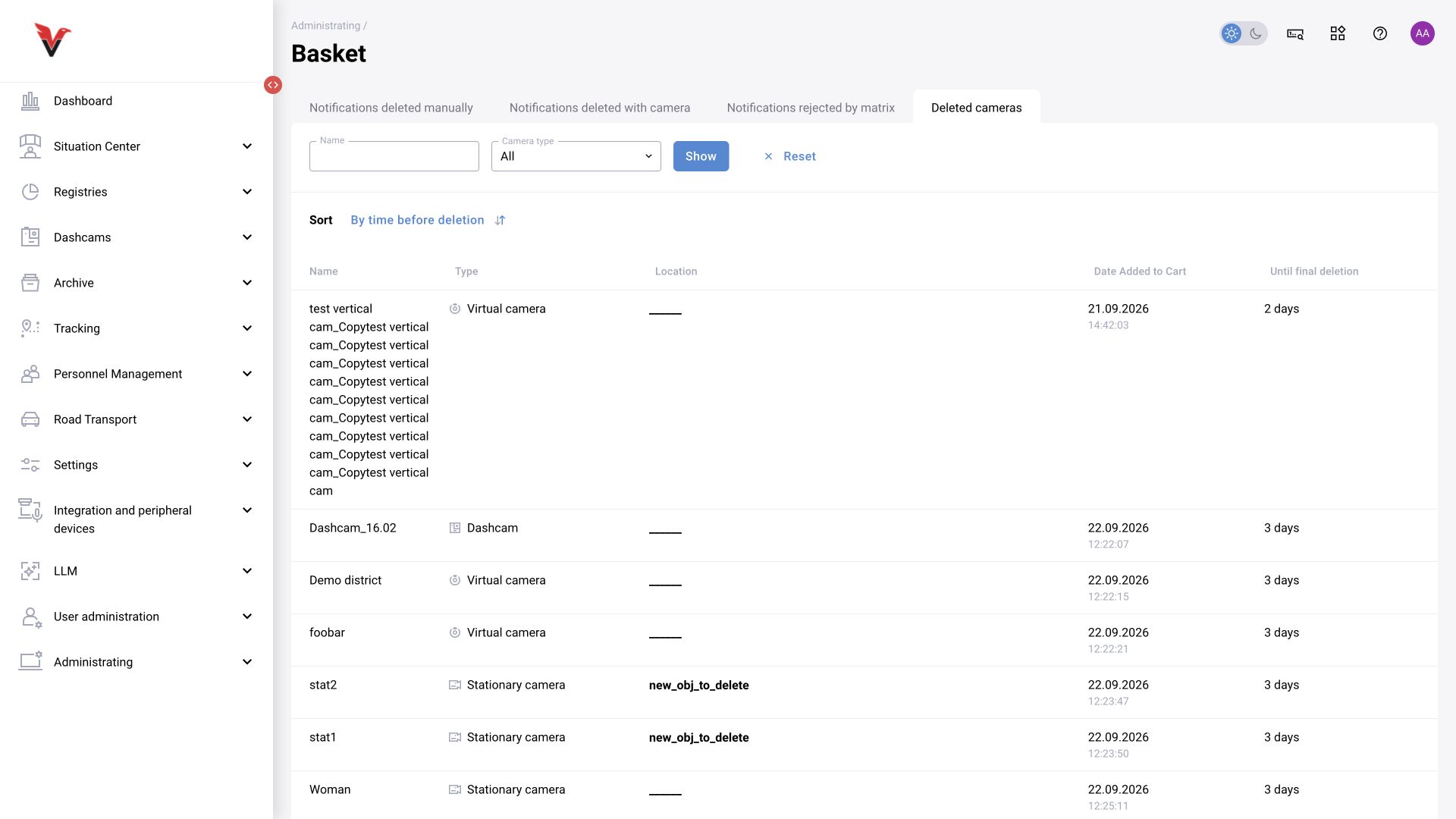
Path: Administration → Recycle bin, /statistic/basket/deleted-notifications.
| Tab | Content and search |
|---|---|
| Manually deleted notifications | Records deleted by a user; filters for period, type, class and available attributes |
| Notifications deleted with a camera | Records associated with a deleted source; period, type, class, decision, measures and other filters |
| Notifications rejected by the decision matrix | Results that the decision matrix did not allow through; useful for diagnosing rules. The table shows UUID/type, date, location, camera, zone, class and reason |
| Deleted cameras | Search by camera name and type, sorted by time remaining until deletion |
According to Confluence, cameras and notifications deleted through the standard procedure can be restored within the available retention period and permissions. Check links and the reason for deletion before restoring. Do not assume the same restoration mechanism automatically applies to records rejected by the decision matrix: a restore command was not confirmed on the inspected tab.
Permanent cleanup differs from moving items to the recycle bin and may be irreversible. Retention is configured globally. To determine why an event is missing, first use filters and the rejection reason rather than deleting/restoring records.