
Sigma's task
Sigma has a workshop, warehouse and checkpoint. The team starts with helmet monitoring in one area, then adds workstation monitoring, LLM and a report for management. This is a training story: you can use your own names, videos and criteria.
This guide contains tasks and expected results. Field and button configuration is described in the standalone linked instructions. Completing the practical guide is not required for everyday operation.
1. Prepare your workstation
Sign in with an application administrator account. Locate cameras, logs and user management. Decide who will act as the operator in the exercise and who will check the result.
Ready when the BOX version, available role and procedure for setting up one source are clear.
2. Create a site and camera
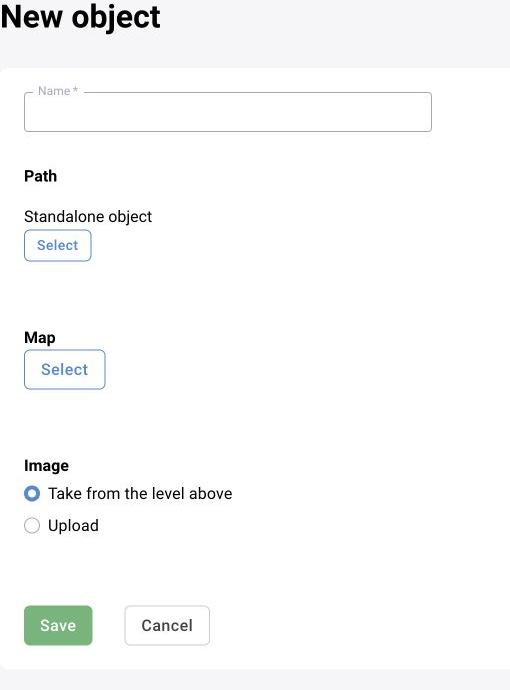
Create the site “Sigma Company — training site” and source “Sigma — production area”. For a repeatable exercise, use a recording in which a person and helmet are distinguishable; check the camera's site assignment.
Ready when the camera is under the correct site and its video opens.
3. Configure helmet monitoring
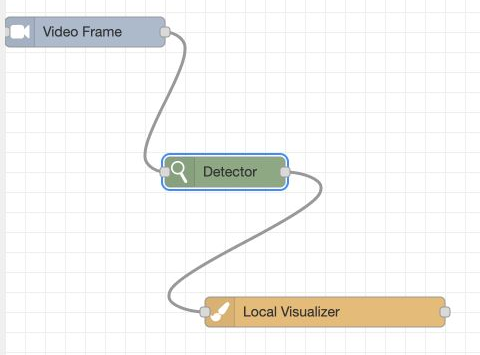
BOX 3.2: assign a helmet monitoring preset and check the categories. BOX 5.0: create a scenario version, select a model and perform a test run. If monitoring is required only within an area, configure a zone.
Test frames with a helmet, without a helmet and with an obscured head. Ready when the result matches the condition and the limitations are understood. Bounding boxes in Sandbox do not replace checking event delivery.
- Analytics assignment, zones and schedules
- BOX 3.2: preset
- BOX 5.0: first scenario
- Detailed block reference
4. Create an operator and check permissions
Create the role “Sigma — operator” and user sigma.operator. Grant access to the training camera, log, decision and required event detail fields. Sign in as the operator.
Ready when the user sees the required source, can complete the work task and has no unnecessary administrative actions.
5. Review an event
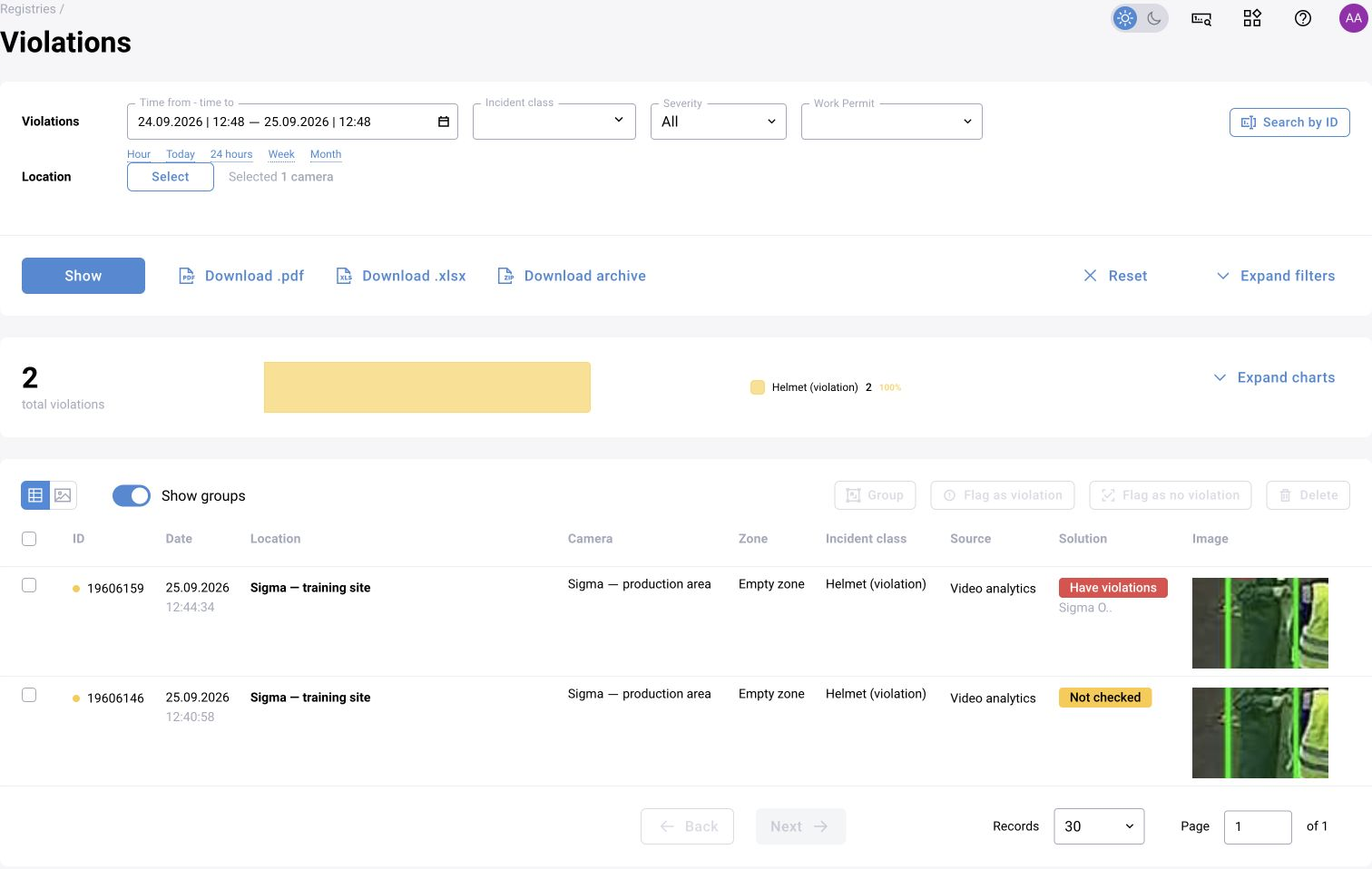
Find a notification from the training camera, check the original frame, fill in the required fields and record a decision with a comment. Reopen the event details and history.
Ready when the decision is saved and its author is clear. Confirmation of the violation and the record of measures taken are checked separately.

6. Add workstation monitoring
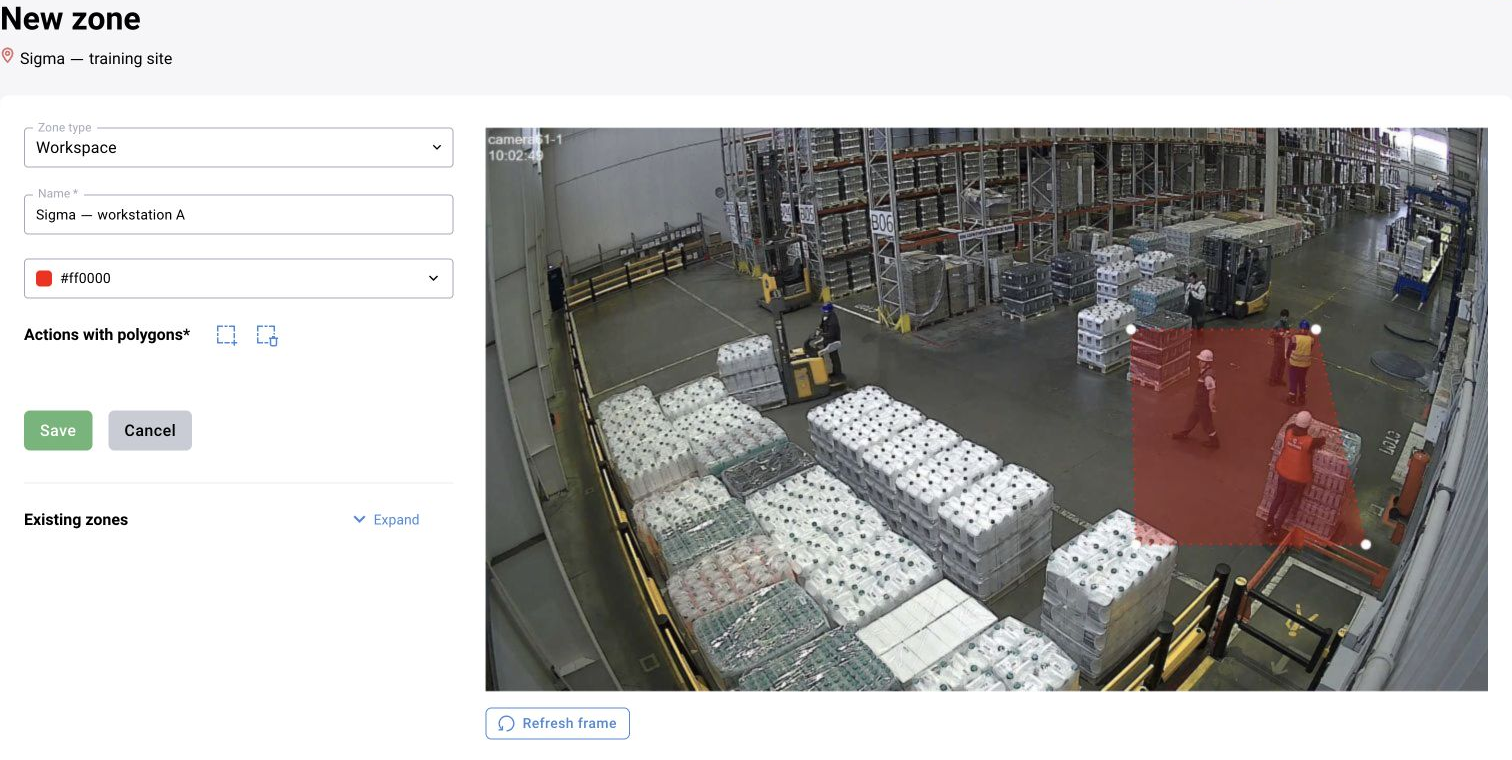
Select a turning shop recording and define machine zones. For BOX 3.2, use built-in workplace discipline monitoring. For BOX 5.0, implement the same task through a scenario: person detection, zone, people count, state and intervals. This exercise does not require an LLM.
Ready when you can explain presence and absence intervals, brief departures and periods without observation. Compare both implementations using the same video and period; do not treat the maximum people count in an interval as continuous presence.
- BOX 3.2: configuring workplace discipline monitoring and reading XLSX
- BOX 5.0: scenario-based presence monitoring
7. Complete five LLM exercises
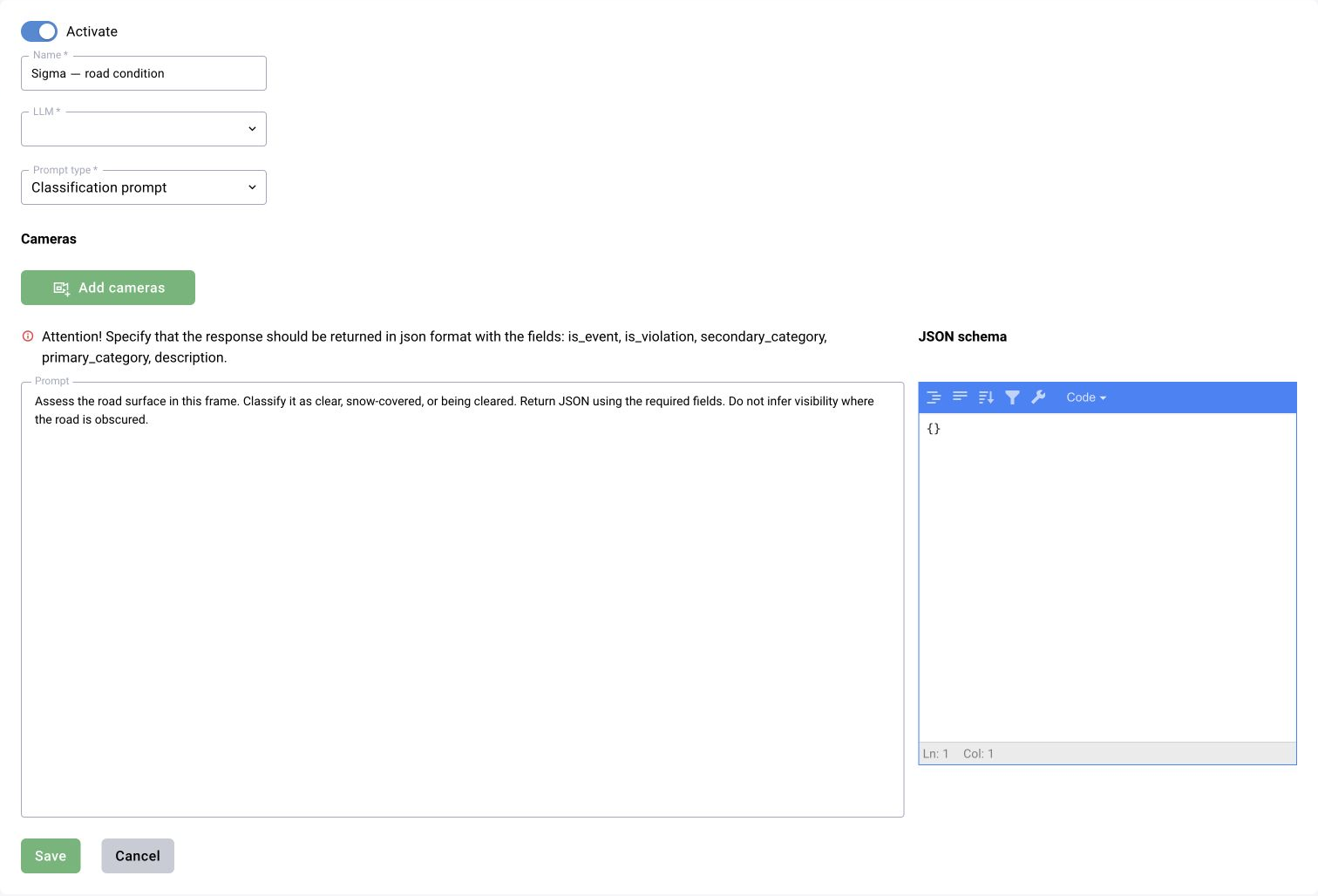
Use the shared LLM section for BOX 3.2 and BOX 5.0. Prompt settings are not duplicated in this practical guide: each link provides the type, input data, response format and result checks.
Ready when every exercise has input frames, an expected response and an example of an error or uncertainty. A saved prompt does not yet confirm that a schedule works or that statuses change automatically.
- Road: scheduled classification
- Excavators: detection and bounding boxes
- Helmet: verification instead of the operator
- Vehicle: additional context
- Workshop: multiple-frame comparison
8. Prepare a report for management
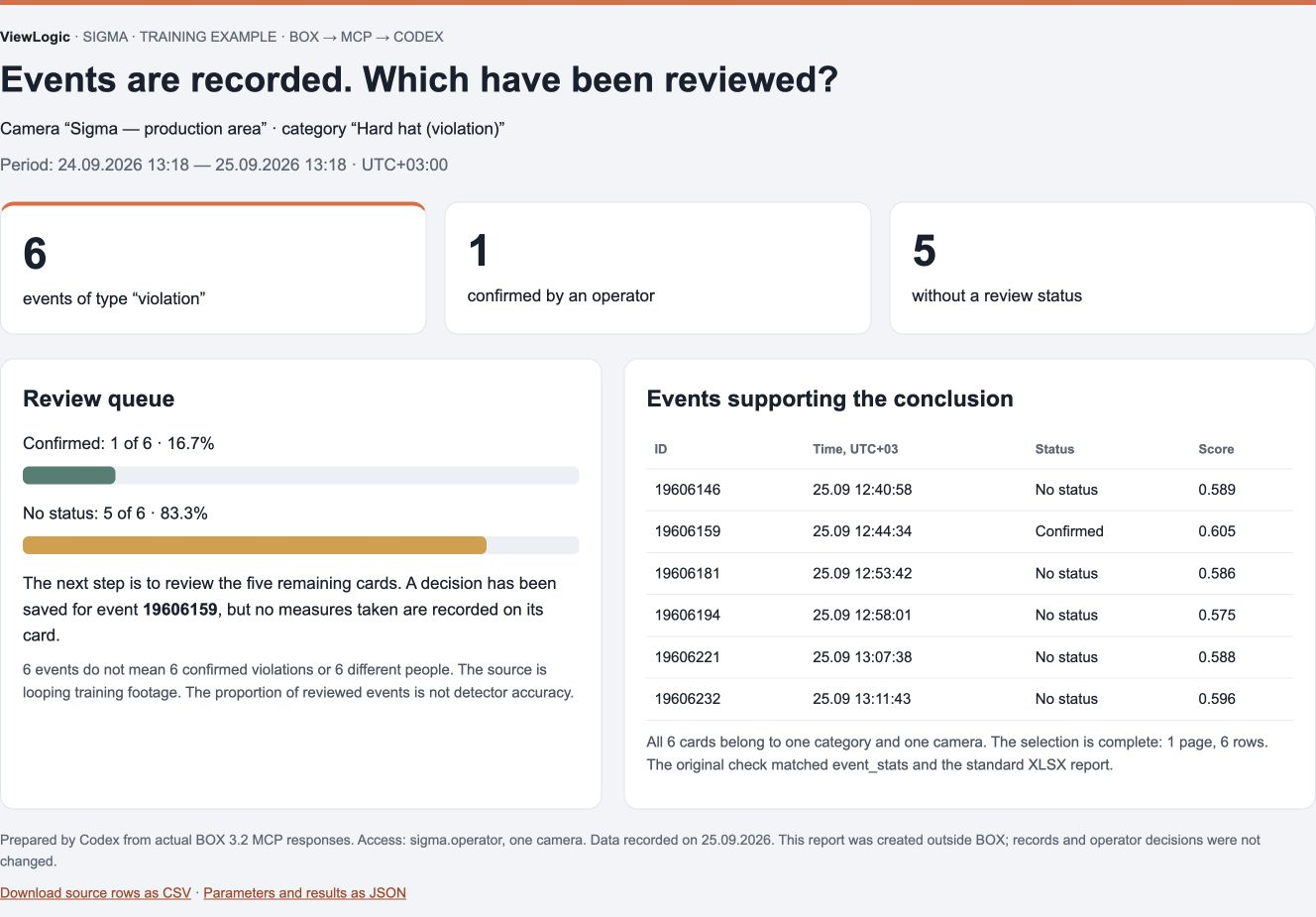
Export a report for the training camera over a fixed period. Then connect Codex or ChatGPT through MCP and request a summary of the same data. Compare the totals, statuses and event IDs.
In the verified Sigma example, 6 events matched: 1 confirmed and 5 without a status. Your run may produce different counts. Ready when the report's conclusions can be checked against the source rows.
- Standard reports and additional modules
- MCP connection and report request
- Verified HTML and CSV example
9. Check failure behavior
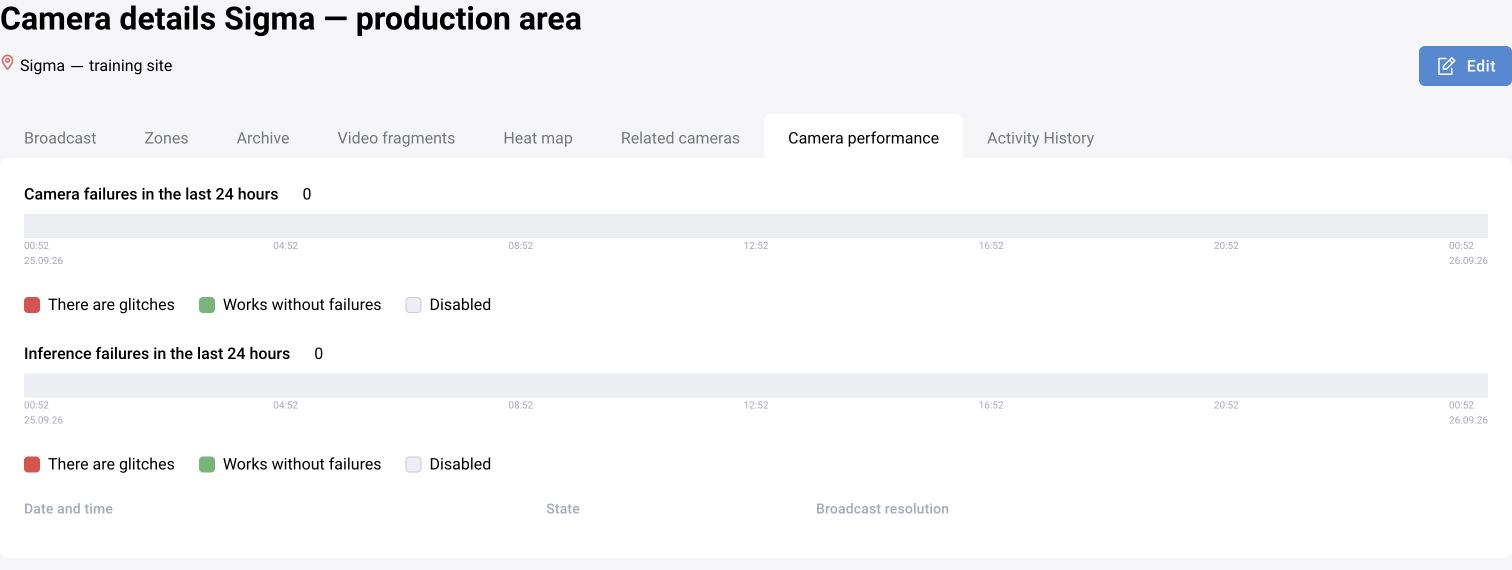
Investigate missing video, an empty log caused by an incorrect filter and an LLM processing error. Prepare a support request with the period, camera, version and reproduction steps. Do not disable a shared operational source to create a training failure.
Ready when the operator knows which checks they can perform and what information to pass to the administrator.
What to retain after completion
The list of sites and cameras; assigned versions and parameters; test frame set; verified permissions; event IDs; report and identified limitations. Separately identify steps performed on recorded video and checks on a live source.
Practical status: the BOX 3.2 operator workflow and a report containing 6 events have been verified; the BOX 5.0 test graph processed 864 frames. A complete run of workplace discipline monitoring and its scenario equivalent, plus some automatic LLM workflows, remain under verification.