
Define the role first
List the user's actions: viewing cameras, opening logs, making an event decision, commenting, completing required fields and retrieving reports. Configure permissions based on a suitable role and save.
Access to a section and permission to edit within it may be configured separately. If a user must make decisions, also check the fields required to save event details.
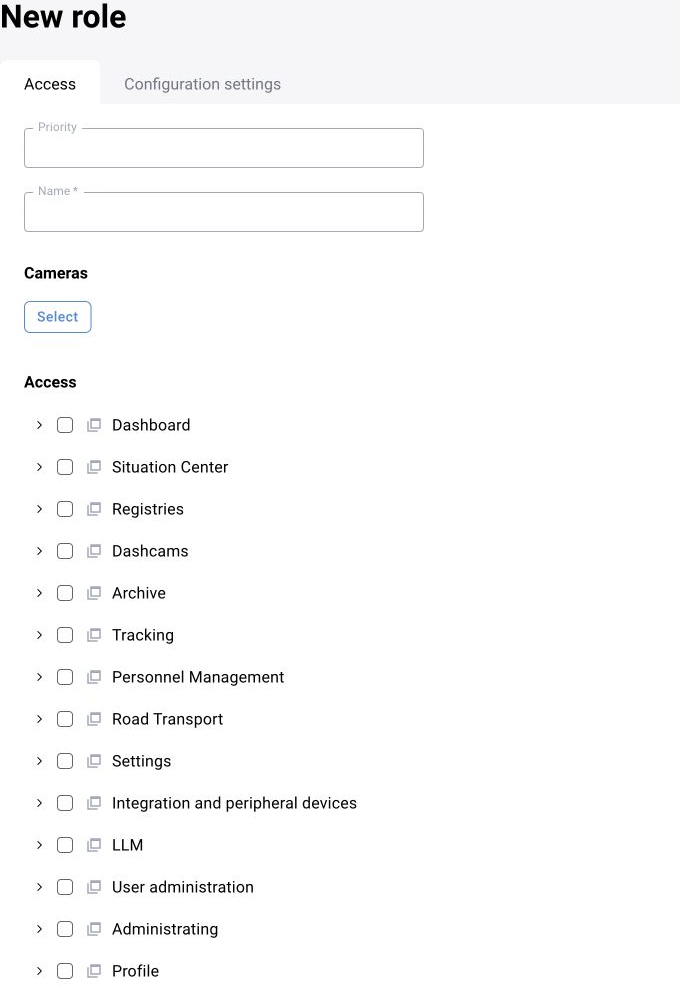
Create an account
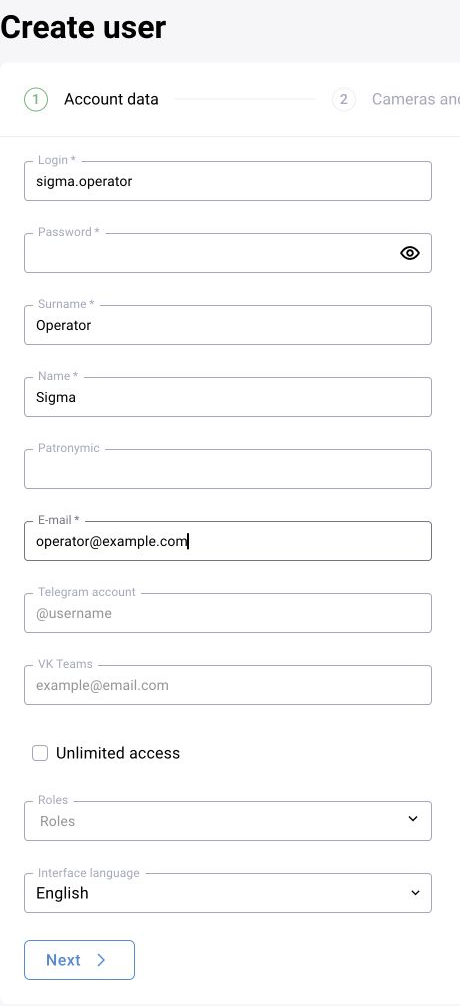
Create an entry in the users section, complete the required information and assign a role. After saving, find it in the list and check its activity and selected role.
A detailed instruction with the BOX 3.2 form and operator checks is linked below. In BOX 5.0, use the corresponding users and roles sections; check the available actions against the installed configuration.
Assign access to cameras and sites
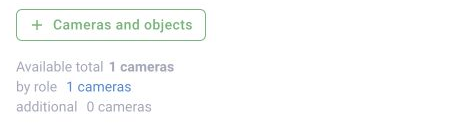
Select specific cameras or an entire site using the available access scope mechanism. Check whether child sites are included. A role with permission to view the log does not guarantee that sources have been assigned to the user.
If the system assigns camera owners, configure them separately. Responsibility, viewing permission and notification recipients are different settings; do not treat them as interchangeable.
Test under the new role
Sign out of the administrator session or open a separate user session. Check an accessible camera, log, frame, required fields, decision, history and report. Then confirm that restricted sections and other users' sources cannot be opened.
For MCP, call whoami and list_cameras under the same account. Compare the visibility scope with the BOX interface. After changing the role, repeat the specific workflow affected.