
What Sigma gains
Sigma’s supervisor wants to know how many detections still need review, which categories occur most often and which cards to open. With MCP, they ask a question in Codex or ChatGPT, and the assistant retrieves BOX data through dedicated tools and prepares a summary, table or report file.
MCP is a protocol for connecting an AI assistant to a system. In BOX 3.2 and BOX 5.0, it provides access to events, statistics, cameras, sites and directories. The current tool set is read-only: it does not change operator decisions, camera settings or user accounts.
This is a separate way of working with accumulated data. Model-based event verification inside BOX and video analytics prompts are configured separately. Preparing a report through MCP does not require adding an LLM prompt to a camera.
The practical example below was performed on BOX 3.2 and checked on 25 September 2026. BOX 5.0 uses the same connection route; before starting, the assistant reads the tool catalog for the particular installation.
Question
Period, site, camera, status and desired result
MCP BOX
Retrieve data within the signed-in user’s permissions
Check
Statistics → selection → individual cards
Report
Conclusions, source rows, event IDs and calculation parameters
MCP 1.0.0: compatibility and tool names
Applies to: the separately deployed MCP 1.0.0 component in a BOX installation. The MCP version is independent of the BOX version; ask your administrator to confirm the installed component and supported integration. This release requires rest-to-grpc gateway 2.1.64 or later. MCP does not check the gateway version automatically. Before connecting users, the administrator must verify the installed version and camera access restrictions.
The Sigma workshop below preserves the results and tool names verified on 25 September 2026. MCP 1.0.0 uses a revised catalog. Retrieve its current tool schemas before repeating the example: renaming a tool alone does not migrate all its arguments.
| Workshop name | MCP 1.0.0 | Purpose |
|---|---|---|
whoami | get_me | Current user |
list_cameras, list_objects, list_categories | get_camera_list, get_object_list, get_category_list | Accessible cameras, sites and directories |
search_events | get_event_list | Paginated event selection |
event_stats | get_event_count | Event counts and distributions |
In 1.0.0, status grouping is confirmation_status and the status filter is confirmation_statuses. Read accepted values from the installed schema. get_event, get_event_image and get_event_comments retain their names. Access comes from the individual BOX account; signing in successfully does not replace checking the visible camera list.
- Ask the administrator to confirm the MCP and gateway versions and your account’s camera assignments.
- Complete OAuth on the BOX page and explicitly approve the connection. Check the selected account when a browser session is already open.
- Read the catalog, call
get_meandget_camera_list, and compare the list with the interface under the same account. - Retrieve a small selection for a fixed period and compare its total with the event journal. Retain versions, filters and event IDs in the report.
Expected result: the connection reads only permitted data, using the installed MCP schema. If the gateway version or access restrictions are unverified, an administrator must check them before users connect.
MCP 1.0.0: camera monitoring and counters
Prerequisites: the compatibility checks have passed, your account can access the cameras, and the deployment collects the relevant data. These tools only read data.
| Task | Tool | Considerations |
|---|---|---|
| Check video and analytics status | get_monitoring_info | For history, supply a period and details=true; detailed requests are limited to five cameras |
| Find cameras without recent events | get_latest_camera_event_infos | No recent events does not by itself establish a camera failure |
| Read camera settings and changes | get_camera | Use cam_id and include_change_logs=true; settings are not modified |
| Read people counters by camera and zone | get_counter_data | mode=online for current values; mode=period for a specified interval |
| Inspect visit-monitoring objects | get_object_visit_list | Occupancy, entries/exits and limits where configured in the deployment |
Example request: “Read the MCP catalog and accessible camera list. For the selected camera, check video and analytics status and the history for the last completed hour, stating both boundaries and the time zone. Compare this with the latest event time. Separate observations from possible causes; do not change settings.”
Expected result: a status summary with the camera, period and underlying measurements. To analyze presence, request counters for the same period separately and compare them with the interface. Event counts do not measure presence duration. These tools do not imply a ready-made timesheet, shift calendar or standard XLSX export; verify those features and calculations separately. An empty result can reflect missing data, permissions or subsystem configuration.
1. Prepare the account and address
Open /mcp/ at the address of your BOX installation and sign in with your own account. The page contains the MCP server address, connection methods and tool descriptions. The /mcp/ page is for people; the client needs the /mcp/server/ address provided on that page.
Use a personal account with access to the required cameras or sites. For example, sigma.operator from the workshop can see one camera, “Sigma — production area”. A BOX administrator can access a broader dataset, so their report may differ.
The transport is Streamable HTTP; authentication uses OAuth 2.1 with PKCE. The assistant directs you to the BOX login page. Enter your password there, not in a message to the model or a configuration file.
The address box.example.org in the examples is a placeholder. Replace it with your installation’s address copied from the connection page.
- Creating the Sigma operator
Account, role and access to the selected camera.
2. Connect Codex
If Codex CLI is installed, run the commands below. The first adds a Streamable HTTP server; the second starts OAuth login if you are not already signed in. Sign in with your own BOX account in the browser.
Check that the connection exists with codex mcp list. In a new task, ask Codex to call whoami and list_cameras. The response should contain your username and the required cameras. This is a more useful check than merely finding the server in settings.
If automatic OAuth client registration fails, the current CLI allows you to retry login with --oauth-client-registration dcr. Use codex mcp login --help to see the parameter names supported by the installed version. Do not enter arbitrary client_id and client_secret values: the BOX server supports dynamic registration.
The connection commands were checked against OpenAI documentation and the installed CLI’s help. In this workshop, OAuth and all 11 tools were checked through direct MCP calls from a Codex task; a separate login through the ChatGPT interface was not performed.
codex mcp add viewlogic-box --url https://box.example.org/mcp/server/
codex mcp login viewlogic-box
codex mcp listAlternative: connect ChatGPT
Enable Developer mode in ChatGPT settings if it is available for your account. In the current OpenAI instructions, this is Settings → Security and login → Developer mode. In another interface version, the setting may be under Apps; for a work account, access is controlled by the administrator.
Open Plugins / Apps, add a connection and enter the full address https://box.example.org/mcp/server/. Select HTTP / Streamable HTTP and OAuth if the form offers these fields. A manually supplied client ID and secret are not required for a standard BOX connection.
Complete login on the BOX page, select the new connection in a new conversation, and request whoami and list_cameras. Simply pasting the server address into a message is not enough: an ordinary browser request does not create an OAuth connection.
The tool set includes search and fetch in ChatGPT’s document search and retrieval format. For a report with exact dates and filters, use search_events and event_stats; free-form search does not replace a precisely filtered selection.
3. Get to know the tools
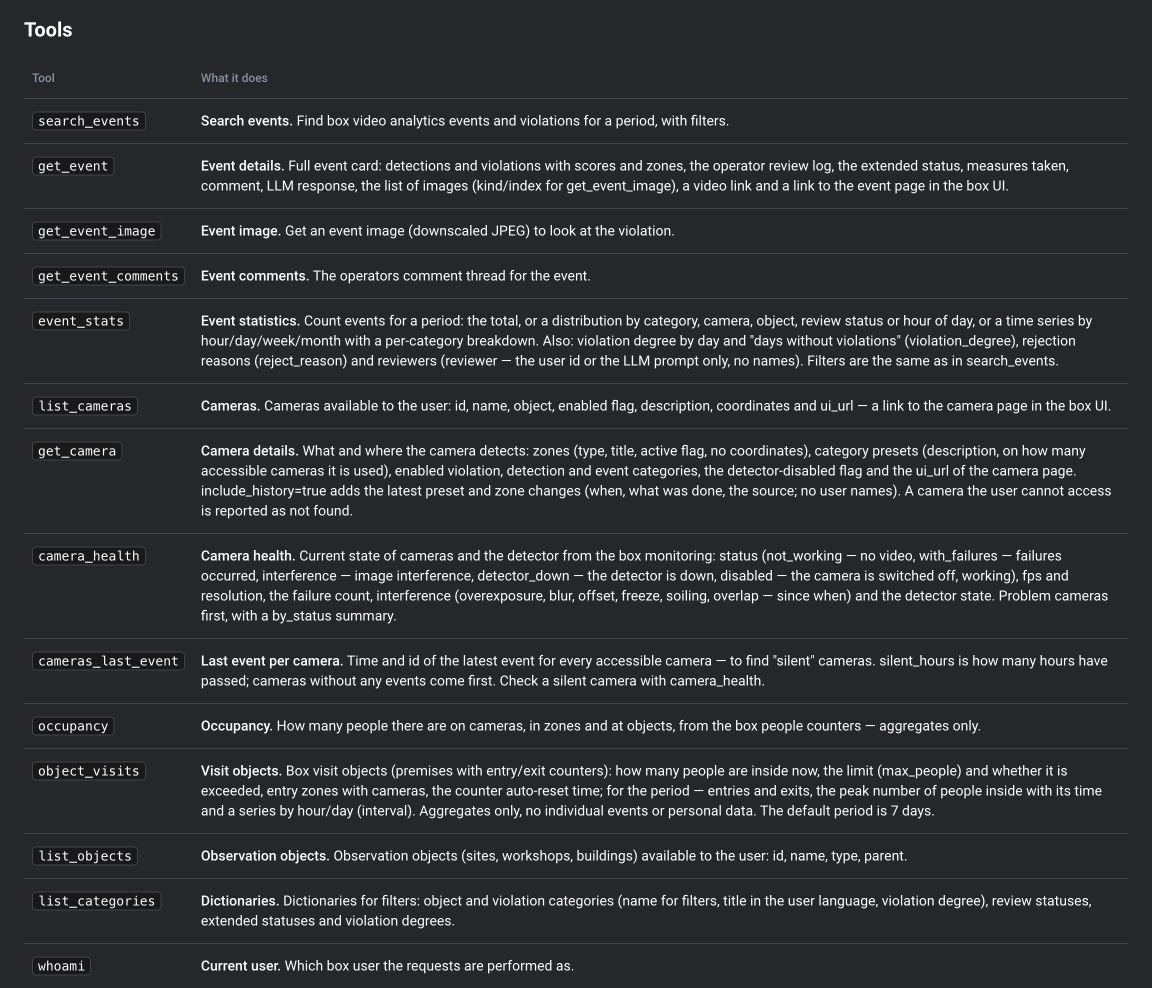
In the tested configuration, the server returns 11 tools. All are marked read-only. You can use the names below in a request to the assistant, but do not need to include them in every ordinary question.
| Tool | What it retrieves |
|---|---|
| whoami | Name and ID of the user whose account the connection uses |
| list_objects | Accessible sites, workshops and other locations |
| list_cameras | Accessible cameras, their site, zones and enabled status; no passwords or stream addresses |
| list_categories | System category codes and names, review statuses, extended statuses and severity |
| event_stats | Event counts and distributions; trends over time |
| search_events | Paginated selection with dates, cameras, categories and statuses |
| get_event | Complete card, detections, review history, measures, images and the LLM response if available |
| get_event_image | A reduced-size JPEG of the selected event’s frame or crop |
| get_event_comments | Operator comments on the event |
| search | Free-form event search in ChatGPT format |
| fetch | A card identified by a search result ID, in ChatGPT format |
4. Define the scope of analysis
First obtain camera and site IDs, then category codes. For example, the label “Hard hat (violation)” corresponds to head_off in the tested installation. Do not infer codes from localized names: use list_categories.
Specify the start and end of the period in ISO 8601 with a time zone. Clarify which dates matter: event time, not the time of operator review. Keep both period boundaries in the report. If dates are omitted, tools use their own default period, which may not match your question.
event_stats supports total, category, camera, object, status, hour_of_day, hour, day, week and month. Filters allow selection by cameras, sites including nested sites, categories, status, event type, severity, minimum confidence, zone and extended status.
Review statuses: no_status — no status, confirmed — confirmed, denied — rejected, without_review — without review. An event of type violation does not by itself mean it was confirmed by an operator. Detector confidence also does not replace the card decision.
search_events returns total, page, page_size, pages and events; the maximum is 50 rows per page. Use event_stats for the event count. To obtain a complete table, export every page and compare the number of unique IDs with total. Fix the end date so that new events do not shift the selection during pagination.
{
  "group_by": "status",
  "from_time": "2026-09-24T13:18:00+03:00",
  "to_time": "2026-09-25T13:18:00+03:00",
  "camera_ids": [1814],
  "event_type": "violation"
}
5. Ask Codex to prepare a report
Sigma wants to see the review queue for one training camera. The request below uses a fixed period so that the result can be reproduced and compared with a standard report. Replace the camera name and dates for your own installation.
Prepare a report from BOX data through MCP.

Period: from 24.09.2026 13:18 to 25.09.2026 13:18, UTC+03:00.
Camera: “Sigma — production area”. Type: violation.

1. Check whoami, find the camera using list_cameras, and read the directories.
2. Retrieve the total count and distributions by status and category using event_stats.
3. Export every page of search_events; compare the number of unique IDs with the total.
4. Read one confirmed card, its review history and measures taken.
5. Prepare an HTML report and a CSV containing the source rows.

Show confirmed events and the queue without status separately.
Retain the period, time zone, filters and event IDs.
Do not label the number of detections as a number of people or confirmed violations.
Do not infer detector accuracy from the proportion of reviewed cards.
If data is missing, state this in the report.
6. Read the result
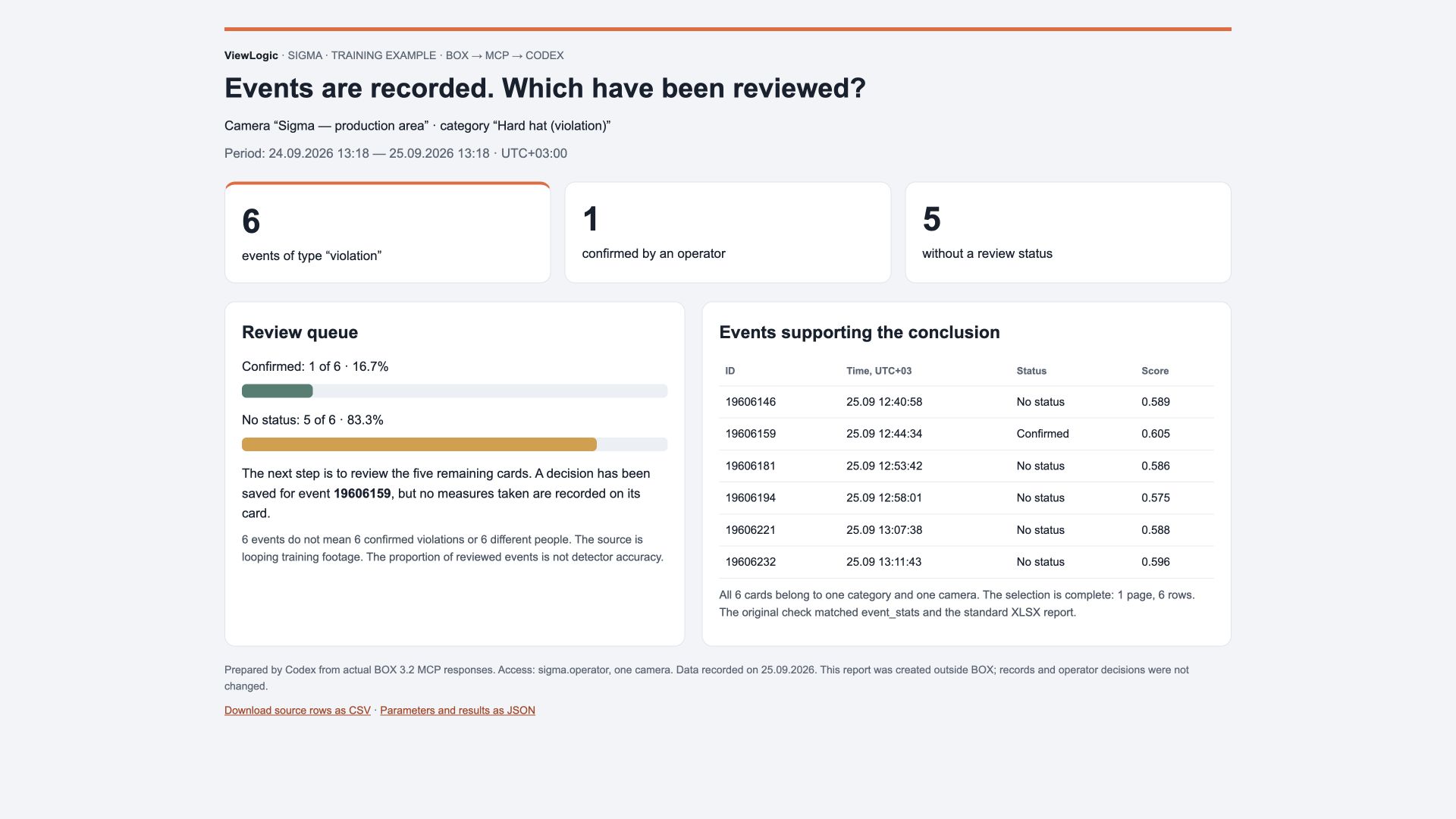
In the practical run, whoami returned sigma.operator, and list_cameras returned one camera, ID 1814. event_stats and the complete search_events selection produced the same total: 6 events of type “violation”, all in the “Hard hat (violation)” category. Of these, 1 was confirmed by an operator and 5 still had no status.
For confirmed event 19606159, the card contains a start time of 12:44:34, end time of 12:47:08 and operator decision at 13:13:17 on 25.09.2026, UTC+03:00. No measures were recorded. The card, review history, comments and image were retrieved through MCP.
The event count and IDs matched the standard XLSX from the operator workshop. This checks the basis of the report as well as its presentation. Codex created the HTML and CSV from the retrieved data; MCP did not create a report inside BOX.
A useful conclusion for the supervisor: five cards await review, and the measures taken for the confirmed event should be clarified. The confirmed share of this selection is 16.7%; this is not an estimate of model accuracy. The camera loops training footage, so six events cannot be interpreted as six different employees or independent production episodes.
| Metric | Result | Basis |
|---|---|---|
| Events of type violation | 6 | event_stats total = number of search_events rows |
| Confirmed by an operator | 1 | event_stats status: confirmed |
| No status | 5 | event_stats status: no_status |
| Selection completeness | 6 rows, 1 page | search_events total / pages; unique IDs checked |
| Access scope | One camera | whoami and list_cameras under sigma.operator |
Questions to ask next
Start with the question and the required result. For comparisons, use the same filters and comparable periods. If cameras operated for different lengths of time, simply comparing detection counts may be misleading.
- “Show unconfirmed missing-hard-hat detections for the shift; include the ID and time of each event.”
- “Compare categories over two weeks. Retain the filters and show events without review separately.”
- “Analyze the event by ID: what did the detector find, what did the operator decide, and were measures recorded?”
- “Plot the daily trend and explain where there is not yet enough evidence for a conclusion.”
- “Prepare a short summary for the manager and a separate table of source events.”
Points to consider during analysis
The assistant receives only data accessible to the user. An empty selection may mean there are no events, the period is different or camera access is unavailable. Start with whoami and list_cameras. According to the server description, permission changes take effect within a minute; this behavior was not separately tested in the workshop.
Categories may overlap: one event can contain several detections and violations. The sum of category distribution rows therefore cannot automatically be treated as the number of unique events. The training selection has one category, and its totals matched.
The verification performed on 25 September 2026 did not use presence intervals, shift calendars or video availability tools. MCP 1.0.0 provides separate monitoring and counter tools; see the updated section. Events alone cannot establish working time without the appropriate counters and calculation rules.
get_event_image returns a reduced-size JPEG frame. For fine details, request an available crop using kind and index from get_event.images. Media links may be temporary and should not be used as permanent sources in a published report.
Do not mark an event as reviewed solely on the basis of the assistant’s text. This connection has no write tools at all: the final decision and recording of measures are performed in the BOX interface.
If the connection or result does not work
| Situation | What to check |
|---|---|
| Browser returns 401 | This is expected for /mcp/server/ without OAuth. Open /mcp/ for instructions and add the server in the MCP client’s settings. |
| No cameras | Call whoami; check the camera and site assignments for the BOX account. |
| Figures differ from the interface | Compare user, camera, period, time zone, event type, category and status. |
| The table has only 20 or 50 rows | Check total and pages; this is the page size, not necessarily the entire result. |
| Events exist, but there is no presence data | The event log does not replace continuous workplace discipline monitoring counters. |
| ChatGPT opened a link instead of connecting | Add MCP in Plugins / Apps and select it in the conversation; a URL in a message does not connect tools. |
| Login required again after changing the password | Complete OAuth again using your own BOX account. |