1. Prepare the role
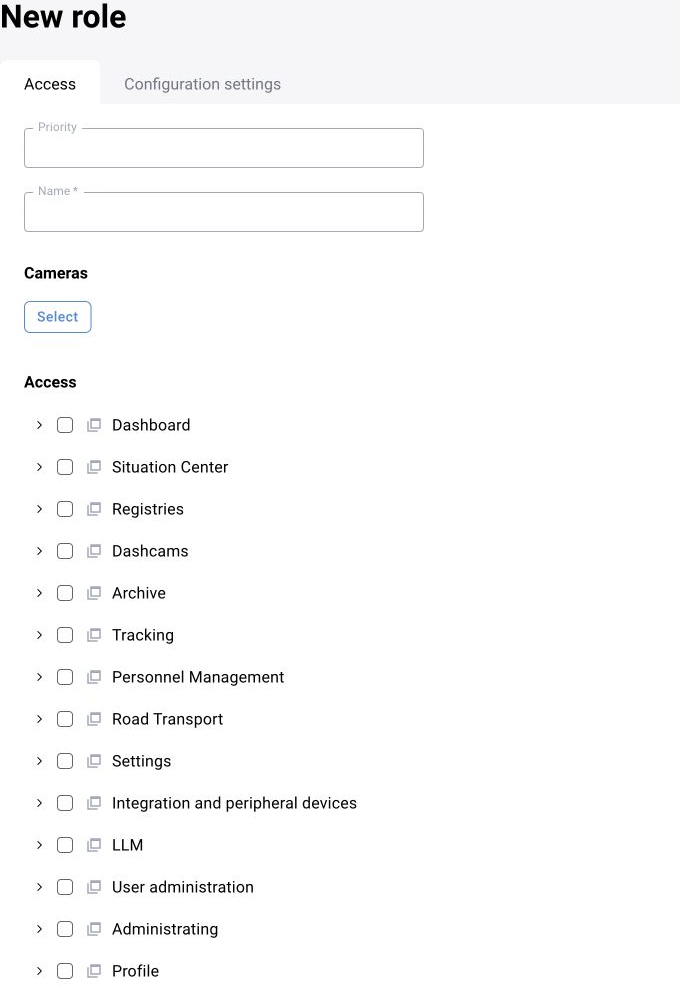
Open “User administration → Role model”. Create an operator role based on a suitable existing role. Check every available section and the actions within it: viewing and editing are different permissions.
The exercise requires viewing the training camera and log, opening a card, changing the decision, commenting and filling in required additional fields. Administrative settings are not needed for daily event review.
2. Create an account
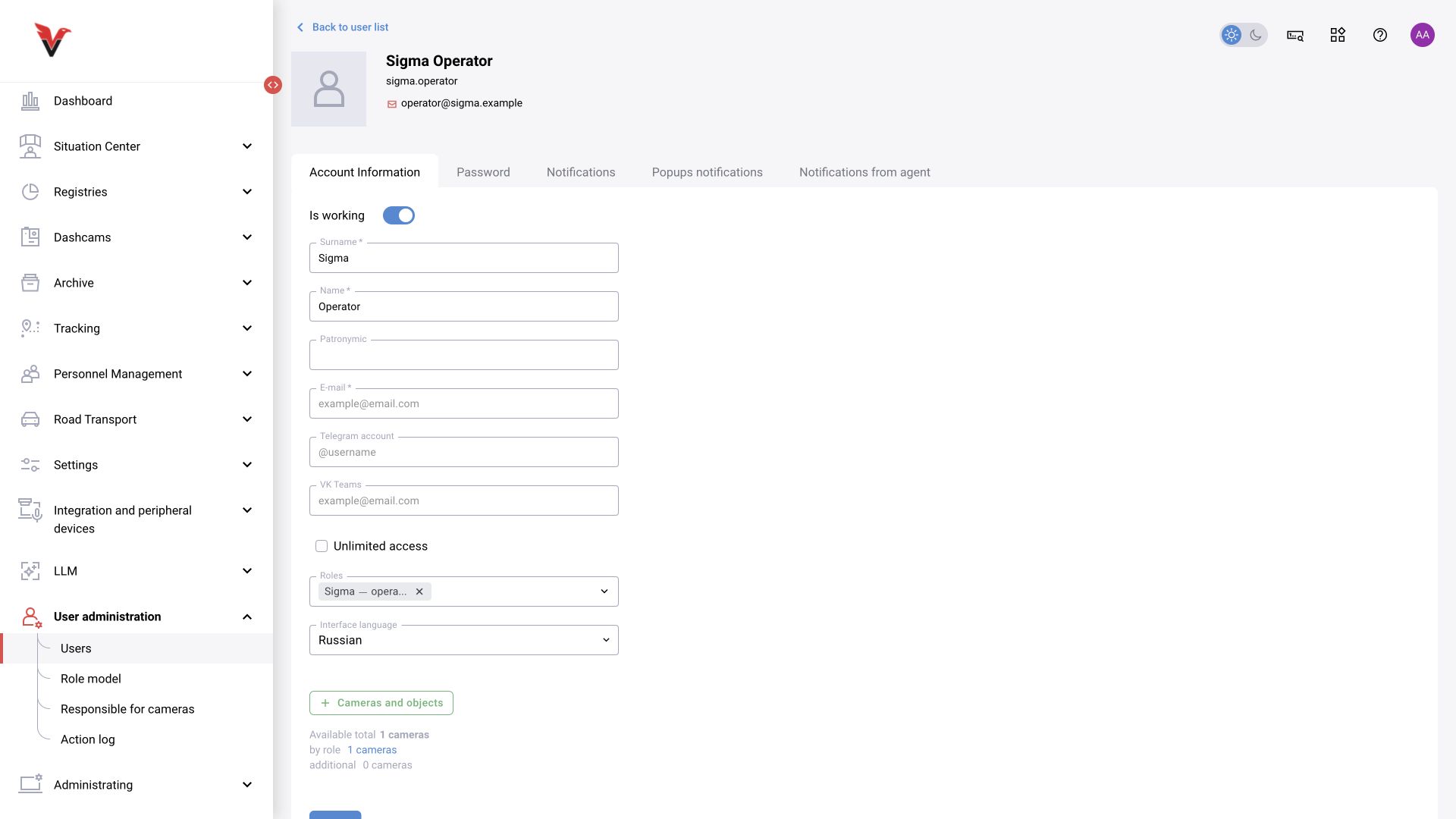
Add a user in the “Users” section. In the training example, the login is sigma.operator, first name “Operator” and surname “Sigma”. Complete the required form fields, set a password according to your organization’s rules and assign the new role.
Set the interface language to English and configure camera access. For the first exercise, “Sigma — production area” is sufficient. Save the profile and reopen it: the role and camera list should remain selected.
Do not include the password in the manual or use one shared password for all operators. The training name and login are only for reproducing the example.
3. Align permissions with required fields
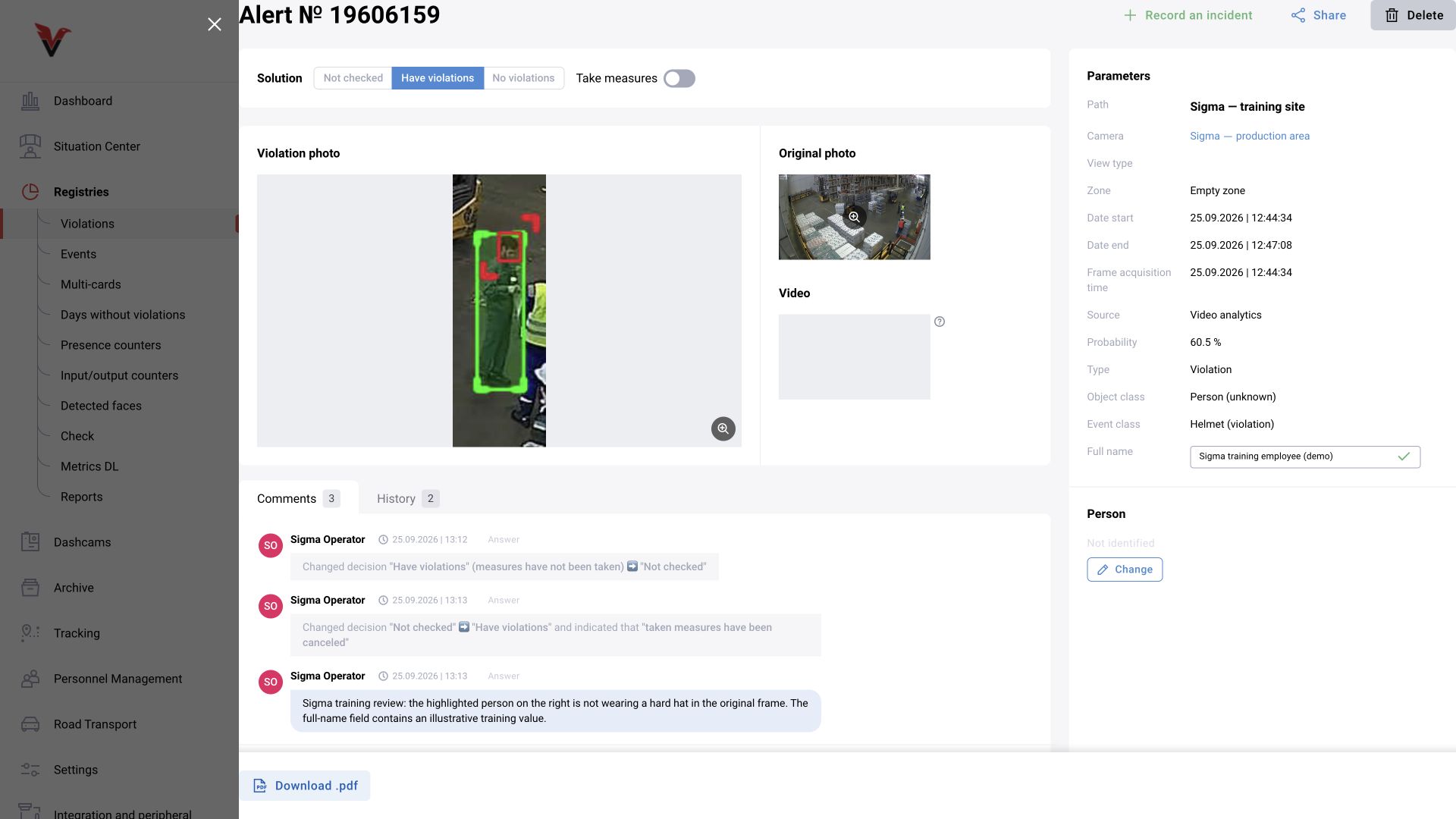
The card may require a full name or another additional field. If the role allows a decision but does not allow editing a required field, the decision buttons will remain unavailable.
In the exercise, this appeared as the message “Complete the required fields to make changes”. Editing additional event fields was enabled for the operator role. The requirement to complete them was retained.
Do not remove a field’s required status merely to dismiss the warning. First check who should fill it in and where the value comes from. An explicitly fictional name was used in the training card; in operational work, identity is not guessed from an image.
4. Test under the operator account
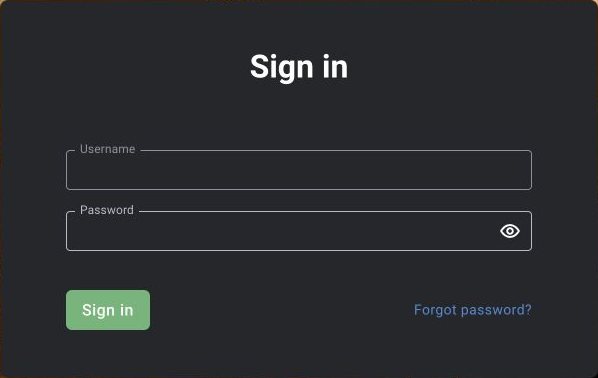
Sign out of the administrator session and sign in with the new account. Check the menu, camera list, log and available actions. Testing from the administrator session does not show what the operator will see.
Open the training notification, complete the accessible required fields, leave a comment and save the decision. Then return to the log and open the card history.
- The required camera is accessible.
- Administrative section menus are not needed for the work.
- The card and source image open.
- Required fields can be completed.
- The decision and its author appear in the history.
If something will not open for the operator
Compare three things: the assigned role, camera scope and permission for the specific action. Menu visibility does not replace permission to edit a record. After changing the role, refresh the user session and repeat only the problematic step.
Apply the same testing principle to BOX 5.0, but recheck the permission set: roles and tabs may differ. A ready-made role in one installation is not a universal template for another.