1. Check the model and test video
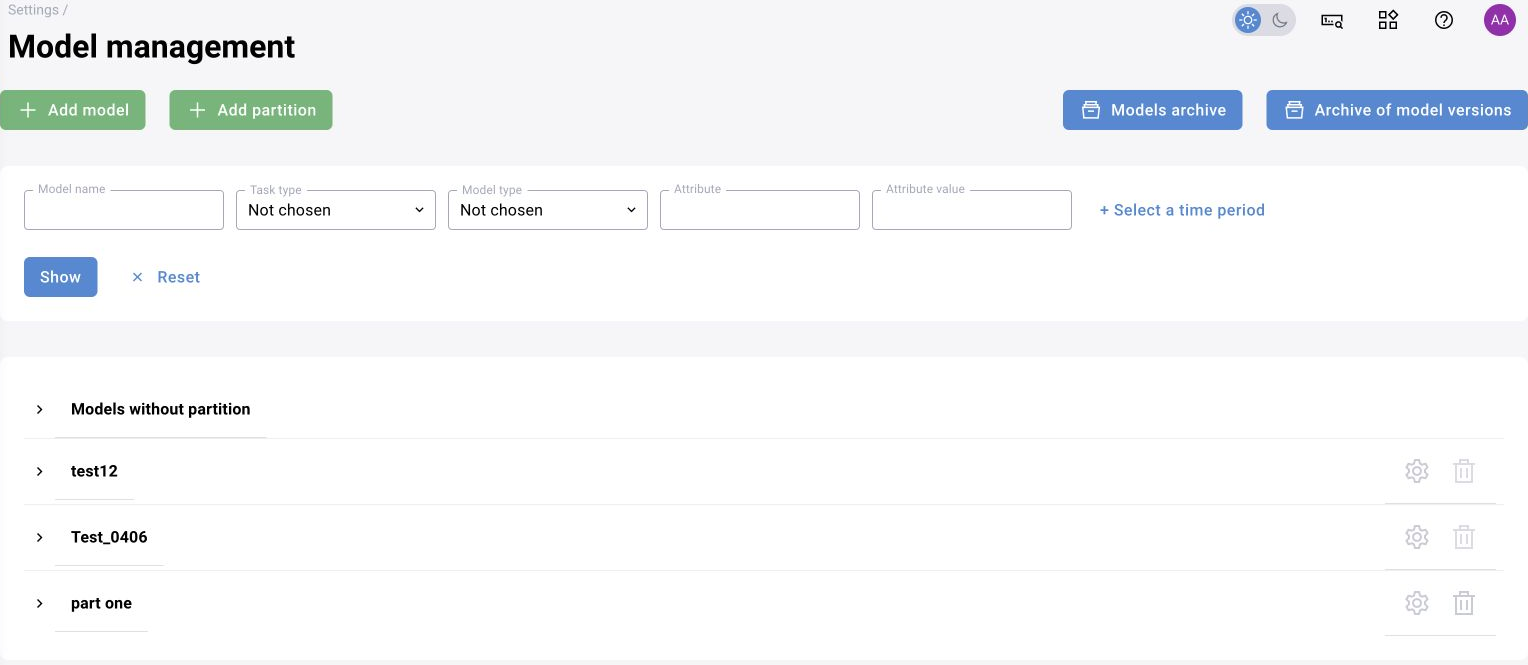
Open the model registry and find a model with the required categories. Check the version, available execution formats and class list. The name “detector” does not guarantee that the model recognizes hard hats.
An available model with person and hard hat classes was selected for the training graph. The specific name in the screenshot belongs to the training configuration; in your installation, choose a suitable model based on its card and categories.
Prepare a short video with a positive and a negative episode. Keep the original resolution. If zones are used, they must correspond to the same image and coordinate system.
2. Create a scenario and its version
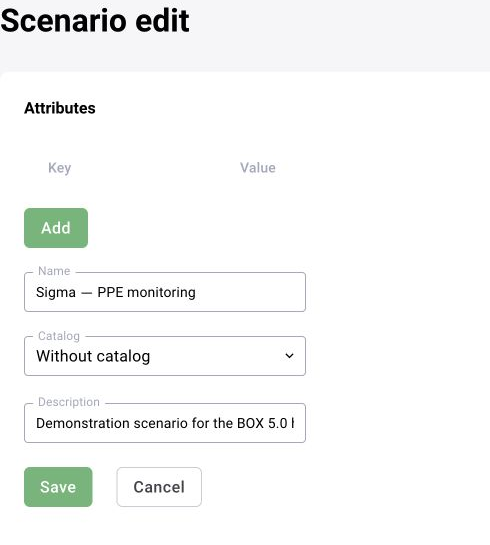
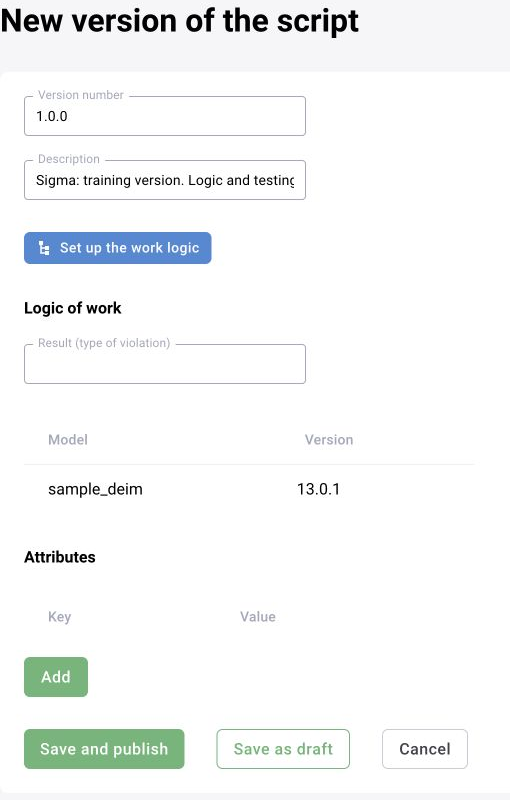
In “Settings → Scenarios”, create “Sigma — PPE monitoring”. Create a draft version, open it and go to operating logic configuration. A scenario is a logical task; a version is a specific revision of the graph and its dependencies.
Record which model version is used. A model change may affect class names, detection counts and thresholds even if the connection layout stays the same.
3. Assemble three blocks
Add “Video Frame”, “Detector” and “Local Visualizer”. Connect them in sequence. The first block supplies the image and time, the second adds detections, and the third shows them on the frame.
This is a minimal graph for observing model results. It does not yet create or send events. Therefore, the absence of log entries does not by itself indicate a fault in this graph.
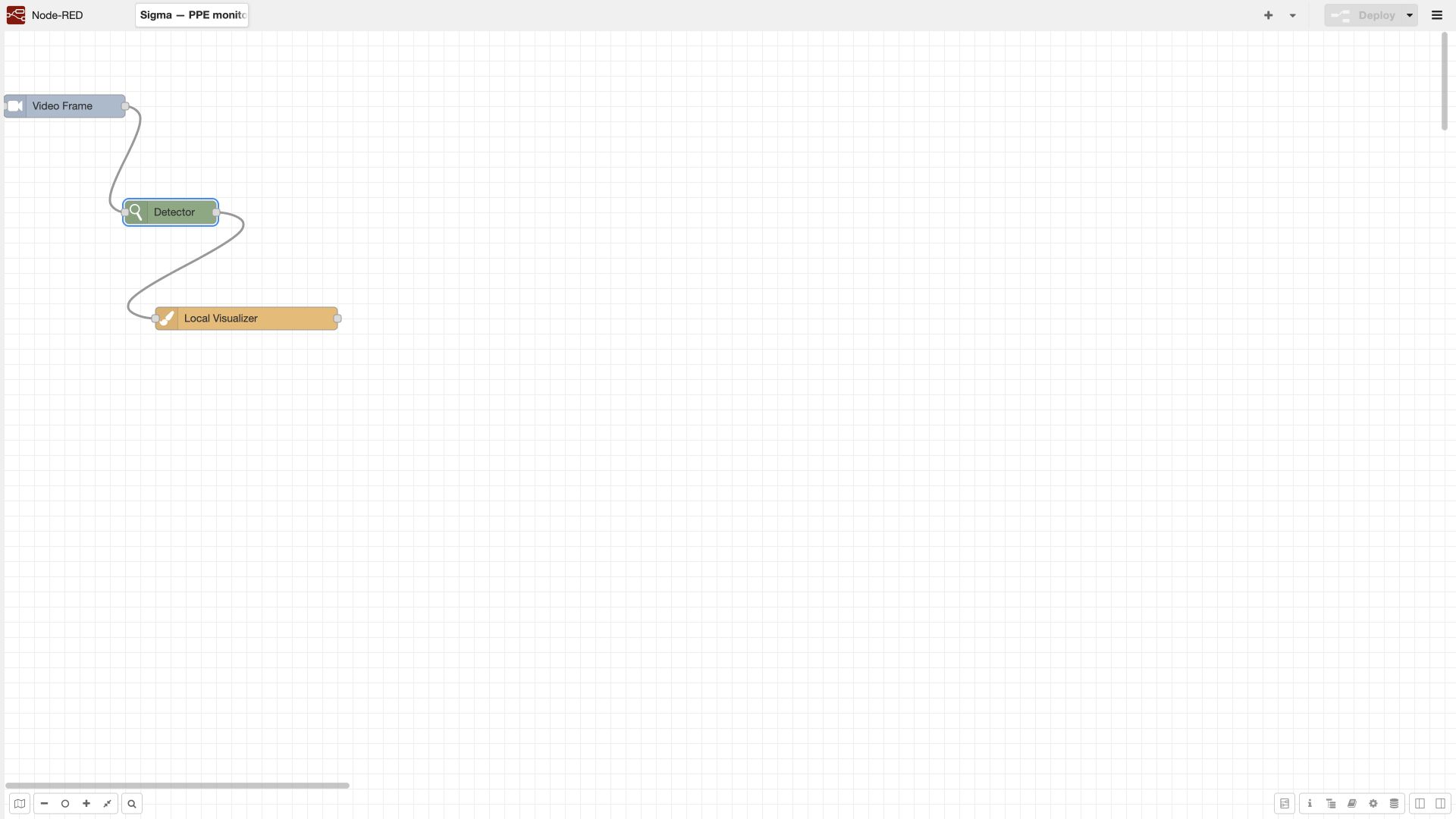
4. Configure the input and detector
For the first test, limiting processing to 5 frames per second is convenient. This is a training starting point: fast movement may require a different rate. In the documented block implementation, width and height values of −1 preserve the original size; check support in the installed version.
In the detector, select the model, version, execution method and required categories. Check the input and output topic names: the block must receive the image field written by “Video Frame”.
In the visualizer, enable detection and label display. A box and label on the image let you check class semantics before adding tracking and events.
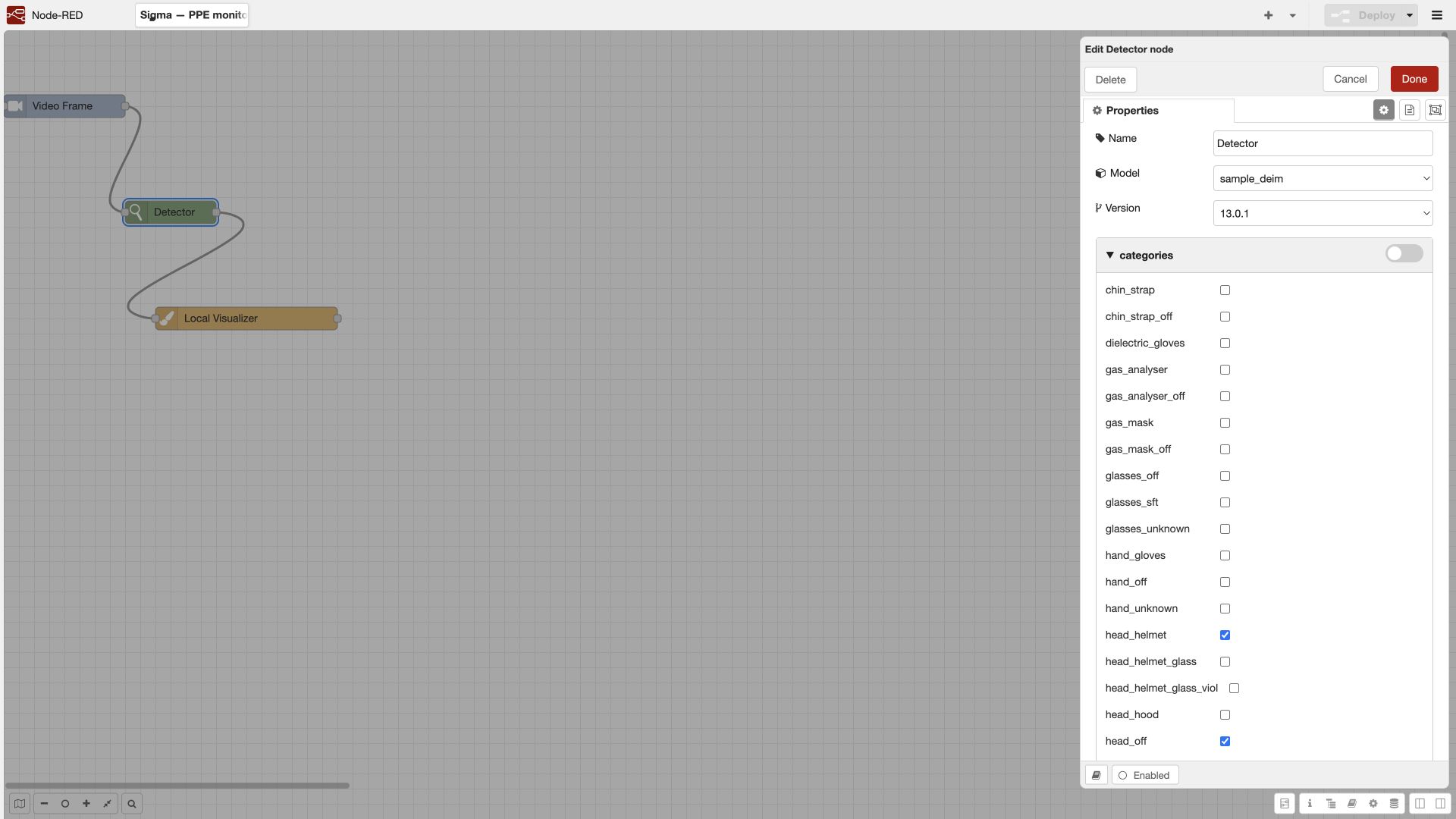
5. Save changes at two levels
First apply the graph with “Deploy” inside the Node-RED editor. Wait for confirmation of successful deployment. Then save the version changes in the scenario interface.
These are two separate operations. In the training workflow, the graph was confirmed by the messages “Successfully deployed” and “Scenarios successfully sent”. Reopening the version configuration showed the three saved blocks.
Deploying in the sandbox is not the same as publishing a version for cameras. Returning to the list without saving the outer form also does not guarantee that the version received the latest graph revision.

6. Check processing before adding events
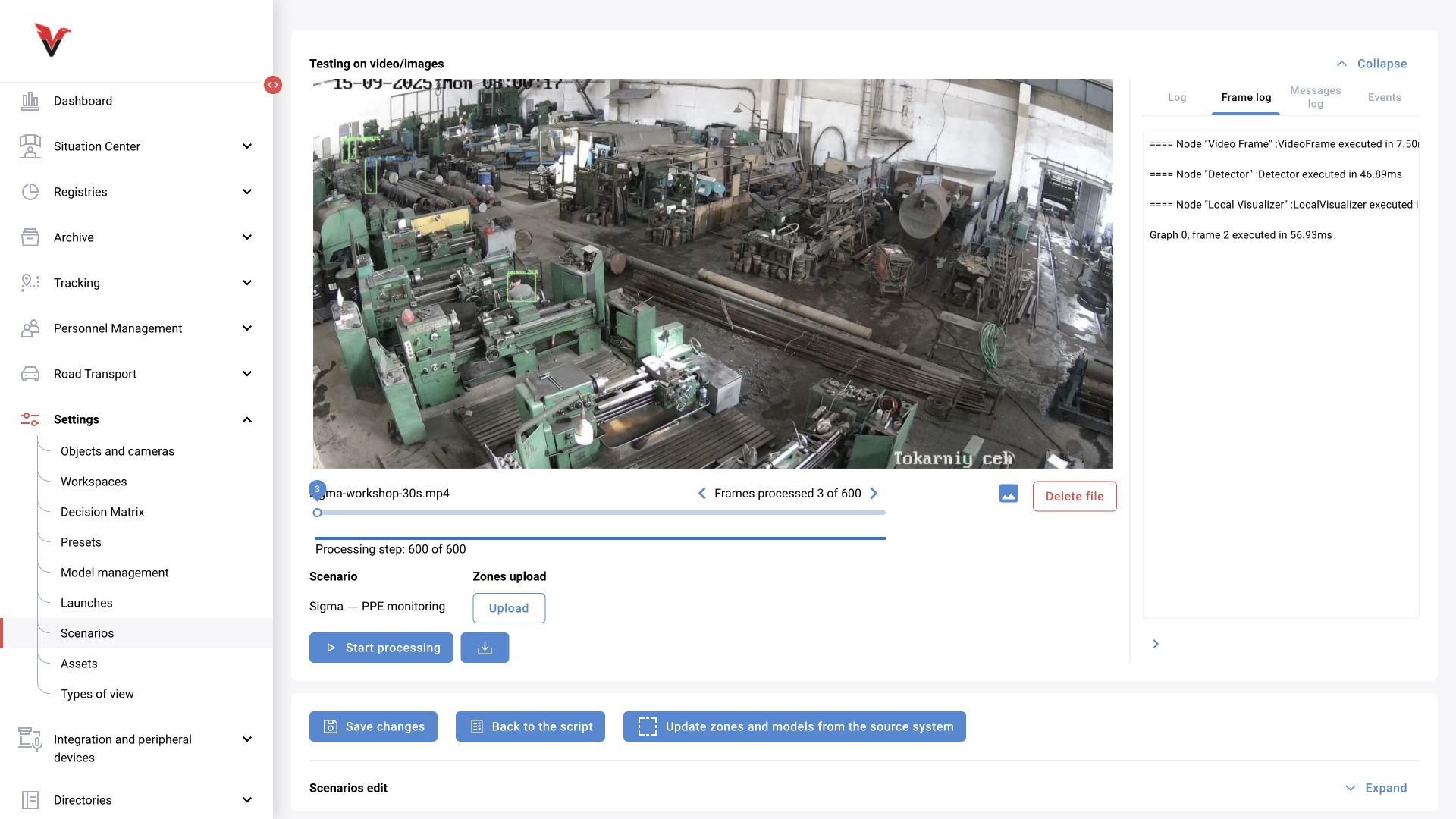
In the sandbox, select or upload the prepared video, specify the scenario and start processing. When it finishes, compare the image and messages for the required frame. Check segments with a hard hat, without one and with occlusion.
The next stage adds tracking, attaching PPE to a person, spatial and temporal conditions, and event creation and sending. Their purposes and dependencies are explained in the technical chapter.
An earlier training run processed 864 of 864 frames. The updated reference illustration shows a separate run that completed 600 of 600 frames from a 30-second clip covering seconds 10–40. The selected view is frame 3 (zero-based frame index 2), with detection boxes and execution times for the three blocks. Completion confirms processing and visualization; detection accuracy requires a separate evaluation. This minimal graph does not send events. Running a test is separate from saving changes, deploying the graph or publishing a scenario version.
7. Prepare the version for a camera
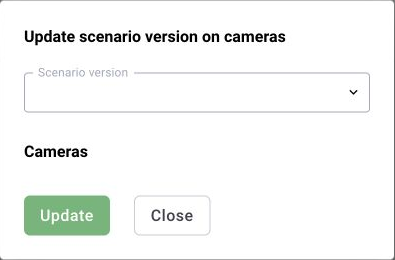
Before publishing, collect test results, check model dependencies and agree the expected event type. After publishing, select this exact version in the camera configuration and save the assignment.
On the operational source, check the entire chain through to the log and card. The test visualizer, published version and actually assigned version are three separate checks. Prepare a rollback option before replacing operational analytics.