
Sites and child sections
A site groups cameras by location, building, workshop or area. Before creating one, select the parent node and a clear name. Do not create a separate site just because a camera has a new name.
In BOX 3.2, open “Settings → Sites”, create a site, save it and check its position in the tree. In another interface version, locate the sites section and check the same properties: name, parent and cameras included.
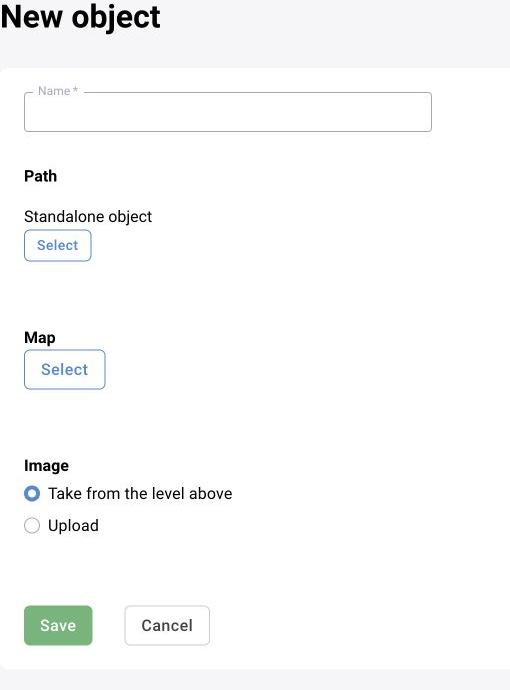
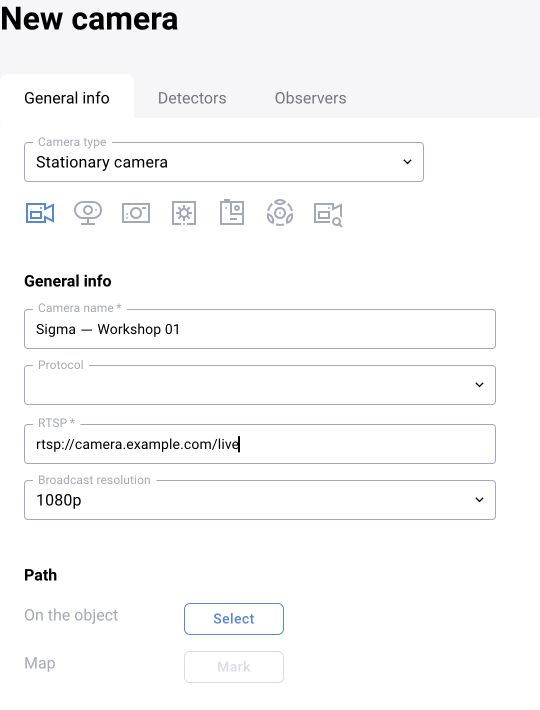
Assigning a camera to a site
When creating or editing a camera, check the site field in the location section. The camera name does not define this assignment. After saving, locate the source under the correct site and check the log filter for that site.
Moving a camera may affect permissions for users granted access to the whole site. After such a change, check camera and event visibility under the working role.
Access groups and sites are different settings
A site describes the monitoring structure. A role defines permitted actions, while the access scope defines the cameras and sites on which they can be performed. If the interface uses access groups, check their users and assigned sources.
After granting access, sign in with the account being checked. An administrator's ability to see all cameras does not prove that the operator is configured correctly.
Catalogs and system codes
Detection and violation categories, zone types, statuses and other catalogs coordinate settings across modules. The interface generally shows a readable name, while API and JSON use a system code.
When configuring a prompt or integration, take the code from the current catalog. Do not replace it with a human-readable name or copy a code from another installation without checking. After a change, check both that the setting is saved and that the result is processed.