
Signing in and ending a session
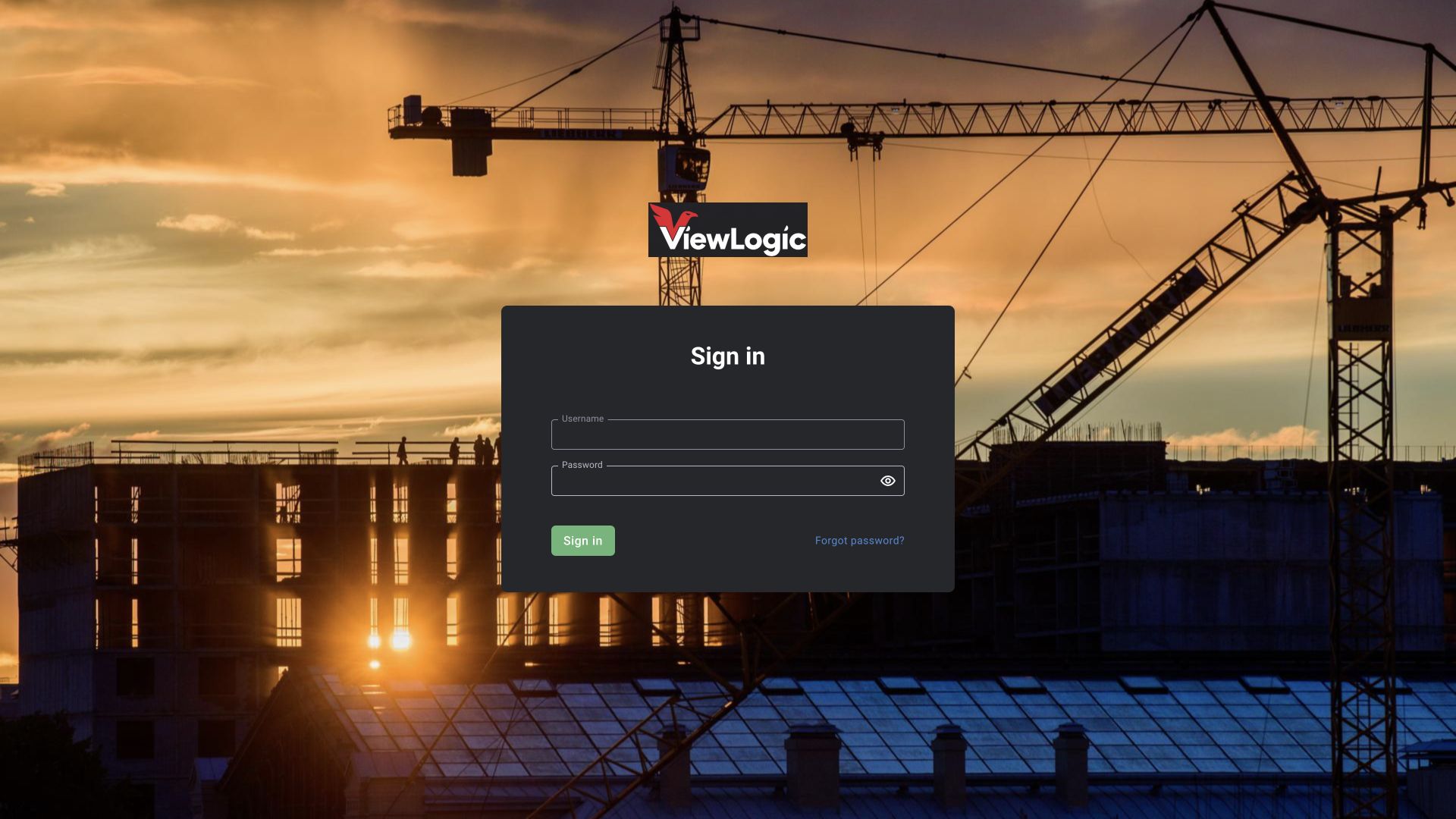
Open your installation's address. Enter the login and password provided by your administrator, then click Sign in. A BOX account and an employee card in Persons are different entities: adding an employee for face recognition does not by itself allow that person to sign in to the interface.
| Field / action | Meaning | How to use |
|---|---|---|
| Login | Account name | Enter the exact value, for example sigma.operator; a full name is not a substitute for the login |
| Password | Sign-in secret | Enter your own case-sensitive password. Do not use a password from a manual example |
| Show password | Temporarily reveals entered characters | Use to check for typing errors when others cannot see the screen |
| Recover access | Restore sign-in access through the supported procedure | Availability and email delivery depend on the installation settings. If locked out, contact the administrator |
| Sign out | End the session | Open the profile menu and select Sign out, especially at a shared workstation |
The allowed number of failed attempts and password requirements are set in Global settings. If sign-in is blocked, repeatedly entering the same password will not solve the problem. Active Directory sign-in is available only with a configured integration; do not change a domain password in the local BOX account card.
What to prepare before initial configuration
A practical sequence is: create the site structure → add cameras and check the image → prepare presets → assign them to cameras → draw zones → configure the matrix and schedules → create roles and users → assign observers → verify events, decisions, and reports using the operational role.
For each camera, prepare its purpose, installation site, source type and stream address, connection credentials if required, operating mode, recording requirements, and the list of situations to check. Analytics requires examples of events, violations, and acceptable situations. Without this, identical settings at different camera angles may produce different results.
In BOX 5.0, analytics can also be configured through Platform 4.0 scenarios: prepare a model and asset, test the graph, save a version, and assign it to a camera using the method supported by your release. Scenario workflow.
Common interface elements
| Element | Purpose and procedure |
|---|---|
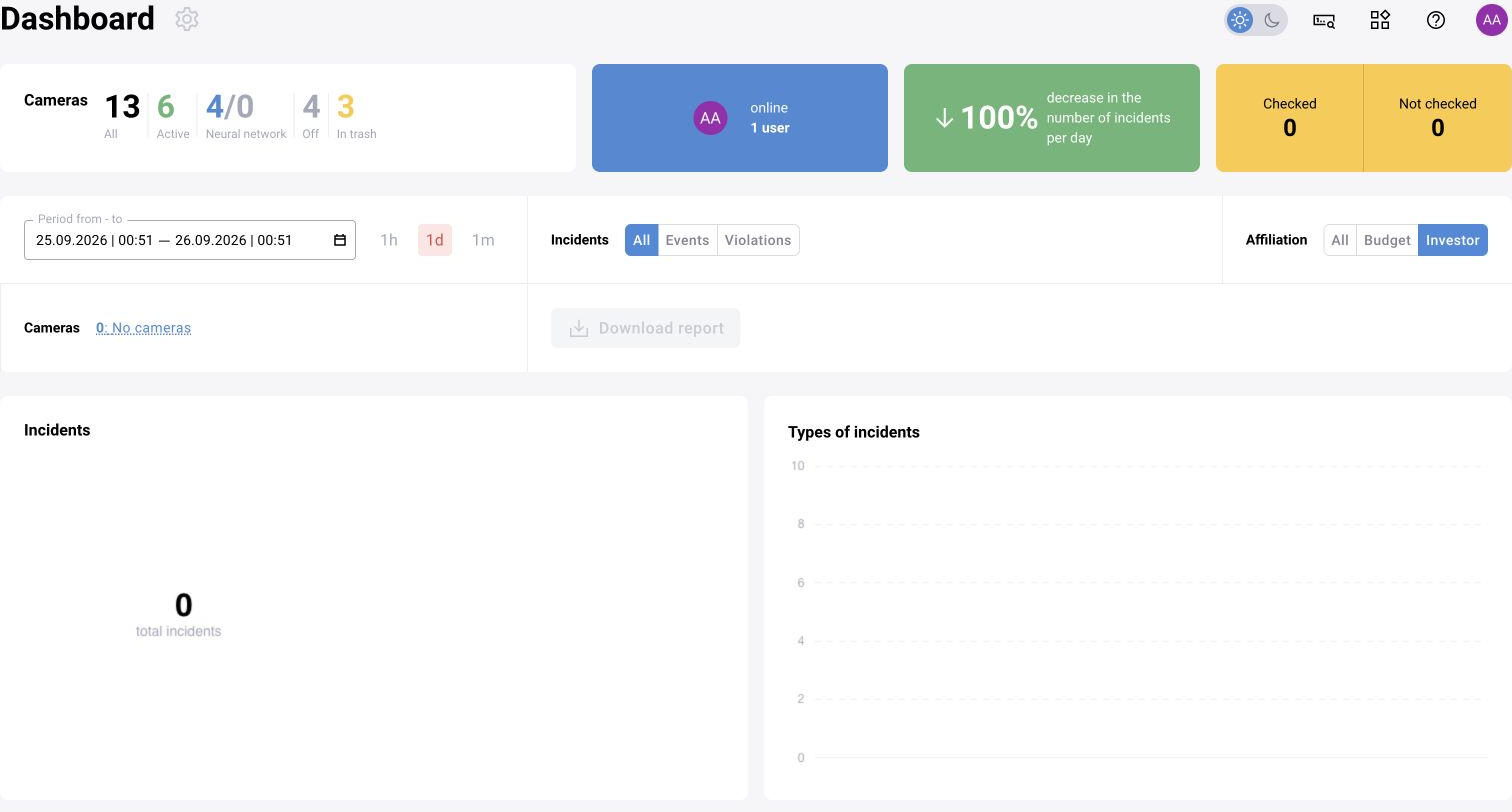
| Side menu | Opens functional sections. The list depends on the role and enabled modules |
| Breadcrumbs / Back to page… | Return to the parent section. Unsaved form changes may be lost |
| Alert search by ID in the top bar | Quickly opens a known record; enter the alert ID, not a camera ID, person ID, or model UUID |
| Services | Links to connected service interfaces. The set is defined by configuration; having a link does not grant additional permissions |
| Help | Documentation, API, and component versions |
| Search field with a dropdown | Start typing a name, then select an entry from the suggestions. Entered text alone does not always mean an entity has been selected |
| Show | Applies filters and requests data |
| Reset | Returns page filters to their initial values. Does not delete records |
| Expand filters | Shows additional conditions. Collapsing the panel alone does not reset them |
| Items per page, Page, Back, Next | Control list pagination. A screen showing 30 rows does not mean the result set contains only 30 records |
| Sorting | Changes the order, not which data is included |
| Save / Save changes | Writes the modified configuration; reopen it after saving to check the result |
| Cancel | Exits editing without applying the prepared changes |
| Disabled button | Often requires selecting a row, completing a required field, choosing a suitable data type, or having a separate permission |
Periods. Today starts at the beginning of the current day; Last 24 hours usually means a rolling period back from the current time. Always check the resulting field values. For an 08:00–20:00 shift, enter both boundaries explicitly. Record the time zone in the report, especially when comparing multiple systems.
Location selection. The dialog shows a tree of sites, cameras, and, in relevant forms, zones. Expand a site, select the required items, then click Select or Apply. Search, Select all, Favorites, Reset, and Hide disabled cameras help narrow the tree. A selected site may include several cameras; check the final count. For a zone counter, select the actual zones, not just the building name.