Sites and cameras: the system tree
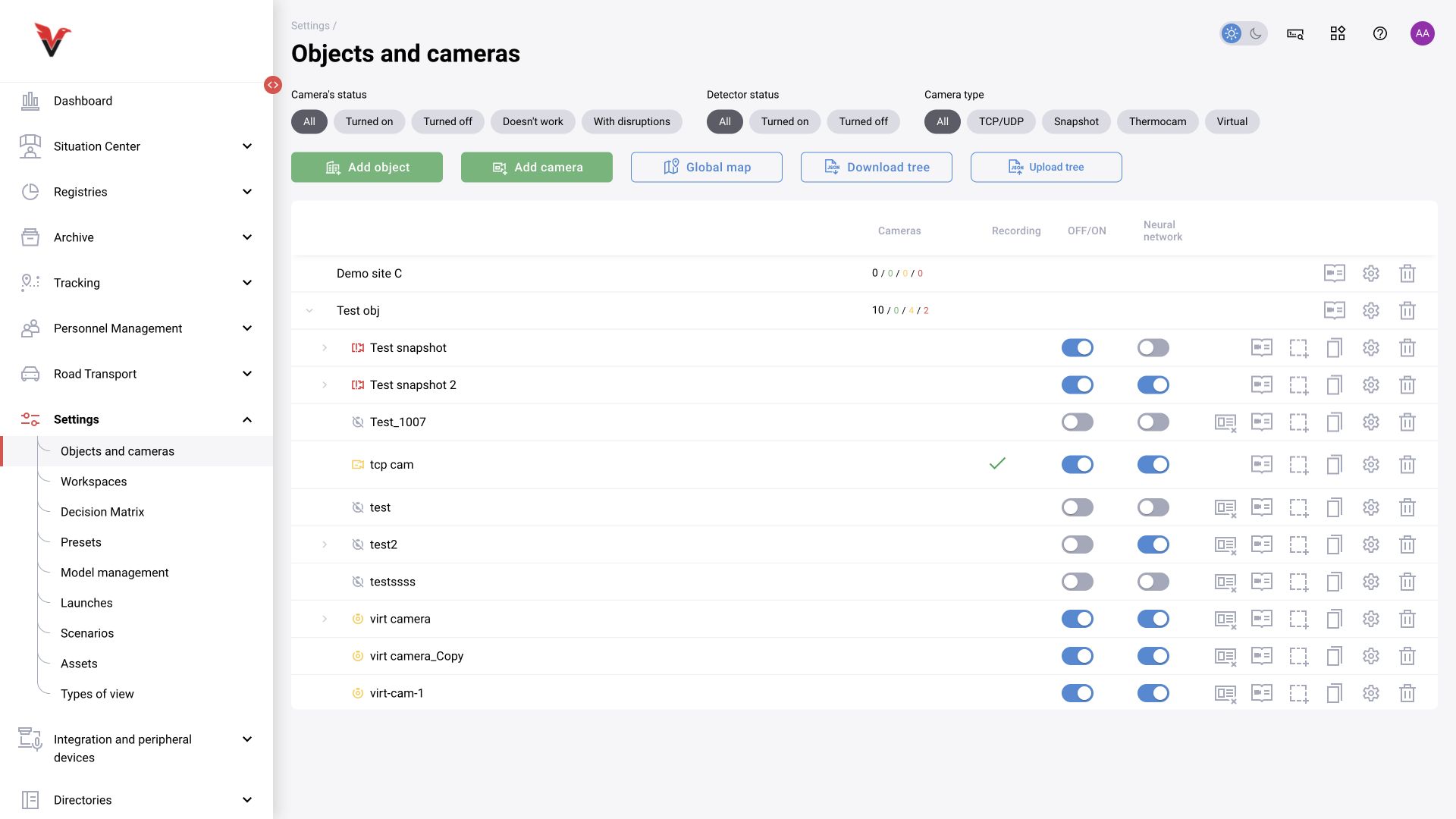
Path: Settings → Sites and cameras, /settings/object/list.
The tree combines sites, buildings, rooms and cameras. Expand a site to see its child items. Filters by camera status, detector and source type help locate the required equipment. Row counters show the site's contents; camera on, neural network on and recording on are separate indicators.
Available actions include adding sites and cameras, editing, opening the map and tree operations. Uploading and downloading the tree as JSON transfers configuration. Before importing, save a current export and check the file's contents: this changes the structure rather than loading a read-only list.
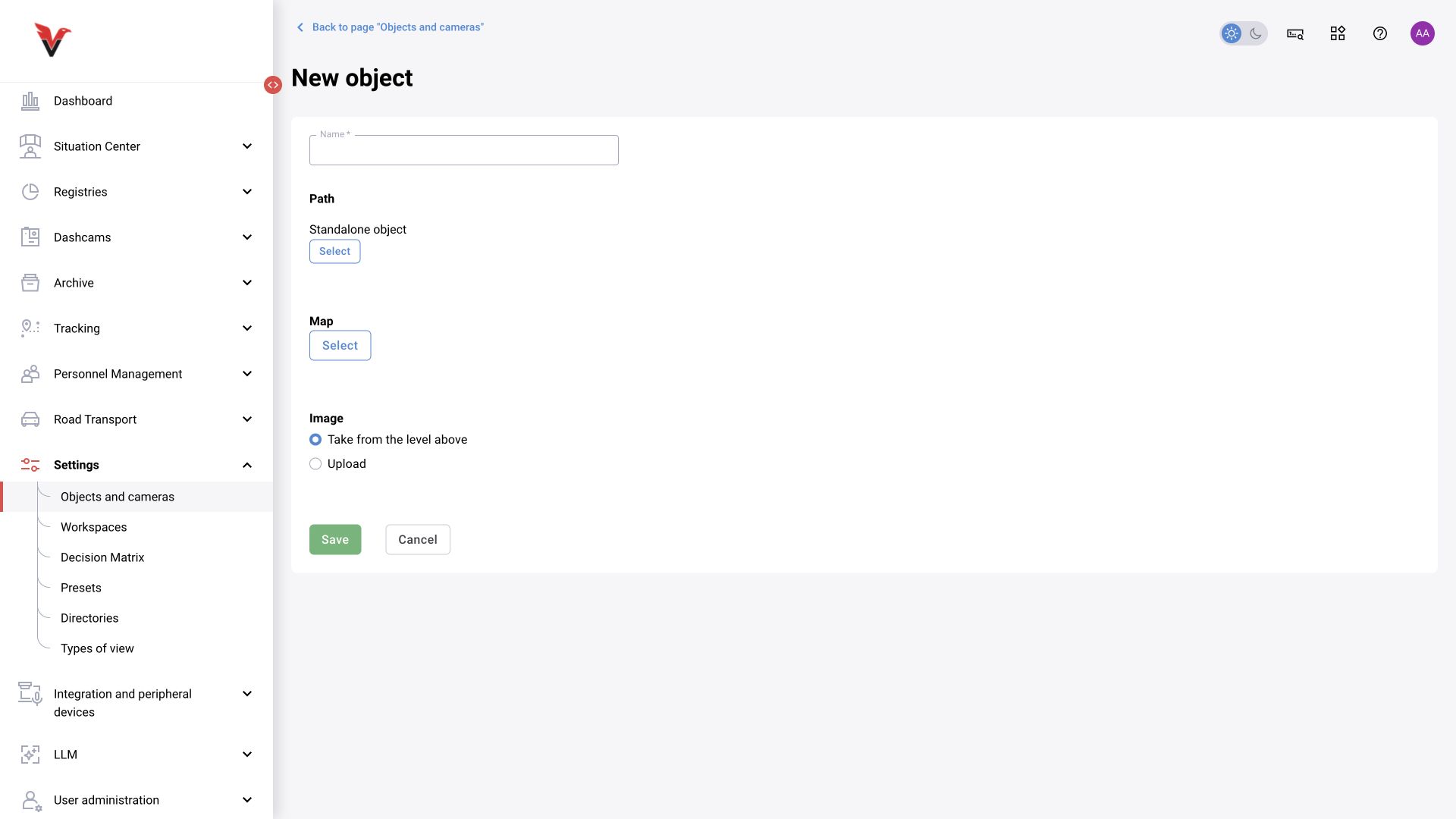
New site
| Field | Meaning and how to complete it |
|---|---|
| Name* | A clear place name: Sigma — workshop 1 |
| Location → Select | Parent site. “Standalone site” means the top level of the tree |
| Map → Select | The site's geographical location in the provided dialog |
| Image → Use from parent level | Use the parent site's plan. If it contains floors, the documentation instructs you to select the source floor |
| Image → Upload | Add your own plan. The current form specifies PNG/JPEG/JPG, up to 5 MB and 1464×686 pixels |
| Floors | Appears after selecting “Upload”; enables a set of floor plans |
| Floor | An integer. Closed issue BOXD-4337 allows negative floors; the number must be unique within the site |
| Attach file | A plan for the site or a specific floor |
| Add floor / move | An additional plan row and reordering |
Procedure: enter the name → select the parent → set the location and plan → add floors if needed → save. Prepare an image for every floor. Floor number uniqueness and image requirements are described in BOXD-4337; the floors form was inspected, but saving invalid combinations was not tested at this stage.
Do not create a site for each analytics task if they concern the same physical place. For example, helmet and vehicle passage cameras can belong to the same workshop while using different presets and zones.
Workspaces
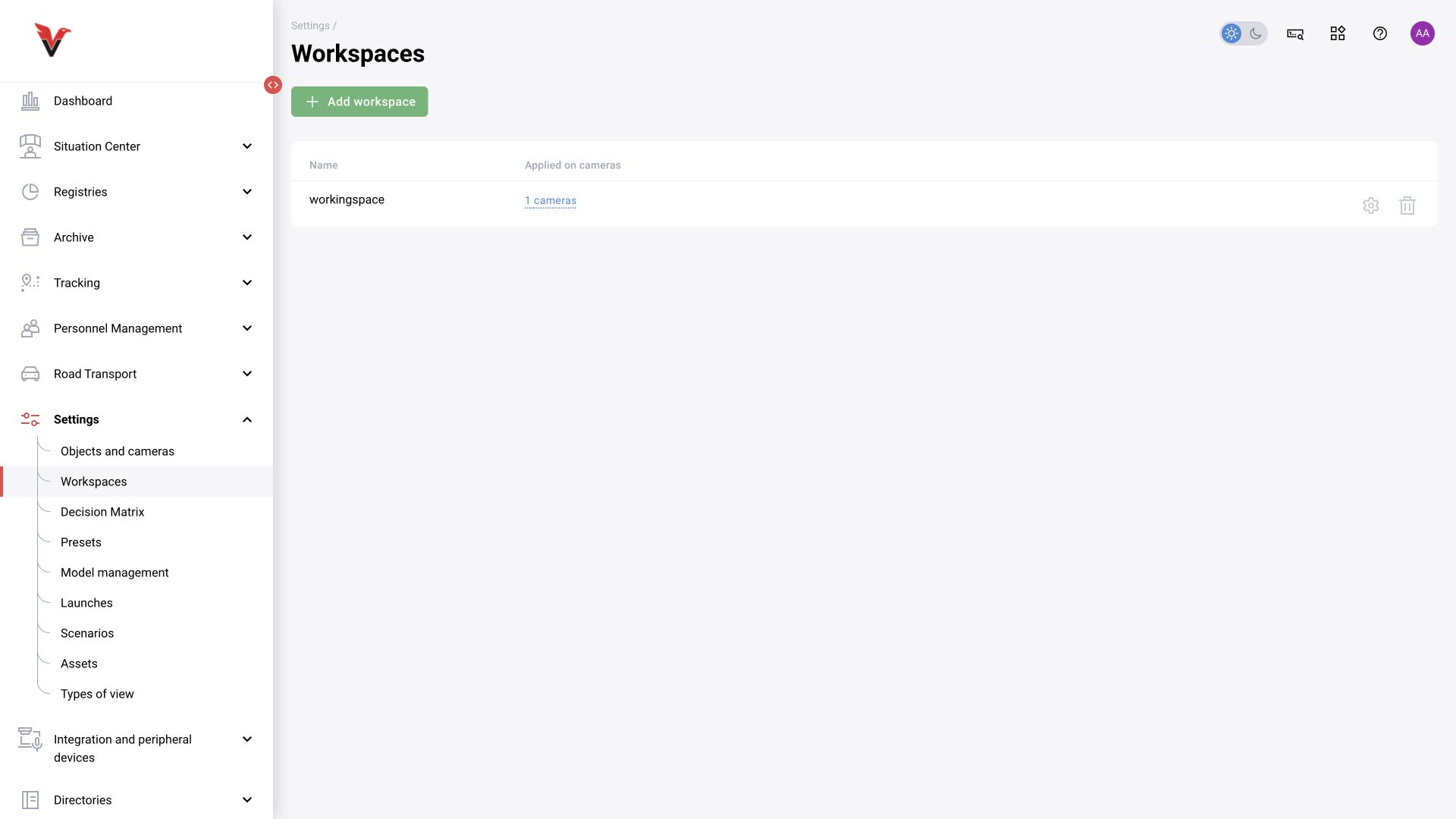
Path: Settings → Workspaces, /workspaces.
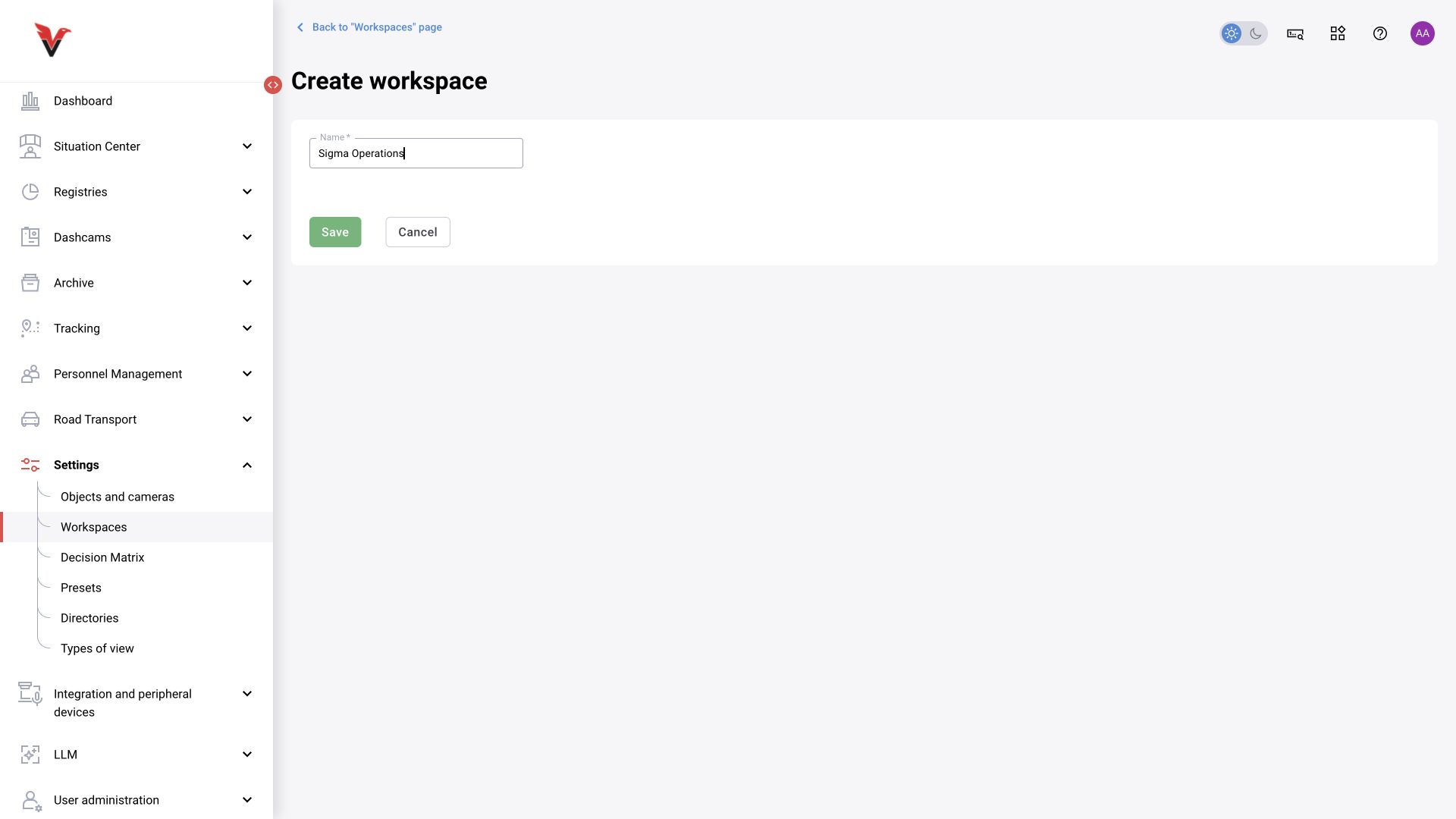
A workspace groups cameras to organize work and access. The creation form was confirmed to have one required field, “Name”, for example Sigma — production monitoring. Add assignments in camera settings using “Add workspace”. The table shows names and camera usage.
A workspace does not replace a site on the map and is not a “Workstation” zone. When configuring access, check it under a restricted role; closed issue BOXD-5194 concerns this section's visibility.