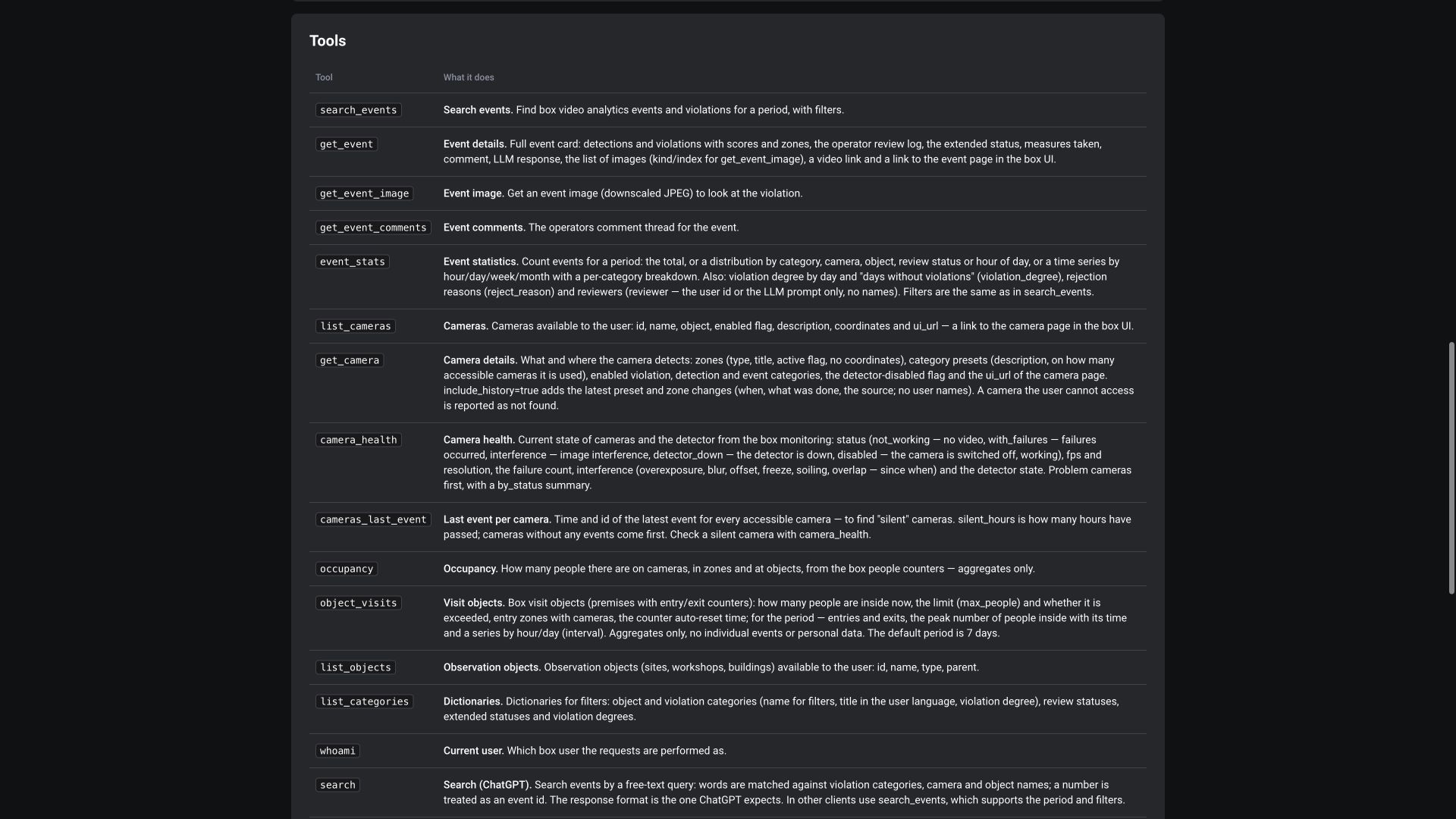
Documentation
Path: Help → Documentation, /help/documents.
Files are organized into groups. Each document shows its name, size, and date; click its title for the supported viewing/download action. Administrators can add groups and manage attachments according to their permissions.
Check the date and purpose of the manual: a document for a specific project may describe a different configuration. Current general administrator and user manuals are published on the ViewLogic technical portal.
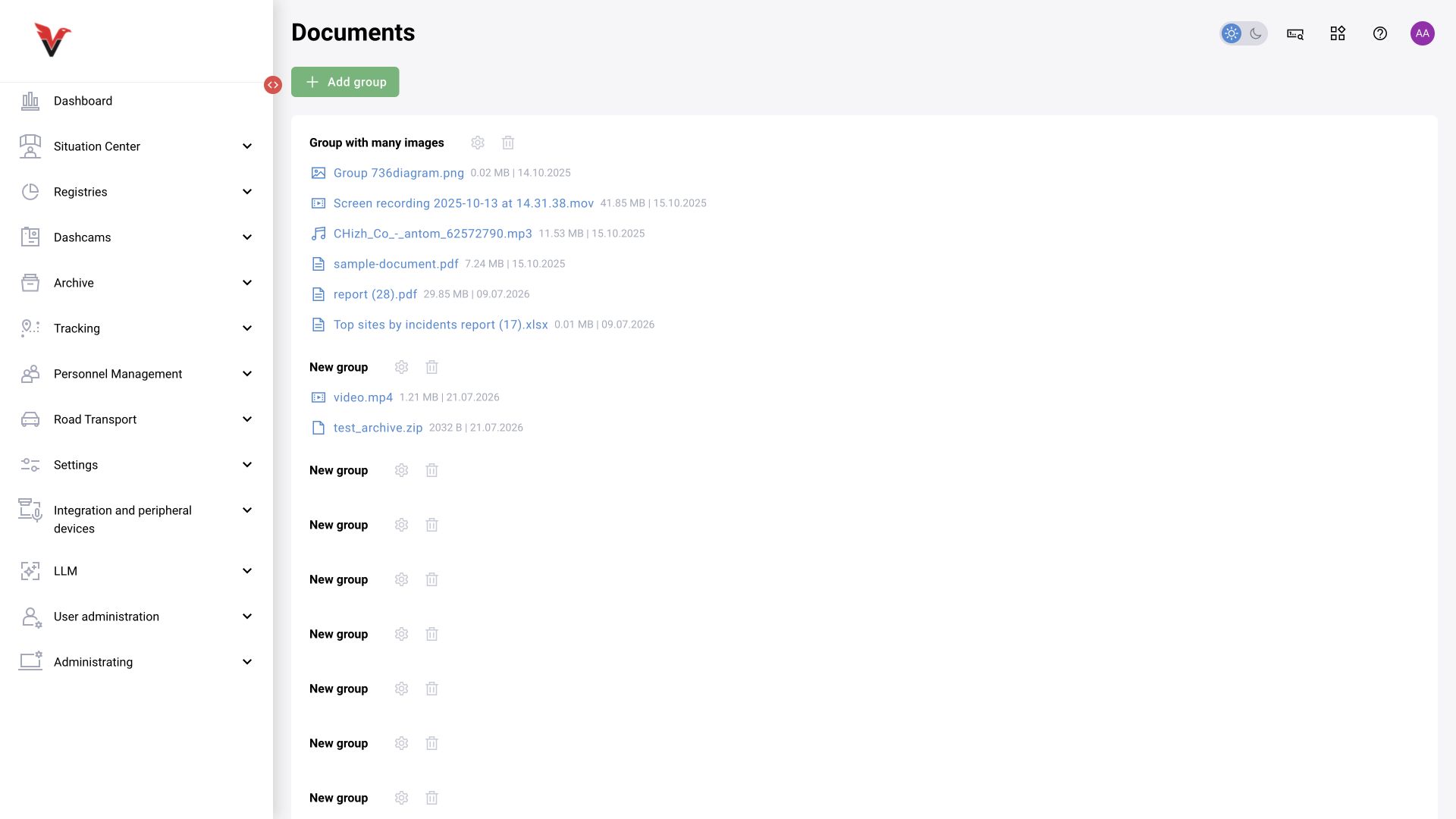
API
Path: Help → API, /help/api. This page contains the addresses for REST API and GraphQL API for this installation. The REST description opens at /api/docs/, the schema at /api/swagger.json; GraphQL is listed at /api/graphql.
In Swagger, find the operation and read its purpose, query parameters, body schema, and responses. The fields required, nullable, enumerations, and default values must be read separately. A Swagger example illustrates structure; it is not a live camera ID or a ready-to-use configuration.
Viewing documentation does not change data. Executing a request can modify the system if it creates, updates, or deletes something; do not use such operations for an arbitrary availability check. Even POST can be a search operation, so determine its purpose from the description as well as the HTTP method.
The inspected schema contains 748 paths and 1,038 data models. It combines descriptions of services; the presence of a route does not establish a visible module, a license, or permission for the current user. FastAPI 0.1.0 in the schema metadata is not the BOX version.
Component versions
Path: Help → Component versions, /help/versions.
Components are grouped by domain. The table includes component, version, date and time, hash; the Download .xlsx action is available. Attach this list when contacting support so developers can match the problem to the actual build.
A branch name such as master or a label such as latest is less precise than a specific hash. Do not identify the entire product by one component's version.
Report a bug
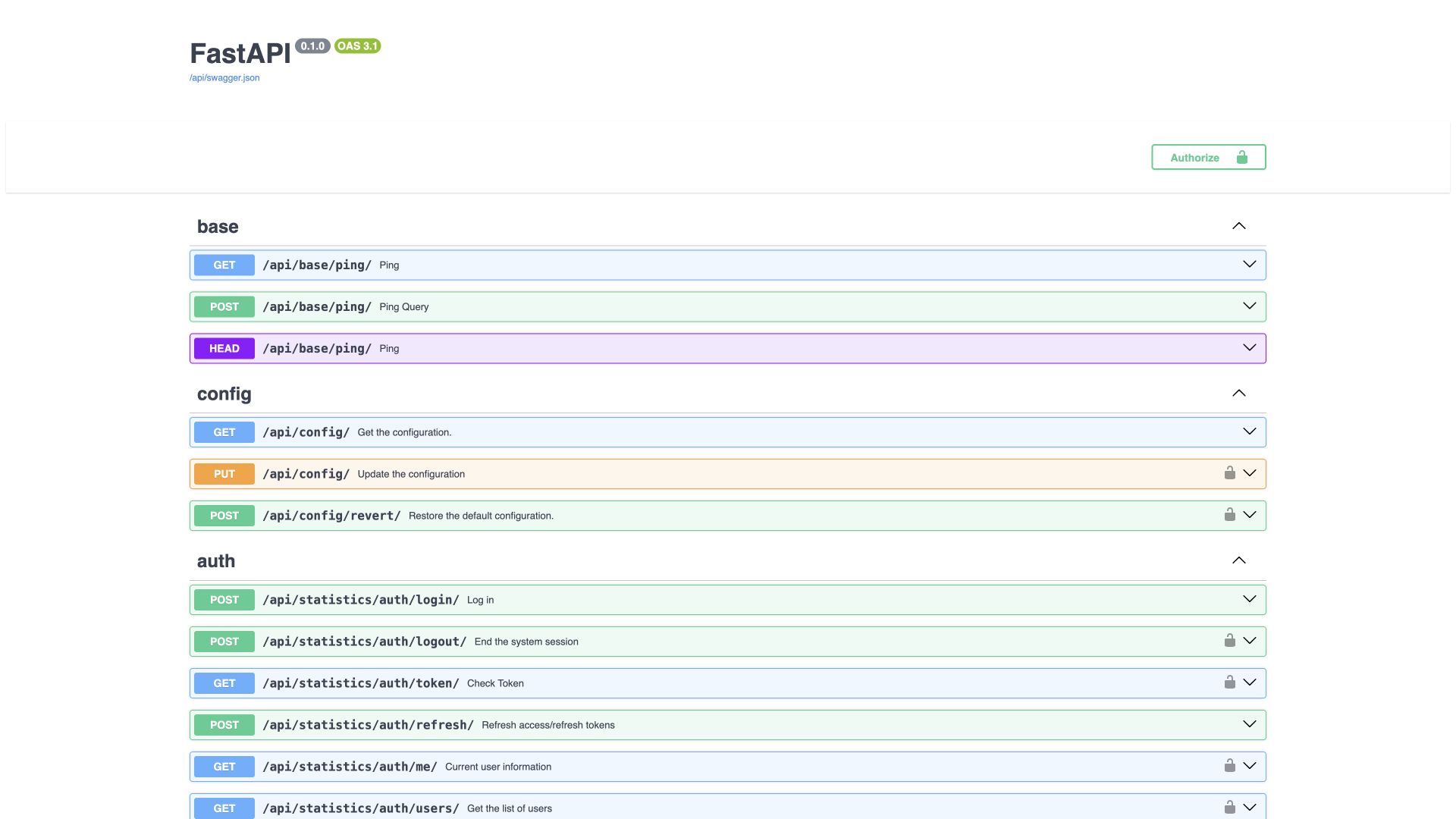
Path: profile menu → Report a bug, /report-error.
| Field | What to do |
|---|---|
| Installation, operating system, browser | Populated by the interface and unavailable for manual editing in the inspected form |
| Description* | The sequence of actions, expected and actual results, time, and IDs of related records |
| Files | The current hint specifies PNG/JPEG up to 1 MB; attach only material relevant to the problem |
| Send | Submits the request through the configured support route |
Example description: I opened the violation journal, selected the Sigma — station 01 camera and the 08:00–09:00 period with the time zone specified. In the card with ID …, the photo opens but the video returns … . This occurs in three cards. Passwords, tokens, and addresses containing secrets are not needed for this report.
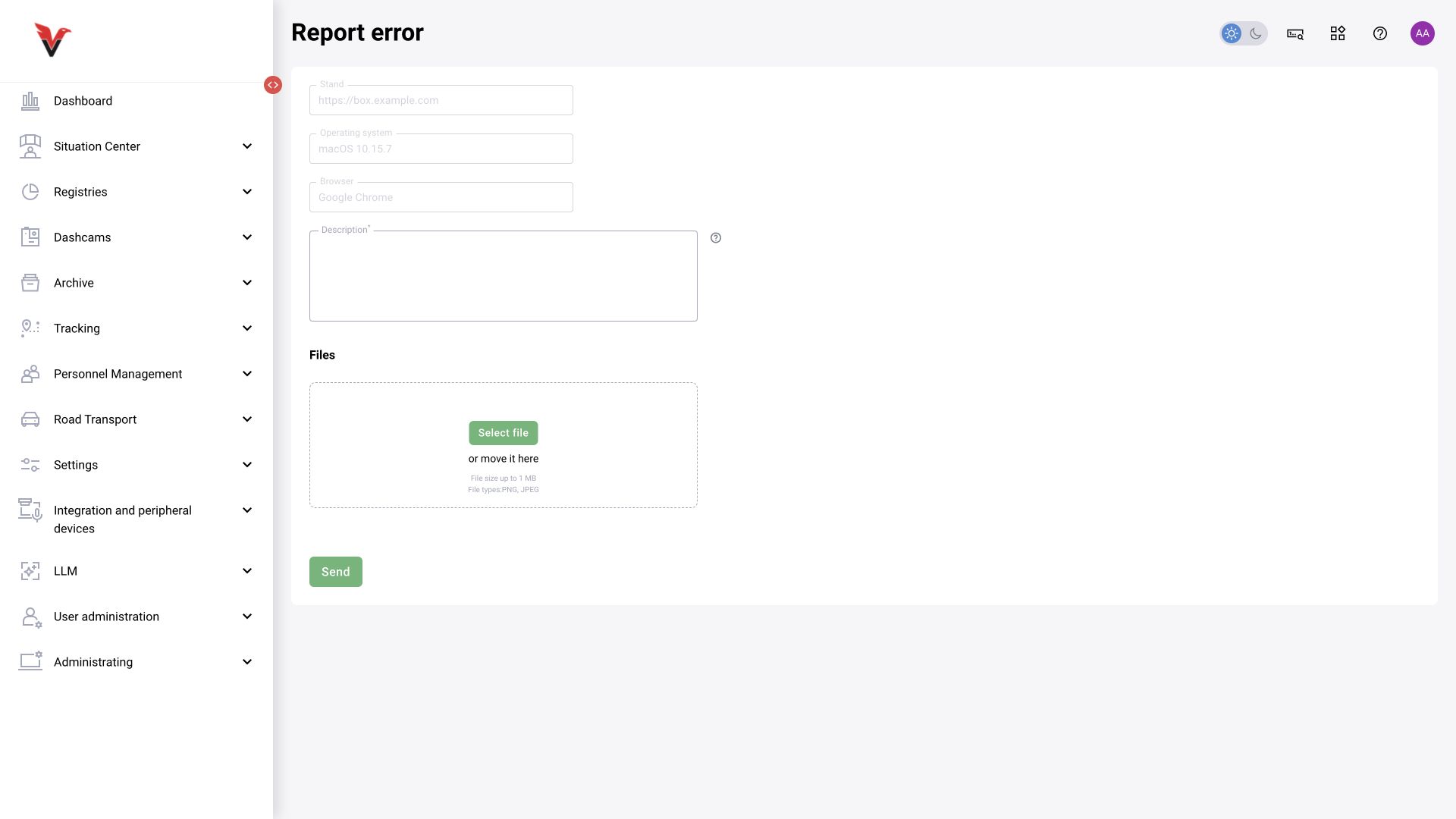
MCP: data analysis in Codex or a compatible client
The product owner confirms that MCP is available in BOX 5.0. The call examples below were executed on BOX 3.2; check the tool set in your own release when connecting. MCP gives an AI client domain-specific BOX reading tools with the signed-in user's permissions. The connection page is at /mcp/, and the protocol server address is /mcp/server/. These are different addresses.
An earlier practical BOX 3.2 test covered 11 tools:
| Tool | Purpose |
|---|---|
whoami |
Current account and access context |
list_objects |
Accessible sites |
list_cameras |
Accessible cameras |
list_categories |
Category catalog |
search_events |
Event search with filters and pagination |
event_stats |
Aggregated statistics |
get_event |
Detailed card |
get_event_image |
Event image |
get_event_comments |
Comments |
search, fetch |
Search and retrieve materials in a format supported by the client |
When BOX 3.2 was checked on 25 September 2026, the MCP page described 16 tools. In addition to the 11 tested previously, the catalog provides:
| Tool | Use |
|---|---|
get_camera |
Zones, presets, categories, and configuration history of an accessible camera |
camera_health |
Camera and detector state, FPS, resolution, failures, and interference |
cameras_last_event |
Recent events and a search for cameras that have not sent alerts for a long time |
occupancy |
Aggregated occupancy by cameras, zones, and sites |
object_visits |
Current occupancy of visit sites, limits, entries/exits, and trends over a period |
The availability and purpose of these five tools were checked against the current catalog. They were not individually invoked during screenshot preparation.
This verified set is intended for reading. It does not include camera control, role changes, or operator decisions. Connect through standard authorization rather than including a password in the AI request. MCP configuration support in a particular client depends on its version and available features; use that client's current instructions for the exact connection steps.
Example request:
Prepare a violation report for the accessible Sigma cameras for the specified shift and time zone. First show the access scope and selected cameras. Retrieve every event page, check the number of unique IDs, and compare the total with server statistics. Separate confirmed, rejected, and unreviewed records. State the filters, retrieval time, and completeness limitations. Do not draw conclusions about individual disciplinary responsibility from alerts alone.
The verification period in the previous practical exercise returned 6 records: 1 confirmed and 5 without a decision; IDs matched the standard export. This is a looping training recording, not six different employees. The proportion of confirmed cards is not detector accuracy.
Event records alone cannot establish total time absent from a workplace. That requires presence intervals, a schedule, and camera/analytics availability data. Camera-state and aggregated-occupancy tools are now described in the current catalog above. This does not yet confirm a complete workplace attendance calculation using working hours and absence intervals; verify that calculation separately.