User profile
Path: profile menu → User profile, /profile/info.
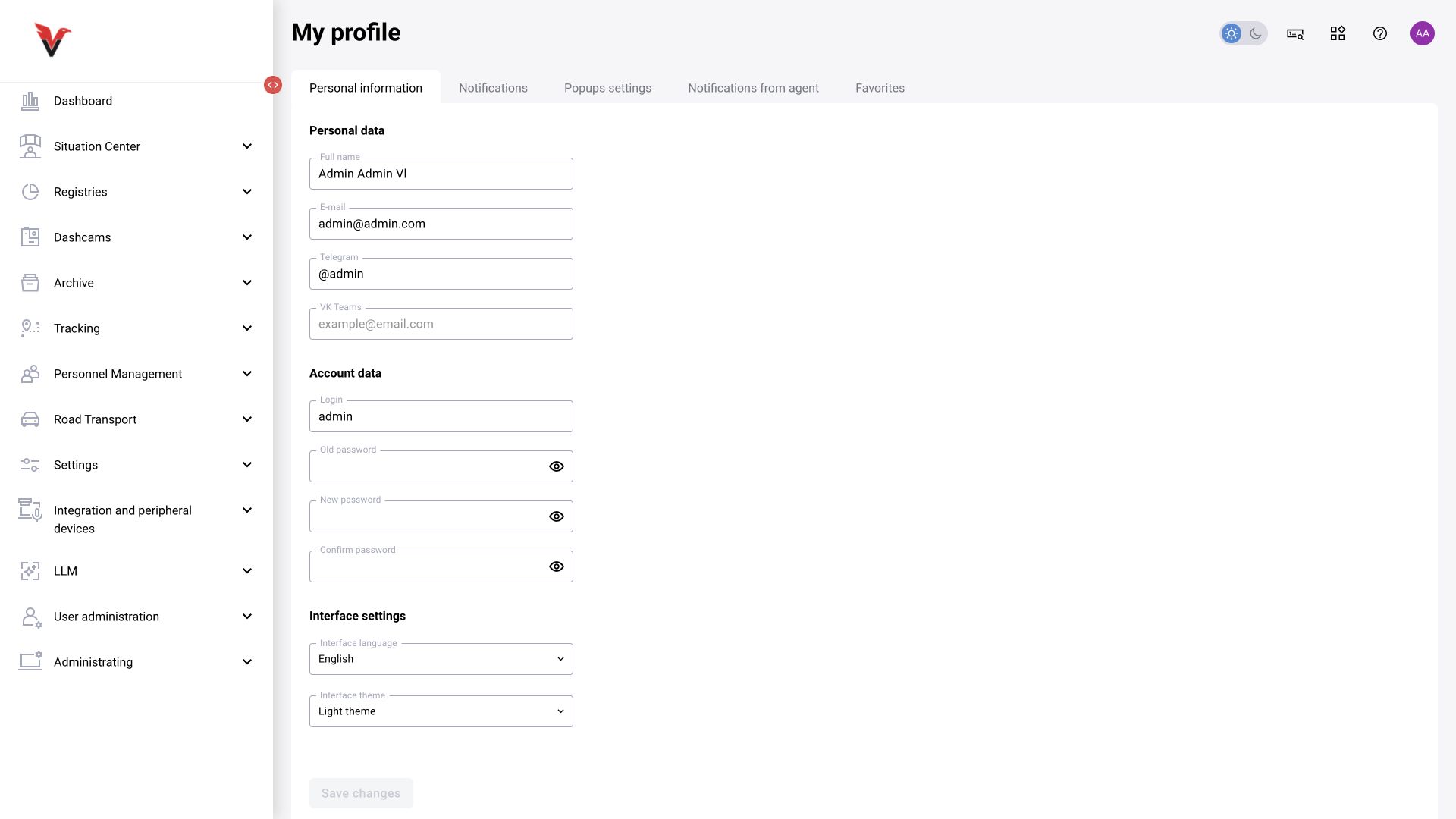
Personal information
| Field | Meaning | What to enter |
|---|---|---|
| Full name | The user's display name | Family name, given name and patronymic if applicable |
| Address for notifications and supported access procedures | An accessible work email address | |
| Telegram | Recipient identifier | The account name in the format specified by the form, for example @sigma_operator; this is not a bot token |
| VK Teams | Recipient in the corporate messenger | The account address expected by the configured integration |
| Login | Sign-in name | Change only when necessary and in accordance with organizational rules |
| Old / new password / confirmation | Change your own password | The old password and two identical new values; follow the password policy |
| Language | Interface language | Russian or English from the list |
| Theme | Interface appearance | Select an available theme |
Click “Save changes”. Changing the theme or language does not change your role or available cameras.
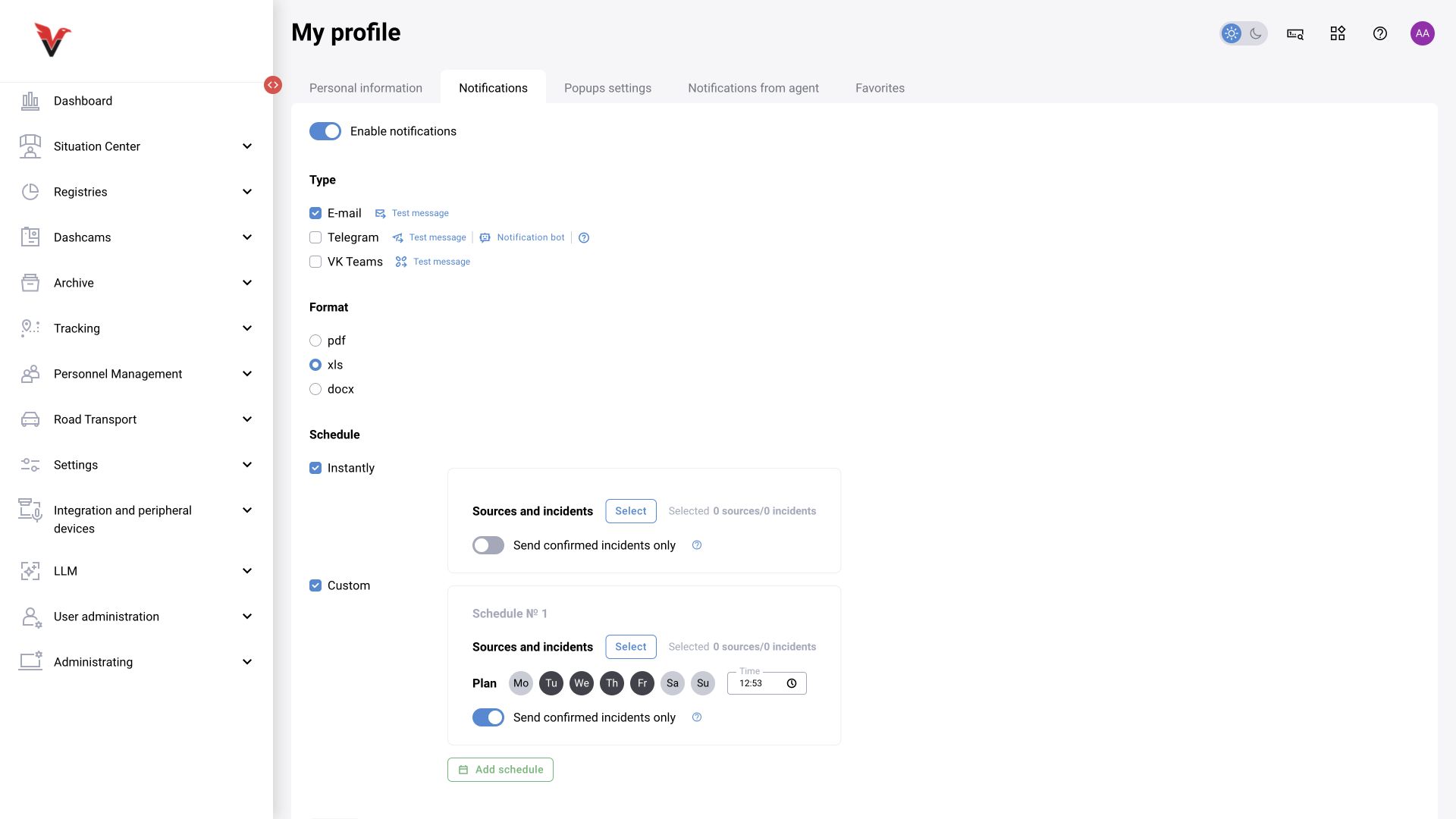
Notification delivery
This setting determines where and when messages are sent to the user. Enter addresses in personal information first, then enable the required channel.
| Field / switch | How to complete it and what to check |
|---|---|
| Enable notifications | Overall notification delivery activity |
| E-mail / Telegram / VK Teams | Select a channel that is actually connected. For Telegram, start a conversation with the configured bot first |
| Test message | Checks channel delivery. This sends a real message to the recipient |
| Report format | Select the available pdf, xls or docx according to whether you need to view the report or process it further |
| “Immediately” | Send when a matching notification arrives |
| “Custom” | Send according to the configured schedule |
| Sources and incidents | Cameras / sites and notification classes included in delivery |
| Confirmed incidents only | Restricts delivery by reviewer decision; an unreviewed event does not become confirmed automatically |
| Schedule days and time | When to send the selection. For example, weekdays at 08:00; select the time in the agreed time zone |
| Add schedule | An additional schedule with its own set of conditions |
Save changes. If a message does not arrive, check the channel, schedule, existence of matching events and their decisions separately.
Pop-up notifications, agent notifications and favorites
Pop-up notifications show matching events in the interface. The documented form provides source and event selection; consider browser permissions if system notifications are used. Agent notifications relate to a separately installed workstation agent; enabling the flag in BOX does not install the agent. In the current inspection, the agent tab showed no substantive fields; check the setup procedure against the agent's availability and configuration in the deployment.
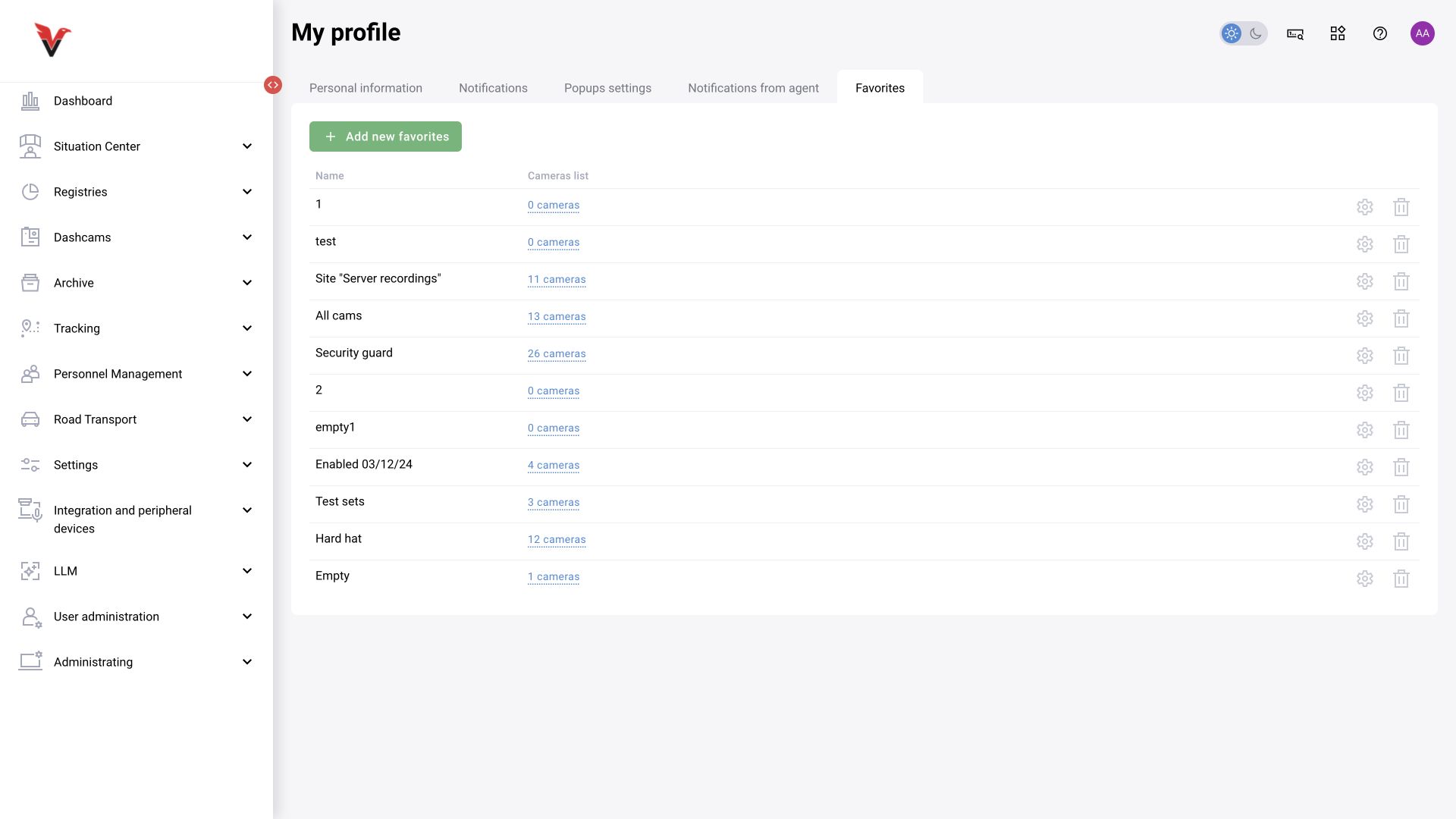
Favorites stores convenient camera selections. Use “Add favorite” to create a set for repeated selection (/camera-set/create). The form contains a name and a camera selection tree: enter a name, select sources and save. The list shows the set name and camera count. A selection does not extend camera access or replace an administrator's workspace.