Presence schedules
Path: Personnel management → Presence schedules, /personnel-management/schedule.
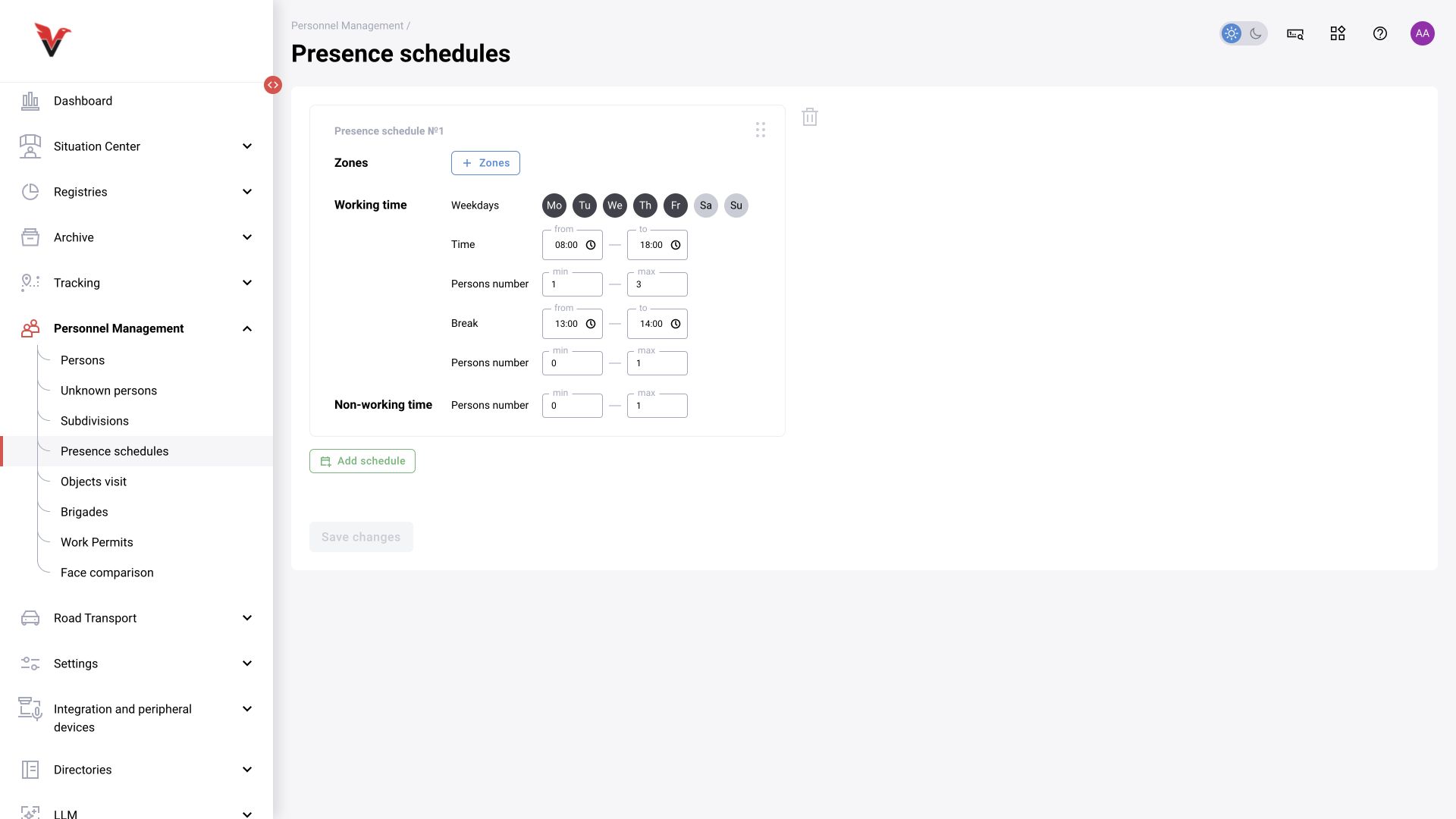
A schedule defines the permitted number of people in selected zones during working hours, breaks and nonworking hours. Click “Add schedule”, select the zones and fill in the intervals.
| Field | Meaning | Example for one workstation |
|---|---|---|
| Zones | Which areas are monitored | The zone Workstation 1, not every zone in the workshop |
| Days of week | When the work schedule applies | Mon–Fri |
| Working hours from / to | Work period boundaries | 08:00–17:00 |
| Working hours: min / max | Permitted number of people | 1 / 1, if one person is required |
| Break from / to | A specified break interval | 12:00–13:00 |
| Break: min / max | Permitted number during the break | 0 / 1, if leaving is allowed |
| Nonworking hours: min / max | Permitted number outside the work interval | Set according to the actual area rule, for example 0 / 1 |
| Move | Schedule order | Consider this when zones overlap: schedules have a priority in the API |
| Delete | Delete a schedule row | Check that the zone will retain the required monitoring |
| Save changes | Apply all edits | After saving, check the days, zones and min/max again |
min must not exceed max; values are numbers of people, not percentages. For a 24-hour schedule or one crossing midnight, test the boundary times separately: “from / to” fields do not imply universal night-shift behavior.
The presence schedule, camera activation schedule and LLM schedule are independent. An allowed break should not switch off recording if it is needed for investigation. A calendar condition's time is also different from an absence duration threshold: a rule such as “more than five minutes after leaving” needs the corresponding module setting, not the value 5 in the number-of-people field.
Visit locations
Path: Personnel management → Visit locations, /personnel-management/objects-visit.
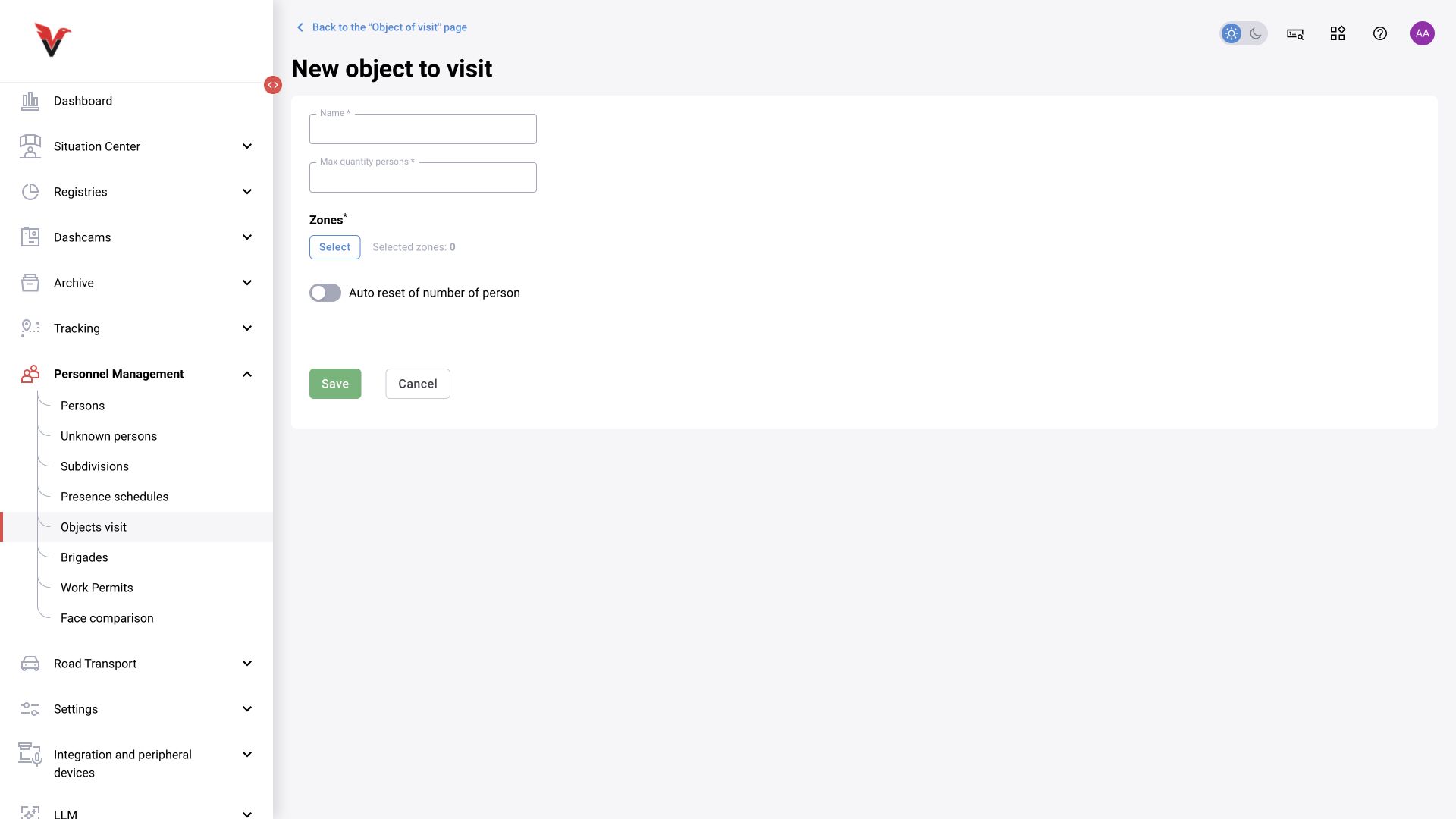
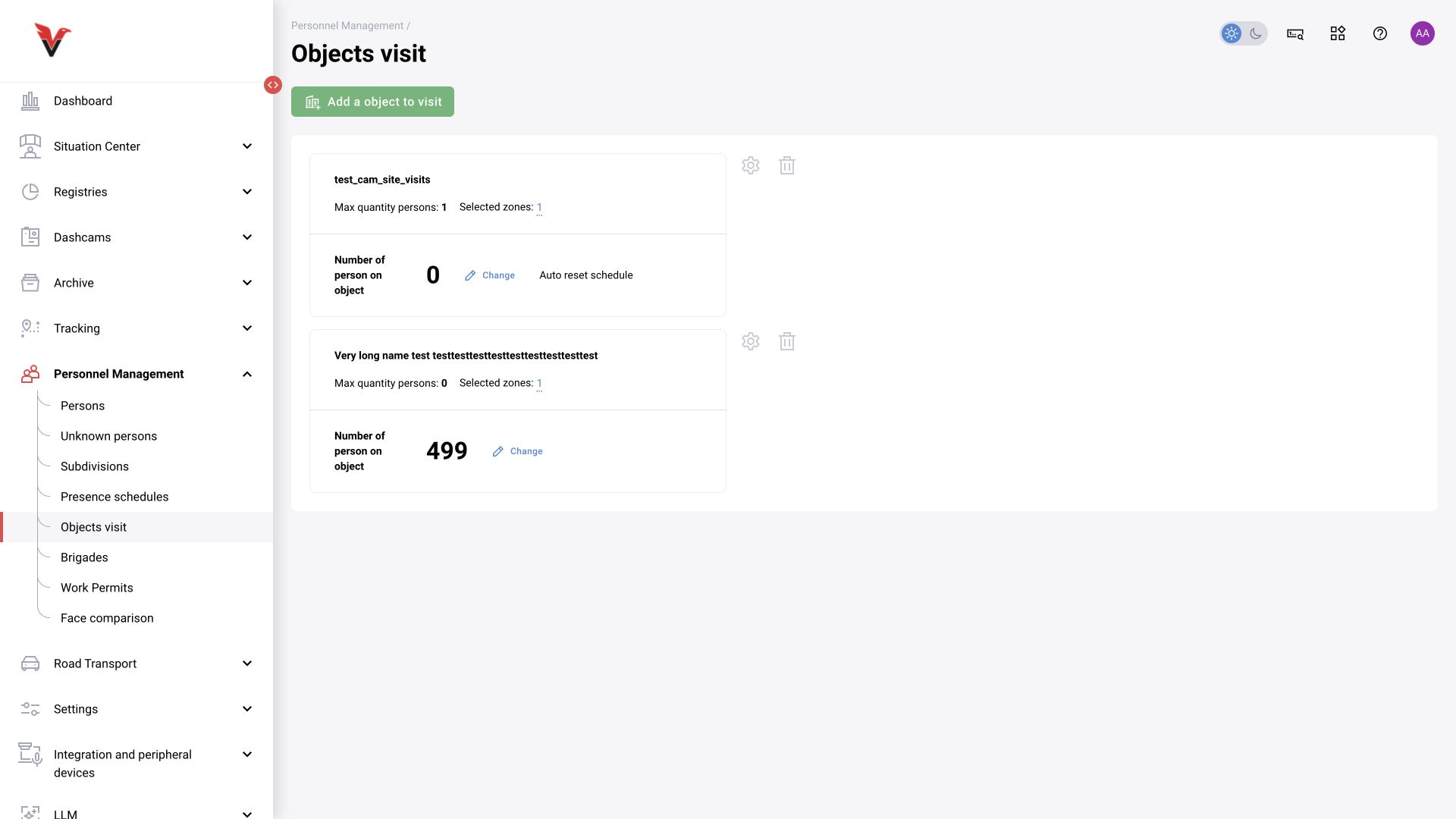
A visit location combines entry/exit zones to calculate room occupancy. It is a separate entity from a site in the camera tree.
| Field | Meaning and input |
|---|---|
| Name* | For example, Sigma — briefing room |
| Max. number of people* | Permitted capacity: an integer appropriate to the task |
| Zones* | Select all entrances and exits to this room that must be counted |
| Automatic people count reset | Enables scheduled resetting of current occupancy |
| Reset time | For example, after the room is guaranteed to be empty; the form allows multiple times |
| Number of people at location → Change | Manually correct the current count when it differs from reality |
Before setting an automatic midnight reset, check whether people remain in the room overnight. A manual correction changes the starting point for subsequent calculations; it does not fix an incorrect passage direction or recreate past events.
Work permits
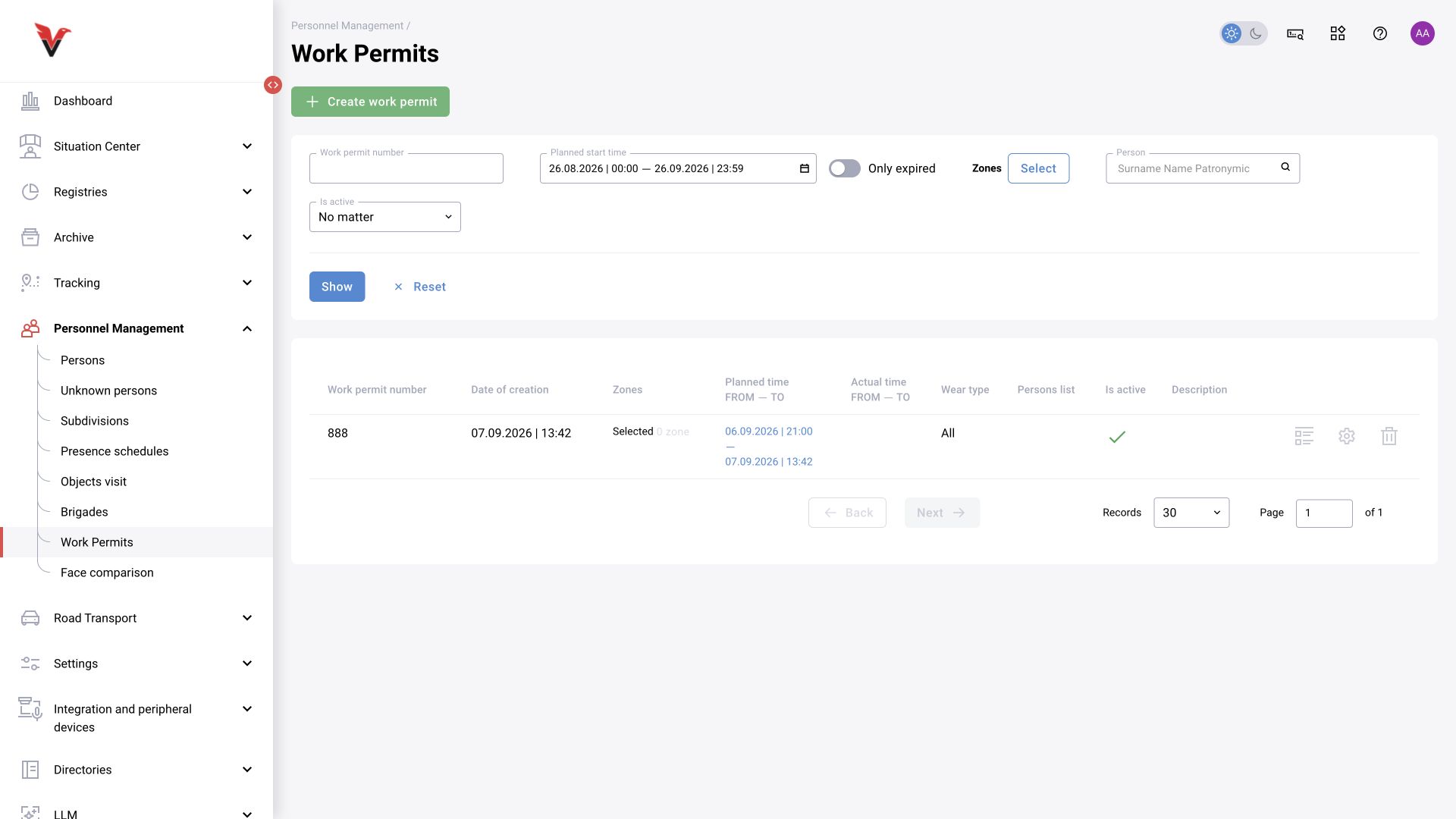
Path: Personnel management → Work permits, /personnel-management/work-permit.
Filters: number, planned start time (range), overdue only, zones, person, in progress. The table shows creation date, zones, planned and actual times, workwear, list of people, activity and description. Opening the time period or “Find violations” helps review related records.
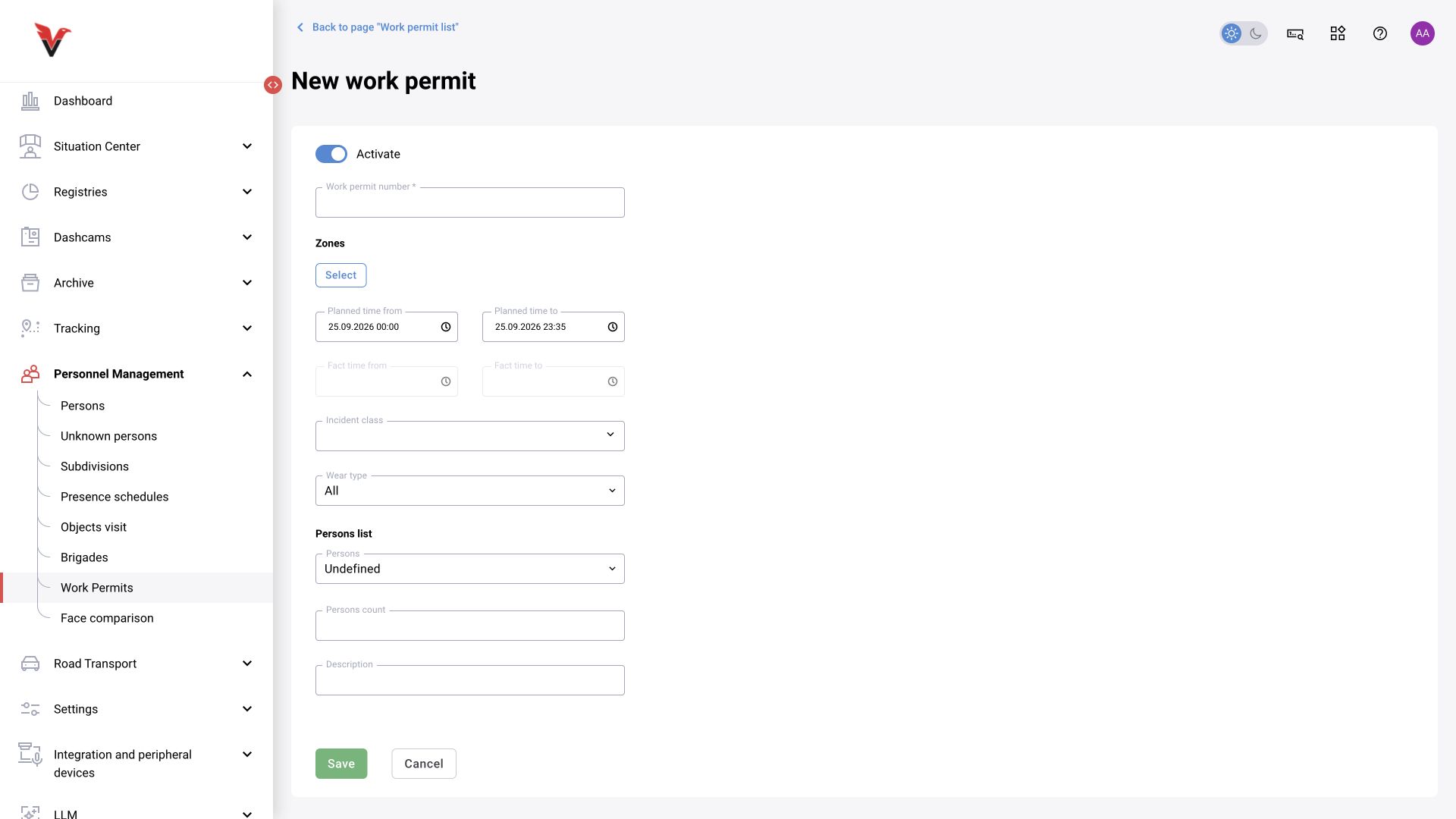
| Creation field | Meaning / what to enter |
|---|---|
| Activate | Use the permit in the live process |
| Work permit number* | Document number, for example SIG-2026-015 |
| Zones | Permit locations; select the exact work areas |
| Planned time from / to | When work is permitted |
| Actual time from / to | The actual work period; in the new form, these fields cannot be entered manually and are filled by the process |
| Incident class | Which categories relate to the permit conditions |
| Workwear type | The required type from the list; not a free-text description of any PPE |
| People | A specified team or the provided mode for unspecified people |
| Number of people | The required number for the selected mode |
| Description | The work to be performed and an explanation to help the operator |
Do not treat a permit as automatic suppression of all camera violations. The result depends on zone, time, categories, personnel and matrix settings. After setup, check a situation within the permitted period and outside it. Integration with an external document management system is a separate project capability; closed issue BOXD-4481 does not prove that it is enabled in every BOX deployment.
Face matching
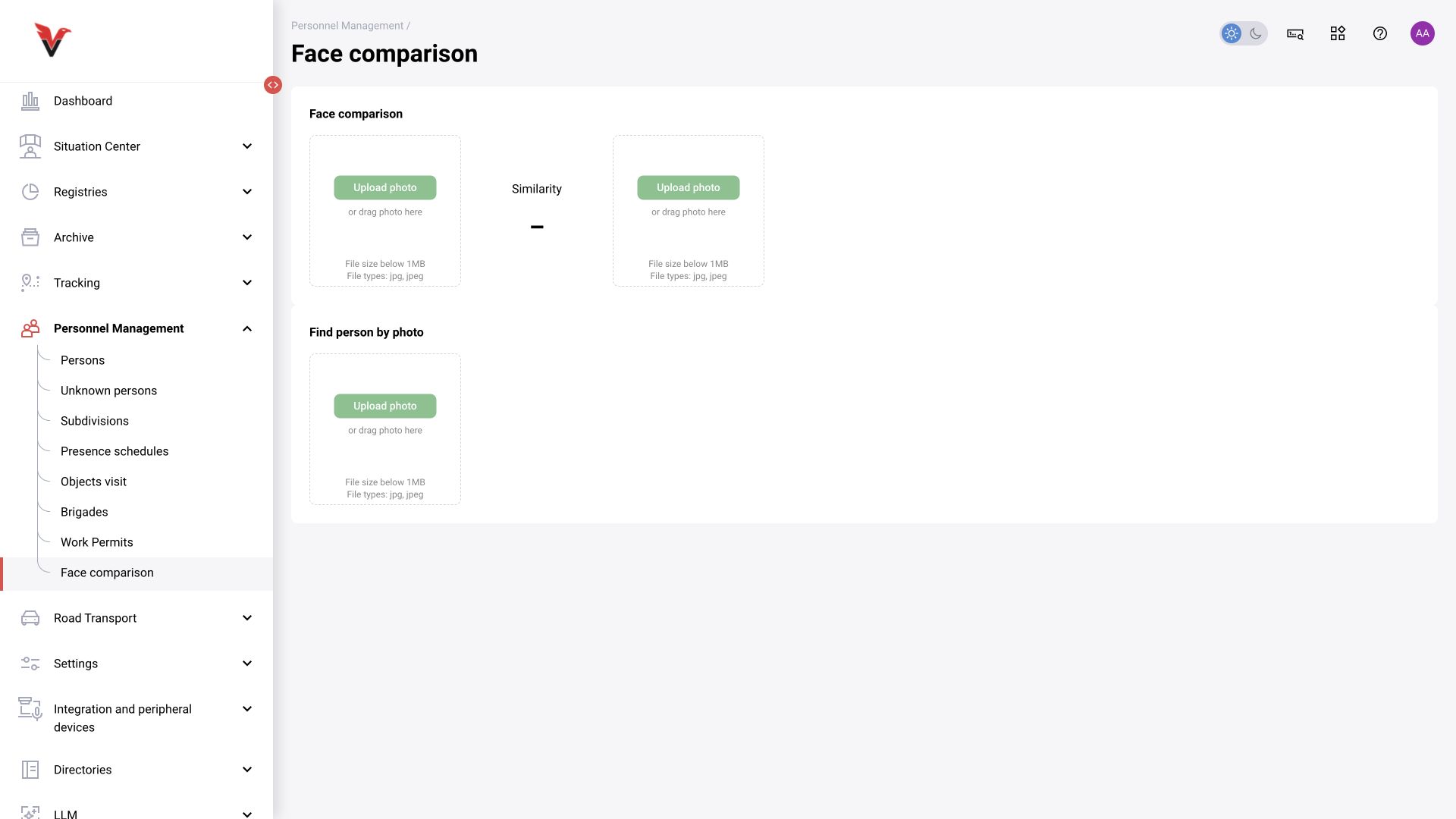
Path: Personnel management → Face matching, /personnel-management/image-comparison.
Compare two photos: upload two JPG/JPEG images, up to 1 MB each, click “Compare” and read the “Similarity” score. “Reset” clears the selected images and result.
Find a person by photo: upload one image and run the search. Results contain similarity, full name, department, job title, activity and photos. Open the matching person record and compare additional information; links lead to the person's events, violations and movements.
The similarity score is an algorithm result, not an absolute probability of identity. Poor lighting, angle and a small face region affect the result. When in doubt, use additional evidence; do not merge records based only on a high score.