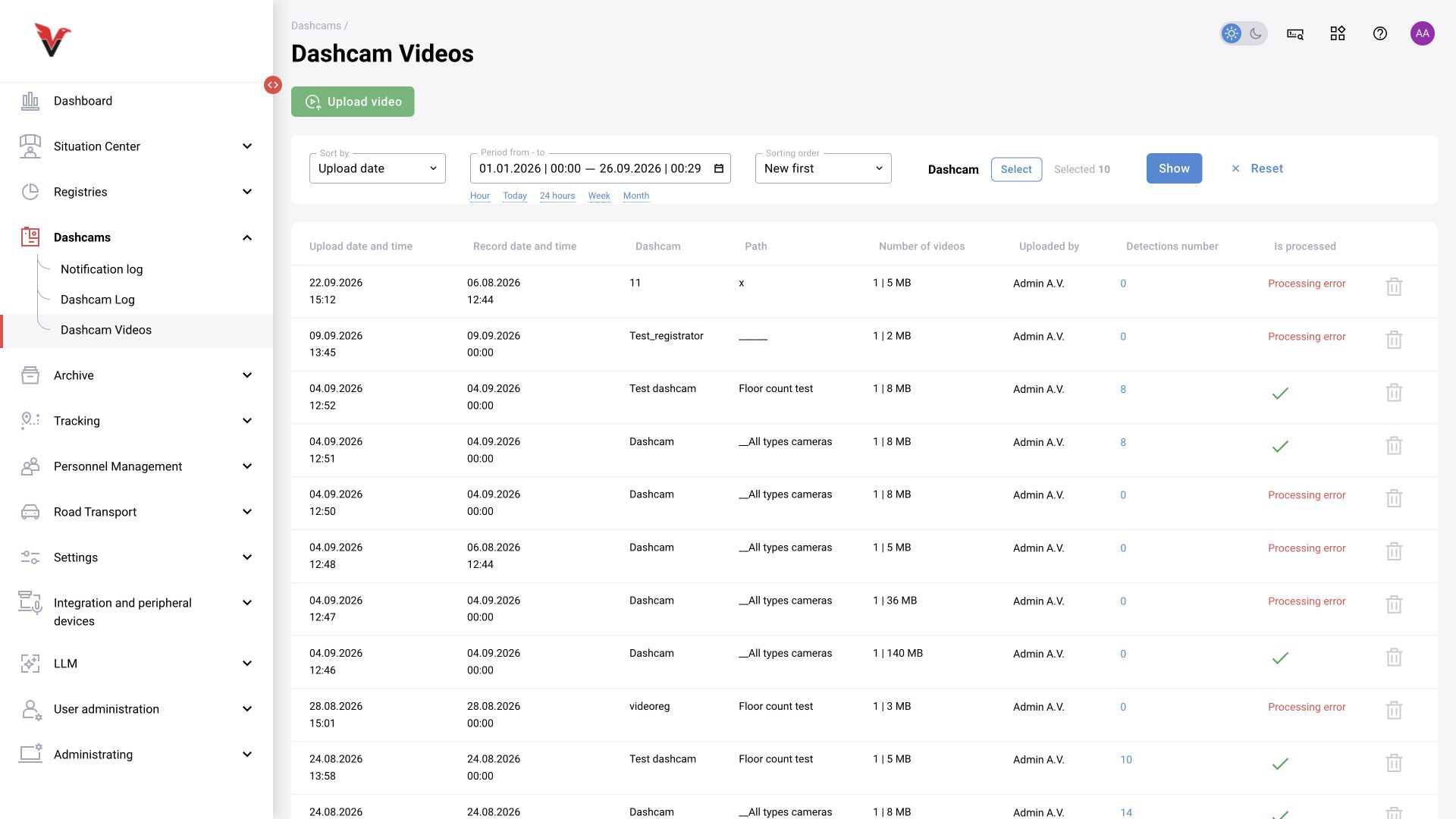
Notification log
Path: Video recorders → Notification log, /dvr/notification-log.
Filters and decisions match the event log, but the selected source is a video recorder. Available filters include notification type, creation period, class, severity, work permit, capture method, LLM, prompt, subject, person, vehicle, probability, decision, measures and reviewer. Specify the time of the original recording when searching for a recorded episode; do not confuse it with the file upload time.
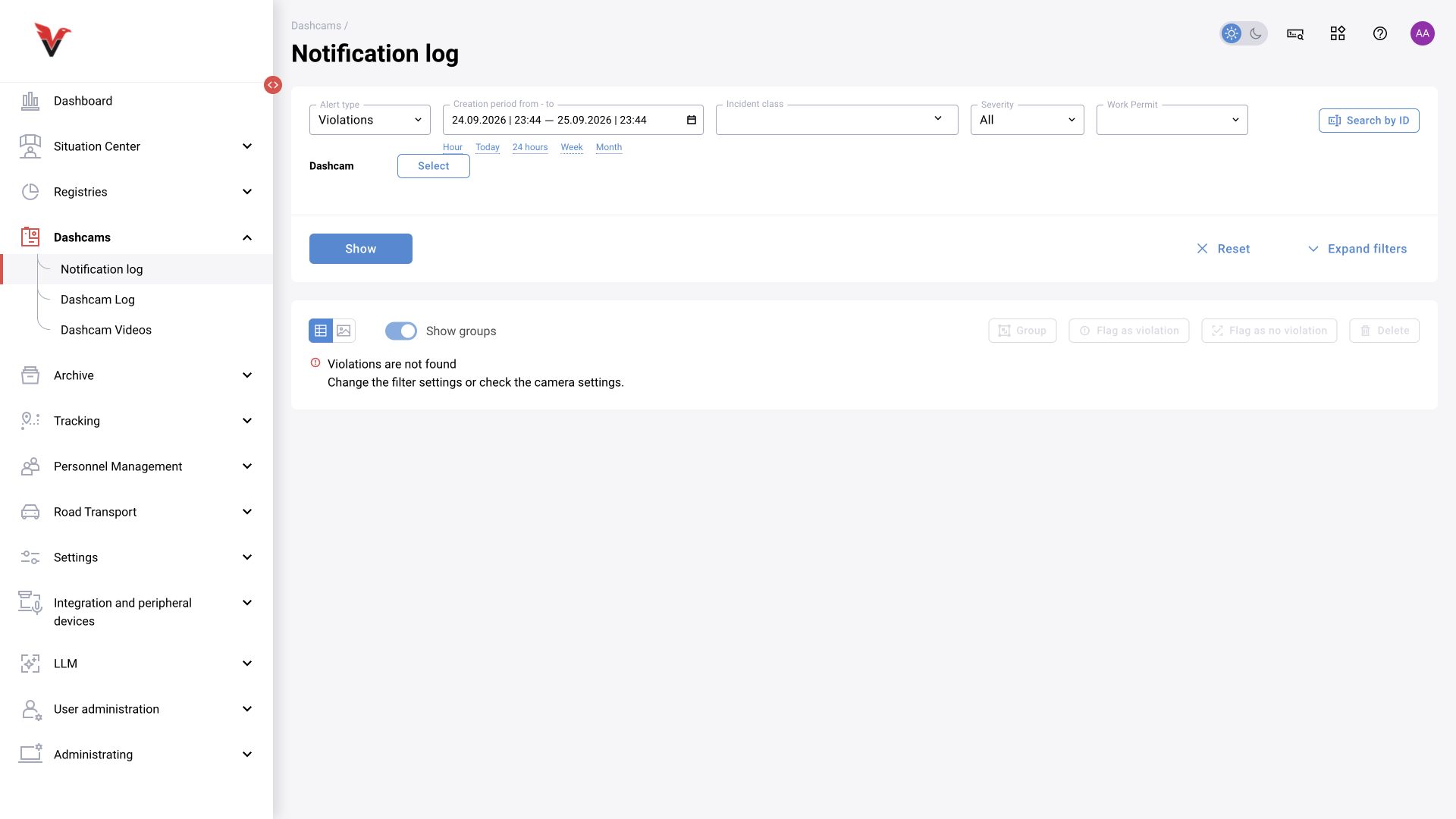
Usage log and issuing devices
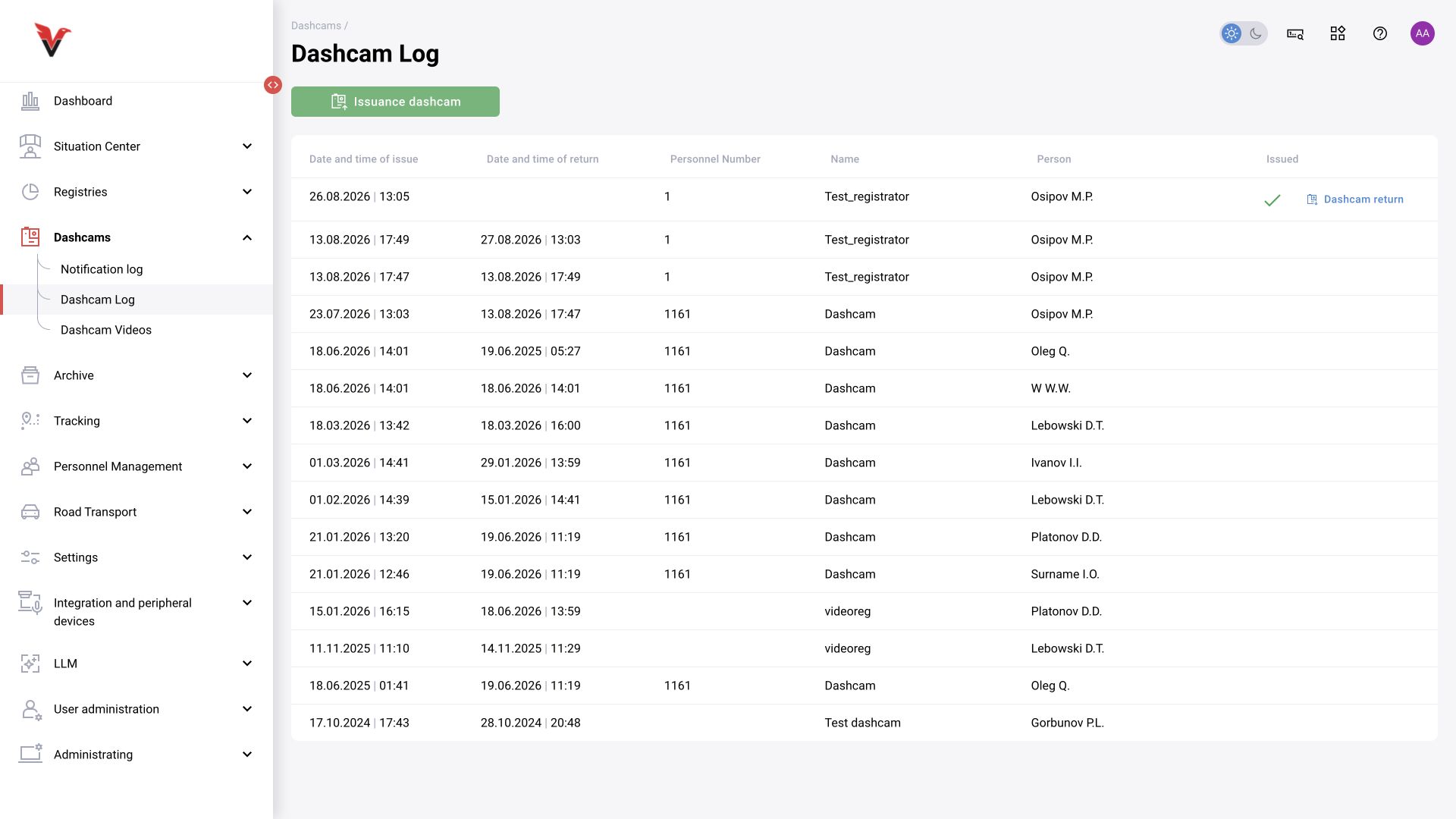
Path: Video recorders → Usage log, /dvr/log. The button “Issue video recorder” opens /dvr/hand-out.
The log links a device to its recipient and period of use. To record an issue, select the registered device and person, and enter the issue details provided by the form. Record the return in the issue entry; this ends the corresponding possession period rather than deleting the device or recordings. Do not create a new issue record instead of correcting an incorrect return entry.
| Issue form field | What to enter |
|---|---|
| Video recorder → Select | The registered device actually being issued |
| Issue date and time | When the device is handed to the employee |
| Person* | The recipient from the people catalog |
| Save / Cancel | Create the entry or exit without saving |
The issue entry is used to attribute material to an employee; its existence does not confirm that all files from the recorder have been uploaded.
Uploaded videos
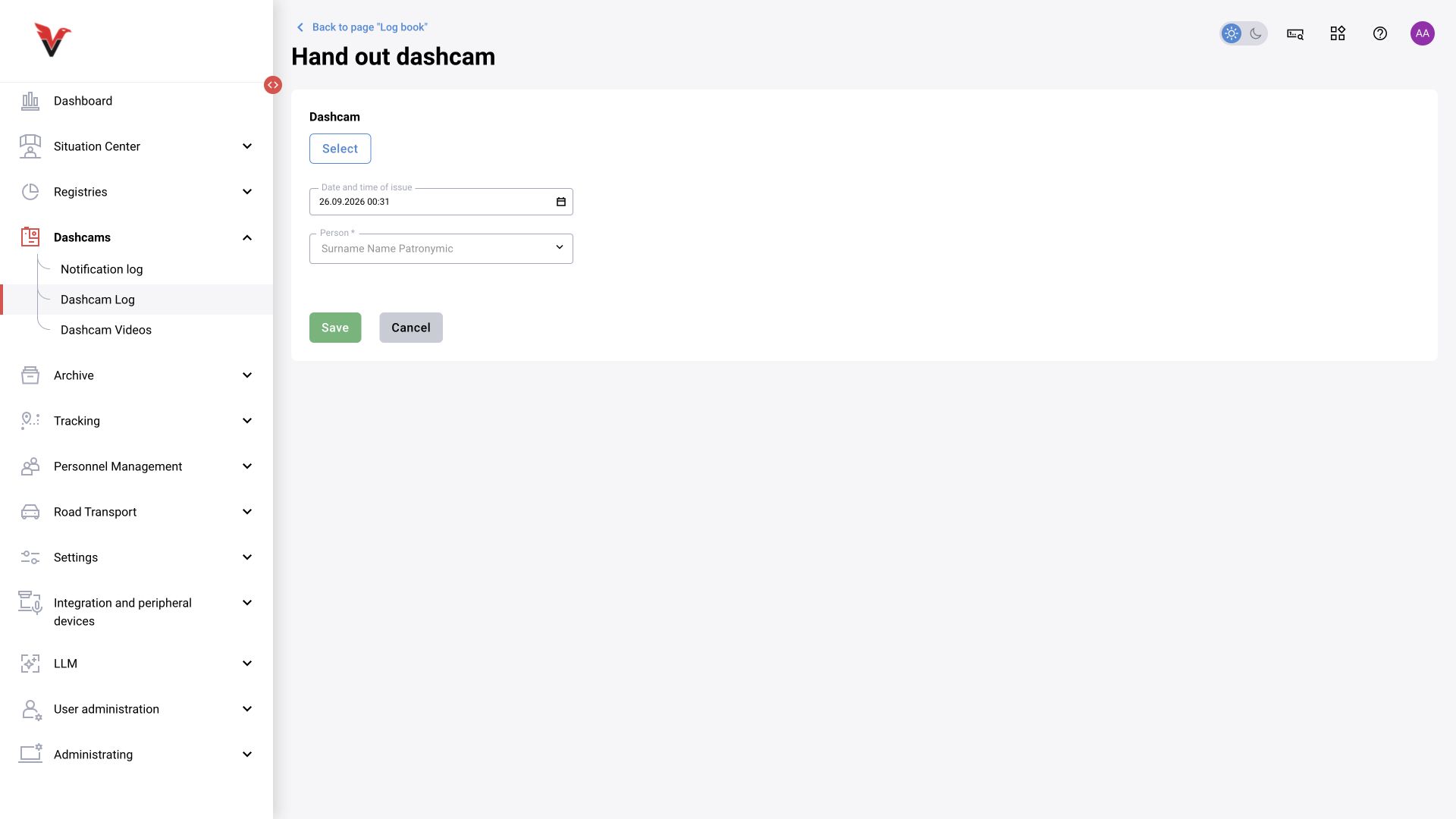
Path: Video recorders → Uploaded videos, /dvr/video.
| Field / action | How to use it |
|---|---|
| Upload video | Opens the upload wizard |
| Sort by | Selects the sort criterion, such as upload date |
| Period from–to | Limits the selected time criterion |
| Sort order | For example, newest first |
| Video recorder | File source; check the number of selected devices |
| Show / Reset | Apply and clear filters |
Upload wizard
- Select files: select the video recorder, enter the recording start time and attach the video file. The recording start time is needed for correct event timestamps, not just for a readable label.
- Configure parameters: select one or more presets and set zone types and geometry on the preview frame. Check other frames to verify the geometry using “Show other frames”.
- Start: check the settings and click “Start processing”. The confirmation states that results will be generated according to the selected zones and presets. Changing the configuration after starting does not automatically rewrite existing results.
- Background processing: monitor uploaded videos and the notification log. Upload completion and analytics processing completion are different stages.
The wizard warns: upload video from a single view, except for a portable DVR. If the view changes, the same zone polygon may no longer match the required area.
For a virtual fixed camera, the file is selected in the camera details, not necessarily through this wizard. These are two different ways of using video material.