
1. Prepare the inputs
For a first frame scenario, prepare a published model version, a version of a test asset, and permission to work with scenarios and runs. Use short video containing both a target event and a similar non-event. Define any required zone on the asset file. Confirm that Sandbox can access the package and test files.
2. Create a version and compose the graph
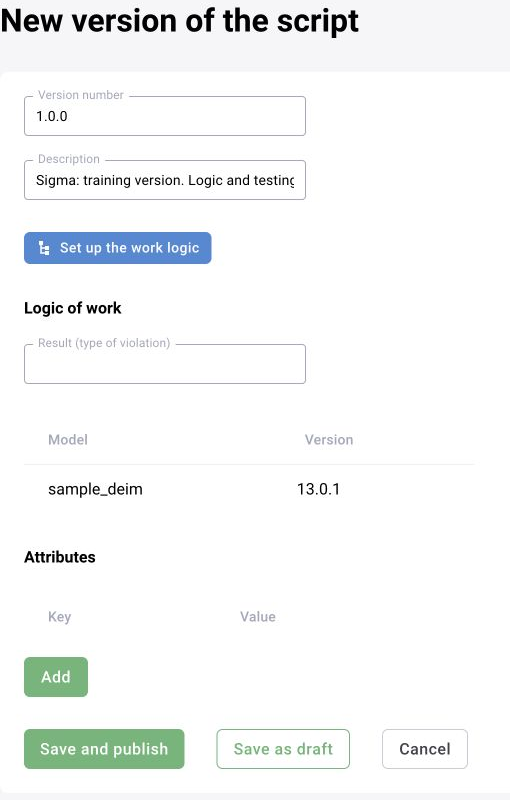
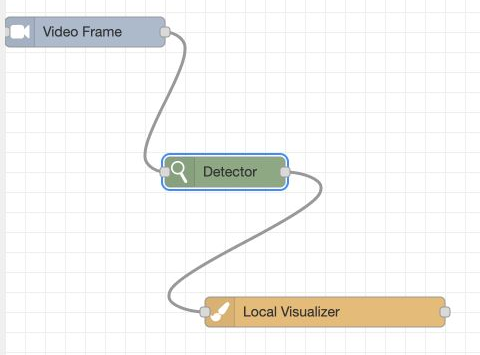
Create a scenario and an unpublished version. Open the editor; the backend creates a session with a working directory. For an existing version, the saved graph is loaded into that session. Add the available blocks and connect their outputs to subsequent inputs.
- Acquire a frame.
- Run the detector and, where needed, tracking.
- Apply spatial, temporal and operational rules.
- Create an event with the required attributes.
- Inspect intermediate results and send or store the event.
3. Save and test on the asset
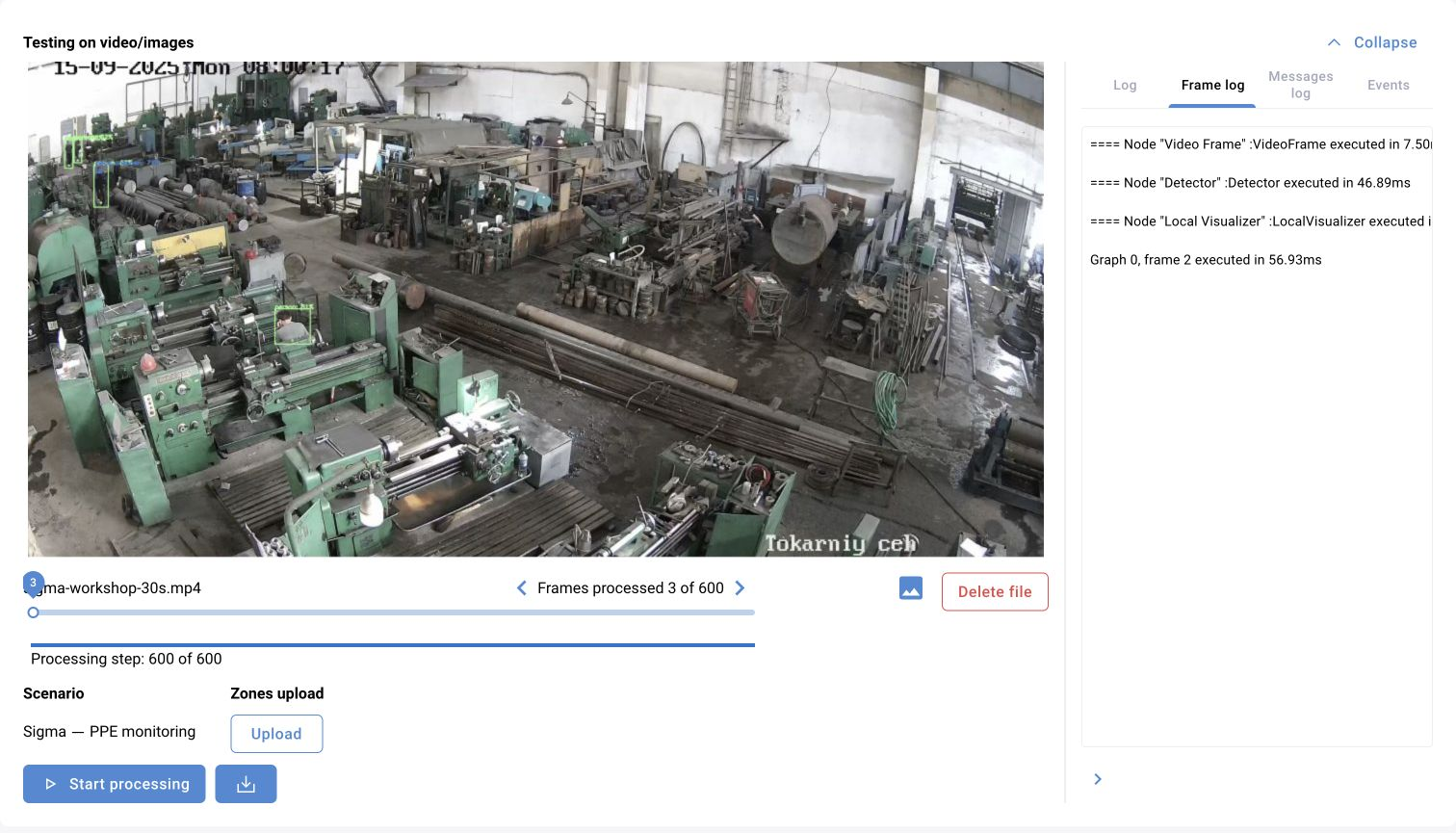
Saving retrieves flows.json from the editor session and stores the graph, extracted parameters and model dependencies. Create a run on the selected asset version and retain launch_uuid.
| Check | Expected result |
|---|---|
| Positive episode | Event with the intended type, source and time |
| Negative episode | No unintended event |
| Intermediate outputs | Frames and messages available at significant graph stages |
| Run state | completed after processing; inspect logs on failed |
| Zones and categories | Match the test file and model outputs |
4. Publish the saved version
After validation, publish the saved version. The scenario storage service informs related components about published versions and settings through Kafka in the documented architecture. Close the editor session when finished so its temporary directory and process can be released.
5. Validate one camera assignment
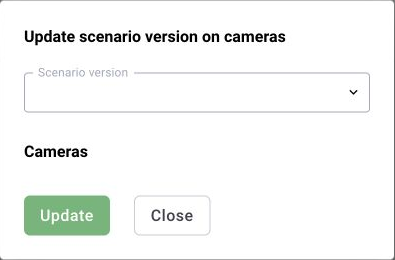
Assign the published version to a test camera and repeat the control episode. An asset result does not prove that stream access, processing resources and media storage are available in production. Record the scenario, model, camera parameters and observed result before expanding the rollout.
Before expansion
Review false events, missed events, repeated alarms and resource consumption. A threshold, schedule or zone change requires another check even when model weights are unchanged. Define an owner, a rollback trigger and the previous working version.