Classification and scheduled runs
Classification identifies the state visible in a frame. For example, whether an access road is covered in snow or has been cleared. It does not have to return coordinates for every object.
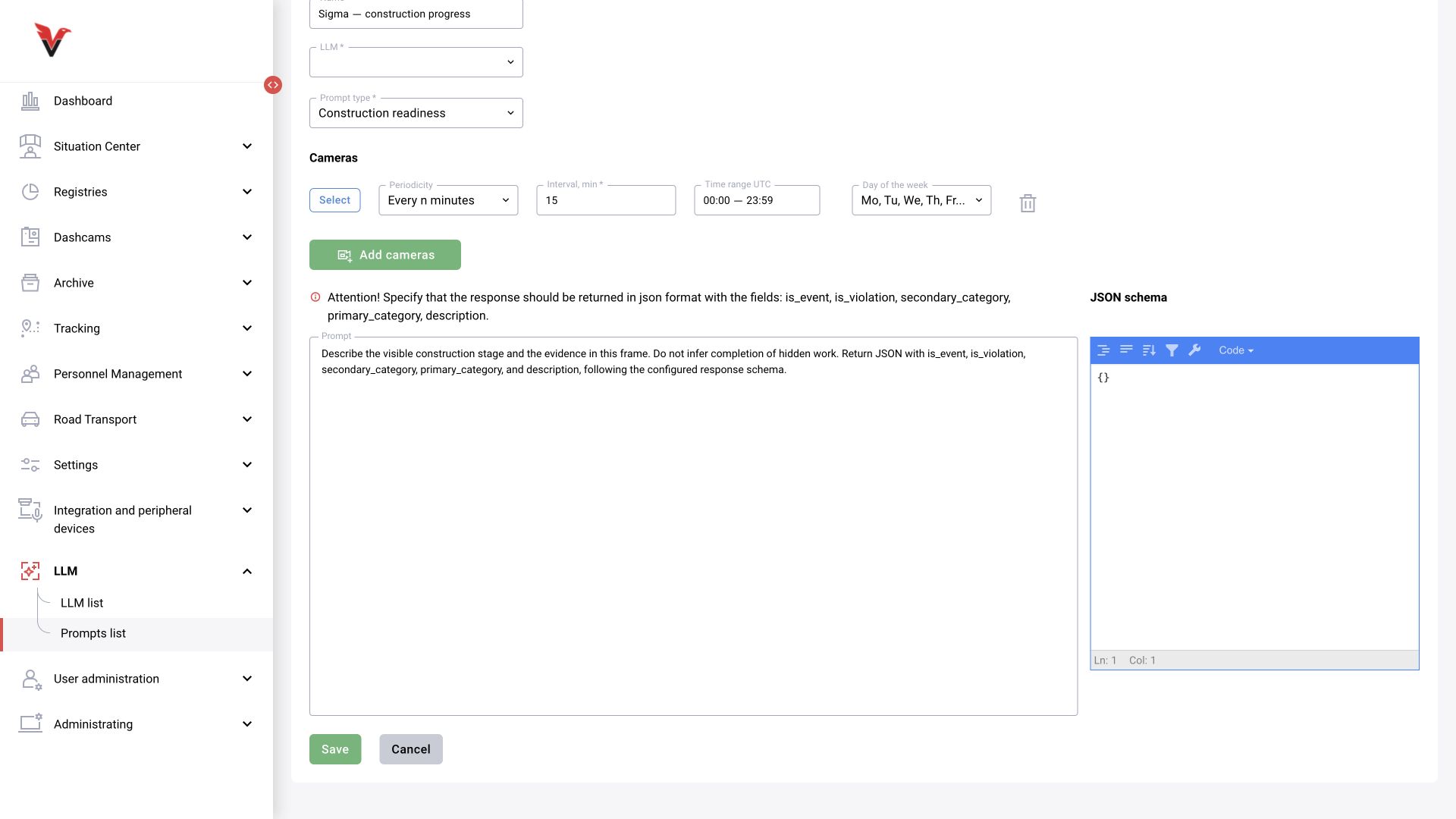
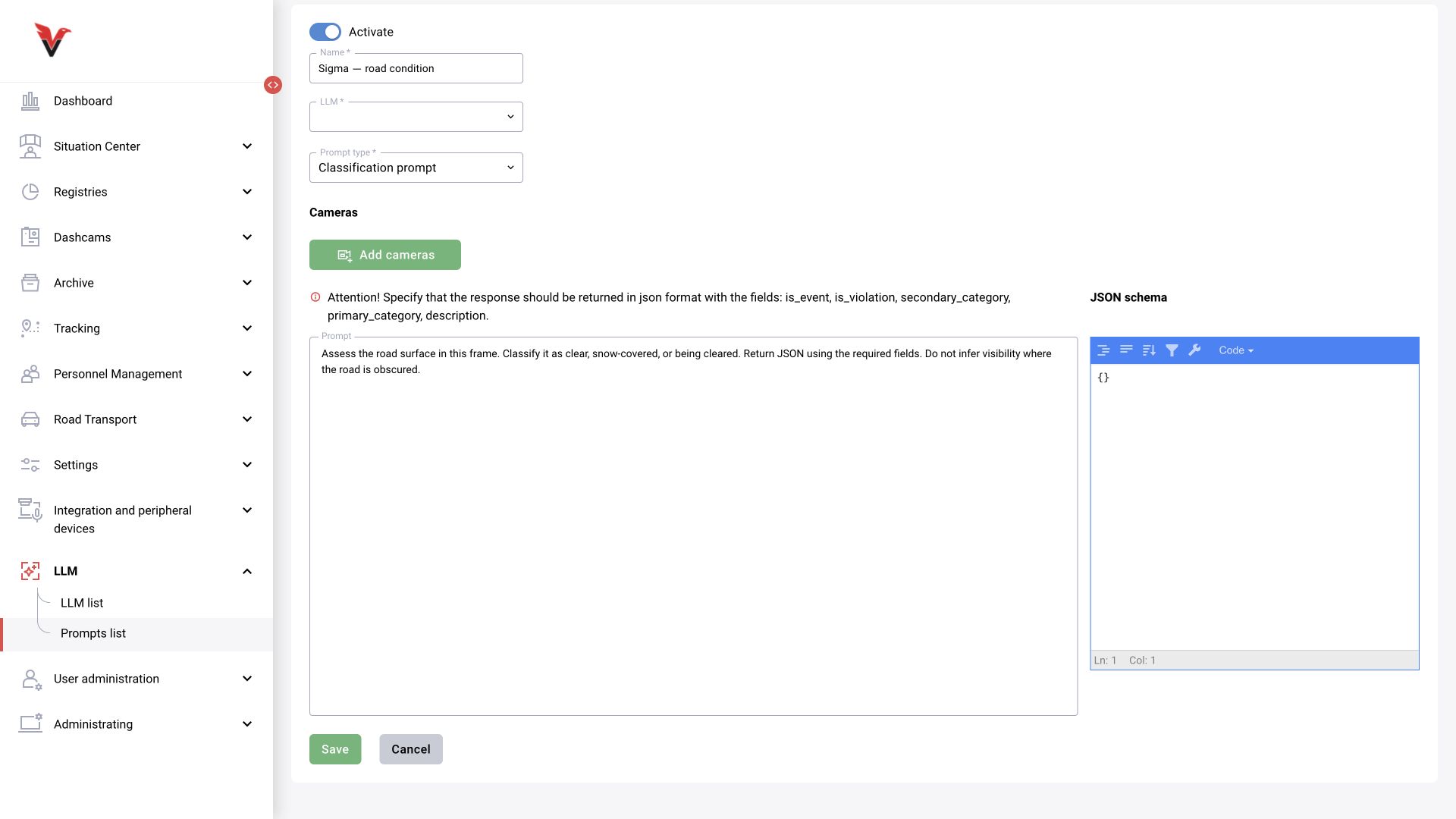
After adding a camera, the configuration row provides:
| Field | Meaning |
|---|---|
| Cameras → Select | One or more permitted sources |
| Frequency | Confirmed options: every N minutes, every hour, every day, once a week, by category |
| Interval, min* | For “Every N minutes”: a positive number of minutes |
| Day of week | Days on which the selected schedule runs; multiple selection is available |
| Time | For daily/weekly mode, the run time in the provided field |
| UTC time range | Operating time restriction. The form explicitly specifies UTC; convert your site's time before entering it |
| Event category | For a category trigger, the incoming event class, not an arbitrary name |
| Delete row / Add cameras | Change the set of assignments |
For example, if the site uses UTC+3 and analysis is needed from 08:00 to 20:00 local time, the value in the UTC field is 05:00–17:00. Use the site's actual time zone; do not apply this example to every site.
The older BOXD-3759 specification also lists seconds, but the current inspected list differs. These instructions follow the current form. “By category” is an event trigger, not a guaranteed timer-based frame request.
Example task for a road:
Assess the condition of the carriageway in the frame. Distinguish snow on the road, a cleared road and cases where the condition cannot be determined confidently. Do not treat snow on the roadside as snow covering the entire carriageway. Briefly describe the visible evidence. Return the response according to the specified JSON schema and use only the categories permitted by it.
For classification and detection, the form specifies the fields is_event, is_violation, secondary_category, primary_category, description. Use valid catalog codes for this installation. Do not replace them with invented words such as “snow”/“clear” if the schema expects different values.
Object detection and bounding boxes
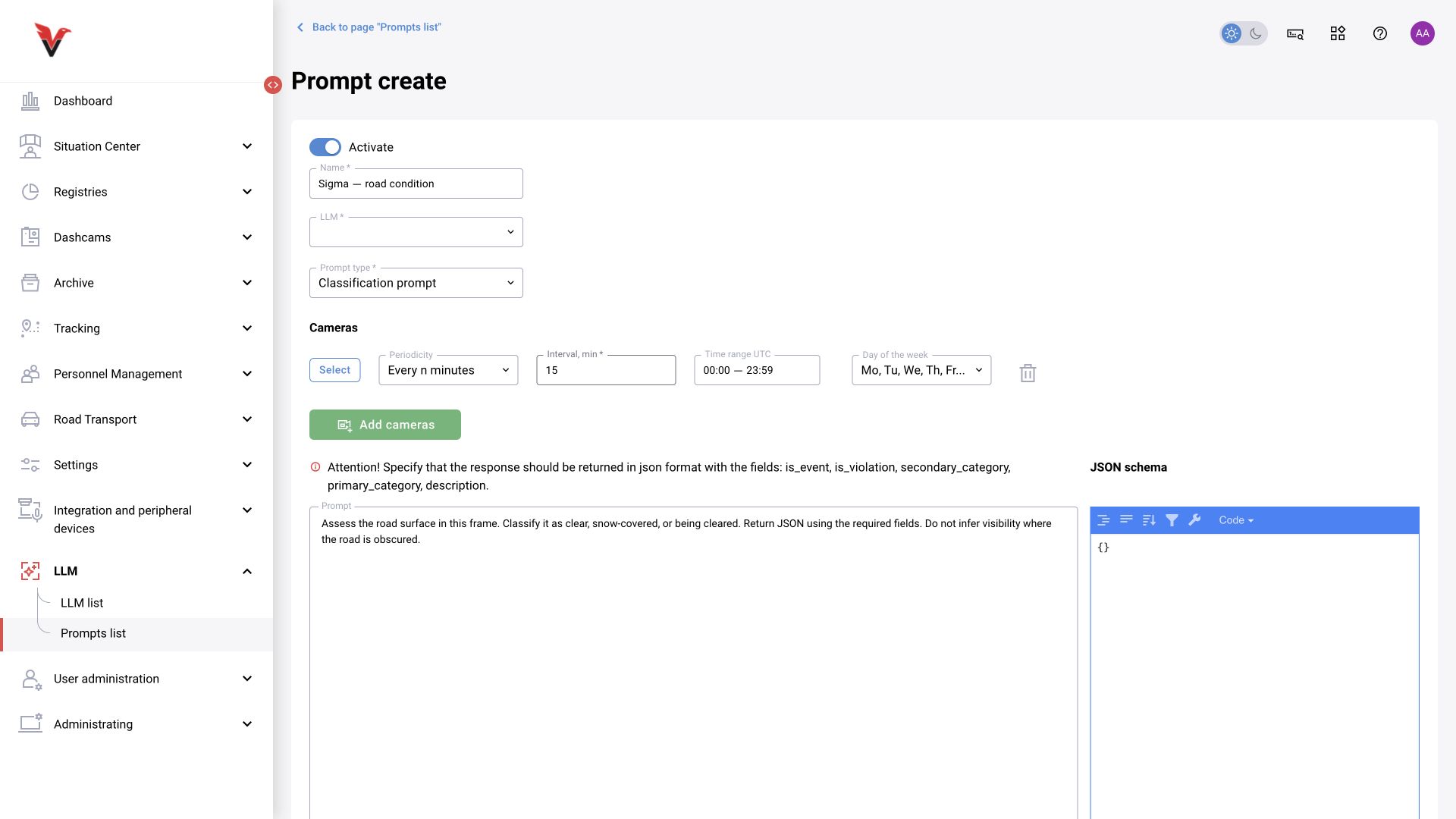
Use detection when individual objects and their positions matter: for example, “list all excavators”. In the task, specify the object, criteria for excluding similar equipment, the need for a bounding box for each object found and the result format.
Three things must align to produce a usable result: model capabilities, response schema and the BOX handler. The phrase “draw bounding boxes” alone does not turn free-form model text into structured coordinates.
Check a test frame for the number of objects, each object's class, bounding boxes, coordinate orientation and scale. Different contracts use pixels or normalized coordinates; a 0–1000 range in an individual prompt is not a mandatory standard for all models. The API option normalize_coords is another reason to check how coordinates are interpreted.
If the required category is not in the allowed set, agree on its mapping in BOX first. Otherwise, the model may correctly describe an excavator but the handler may reject the result.
Verification instead of the operator's initial decision
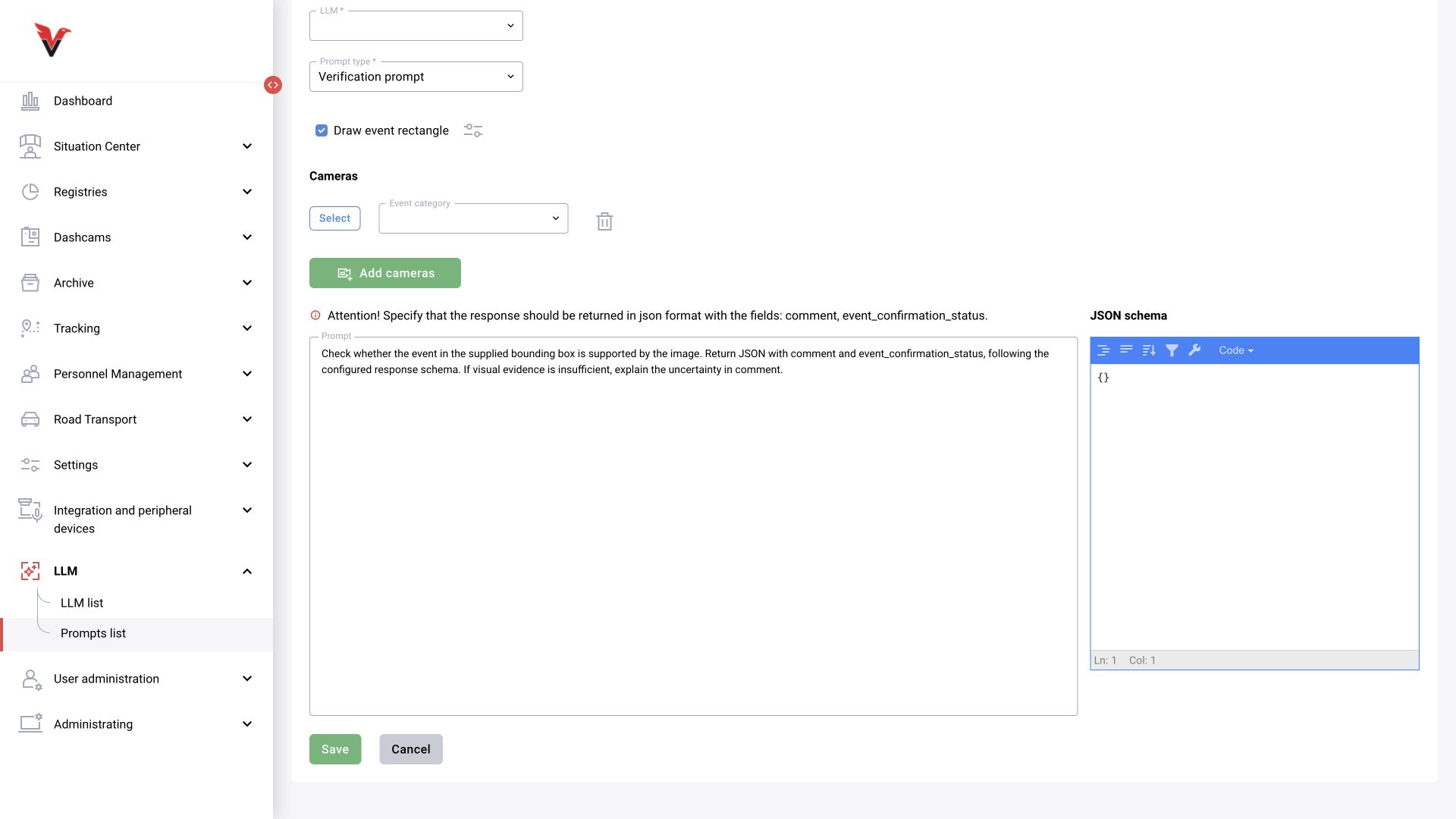
Route: a standard detector creates a violation → BOX sends the frame and context to the LLM → the LLM returns a decision and explanation. A prompt of type “Verification” is intended for an already detected violation, not for continuously searching for new objects.
- Create and assign a working preset to the camera, with the required secondary class set to “Violation”.
- Check the standard notification without LLM.
- Select an active model and create a verification prompt.
- Add the camera and a specific event category. According to the source documentation, leaving the category empty causes all registered violations from this camera to be checked.
- Specify the criteria for confirmation, rejection and uncertainty.
- Agree on the response schema, test it, then check decisions and the history of actual event details.
The documented response contains:
{
  "comment": "Brief justification based on visible evidence",
  "event_confirmation_status": 1
}
For this route: 2 — confirmed, 3 — rejected, 1 — not reviewed / insufficient confidence. The value 1 in the example is not a universal “leave unchanged” instruction: it is a separate status, and its effect on an existing decision must be tested in the specific process.
Example criterion: “Confirm that the helmet is missing only if the target person's head is clearly visible and there is no helmet. If the head is obscured or the frame is blurred, do not make a confident judgment.” The original event's bounding box helps avoid checking an unrelated person in the background.
Review the LLM decision together with its comment and the original image. Prompt acceptance requires positive, negative and ambiguous examples, not a single successful frame.
Additional context: vehicle make
The second route uses an event as a trigger to request a description. A detector finds a vehicle, and the LLM adds a likely make, type or color. The business objective here is context enrichment, not reassessment of the violation.
Explicitly separate observations from assumptions in the prompt: “If the make is not distinguishable, write ‘could not determine’; do not invent a license plate or owner.” Save the additional description in the designated text result/comment.
If the route is implemented using the “Verification” type, remember that its standard contract contains event_confirmation_status and can change the decision. Simply assigning 1 does not prove that the previous status is preserved. Before use, agree on a handler/schema that adds context with the required status policy, and check the event history. At this stage, the automated “context only, without changing the decision” route was not rerun.
Comparing multiple frames
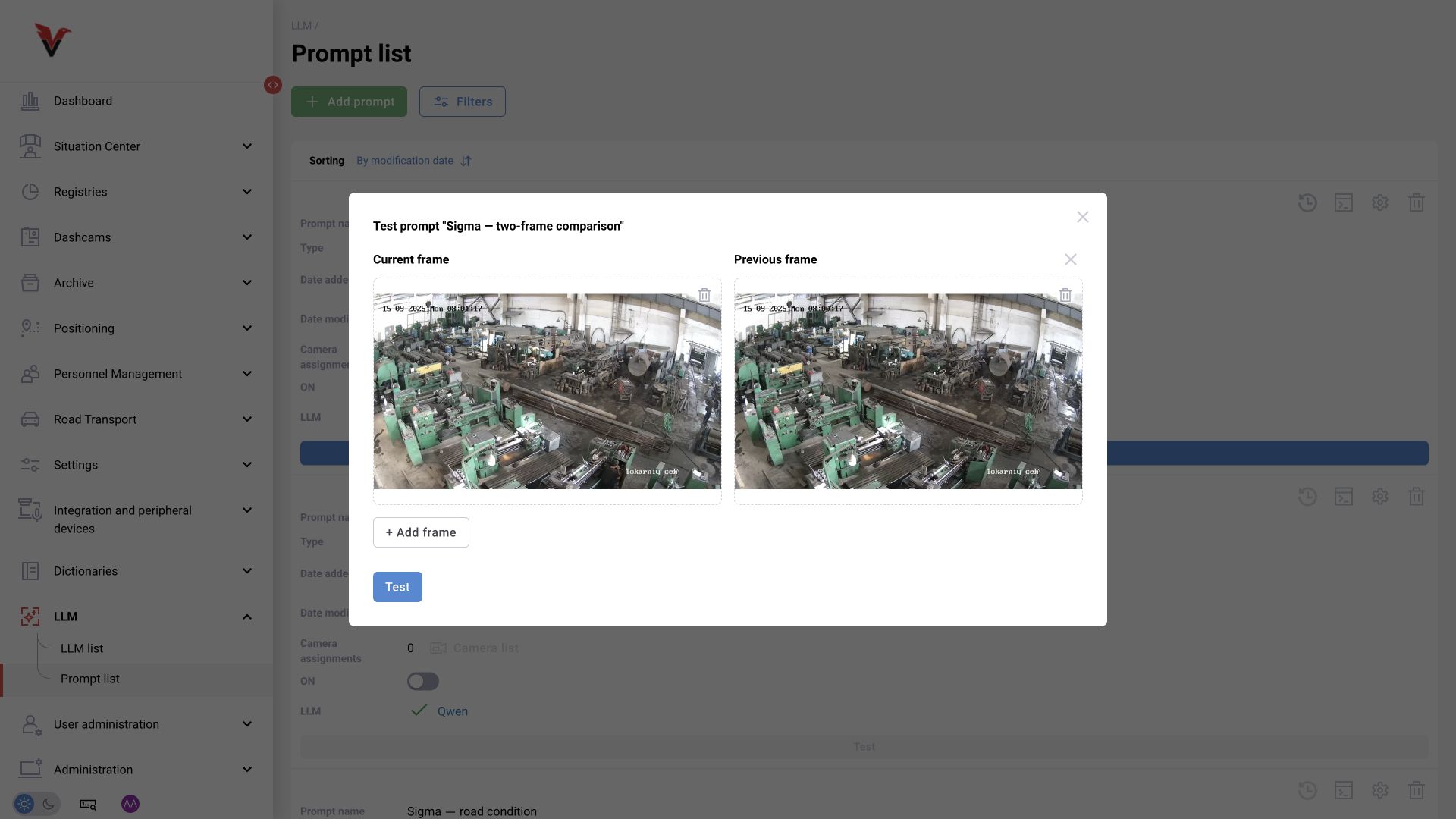
Tasks include camera shift, the appearance of an abandoned object and scene changes. This is a use case involving multiple images; the inspected type list has no separate “Comparison” item.
Send frames in a known order: reference/earlier → current/later. Specify the time interval, region of interest and differences to ignore, such as lighting or moving people. For camera shift, compare stable landmarks; for an abandoned object, remember that its absence in the first frame and presence in the second does not yet prove it was left for a prolonged period.
The prompt assignment API contains frame_buffer_size, but its presence does not prove that a particular form or driver already sends the required number of frames. Inspect the model's actual input before acceptance. The previously prepared practical guide contains a two-frame comparison example; automatic sequence assembly was not checked separately during the current text preparation stage.
Construction progress
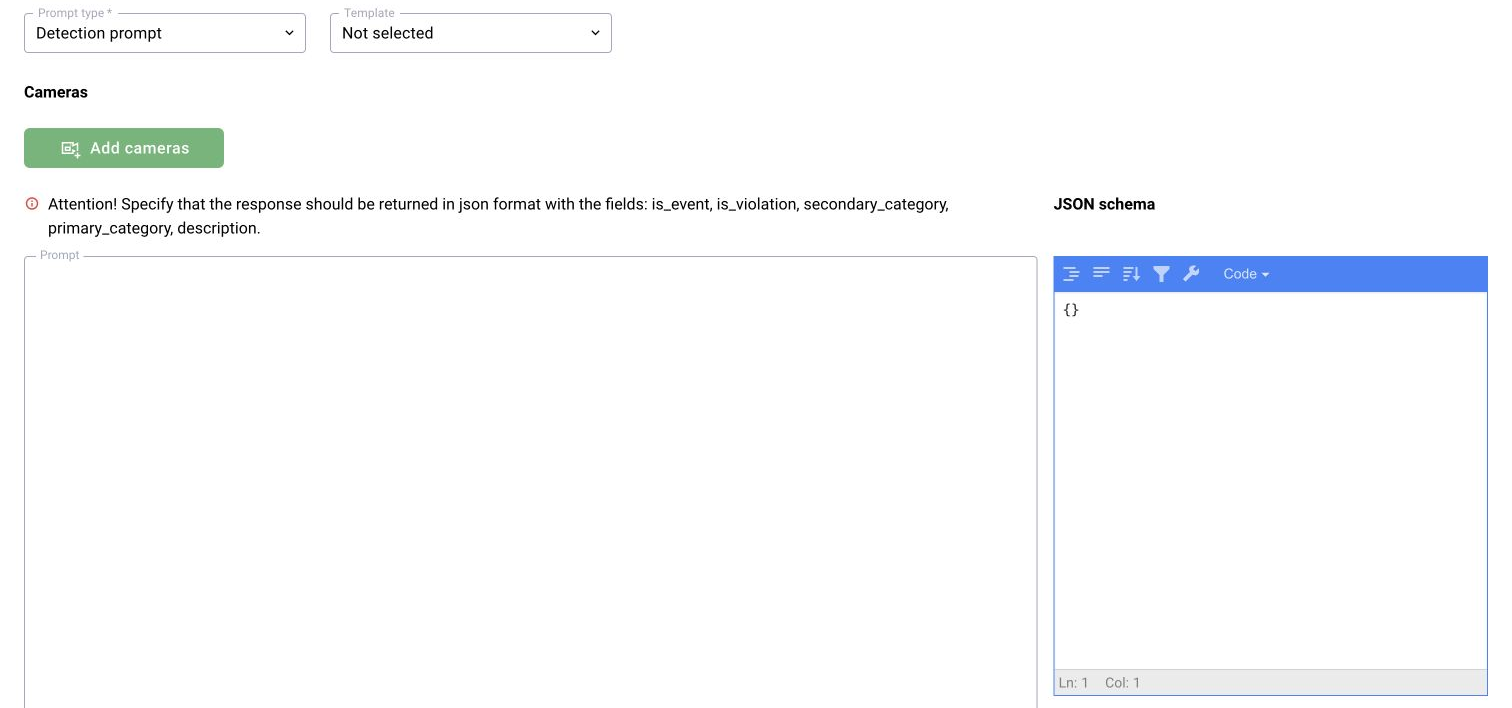
The type “Construction progress” is present in the form. It provides specialized assessment of the condition/stage of work under the project contract. Selecting the type does not by itself define the list of structures, progress scale or reference.
Set the model, cameras, prompt and schema according to the approved methodology for the specific project. Do not copy percentages or stages from another project as a BOX standard. This inspection confirmed that the type exists; project-specific required fields and progress calculation were not tested.