Models: catalog, versions and readiness
Path: Settings → Models, /settings/models. A model is a version of a computer vision algorithm with files, metadata, categories and supported execution methods. Consider the model name and version number together: identical names do not imply identical behavior.
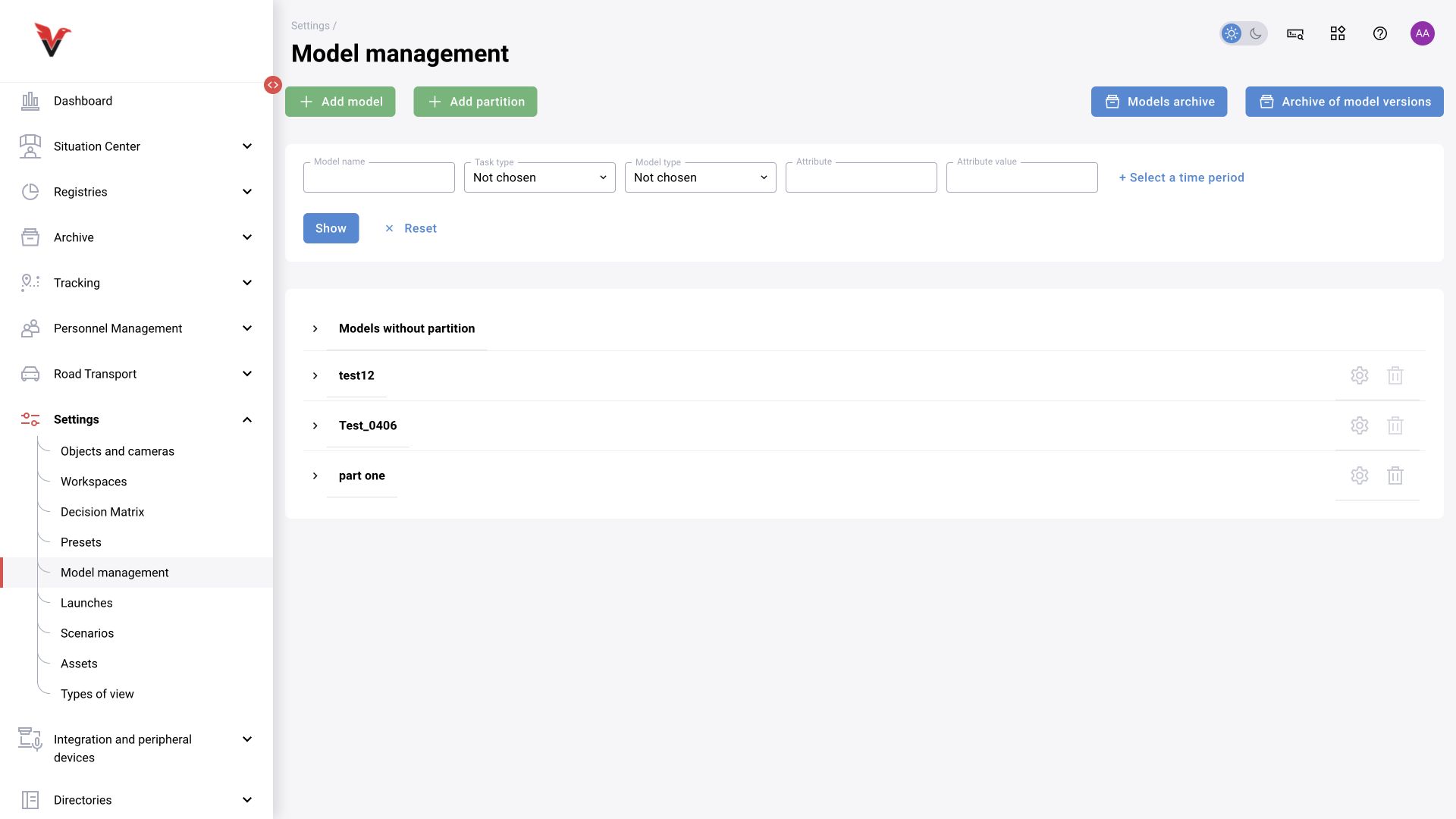
Expand a group in the catalog and select a model. Filters help you search by name, task type, model type, attribute and value, and date. The model archive and version archive buttons lead to retired resources; they do not refer to the video archive.
| Field / action | Meaning | How to fill in or check |
|---|---|---|
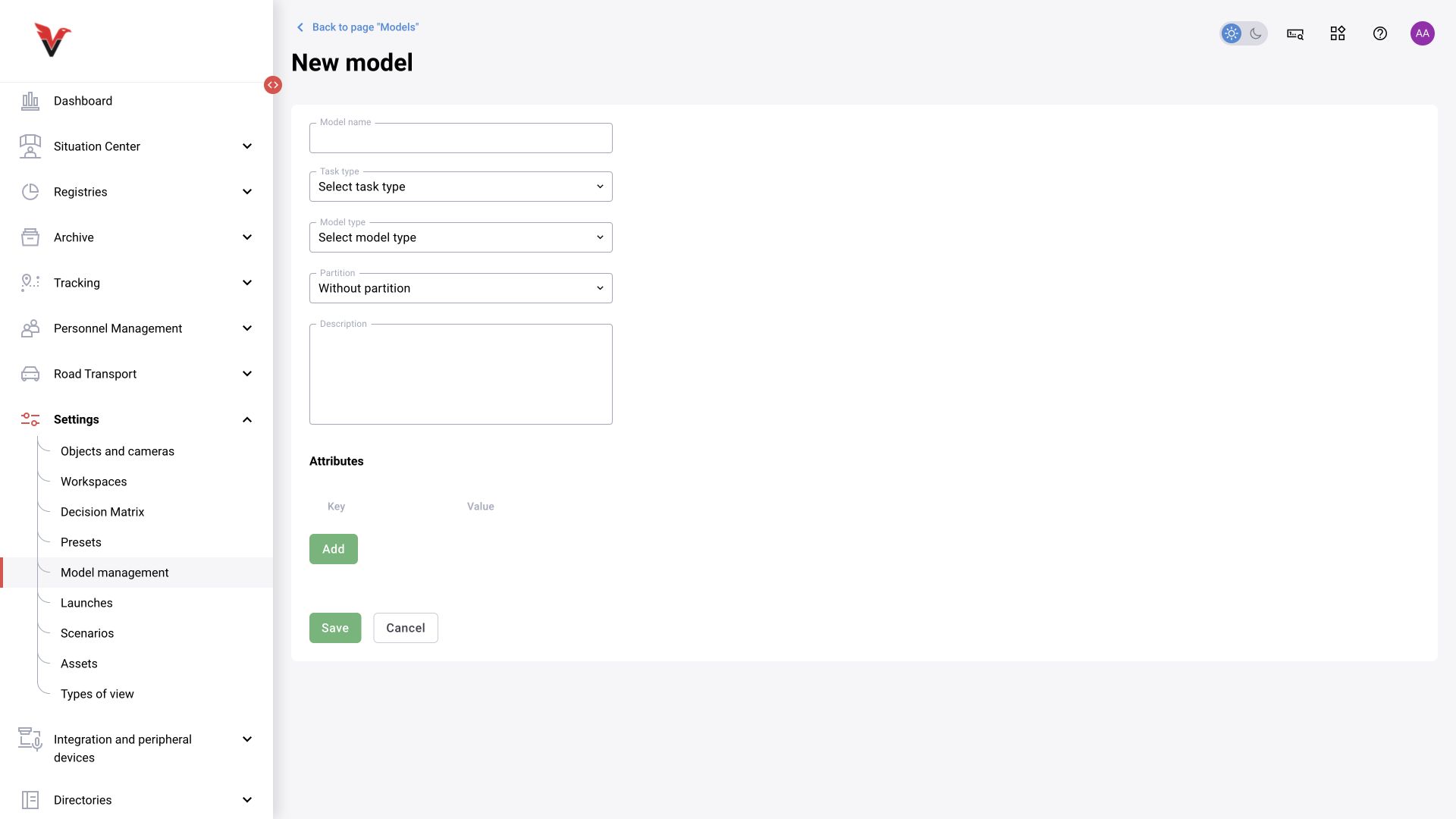
| Model name | Resource name in catalogs and blocks | State its purpose: Sigma — people and PPE; the supplier’s technical name can be kept in the description |
| Folder | Model group | Select the subject area; folders simplify searching but do not change computation |
| Task type | Kind of model result | Detection, classification and other directory values; the value must match the model package |
| Model type | Family / execution method | Select according to the package specification. Renaming a type does not convert the model |
| Description | Conditions of use | View, limitations, classes, minimum object visibility and source of the version |
| Attributes | Key–value pairs | For example, purpose=PPE, site=Sigma; these are search metadata, not detector thresholds |
| Version | Fixed model release | Record in the test report; do not use “latest” as a reproducible identifier |
| Model ZIP | Prepared supplier package | Upload a package with the required structure. Renaming an arbitrary file to ZIP does not create a model |
| Categories | Codes and labels of recognized objects | Check that the required classes are actually present; person, “Hard hat” and “Hard hat-” are different outputs |
| Deployment profile | Engine, device and computation precision | Choose a supported option for the GPU/CPU. An option’s presence in the list does not confirm the availability of the required hardware |
| Status / loaded | Preparation and validation result | Wait for successful validation; on error, open the message and do not connect an unprepared version |
| Applied in | Dependent scenarios and cameras | Before updating, review which operational processes are affected |
Adding a model according to the Platform 4.0 operating documentation:
- Create the model card and select a folder.
- Add a version and upload the prepared ZIP. The system checks completeness and supported format.
- Enter a description of the change and review categories and parameters. Save a draft if preparation is incomplete.
- Publish the version and monitor preparation. The documentation identifies the states “Created”, “Validating”, “Testing” and “Tested”; a separate message reports validation errors. Conversion may take a considerable amount of time.
- Run the model on a test asset and check the result before replacing an operational scenario dependency.
A draft, a published version and an execution-ready package are different states. Uploading a file alone confirms neither recognition accuracy nor compatibility with the compute node.
Use model comments for test results and attributes for searching. When updating categories, recheck filters, remapping, events and classification: the scenario may continue to run but no longer find the expected class code.
Archiving is the controlled retirement of a resource. Check dependencies first. The documentation prohibits archiving a model with active assignments; the archive supports restoring it to the repository and deletion according to the retention period. Do not use the archive as the only backup.