Runs and interpreting results
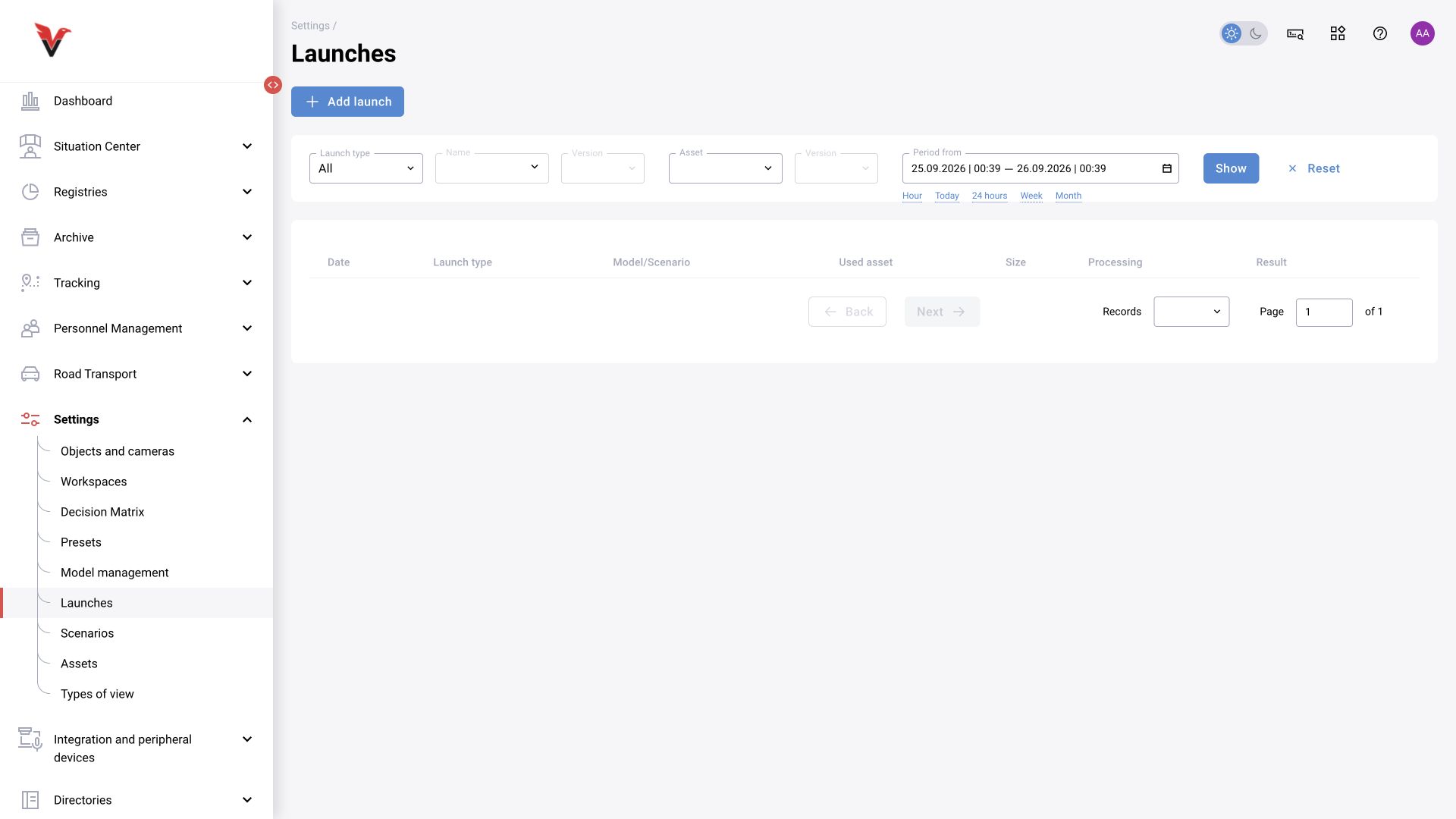
Path: Settings → Runs, /settings/launches. This is a log of tests on data, not a list of all operating cameras. Filters include run type, model/scenario and version, asset and version, and time.
| Field | How to use |
|---|---|
| Type | Choose a model or scenario test. A model test does not check the temporal logic of the entire graph |
| Model / scenario | Select the resource by purpose |
| Resource version | Specify the release being compared or accepted |
| Asset and version | Select a fixed set of test data |
| Date and time | Help find a specific attempt and correlate it with logs |
| Data size / contents | Check that all the required material was included in the run |
| Processing / result | Distinguish waiting, execution, error and a completed result; open the details |
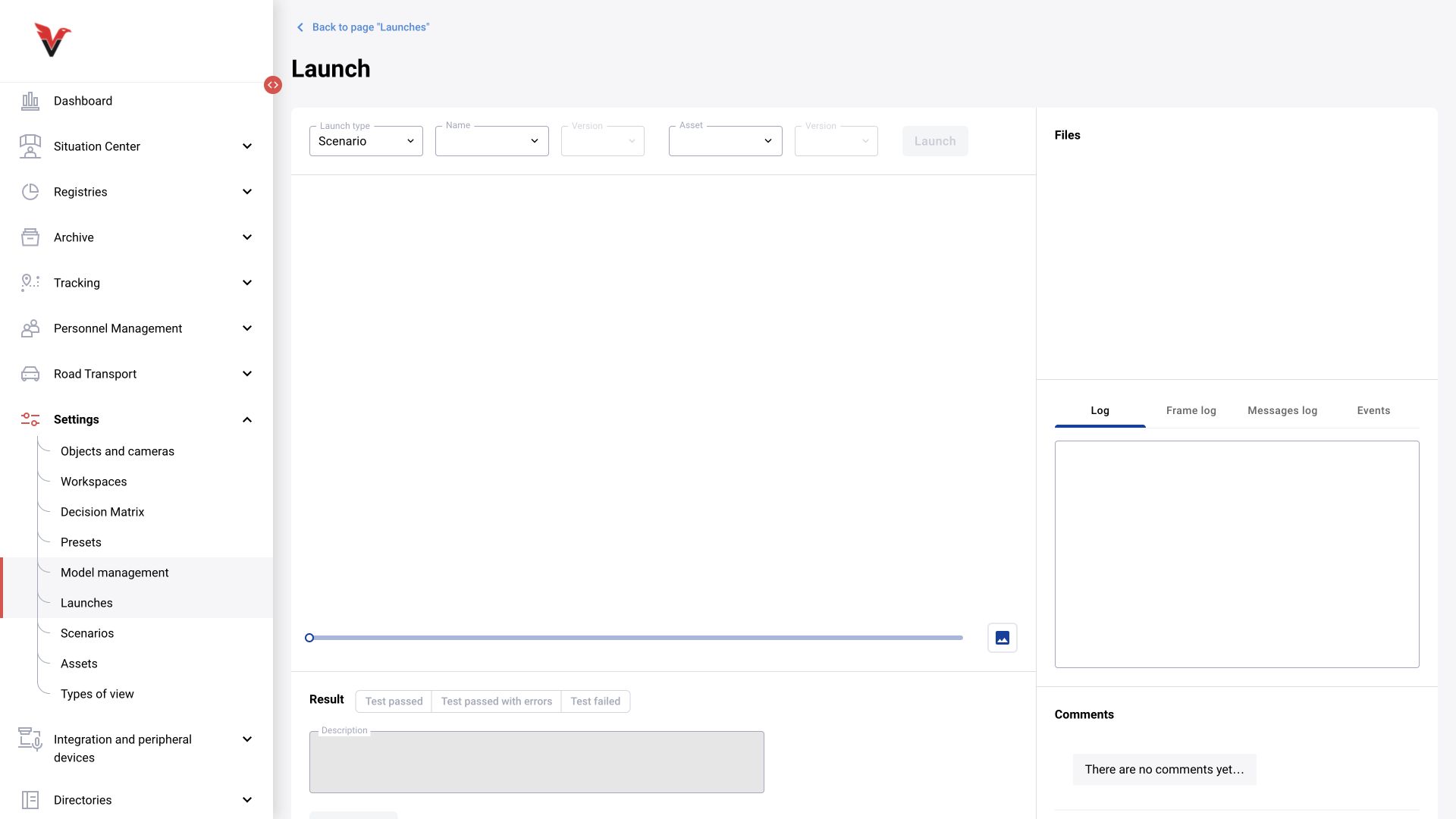
Wait for the run to finish. Check frames, visualization, events and the processing log. The absence of an execution error does not mean that the business condition is implemented correctly: for example, all blocks may execute while the zone filter discards every person.
The run form has a separate “Result” panel: “Test passed”, “Test passed with errors”, “Test failed”, a description field and the “Save result” button. This records the user’s assessment of the test. Select it after reviewing the data and specify concrete deviations; marking “Test passed” does not automatically calculate algorithm accuracy. Files, logs and run comments are available below.
For comparisons, use the same asset, the same run conditions and clear criteria. Save version details, processed frame counts, detected episodes, misses, false positives and processing time. Do not compare only box counts: one correctly detected long situation and a series of duplicates may produce completely different event counts.