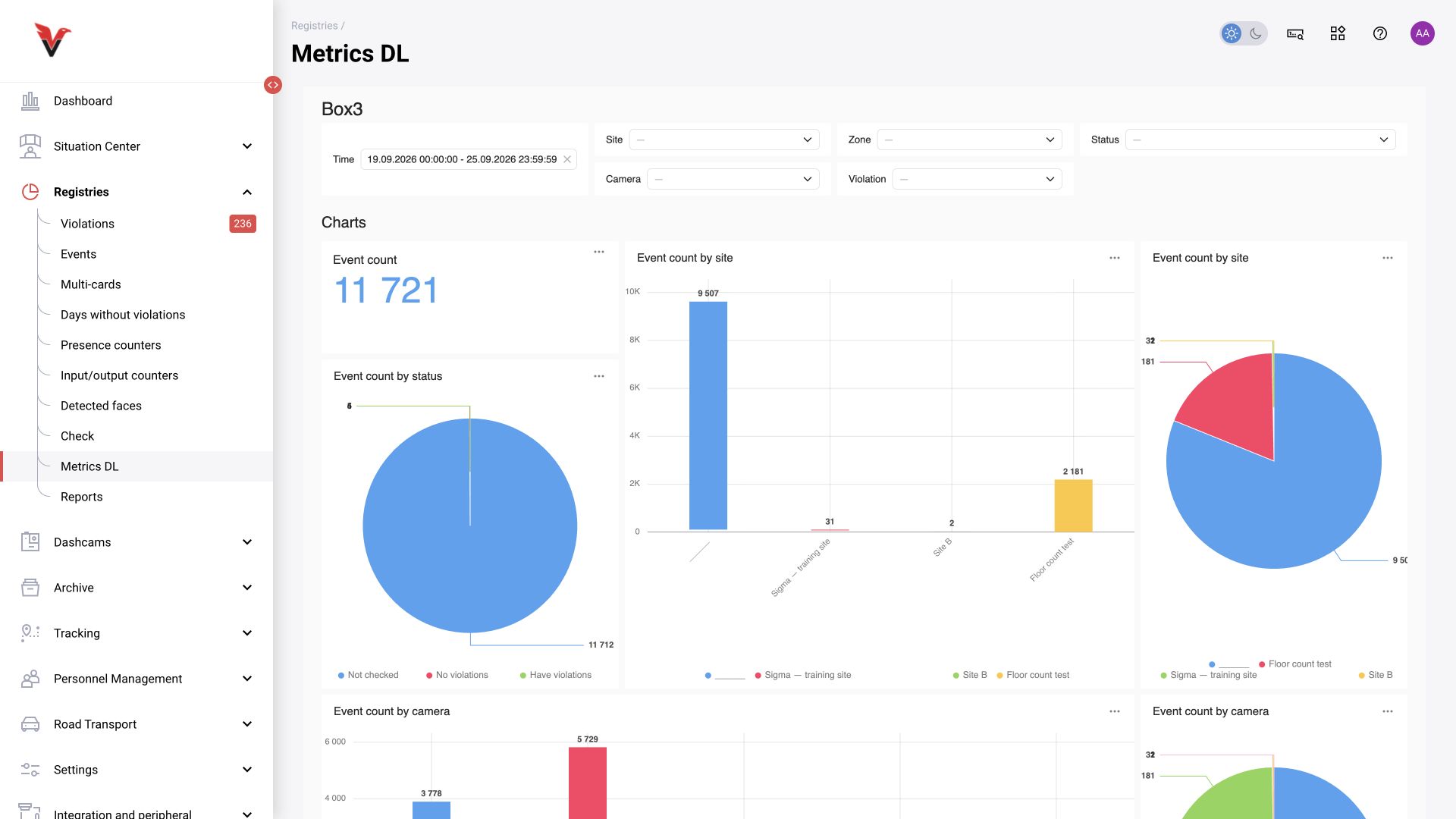
Days without violations
Path: Journals → Days without violations, /statistic/daysWithoutViolations.
Select a period, use week / month / year if appropriate, and click Show. The calendar helps identify days with violations at different severity levels; PDF export is available. The Configure violation severity link opens the corresponding Global settings tab and requires permission to modify it.
Severity belongs to the incident class. Changes to the severity directory affect how summaries are interpreted; when comparing reports, record which rules were used. Read a green day as no violations recorded under the selected conditions, not as a site inspection certificate.
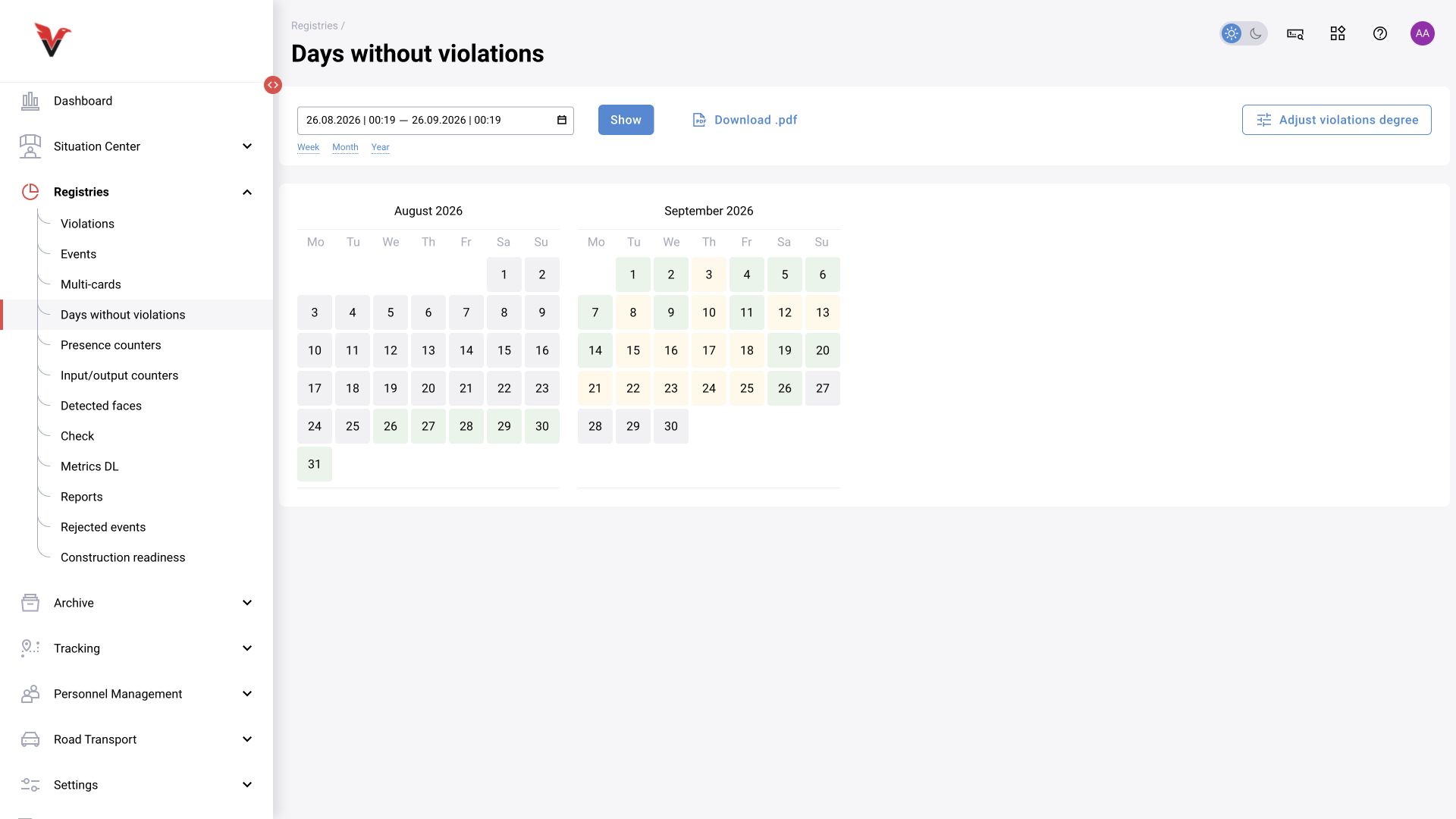
Presence counters
Path: Journals → Presence counters, /statistic/counters.
The current interface shows People present in each zone, a day calendar, and a summary table. Set the period and location down to the required zones, click Show, then select a day in the calendar. Use the arrows to move to earlier or later dates.
| Field / metric | Interpretation |
|---|---|
| Time from–to | The period of available days and analysis |
| Location → Edit | Cameras and zones for which presence is recorded |
| Calendar day | The day displayed on the timeline |
| Zone | A specific marked area of a camera |
| Presence | The calculated time people are present in the zone; this is not necessarily the time of one specific employee |
| Absence | Calculated absence time within the rules and available data |
| Number of departures | The number of transitions to absence recorded by the module's logic |
| Bar color | Presence intervals; according to closed issue BOXD-3510, the depth of green indicates the number of people |
The earlier workplace attendance module had people-count charts, an Interval filter, and XLSX exports named Interval / Extended. These controls are not present on this page in the current review: BOXD-3510 explicitly describes the change. Therefore, click XLSX in Presence counters is not a universal instruction for the current build. The historical report format is described in the workplace case: BOX 3.2, BOX 5.0.
Video gaps, a disabled detector, and the absence of people are distinct states. Before calculating absence time, correlate the period with camera availability. A zero result or dash without that comparison cannot automatically be declared a work-discipline violation.
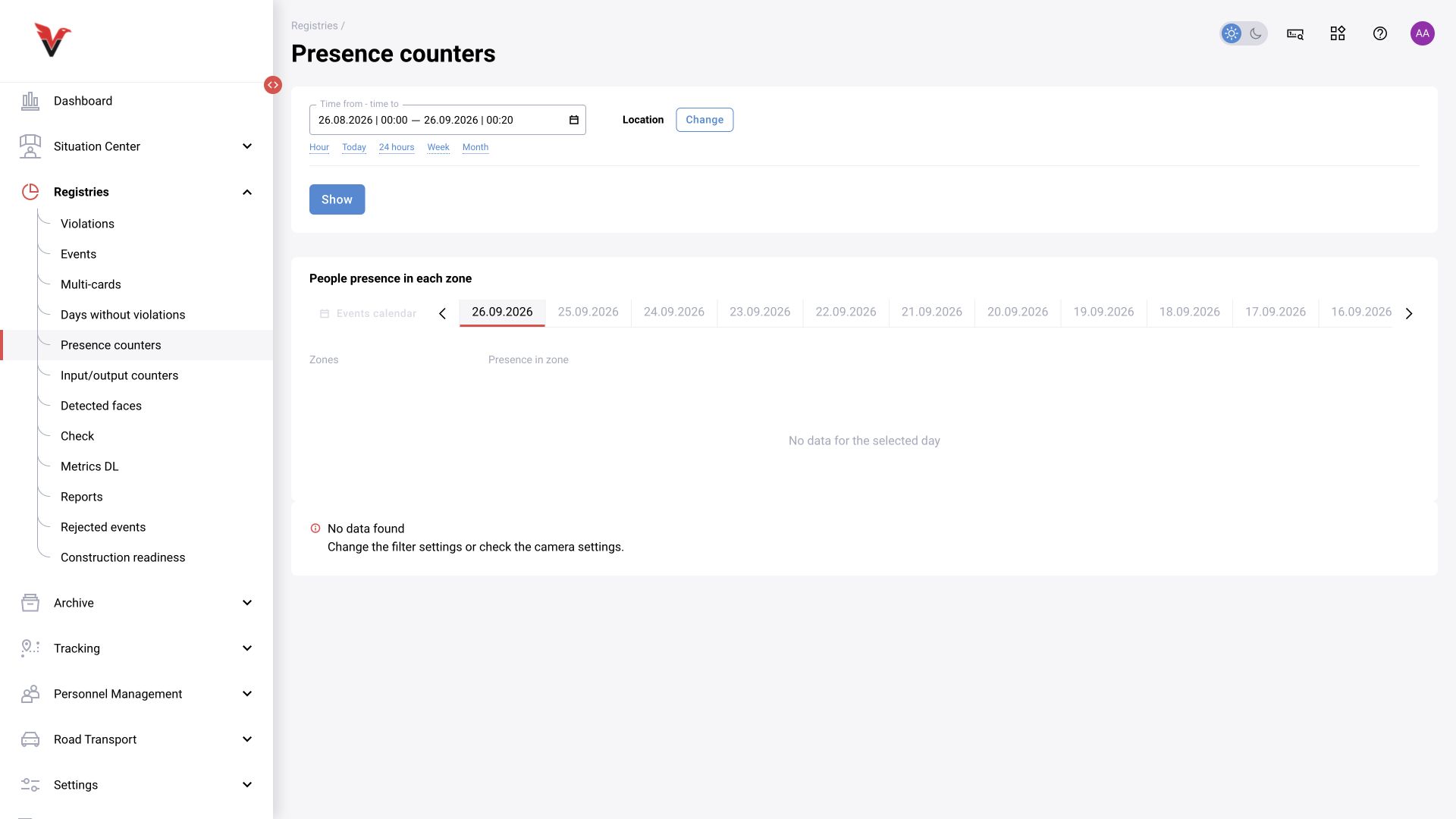
Entry/exit counters
Path: Journals → Entry/exit counters, /statistic/inputCounters.
Set the period and visit site, then click Show. The visit site must be linked to entry/exit zones beforehand. If there is no data, the interface suggests checking filter parameters and zone settings.
Distinguish three metrics: how many entered, how many left, and how many are currently inside. Entries during a shift do not equal unique visitors: one person may pass through several times. Current occupancy also depends on the initial value, manual corrections, and automatic reset. Verify the zone direction with an actual test passage in both directions.
Detected faces
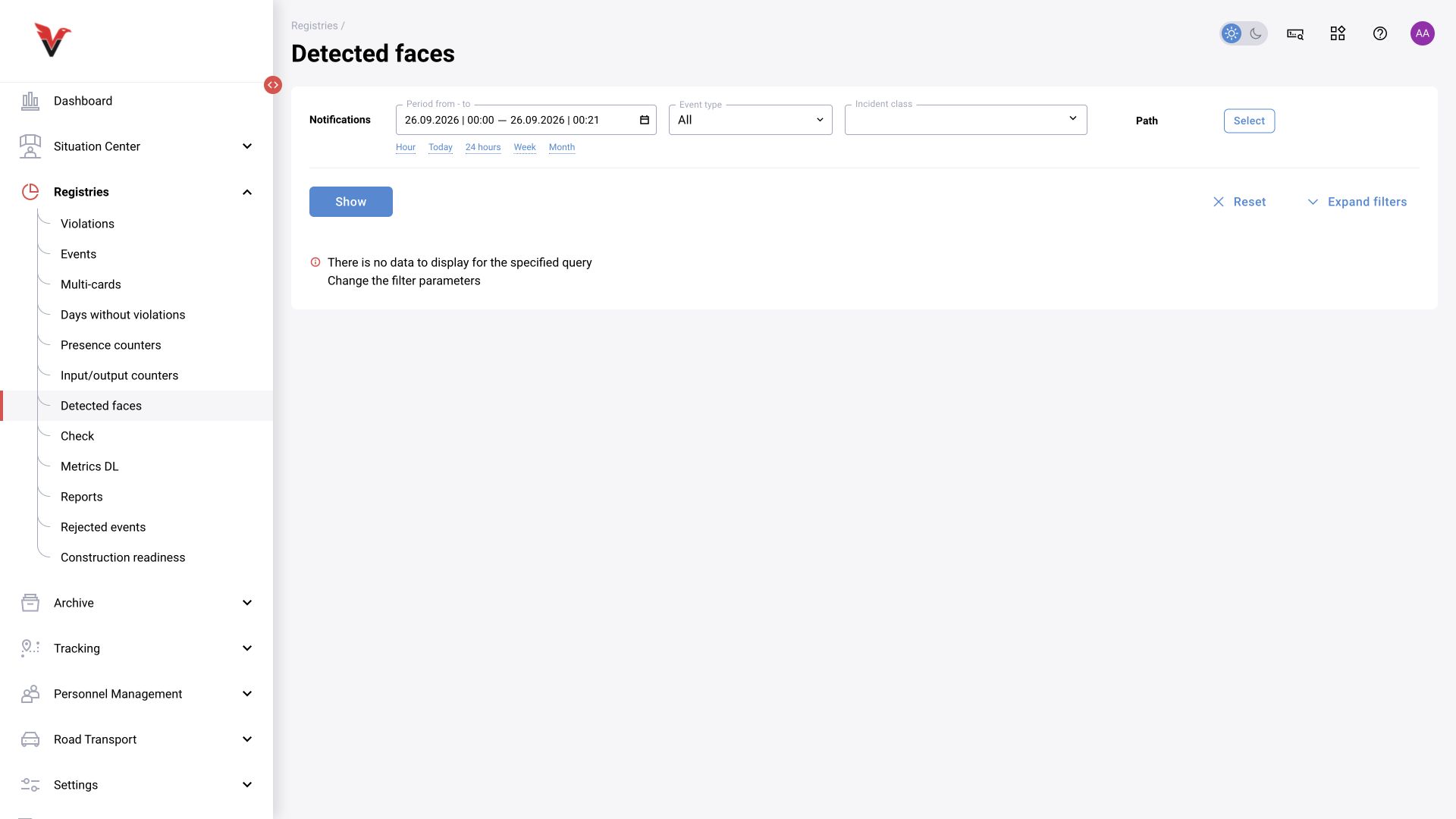
Path: Journals → Detected faces, /statistic/detected-faces.
Filters include period, alert type, incident class, location, face, department, full name, probability condition, limit, decision, and measures. Use them in the same way as journal filters. Results appear as face cards with a score, decision, name or Unknown label, time, and class.
A card here represents an observation, not the reference photograph in the directory. Several cards may relate to the same person and different events. To edit a person's data, go to Personnel management; to decide on a situation, open the alert.
Inspections
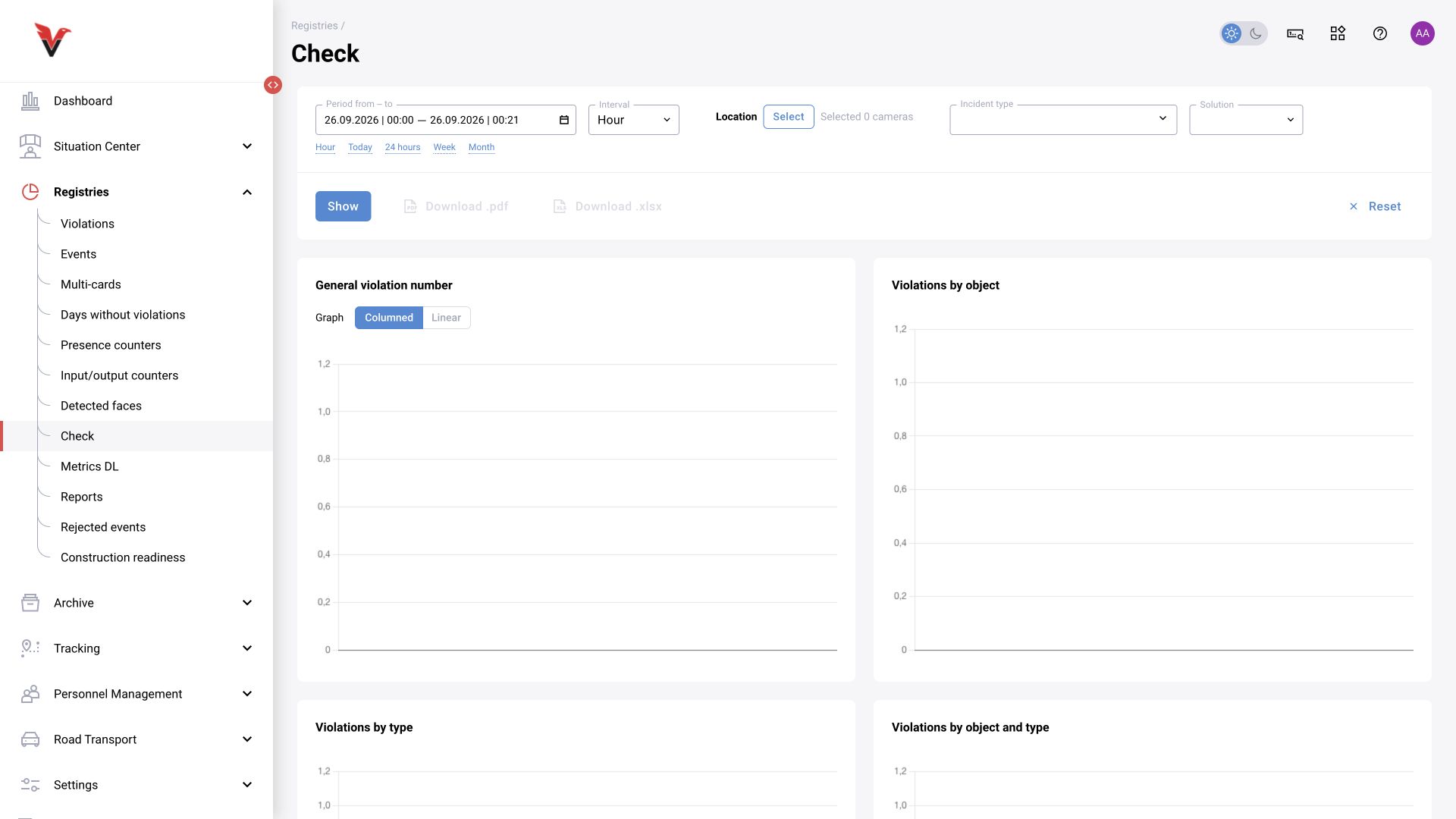
Path: Journals → Inspections, /statistic/check.
| Field | What to select |
|---|---|
| Period from–to | Summary interval |
| Interval | Aggregation step, for example one hour; this is not the detector's processing rate |
| Location | Cameras included in the inspection |
| Incident type | The required categories |
| Decision | Review status |
| Show | Recalculate the summary |
| PDF / XLSX | Export the current result |
The page contains the total violation count, a bar or line chart, breakdowns by sites, types, and their combinations, and a table of confirmed violations. Compare matching periods and decision states; the total violation count and the confirmed count may legitimately differ.
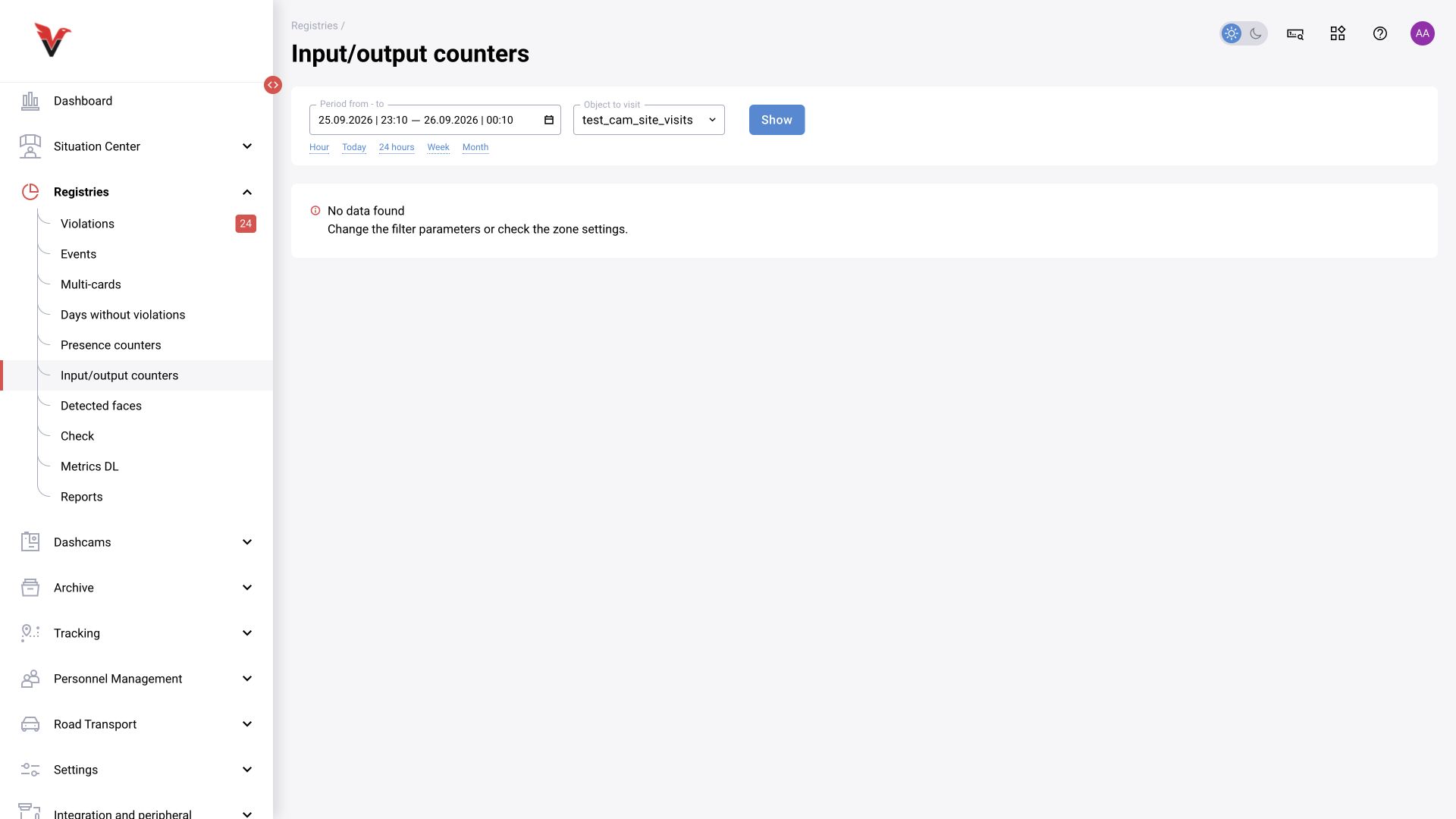
DL metrics (detailed statistics)
Path: Journals → DL metrics, /statistic/dashboard-datalens.
Opens an embedded DataLens analytics dashboard. The inspected configuration includes a period and filters for zone, site, camera, violation, and status; charts show event counts by these dimensions. Apply filters inside the dashboard: they apply to its data and do not necessarily synchronize with filters on other BOX pages. The installed dashboard determines the chart set. The abbreviation DL here does not indicate a separate neural-network training log.