
Your result
A saved scenario draft, boxes and labels on a test video, an observation table and the settings needed to repeat the run.
Before you start
- Your own BOX 5.0 training installation with Platform 4.0 and access to models, assets, the scenario editor and the sandbox. Ask your administrator which role and modules you need.
- An available model version that detects people and the PPE features you need. Check its categories and supported execution method in the model card.
- A short video you are permitted to use for testing: include a person wearing a hard hat, a person without one and a segment where the head is not clear enough to assess.
This exercise follows the documented Sigma workshop. The minimal graph displays detections. Creating log events requires additional blocks and a separate check of the complete chain. Use your own training installation; this course does not provide access to a shared test environment.
Define what you will check
Decide what you expect to see before processing the video.
- Record the installation version, model version and available categories. Use the codes shown in your model card; class names may differ from the Sigma example.
- Choose one segment with a hard hat, one without a hard hat and one with an occluded head. Record the frame time, expected class and visibility of the object for each segment.
- Keep the video's original resolution. Create or select an asset using the instructions for your installation.
You have a test video and a time-to-expected-result table. The model's categories cover the observations you want to check.
If the head is too small or hidden, choose another segment or mark it as inconclusive. A detector threshold cannot recover features that are not visible.
Create a scenario and a draft version
Keep the training experiment separate from operational analytics.
- In Settings → Scenarios, create a scenario named Sigma — training detection. Describe its purpose, test video and camera-view limitations.
- Create a draft version and open its logic configuration. Record the selected model version in your notes.
The editor is open on the correct draft. You can identify the scenario name, version and dependencies.
If a section or action is missing, check permissions and the installed modules with your administrator first.
Connect three blocks
Send the image to the detector and display the output on the frame.
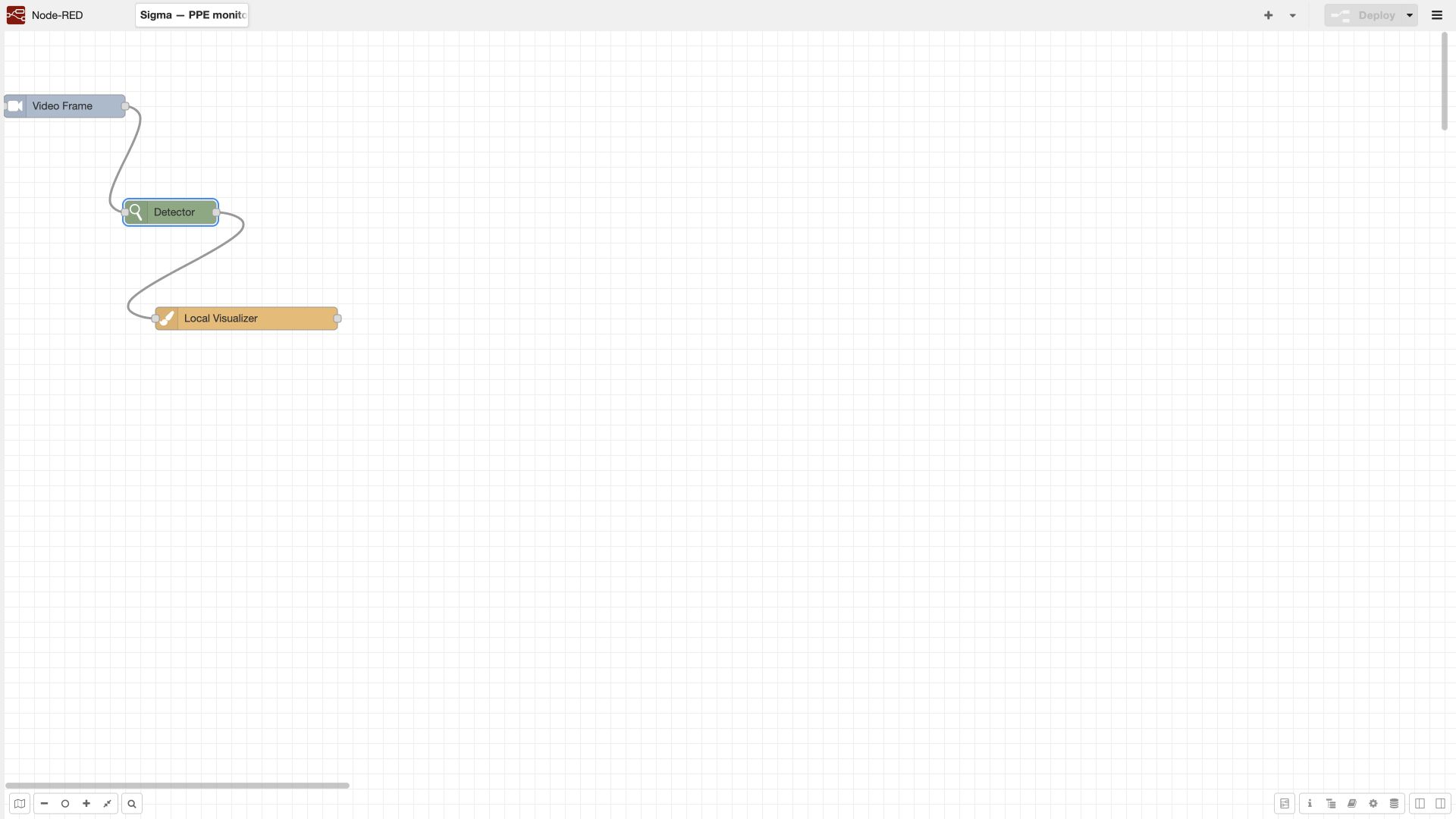
- Add Video Frame, Detector and Local Visualizer. Connect them in that order.
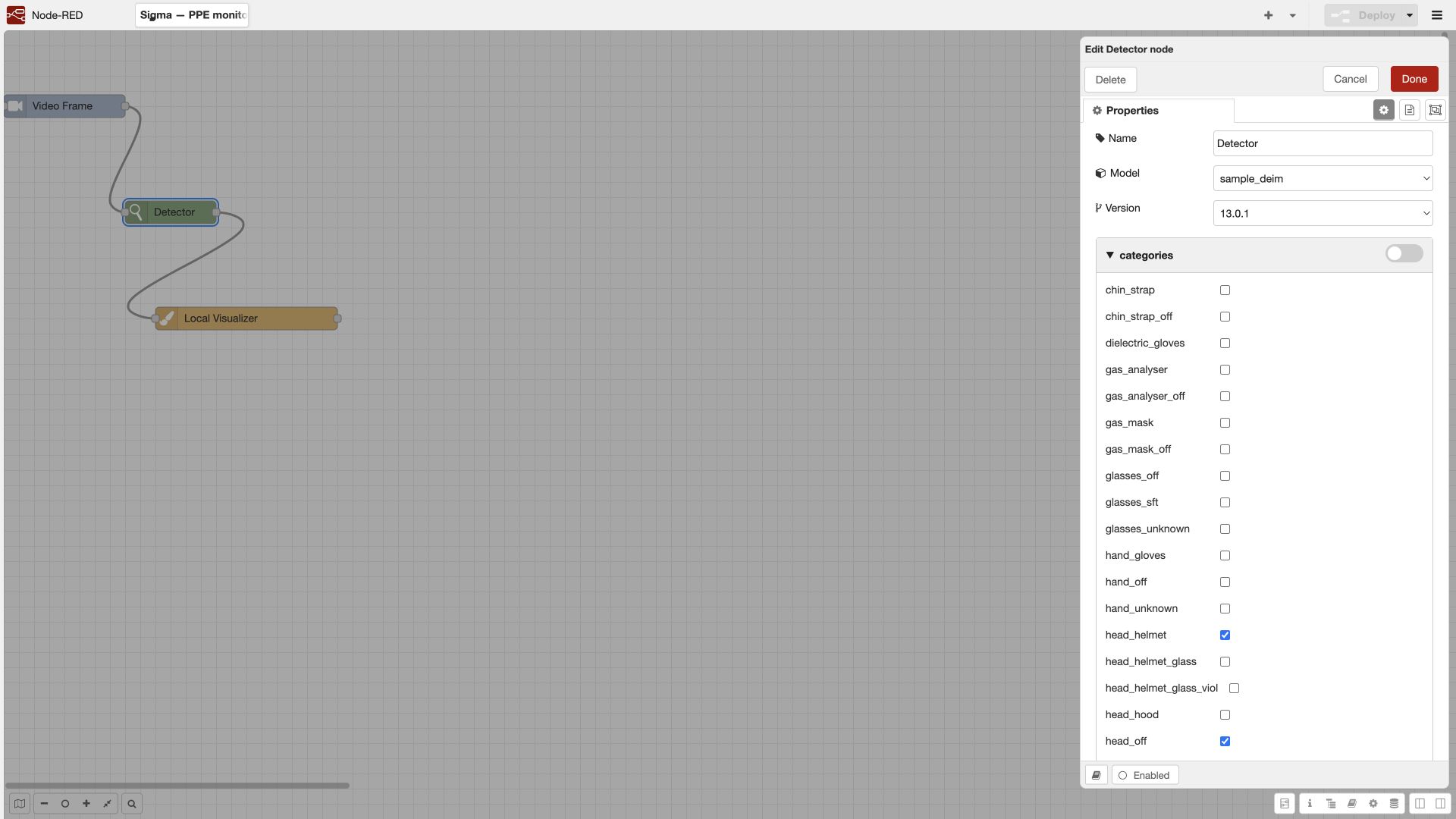
- In the detector, select the model, version, execution method and categories. Match its input topic to the image field produced by the preceding block.
- Enable detections and labels in the visualizer. Choose a processing frame rate and image size for your test video, then record them so you can compare runs.
Video Frame → Detector → Local VisualizerThe three blocks are connected, the model and categories are selected, and the field names agree between blocks.
The documented example uses 5 frames per second as a starting point. Fast movement may require a higher rate. Check whether your block version supports −1 for the original image size.
Deploy the graph and process the video
Inspect the frames and diagnostic messages from one run.
- Apply the graph with Deploy in the editor. Wait for confirmation that deployment succeeded.
- In the sandbox, select or upload your prepared video, choose the scenario and start processing.
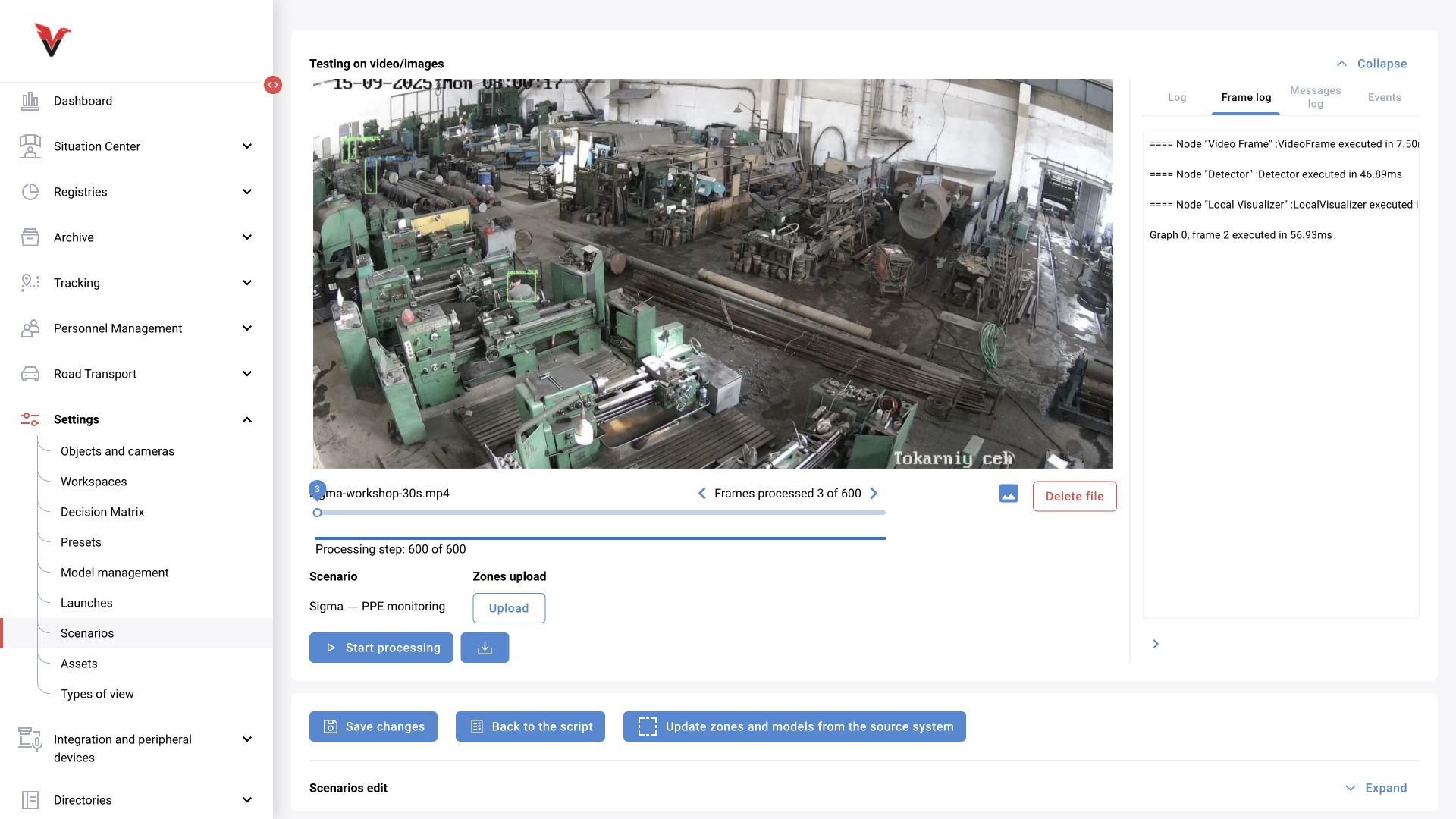
- Wait for the result. Open the selected frames and block execution messages. Record whether processing finished and whether any errors occurred.
Processed frames and run messages are available. On suitable segments, you can check boxes and labels for the selected classes.
If no boxes appear, check the input frame, model and categories, detector output, topics and visualizer settings in that order. Inspecting intermediate results helps locate the fault.
Compare expectations with detections
Assess recognition separately from whether processing completed.
- For each selected segment, record the actual class, whether a box is present and any observed error. Inspect adjacent frames, especially around occlusions.
- Check the person with a hard hat, the person without one and the inconclusive case separately. Model confidence alone does not establish a violation.
- If you change a setting, repeat the run on the same video. Keep both parameter sets so you can explain the difference.
Every control segment has an expected and an observed result. Errors and limitations are documented well enough for another developer to review.
The absence of a hard-hat detection does not prove that a particular person has no hard hat. An event also needs PPE-to-person association and explicit rules for whether the feature can be observed.
Save and reopen the version
Leave a result that can be reproduced after closing the editor.
- Save the version using the outer scenario interface. Applying the graph inside Node-RED and saving the version are separate operations.
- Return to the scenario list and reopen this draft. Check that all three blocks, their connections and their settings were saved.
- Repeat the checks on the selected segments using the saved version. Collect the information listed under Course deliverables below.
The graph and settings are still present after reopening, and the control segments can be checked again. The training draft is saved.
If changes are missing, check whether you saved the outer form and opened the right version. Assignment to a camera requires a separately published version and acceptance checks.
Try it yourself
Change one variable at a time
Change one available detector threshold. Repeat the run on the same video and compare the same frames.
Check: Your notes contain both threshold values, the model version and three pairs of observations. Explain which detections appeared or disappeared without drawing a general accuracy conclusion from one clip.
Try a different camera view
Choose a second permitted video with a different view or lighting. Write down your expectations before processing it with the saved graph.
Check: Record errors for the second video separately. Identify which viewing conditions suit the task and which require a different input or model.
Design the next event
Use the Sigma recipe to describe when a missing hard hat should become an event: person, zone, observable feature, confirmation time and repeat policy.
Check: The rule distinguishes no hard hat from unable to determine. Specify the expected result for a hard hat, occlusion, leaving the zone and a repeated episode. Implementation and event delivery need a separate test run.
Record your result
- Scenario name and version, installation version, model and execution method.
- Test video or its identifier, resolution and processing frame rate.
- Block parameters and a time / expected / observed / note table.
- Confirmation that changes survived reopening, plus the result of a repeat run.
- Model limitations and the remaining checks before creating events.